This guide is for school staff who run admissions in Charter Lottery:
- Organization admins manage the whole organization: every school, staff accounts, settings and billing.
- School admins run admissions for the schools they are assigned to. See What school admins can and cannot do.
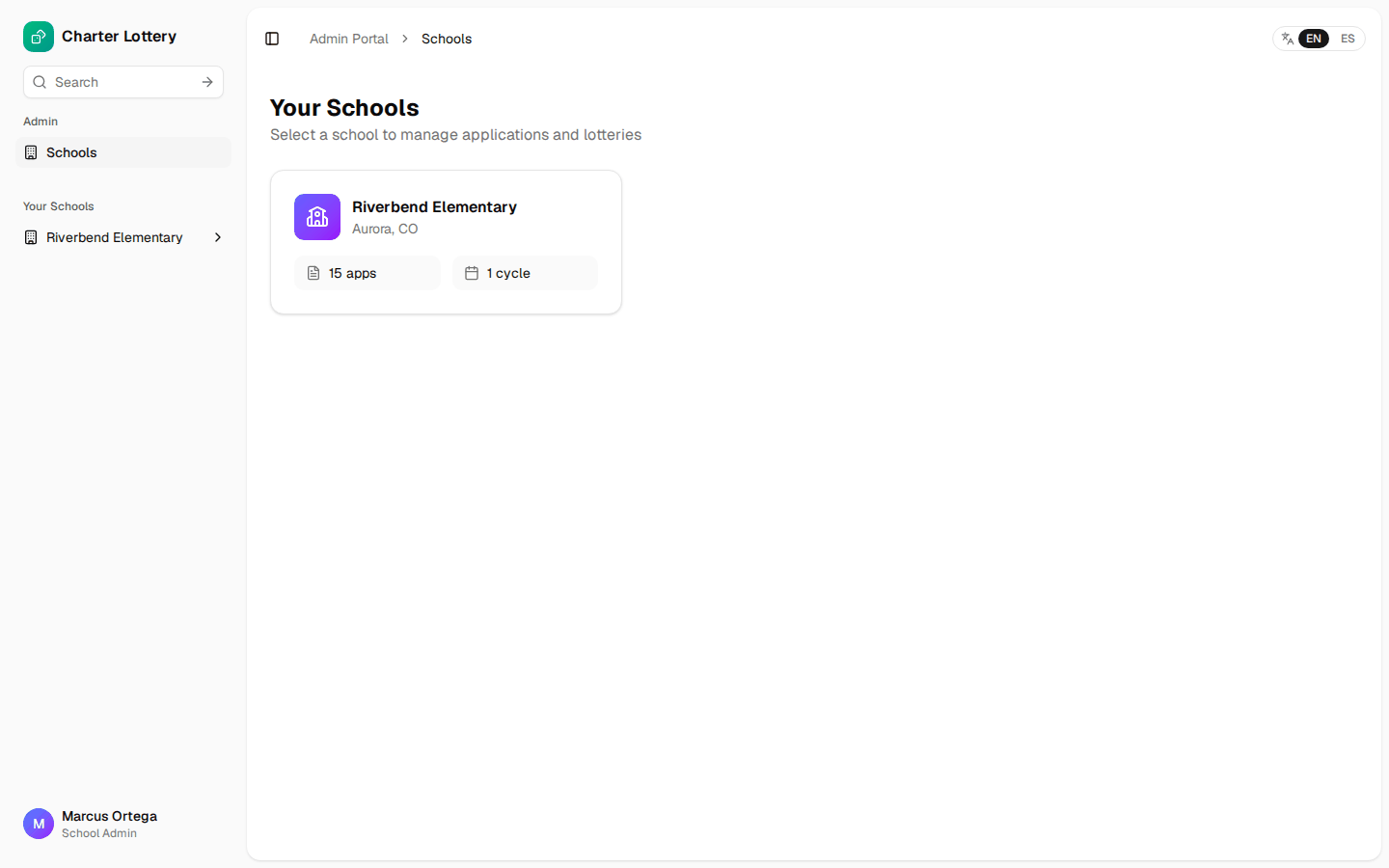
It follows one season in order. The pictures show a made-up organization, Riverbend Charter Schools, with Riverbend Elementary running a lottery for 10 kindergarten and 3 first-grade seats. Every name in them is fictitious.
For the big picture first, read the season overview.
In this guide
- Part 1 · Get set up
- Part 2 · Open a lottery cycle
- Part 3 · Review applications
- Part 4 · Run the lottery
- Part 5 · Publish results
- Part 6 · Seats, waitlist and late applicants
- Part 7 · Close out the season
- What school admins can and cannot do
Part 1 · Get set up
Sign in and set up two-step sign-in
Staff accounts are protected with an authenticator app (two-step sign-in). The first time you sign in you are asked to set it up; the IT guide has the details and pictures. Keep your recovery codes somewhere safe.
Take the welcome tour
The first time an organization admin signs in, a short guided tour starts on the Overview page. It walks through your organization pages, then a set of demo pages with sample data (applications, cycles, the lottery and results). Nothing you do in the demo pages changes real data.
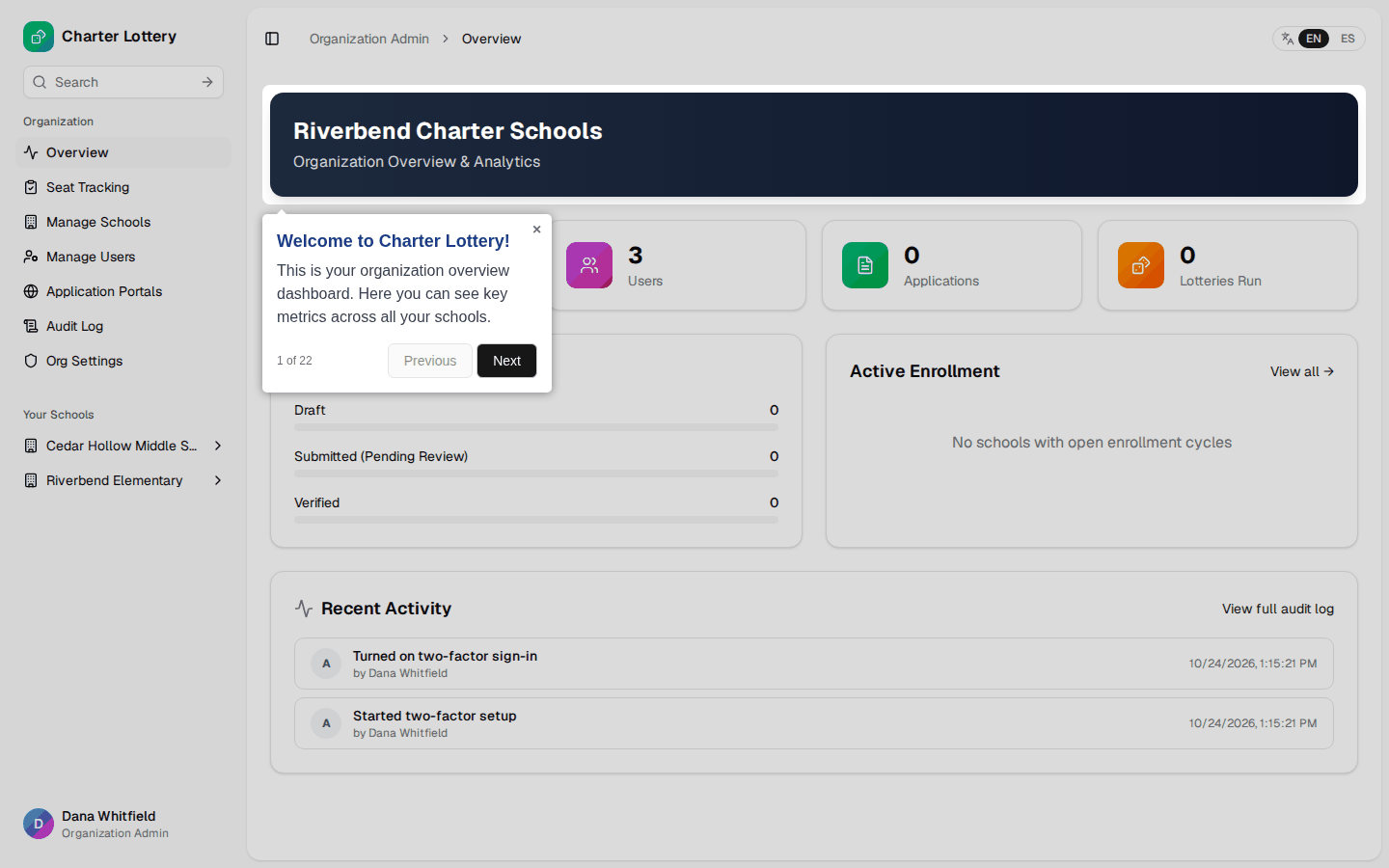
Use Next and Previous to move through it, or the × to close it. To see it again later, open your name at the bottom of the menu, choose Account Settings, and restart the tour there.
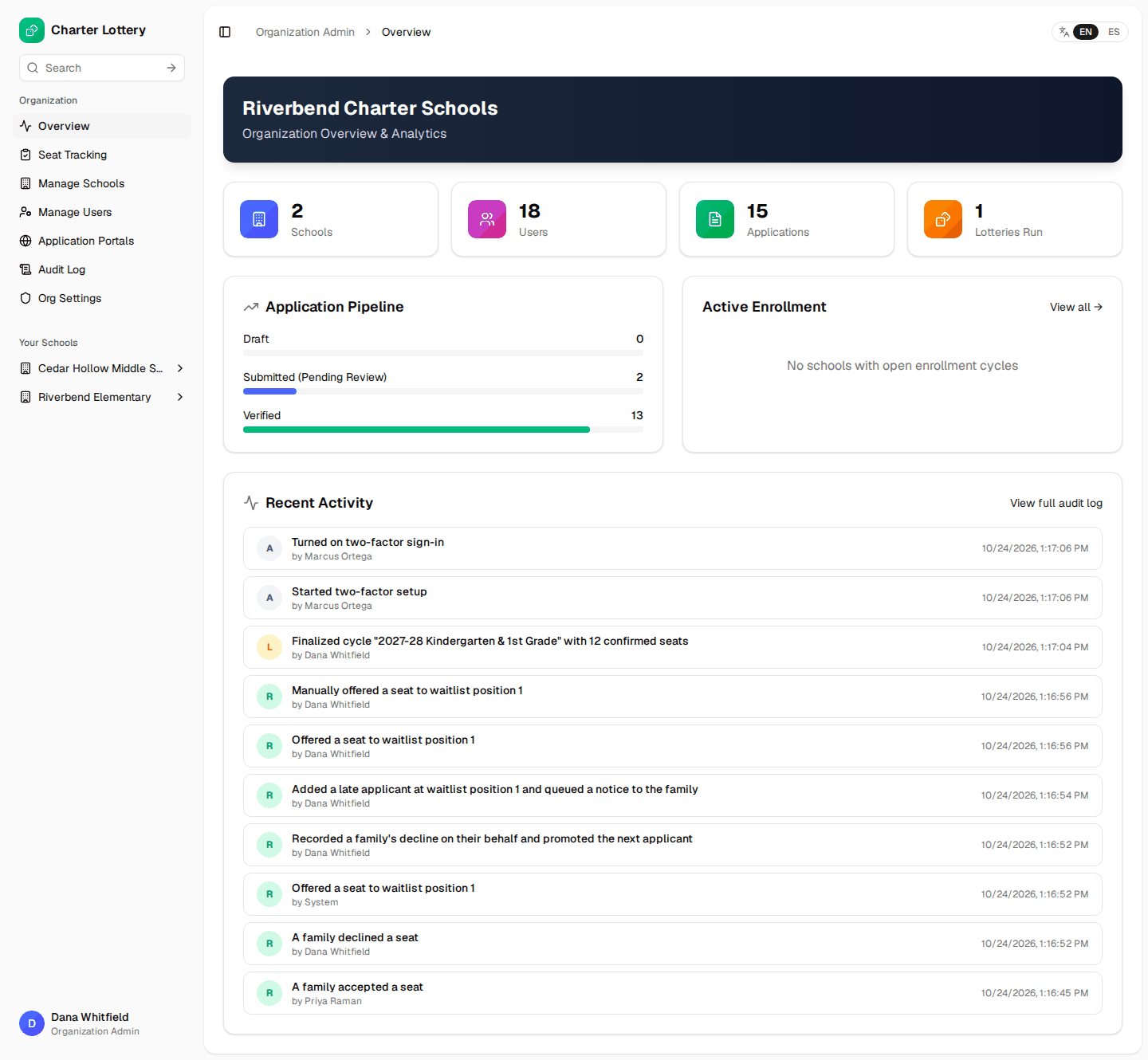
The Overview page shows your schools, users, applications and lotteries, the application pipeline and recent activity across the organization.
Add your schools
-
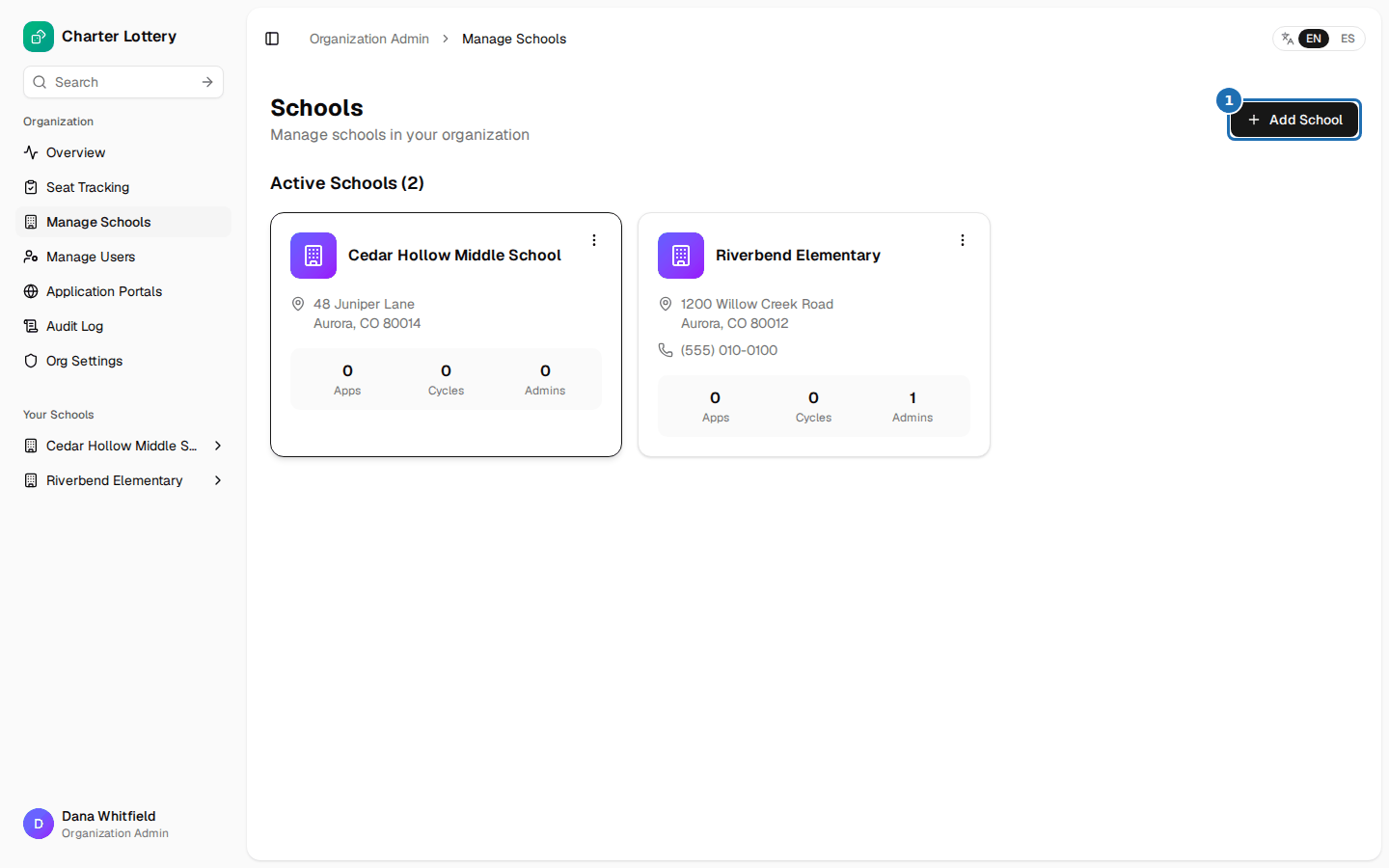
Choose Manage Schools, then Add School.
-
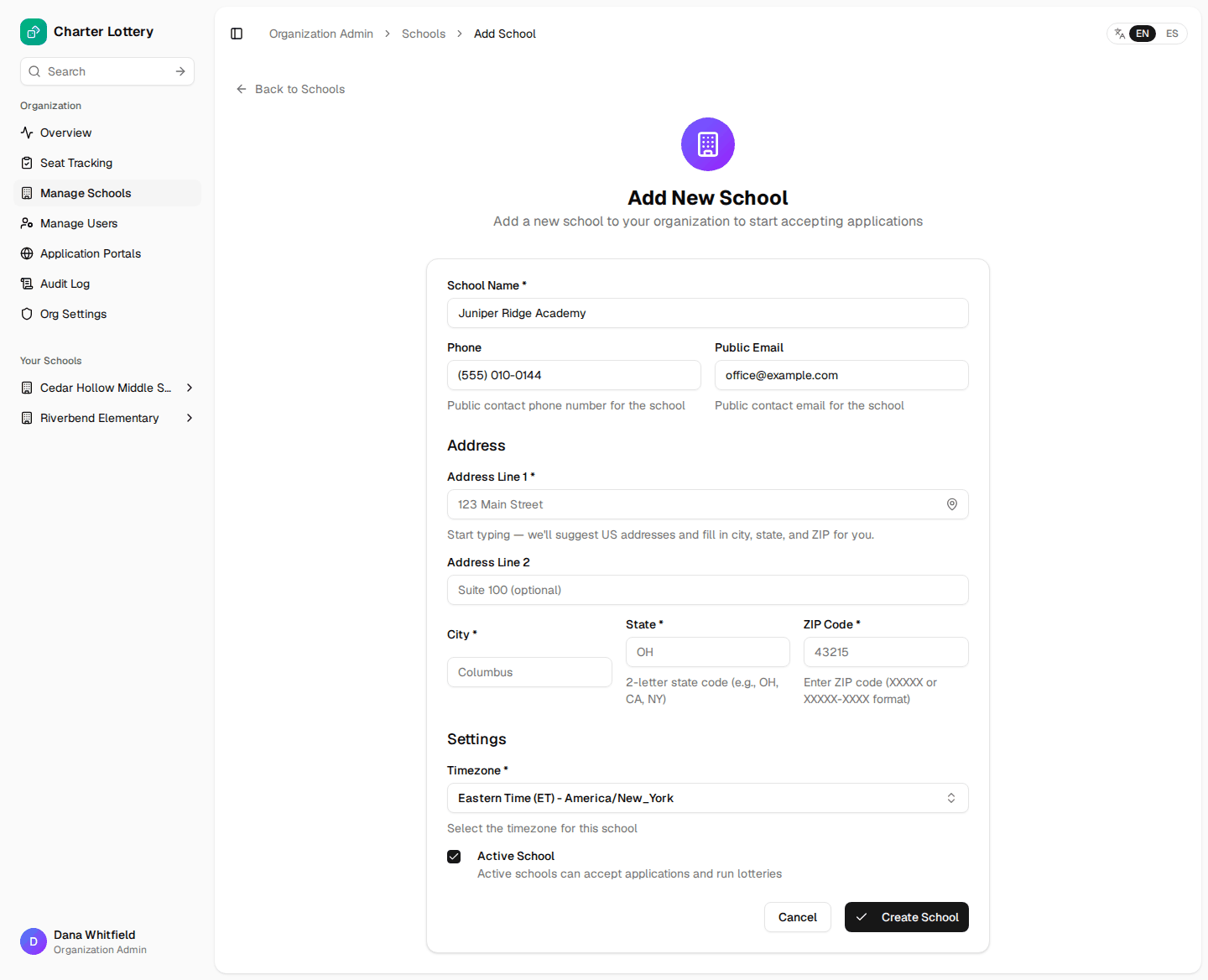
Enter the school name, public phone and email, and address. Start typing the street address and pick a suggestion to fill in city, state and ZIP.
-
Check the Timezone. Deadlines are shown in it.
-
Leave Active School ticked so the school can take applications and run lotteries.
-
Select Create School.
Each campus that runs its own lottery is a separate school (and a separate subscription; see Billing).
Invite your staff
Staff accounts are covered step by step in the IT guide. In short: Manage Users → Invite User, choose Organization Admin or School Admin, enter name and email, pick the schools for a school admin, and send.
Organization settings
Choose Org Settings to see your organization's details and links to the settings pages.
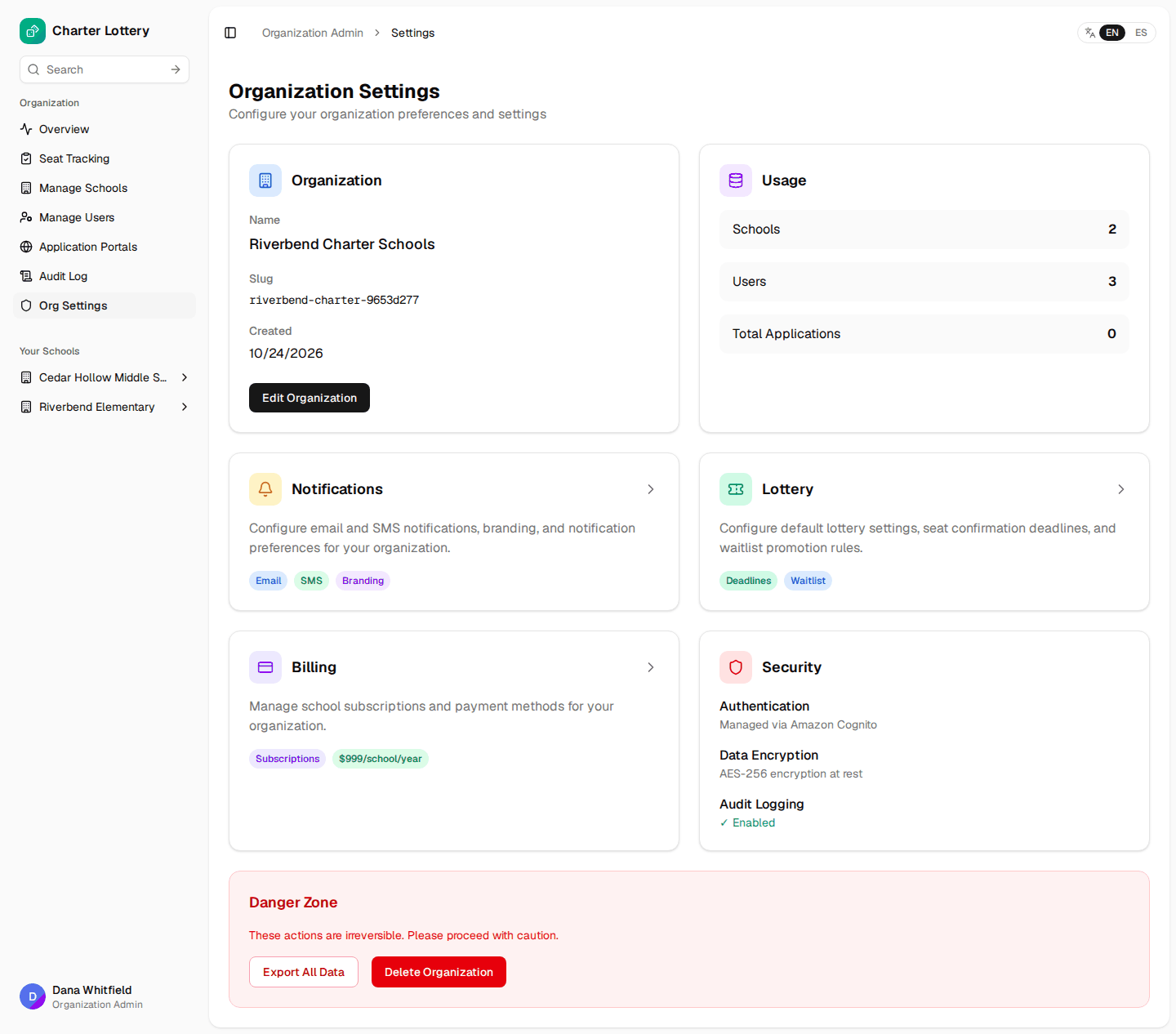
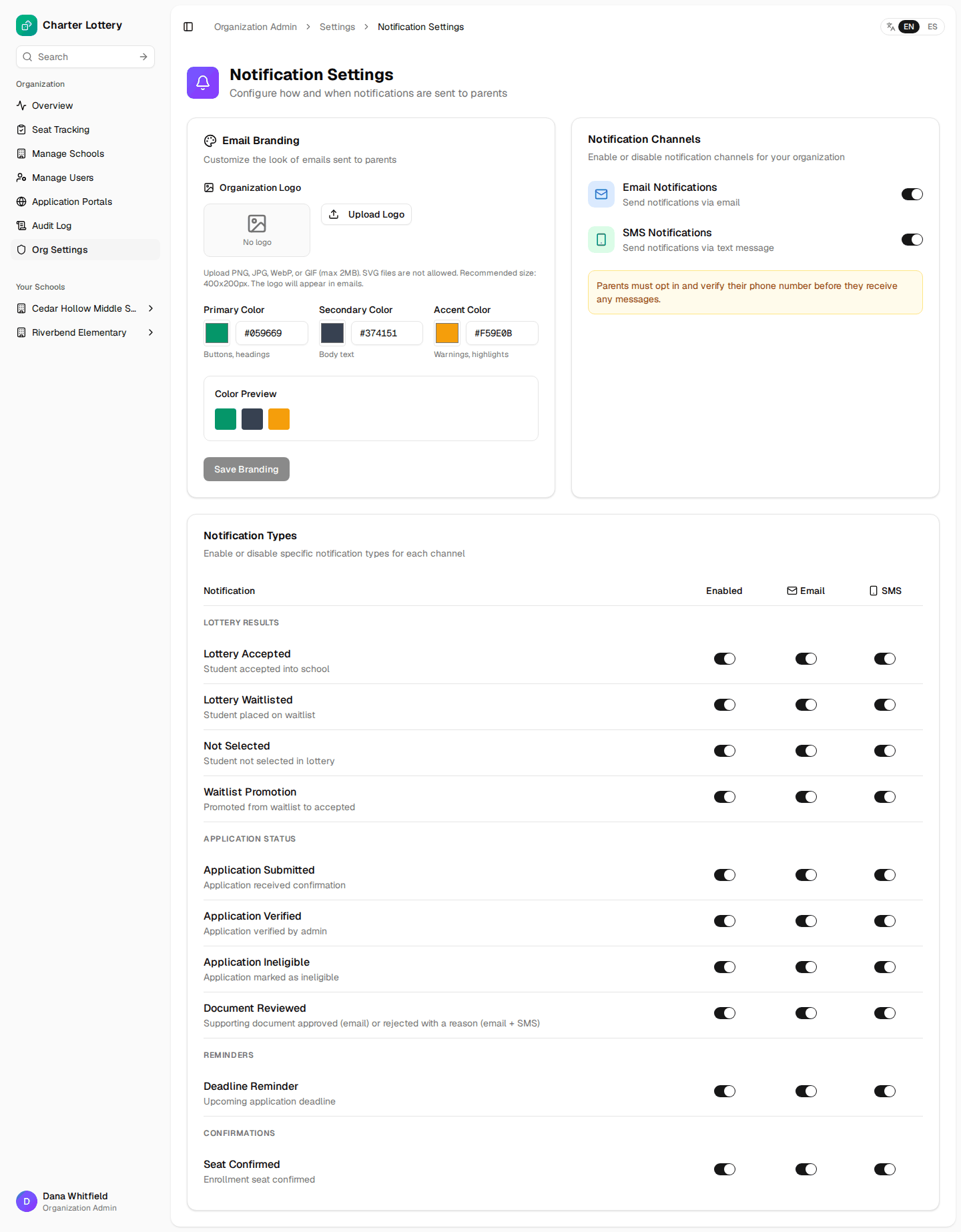
Notifications. Add your logo and colours to emails, turn email and SMS on or off for the organization, and choose which notice types go by email and which by text.
Lottery. Organization defaults for how long families have to confirm a seat: the first offer, and offers made from the waitlist.
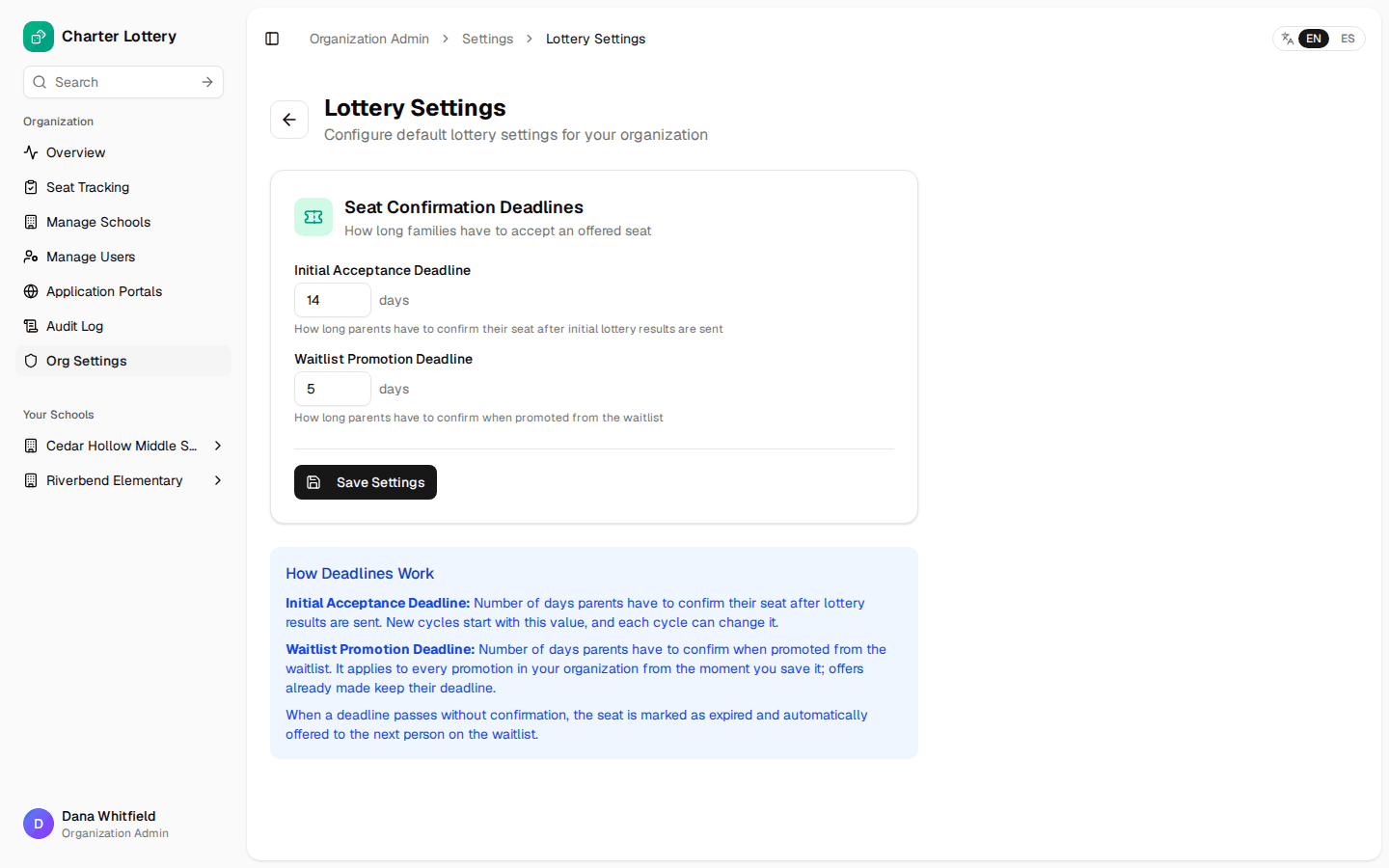
What the defaults do. The first-offer default fills in the Seat Confirmation Deadline on the Create Cycle form, where you can change it for that cycle. The Waitlist Promotion Deadline applies to every seat offered from a waitlist in your organization (when a family declines or an offer expires, or you promote or add seats). A change applies to offers made after you save; offers already made keep their deadline.
Billing
Charter Lottery costs $999 per school per year. Setting up schools, opening cycles and collecting applications is free; a school needs an active subscription to run its lottery. Subscriptions renew every year and can be cancelled at any time, keeping access until the end of the paid period.
Org Settings → Billing lists each school's subscription. Select Subscribe to pay for a school by card (payments are handled by Stripe). If you try to run a lottery for a school without a subscription, Charter Lottery asks you to subscribe first and then lets you continue.
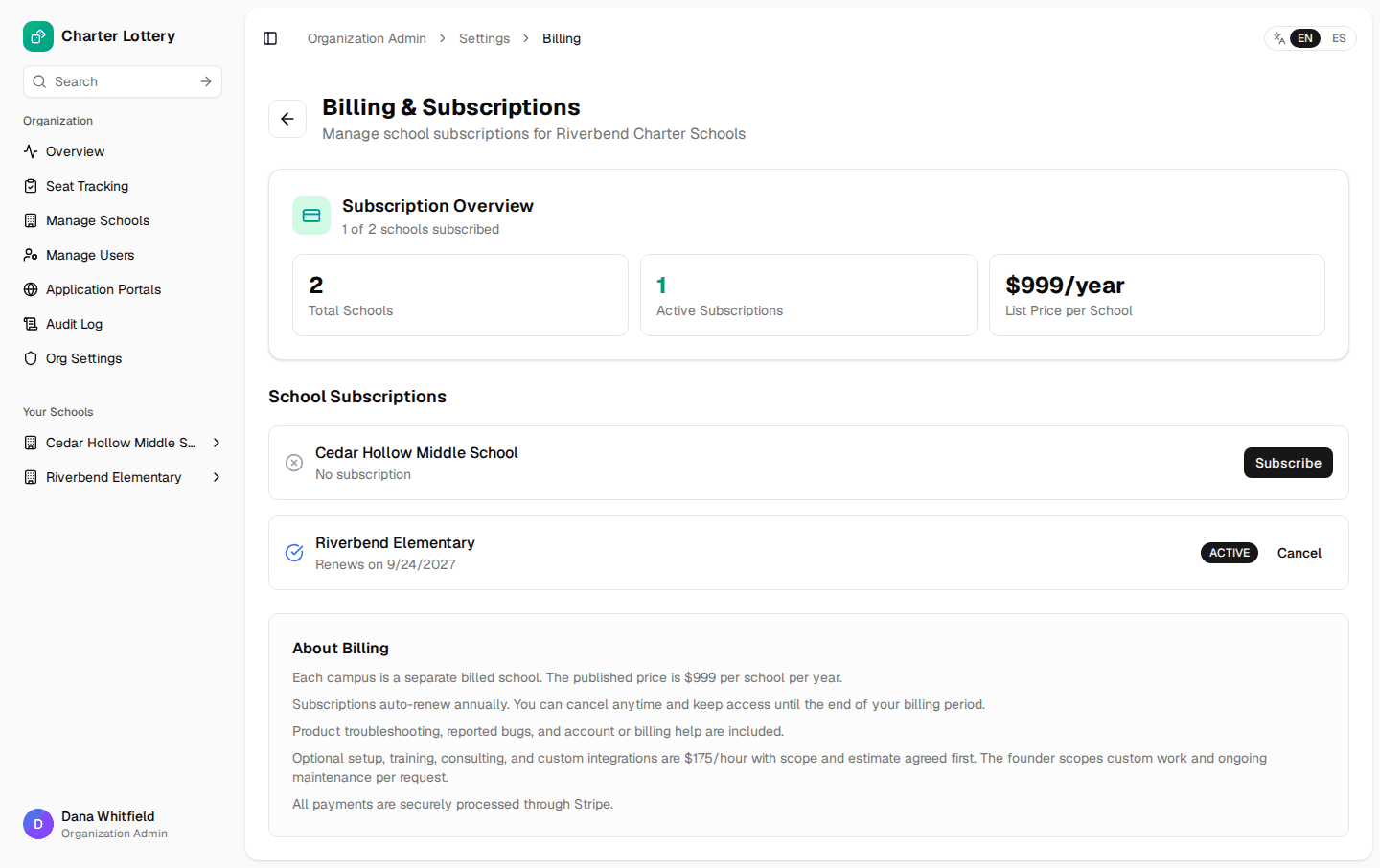
Optional setup, training and custom work is $175 per hour, agreed in advance.
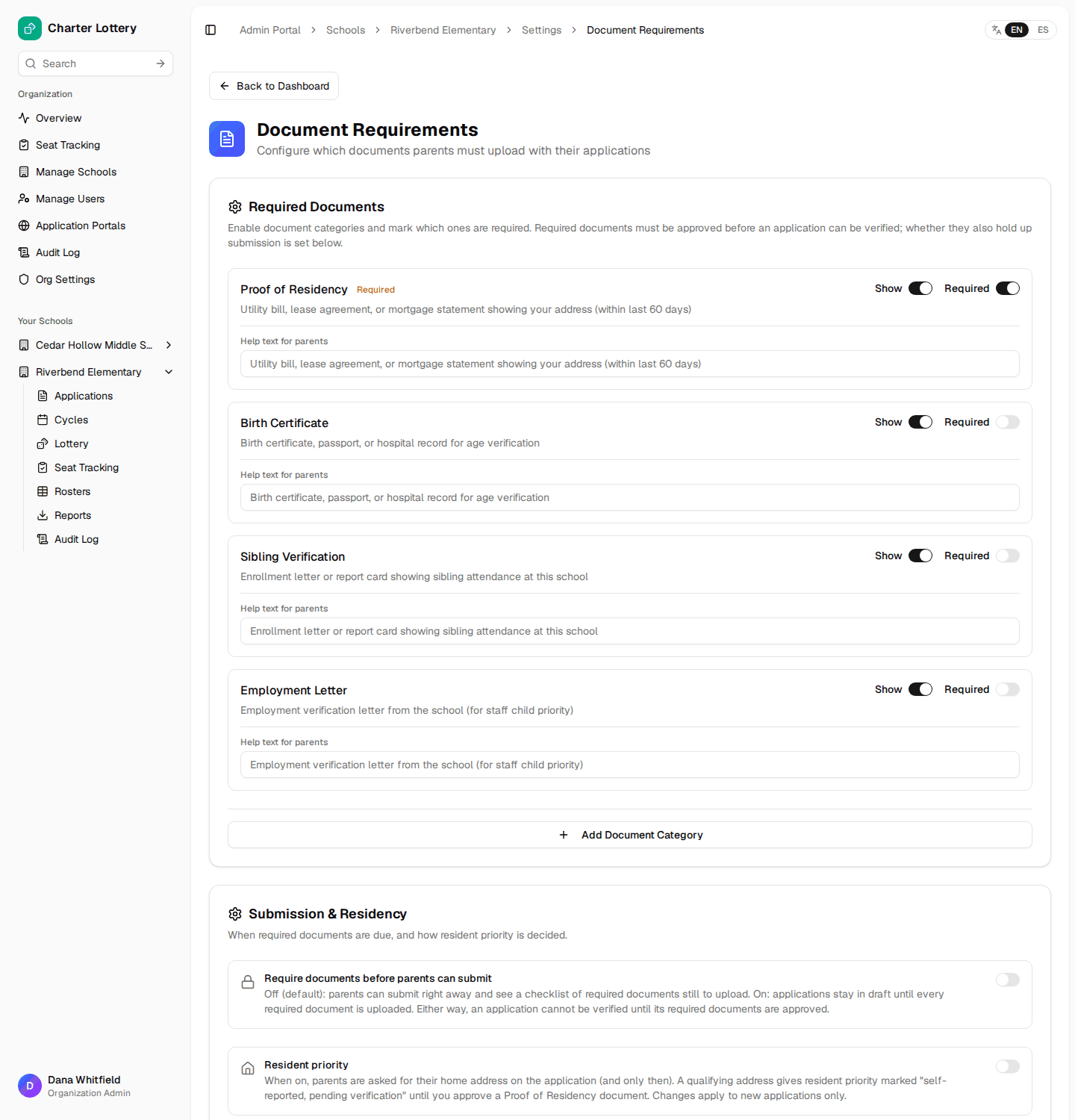
Choose the documents each school asks for
Open the school's dashboard and select Documents → Configure.
- Show makes a document type available to parents.
- Required means the document must be approved before you can verify the application.
- Help text tells parents what to upload.
- Require documents before parents can submit: when on, applications stay as drafts until every required document is uploaded. When off (the default), parents can submit first and upload later.
- Resident priority: turn on only if the school gives priority by ZIP code or district. Parents are then asked for their address on the application, and the priority shows as "self-reported" until you approve a proof of residency.
Create the parent portal and link to it
A portal is the page families use to apply to your school. Choose Application Portals in the menu, then select Create Portal. Give it a name, choose the school (or "Organization portal" to cover every school), add a welcome message and a support email, and create it. New portals start as drafts: open the portal and use Change Status to make it Active, otherwise families cannot see it.
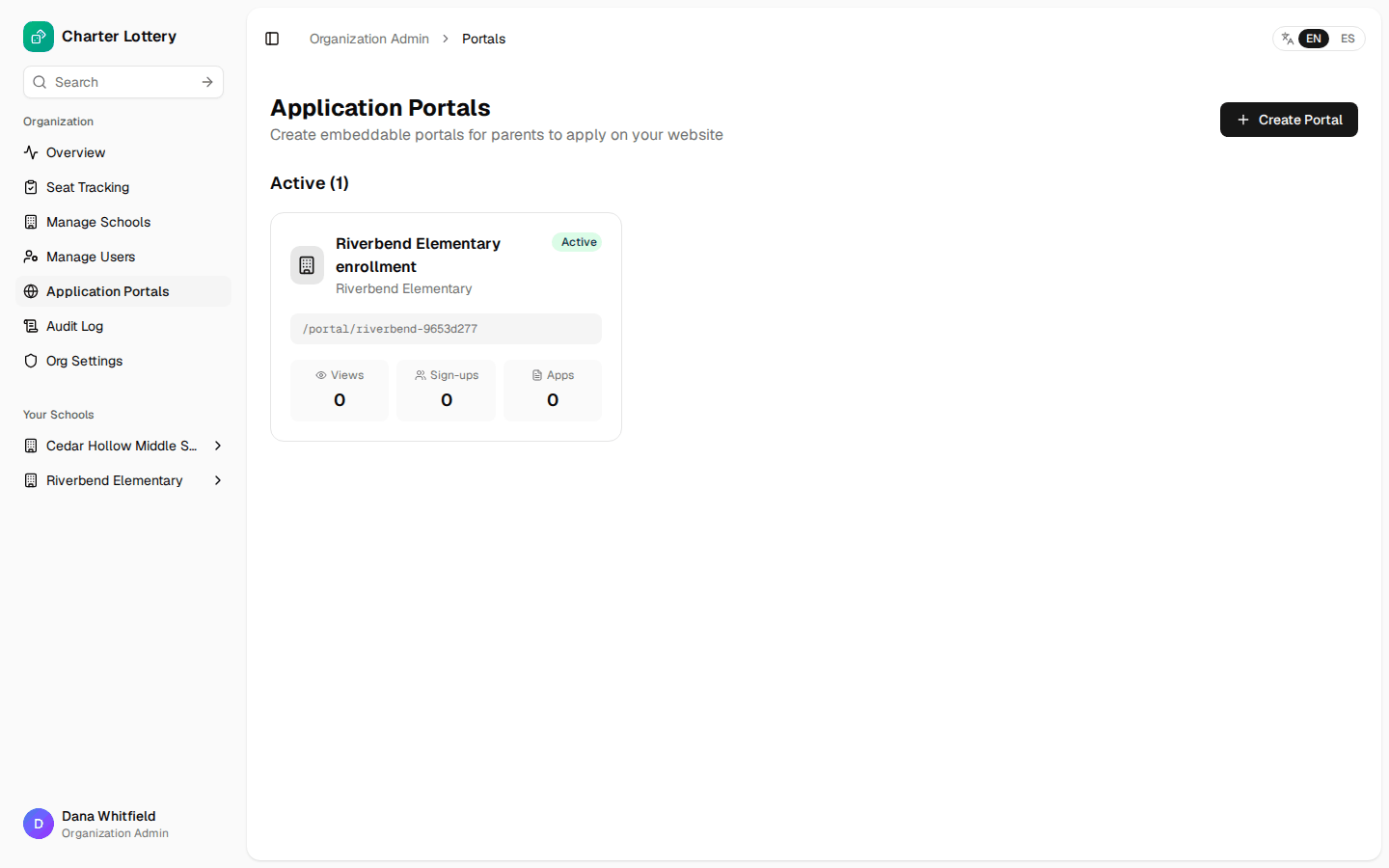
Open the portal to copy its link or embed code for your website. The IT guide explains the options.
Import rosters (optional)
Rosters let Charter Lottery spot siblings of current students, children of staff and children of alumni. Open the school, choose Rosters → Import Roster, upload a CSV or Excel file, match its columns, and import. Turning on Auto-flag priorities marks high-confidence matches automatically; otherwise matches are shown on each application for you to decide.
Part 2 · Open a lottery cycle
A lottery cycle is one enrollment period at one school: its grades, seats, priorities and dates.
Create the cycle
- Open the school and choose Cycles → New Cycle.
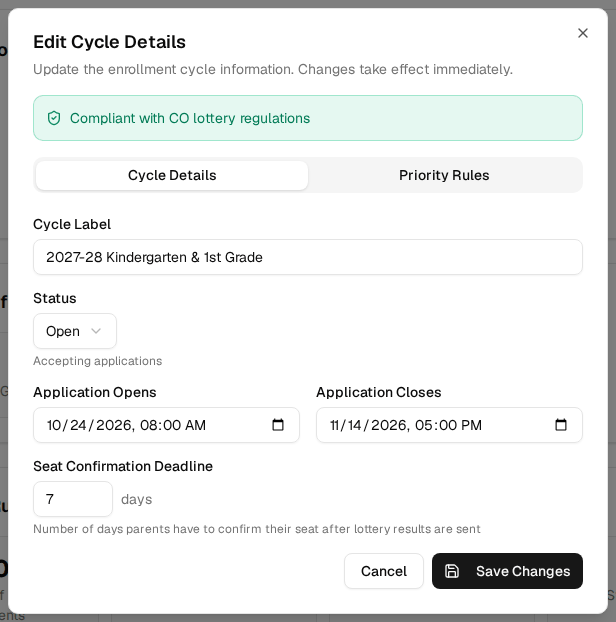
- Enter a Cycle Label, for example "2027-28 Kindergarten & 1st Grade".
- Set Application Opens and Application Closes.
- Set Seat Confirmation Deadline: how many days families have to accept an offer.
- Under Seat Configuration, select each grade you are filling and enter its number of seats.
- Under Priority Rules, give a weight to each priority your school uses (0 turns it off). Families with more priority points are drawn ahead of families with fewer; ties are random.
- Select Create Cycle.
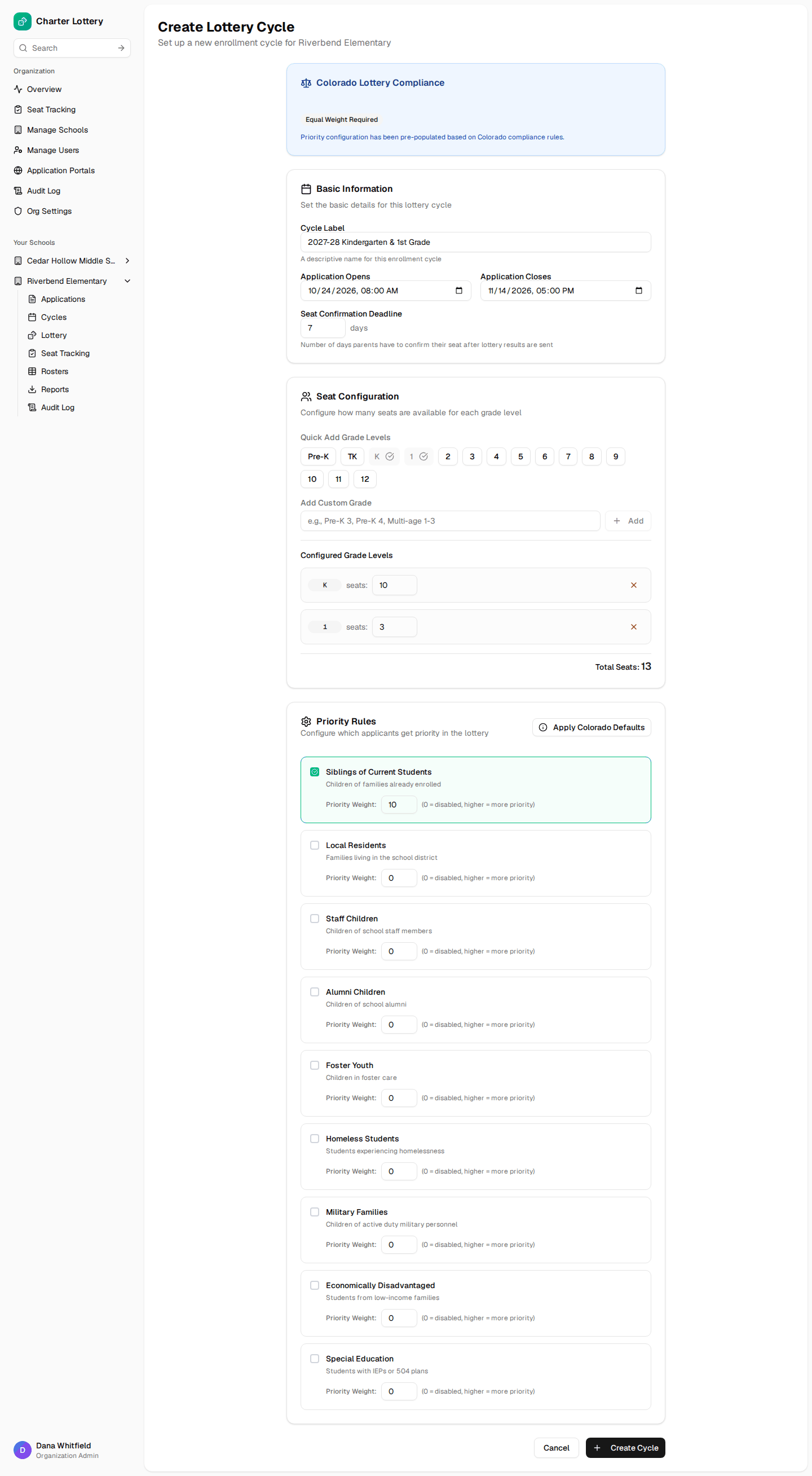
The box at the top checks your choices against your state's lottery rules. In the example, Colorado requires all priorities to have equal weight and does not list staff-child priority, so only sibling priority is used. If you must go against a warning, tick the override and give a reason; it is kept with the cycle's records.
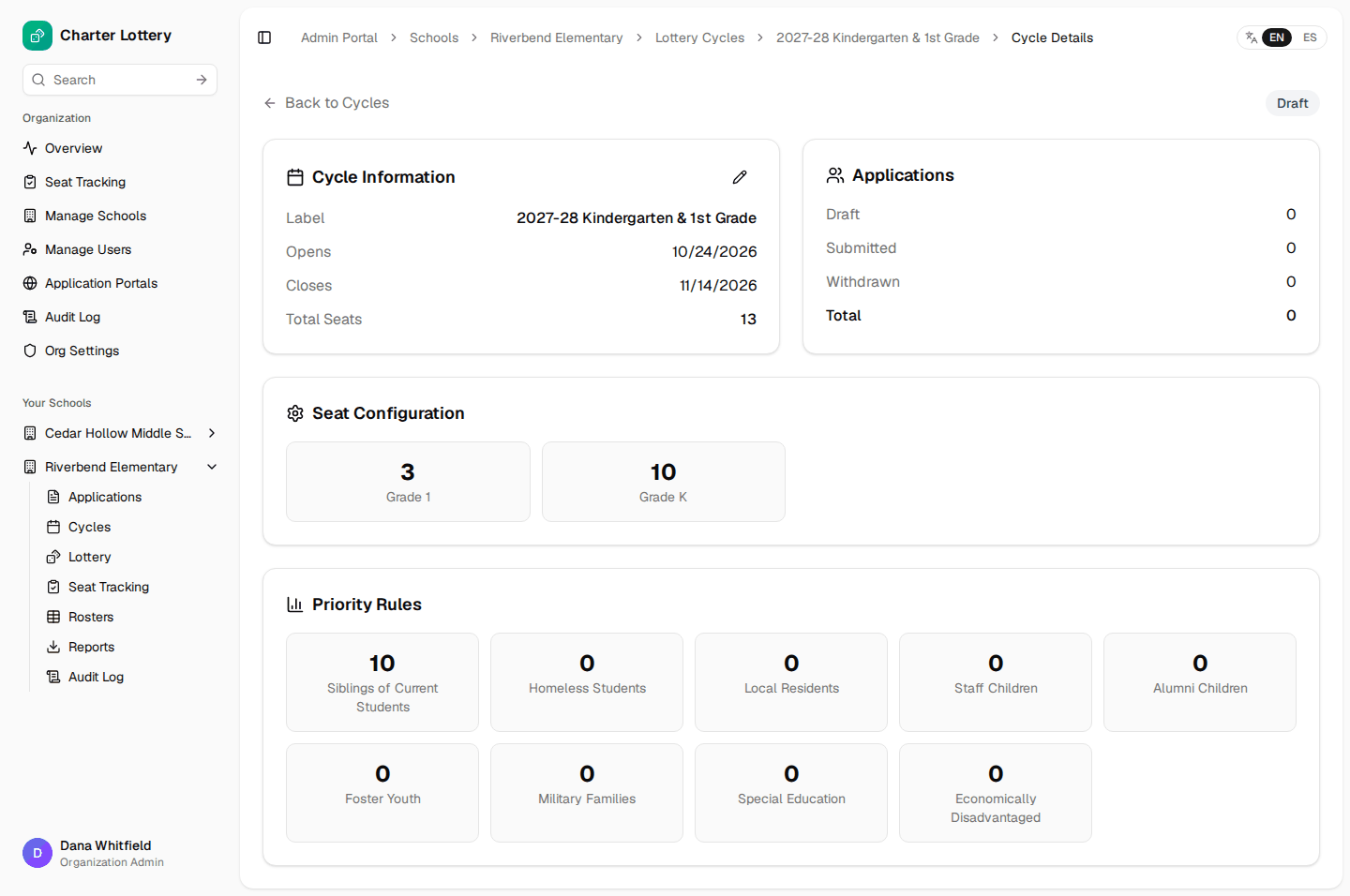
The new cycle starts as Draft: parents cannot see it yet.
Open applications
The cycle opens by itself overnight once its open date has passed. To open it straight away, or to change the seat deadline:
- On the cycle page, select the pencil (Edit cycle details).
- Change Status to Open, and check Seat Confirmation Deadline.
- Select Save Changes.
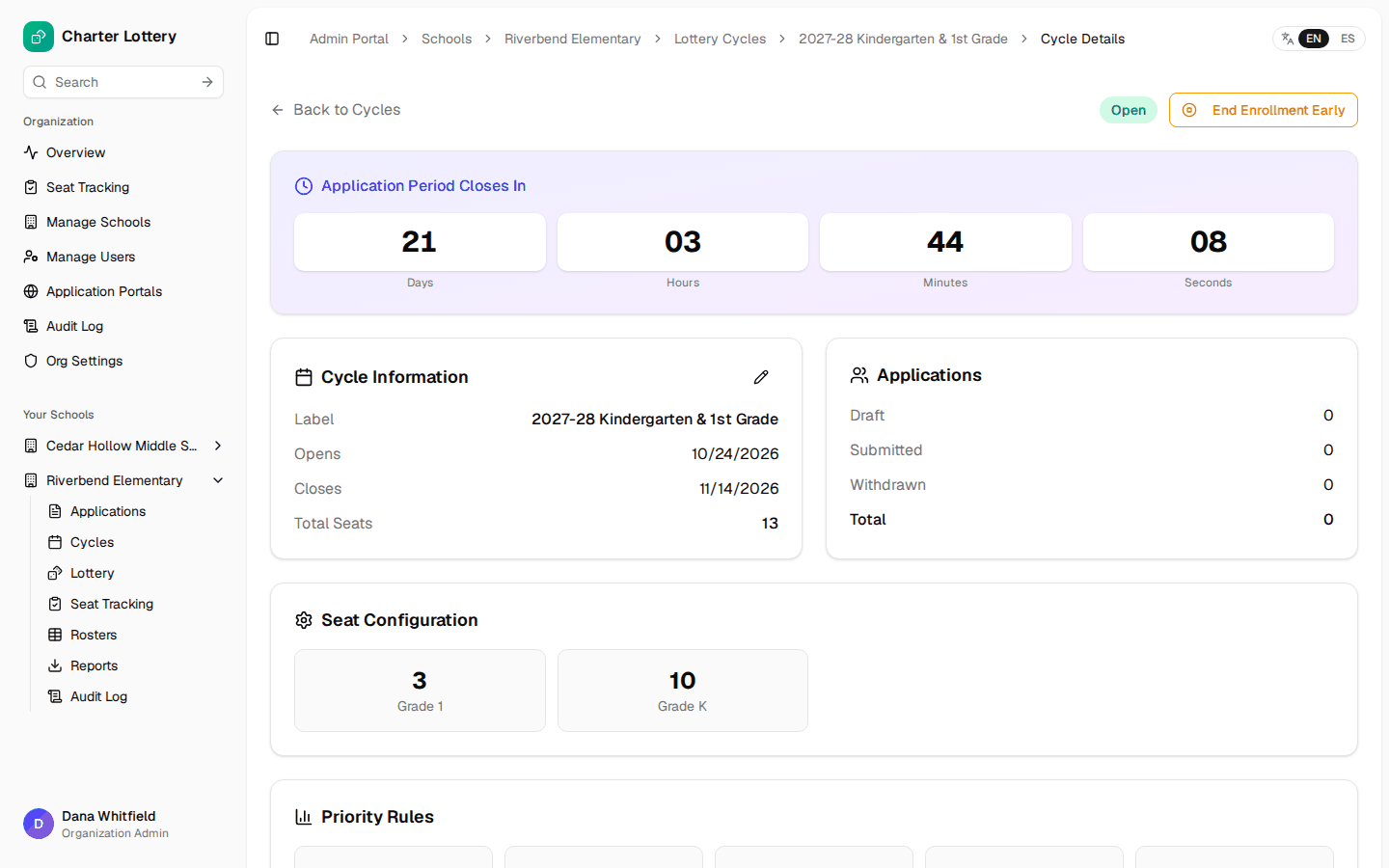
While the cycle is open, the page counts down to the closing time, and the school appears in the public Find Schools search and on its portal.
Part 3 · Review applications
See the applications
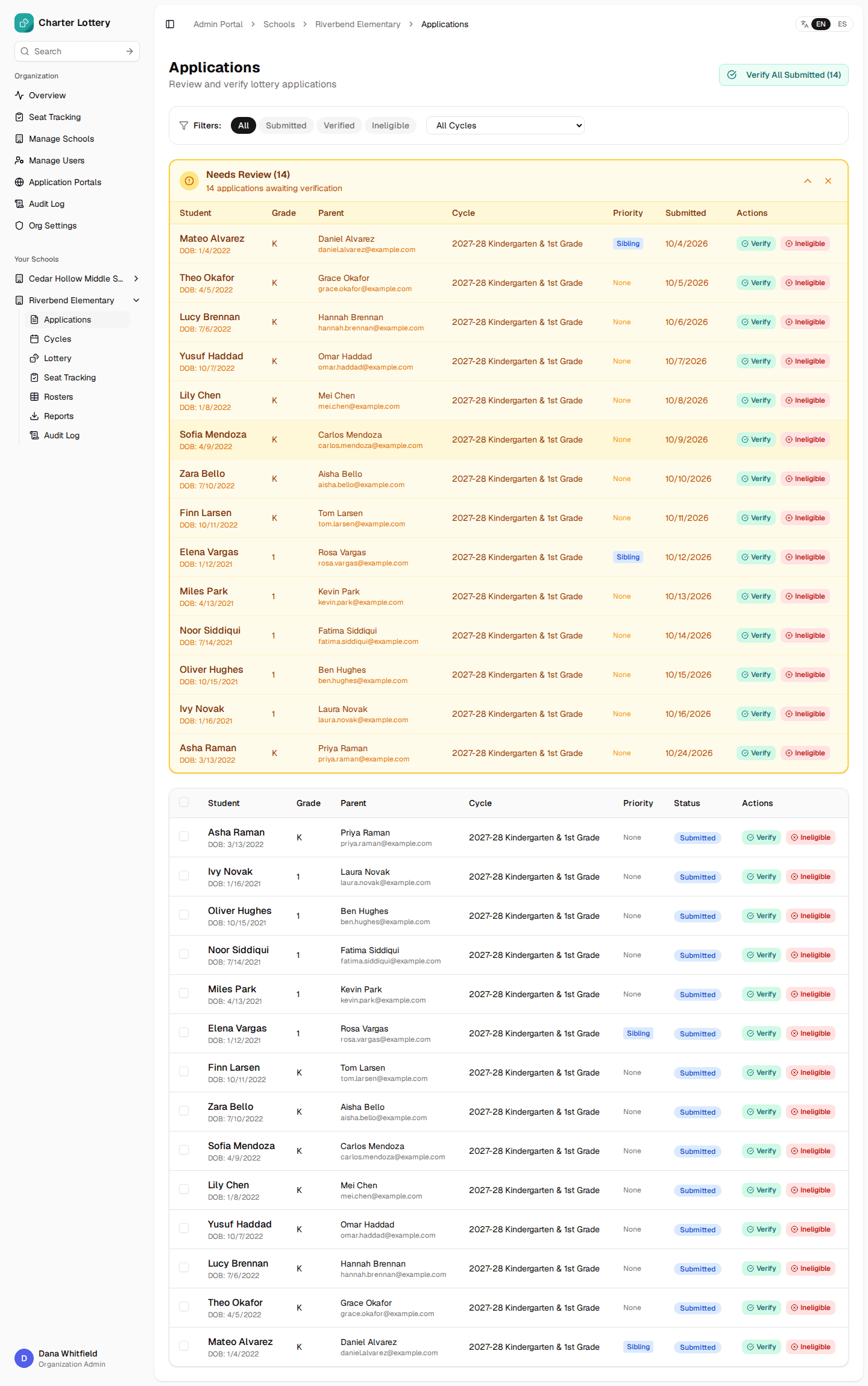
Open the school and choose Applications. Needs Review at the top lists submitted applications waiting for you. Filter by status or cycle.
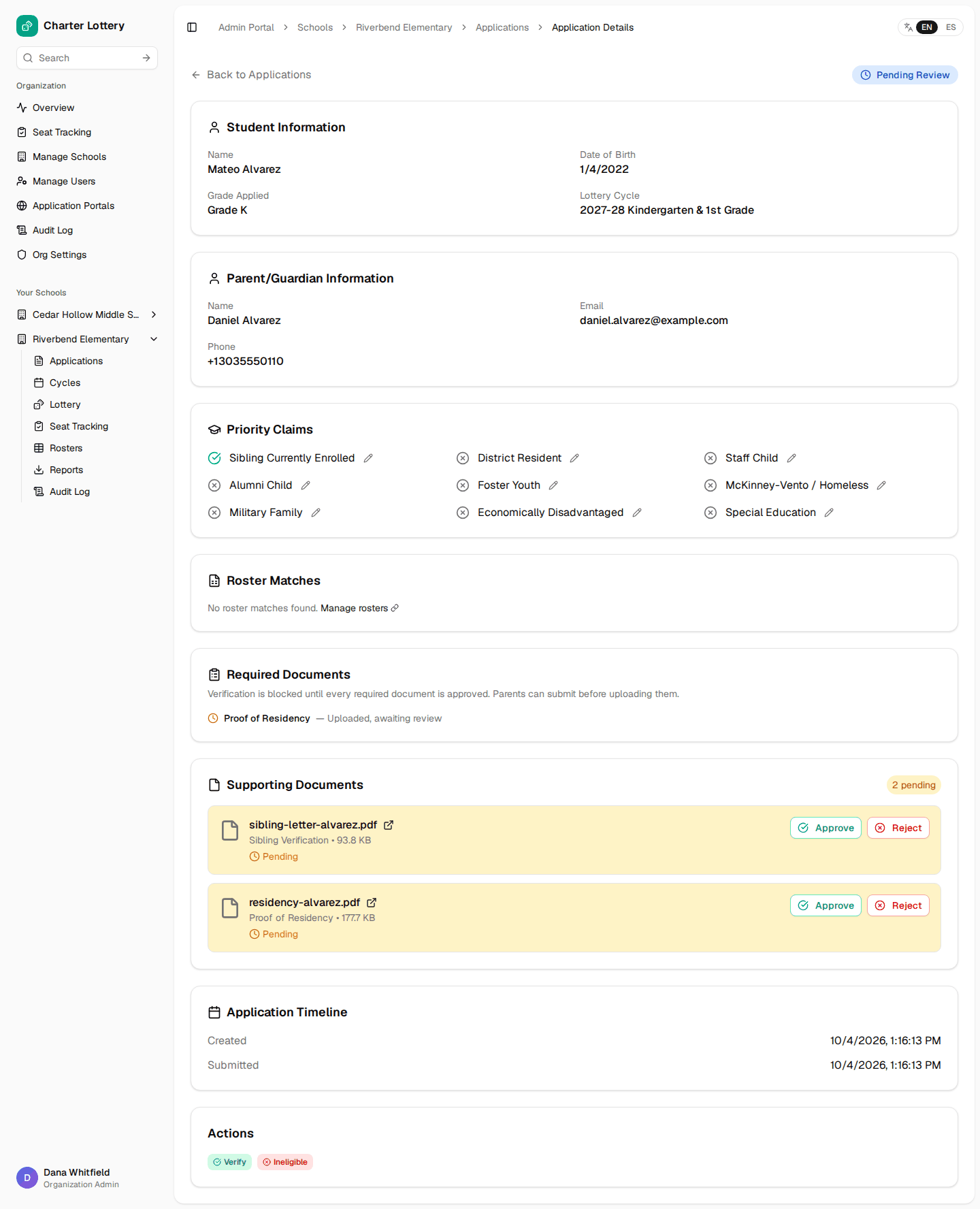
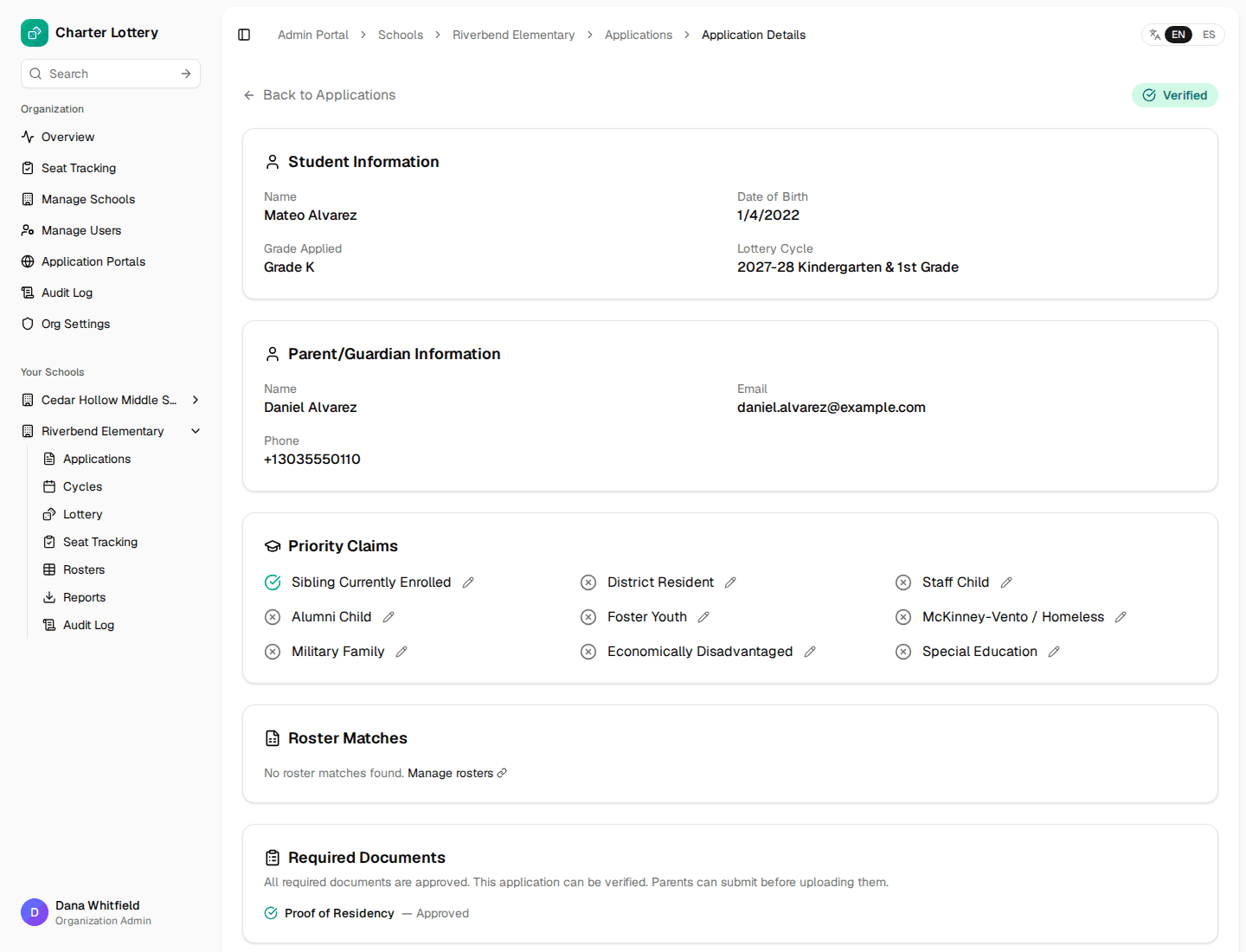
Select a student's name to open the application. You will see the student, the parent's contact details, priority claims, roster matches, required documents, uploaded documents and a timeline.
Review documents
For each uploaded document:
- Open it with the link next to its name.
- Select Approve, or Reject.
- If you reject, type the reason. The parent sees it, gets an email and a text, and can upload a new document.
Every decision is recorded in the audit log.
Correct a priority
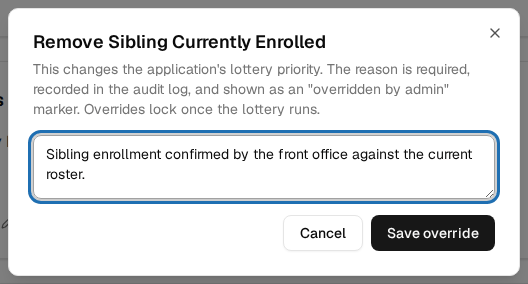
If a priority is wrong (for example, a sibling claim you could not confirm, or a sibling the system did not detect), select the pencil next to it, give the reason, and Save override. The application then shows an "overridden by admin" marker. Priorities lock once the lottery has run.
Verify or mark ineligible
- Select Verify when the application is complete. It will be entered into the lottery.
- Select Ineligible if it cannot be entered (for example, the child is the wrong age for the grade). You must give a reason.
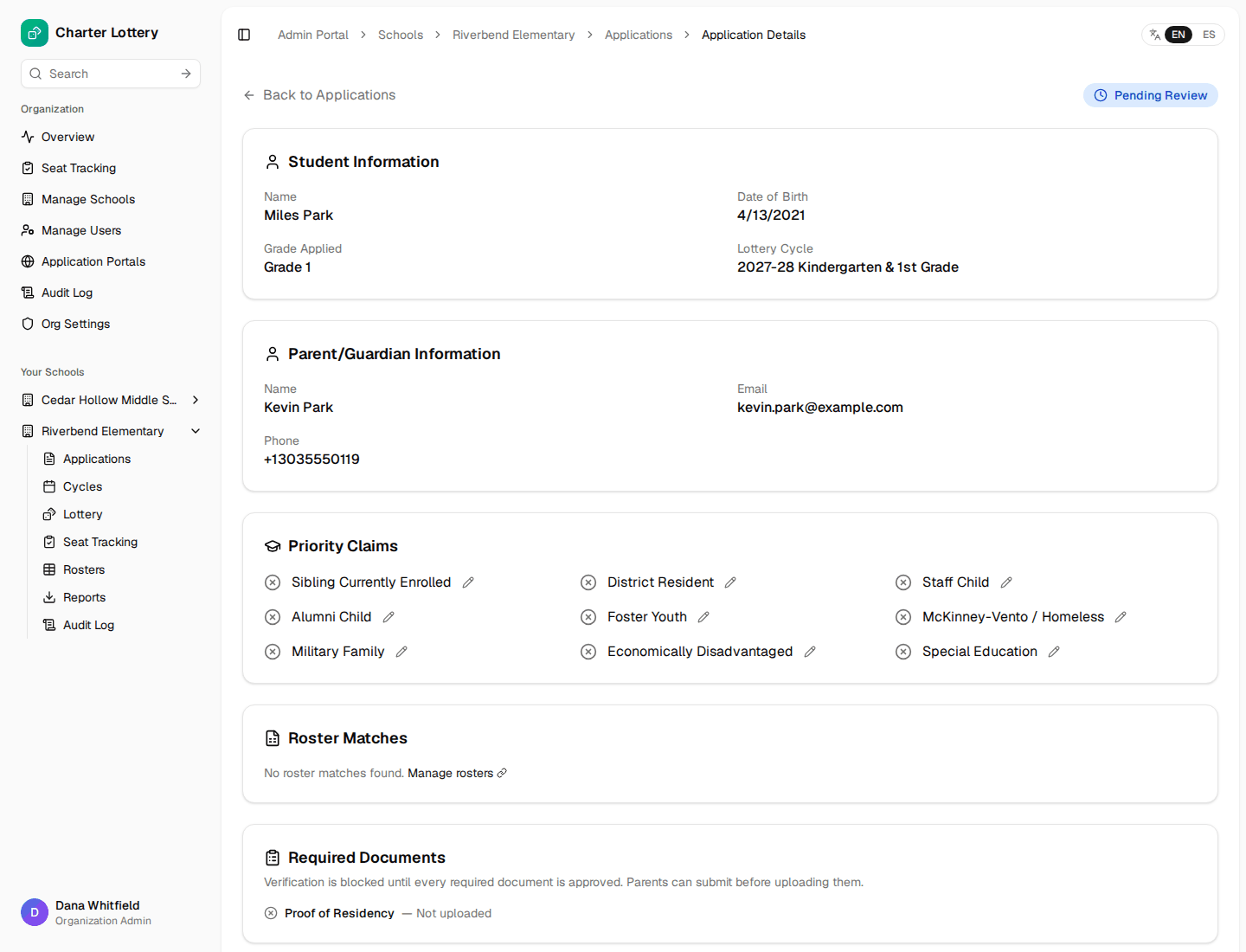
If a required document is missing or not yet approved, verifying is blocked and the Required Documents box says why:
To verify many at once, tick them in the list and use Verify Selected, or use Verify All Submitted. Applications with missing required documents are skipped.
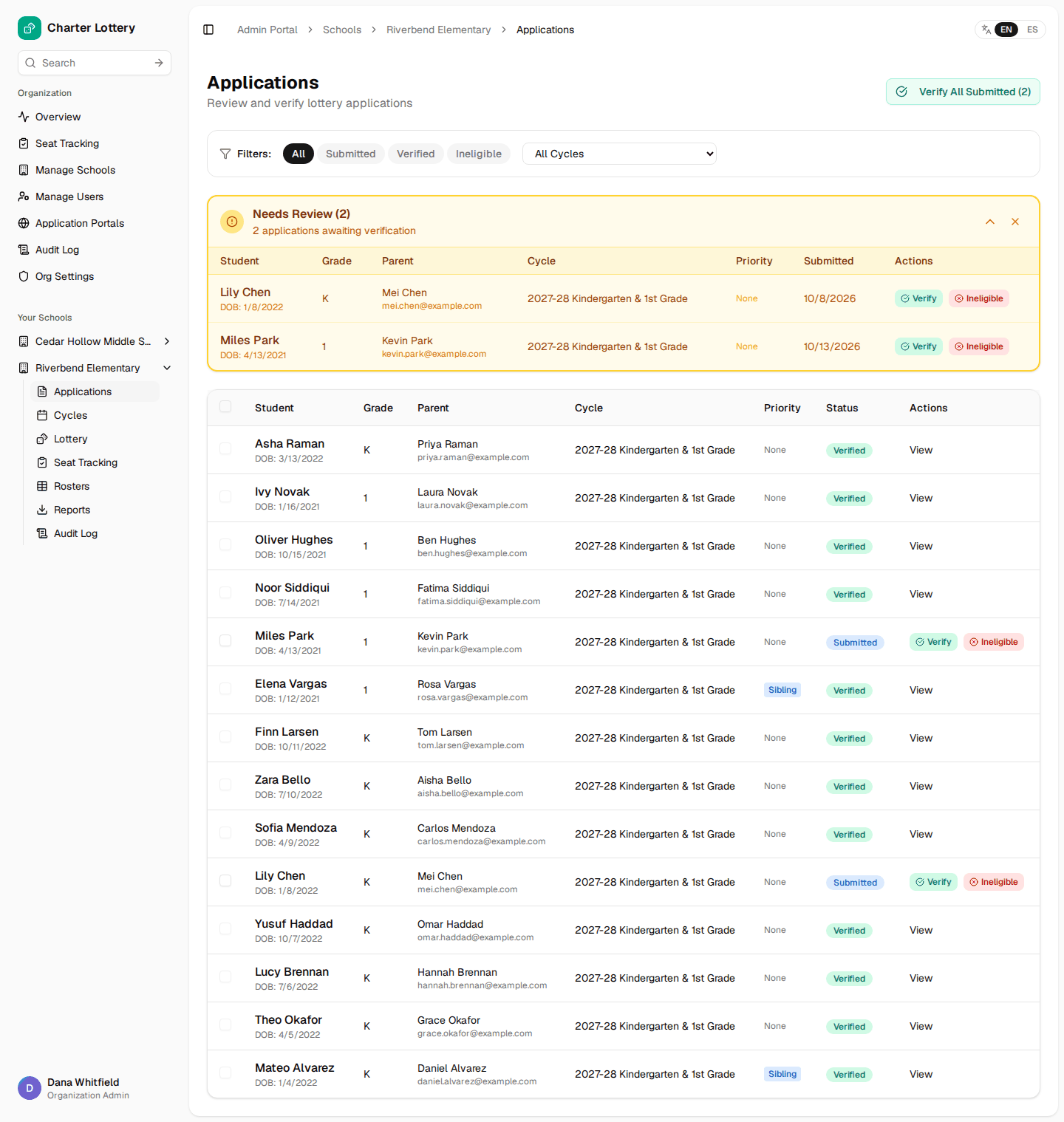
Only verified applications are entered into the lottery. Anything still "Submitted" when you run it is left out.
Part 4 · Run the lottery
Close enrollment
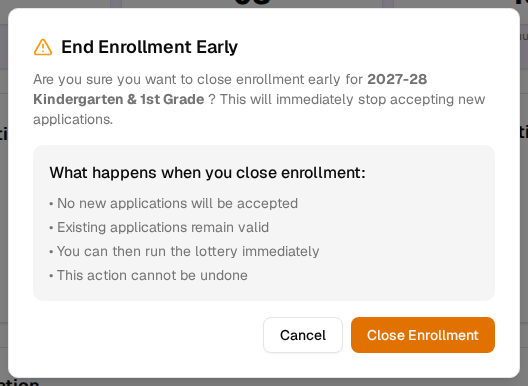
The cycle closes by itself overnight after its closing time. To close it early, open the cycle and select End Enrollment Early, then Close Enrollment. This cannot be undone.
Run the draw
-
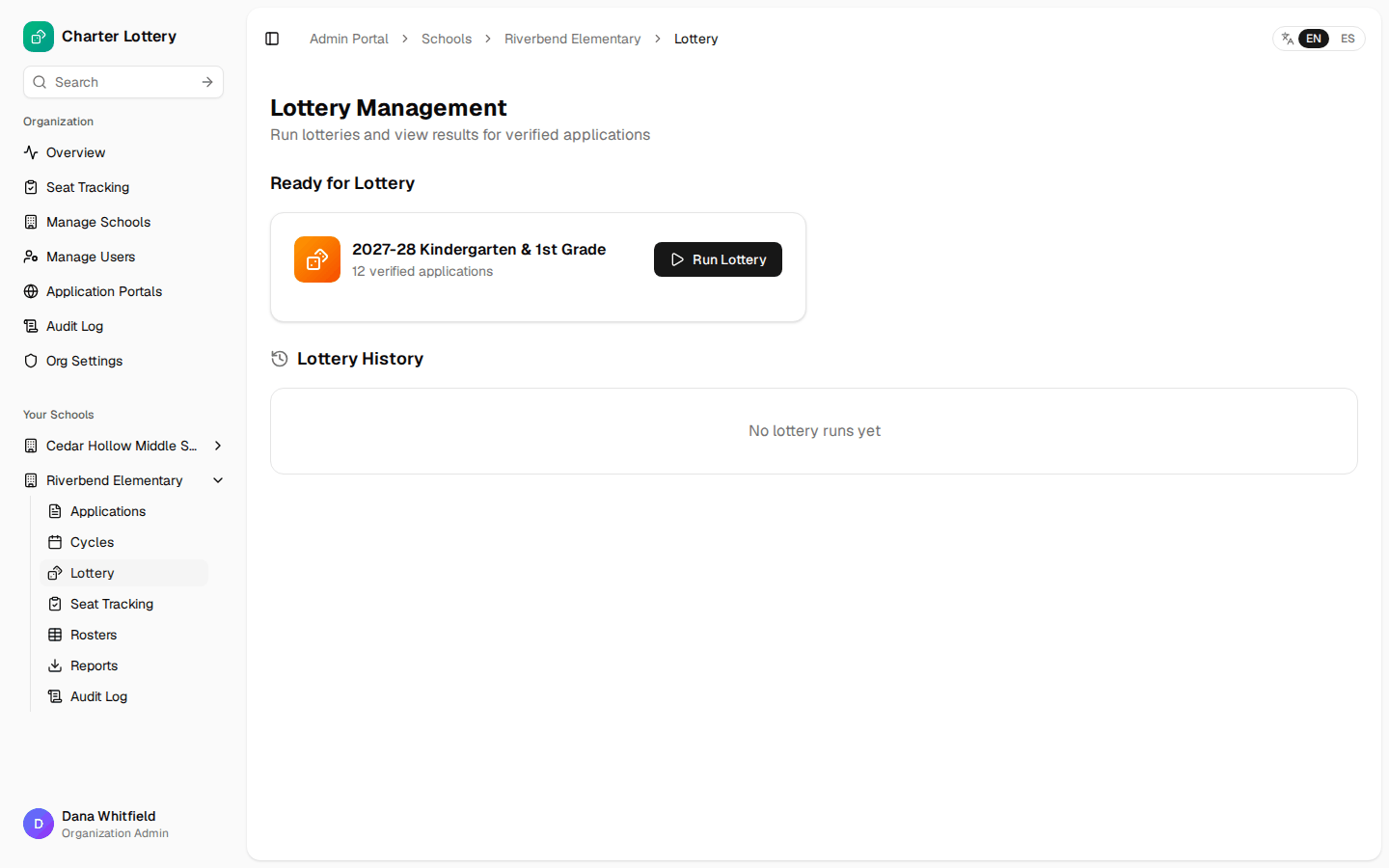
Open the school and choose Lottery. Closed cycles are listed under Ready for Lottery with their number of verified applications.
-
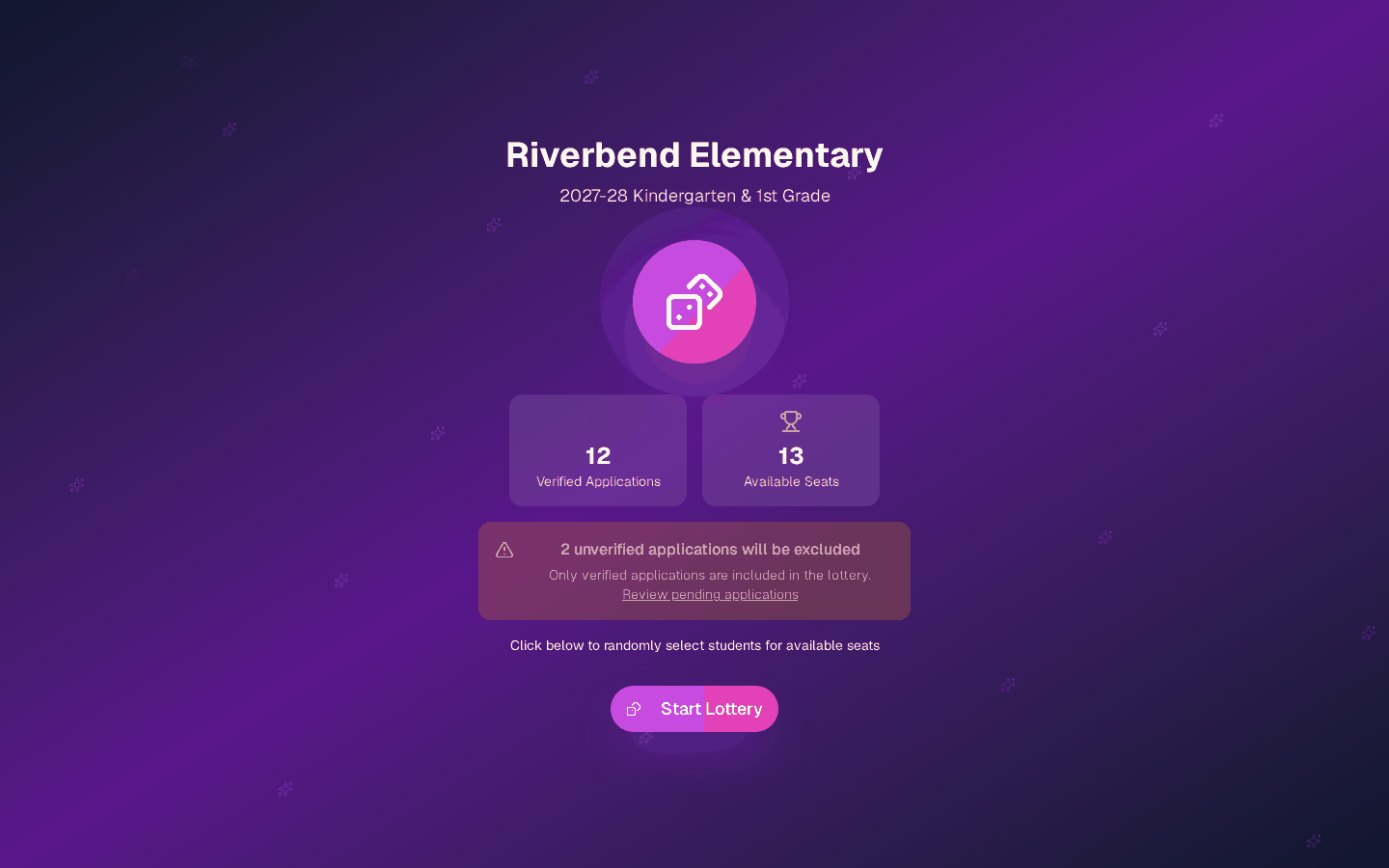
Select Run Lottery. The next page shows verified applications, available seats and how many unverified applications will be left out.
-
Select Start Lottery. The page asks you to confirm: it names the cycle, says how many eligible (verified) applicants will be drawn for how many seats, and warns that the draw cannot be undone except by an organization admin invalidating it. Select Yes, run the draw (or Cancel). The draw takes a few seconds.
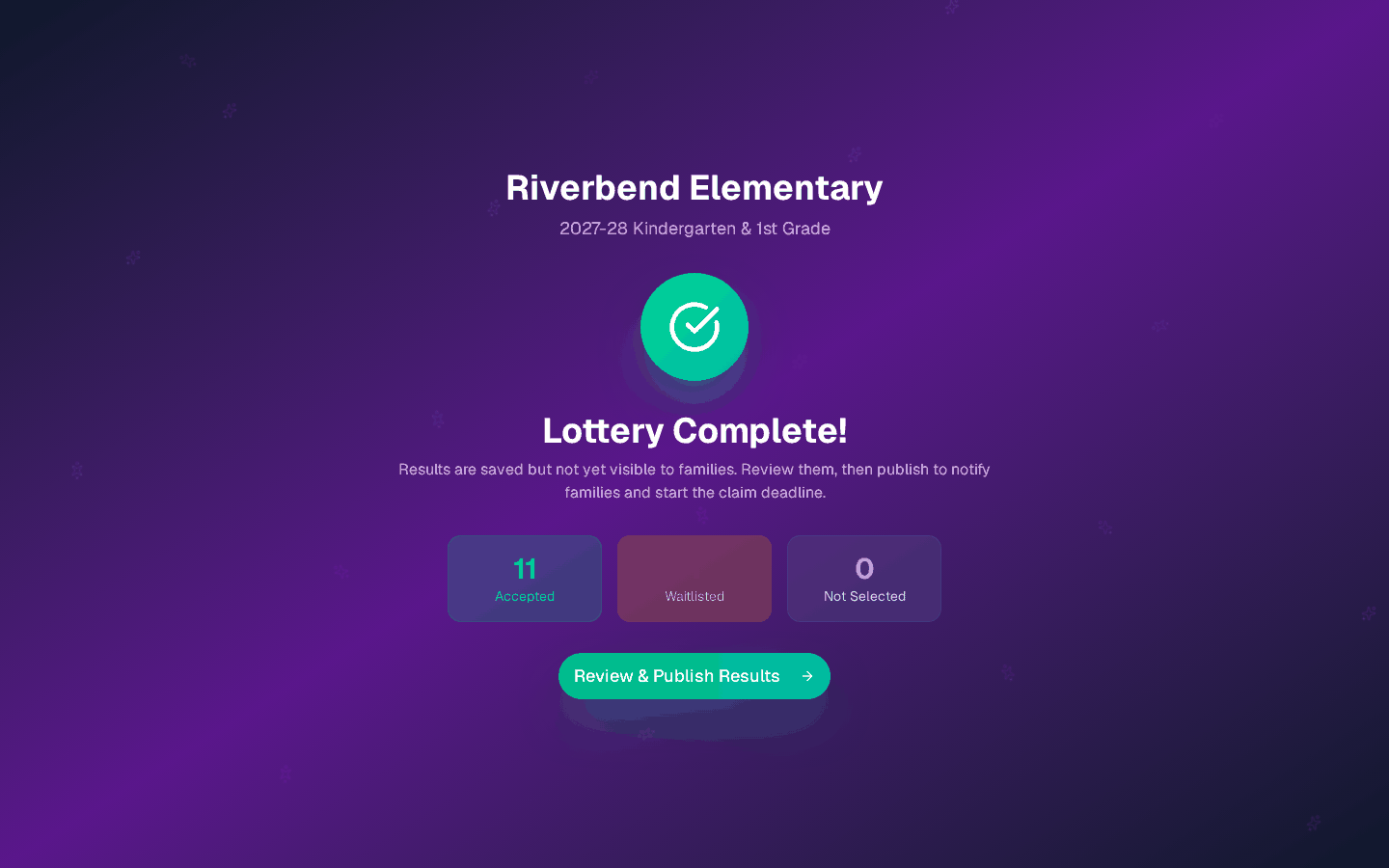
How the draw works:
- Each grade is drawn separately.
- Each applicant's priority points are added up; higher totals go first, and applicants with equal points are shuffled with a cryptographically secure random generator.
- Seats are filled in that order. Everyone else is waitlisted in draw order, so nobody is left "not selected".
- The inputs and results are sealed with a SHA-256 hash so anyone can check later that nothing changed.
The results are saved but families cannot see them yet.
Part 5 · Publish results
Review and publish
-
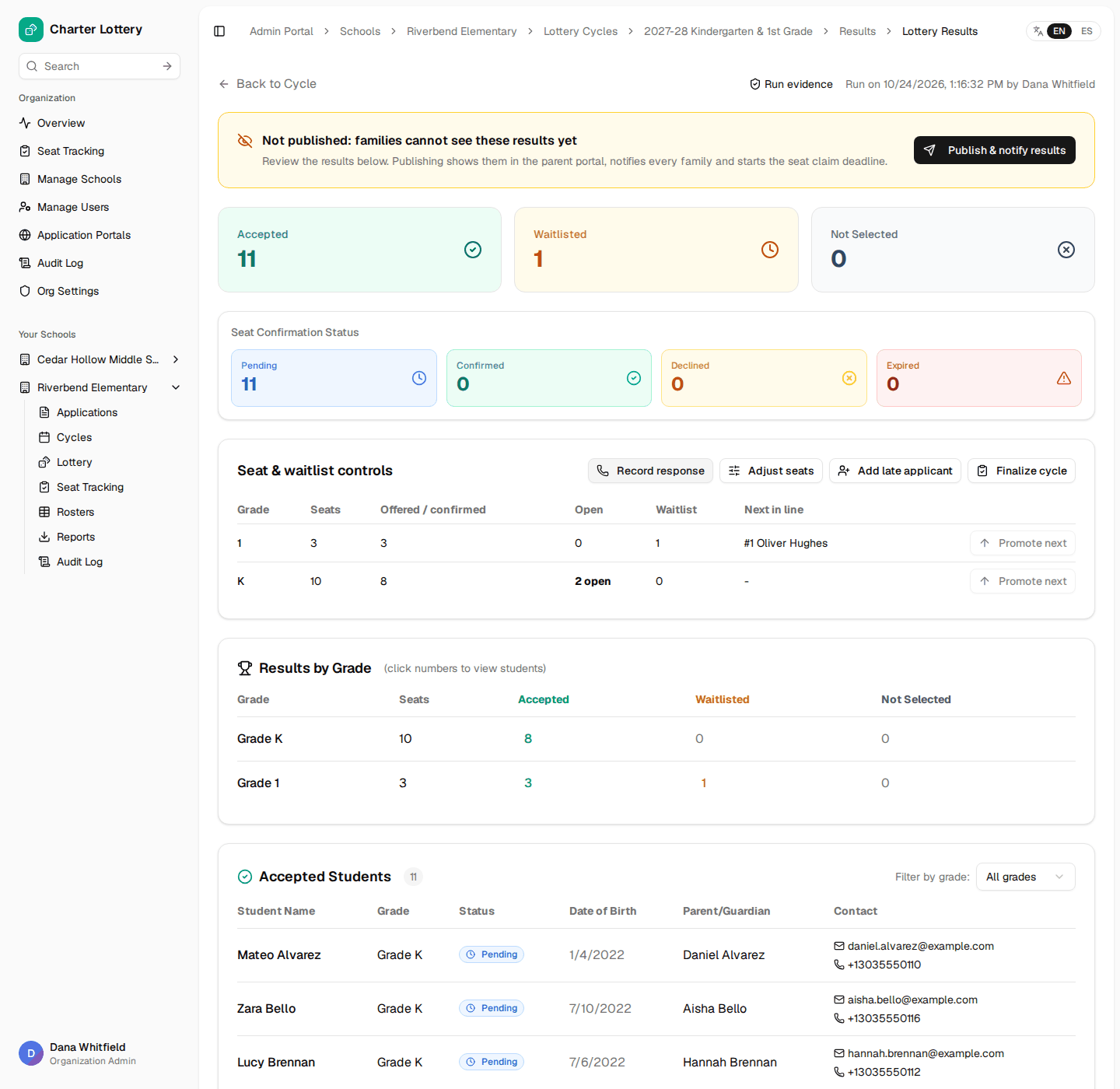
Select Review & Publish Results (or open the cycle and choose View Detailed Results).
-
Check the numbers by grade and the lists of accepted and waitlisted students.
-
Select Publish & notify results, read the summary, then Publish & notify.
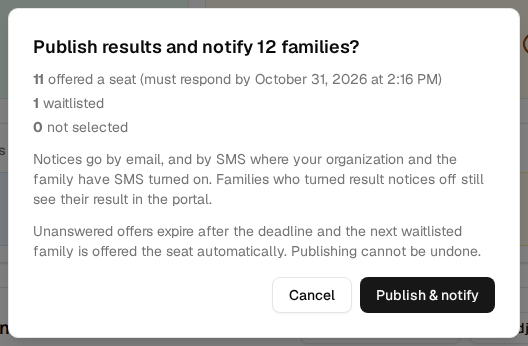
Publishing:
- shows each family its result in the parent portal;
- sends every family an email, and a text where your organization and the family have SMS turned on;
- starts each seat offer's response deadline.
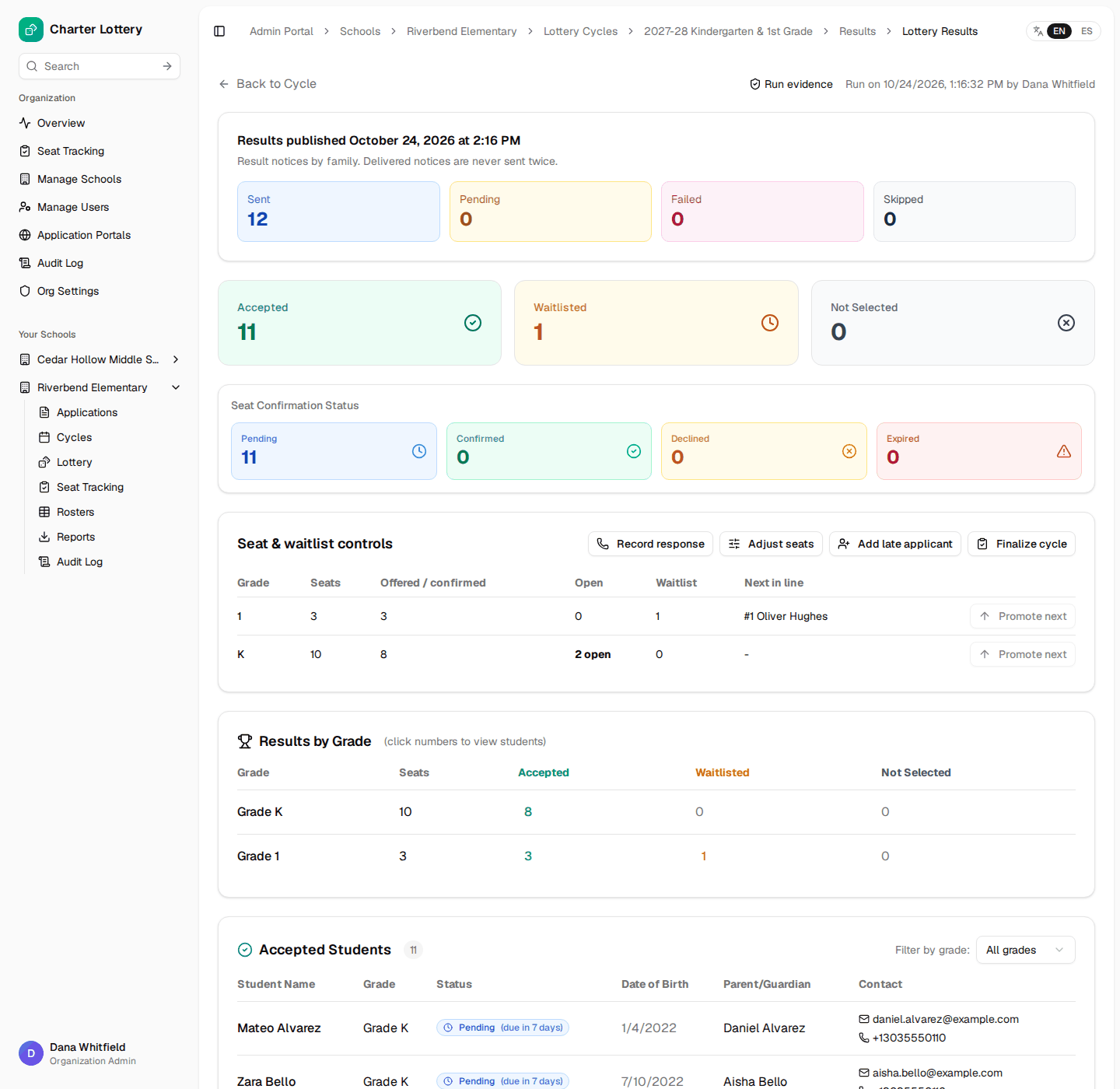
Publishing cannot be undone. After publishing, the page shows how many notices were Sent, Pending, Failed or Skipped. If any failed, use Retry; a notice that was delivered is never sent twice.
The evidence record and Selection Audit Packet
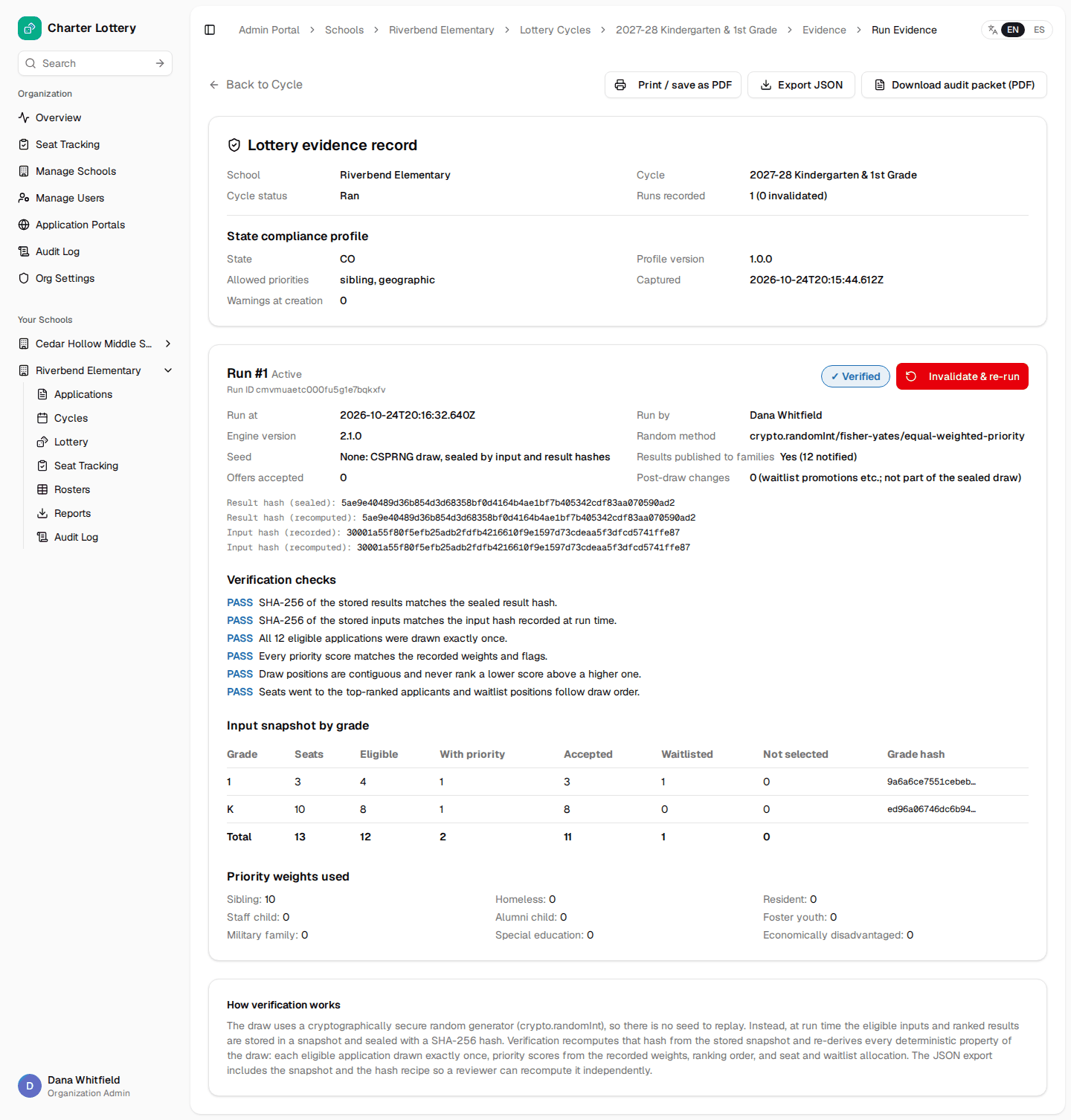
Choose Run evidence on the results page. The evidence record shows:
- the state compliance profile used,
- who ran the draw and when, the engine version and the random method,
- the sealed hashes and a live re-check of them (Verified, or a warning if anything does not match),
- the inputs by grade and the priority weights used,
- any earlier draws that were invalidated, with the reason.
Buttons at the top:
| Button | What you get |
|---|---|
| Print / save as PDF | This page, for your records |
| Export JSON | The full sealed snapshot with IDs only (no names), for an auditor to re-check |
| Download audit packet (PDF) | The Selection Audit Packet: compliance profile, run details and hashes, verification result, notice delivery counts, invalidation history, priority overrides with reasons, document review counts, communication counts, and the ranked list per run (student names, draw position and outcome). It leaves out dates of birth, addresses, contact details and documents. Every page is watermarked with who generated it and when. |
If the draw has to be redone
Only an organization admin can invalidate a draw, for example because verified applications were left out by mistake.
- On the evidence page, select Invalidate & re-run.
- Give the reason (at least 10 characters). It is shown on the evidence record.
- If results were already published, tick the box confirming that families will need to be told. If any family has already accepted a seat, you must also tick the override.
- Select Invalidate and go to re-run.
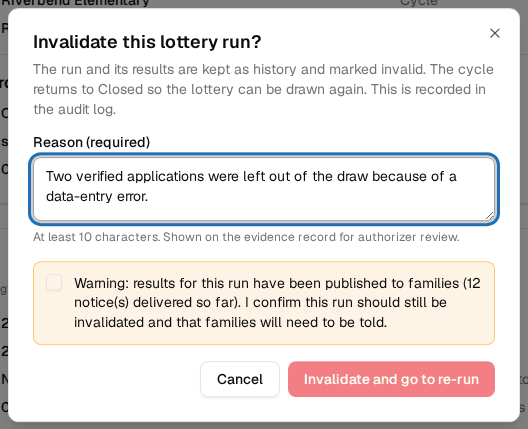
The old draw is kept as history, the cycle goes back to Closed, and you can run the lottery again. When you publish the new results, families who were told the old result get a "results replaced" notice. A finalized cycle cannot be invalidated.
Part 6 · Seats, waitlist and late applicants
Track who has answered
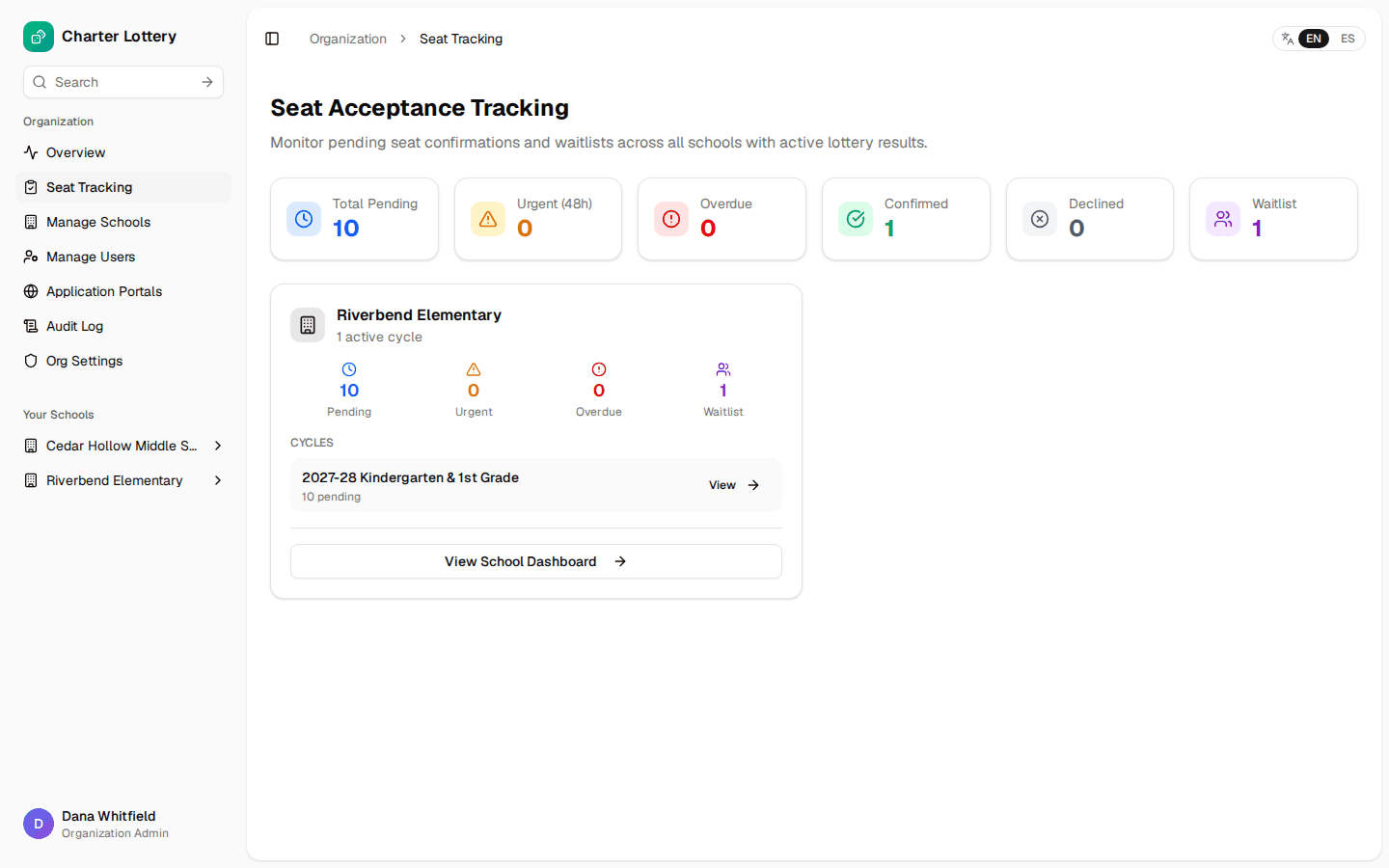
Open the school and choose Seat Tracking. You see offers waiting for an answer, offers due within 48 hours (Urgent), Overdue offers, and the waitlist by grade.
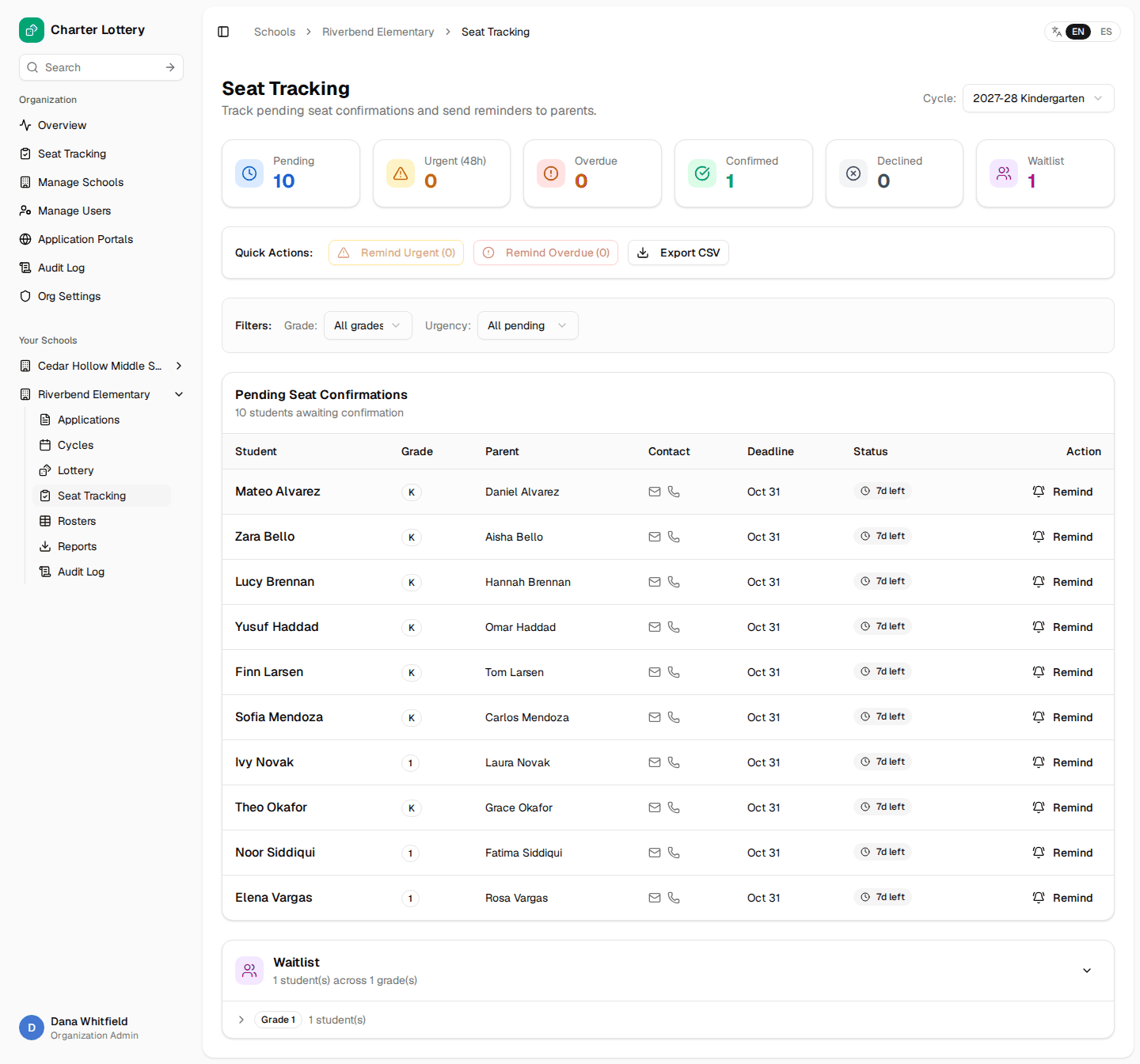
- Select Remind next to a family to send a reminder now, or use Remind Urgent / Remind Overdue to remind a group.
- Export CSV downloads the list for phone follow-up.
- Charter Lottery also sends reminders automatically every morning for offers due within 48 hours or overdue.
Organization admins can see every school at once on the organization Seat Tracking page.
Seat and waitlist controls
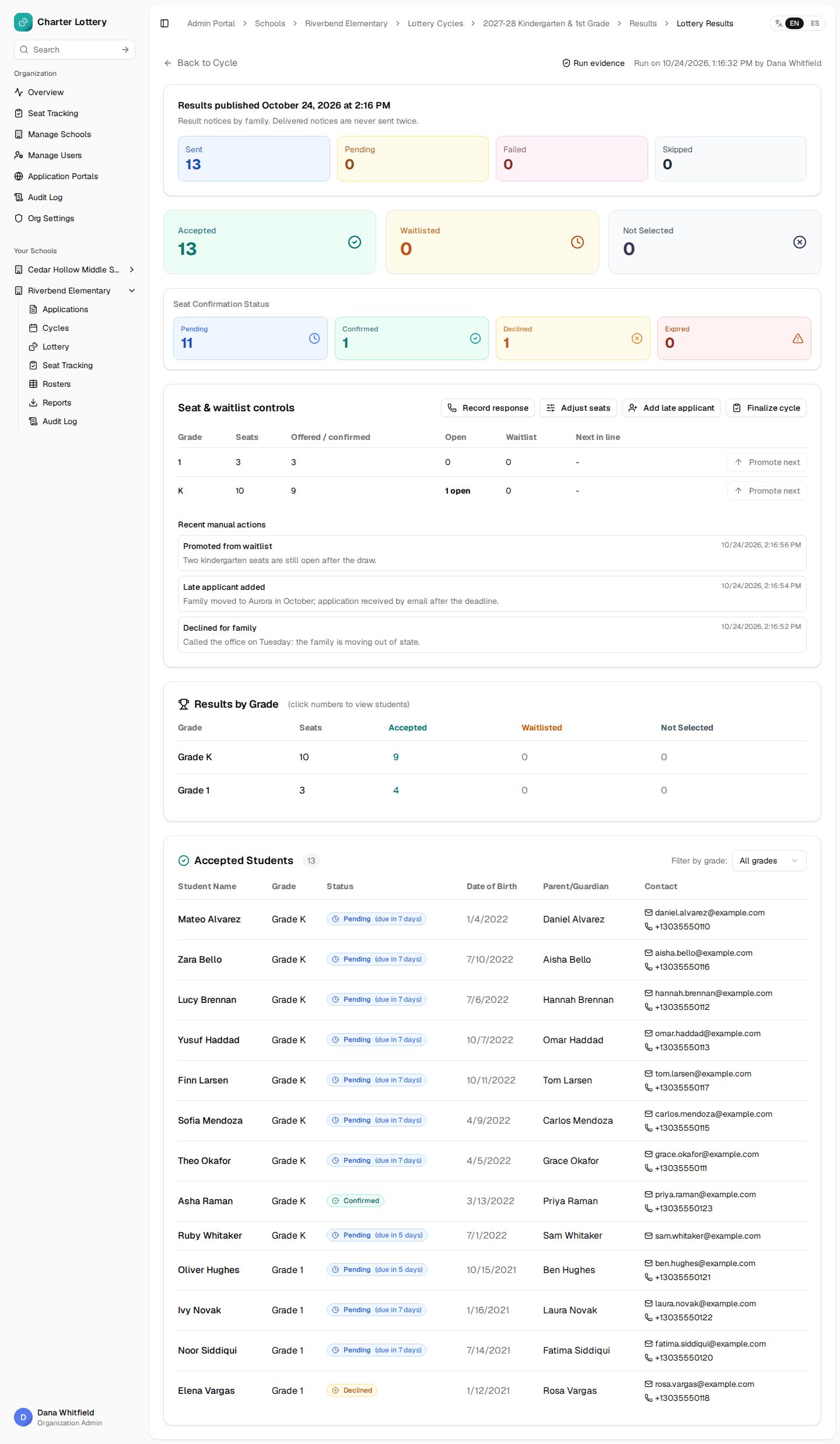
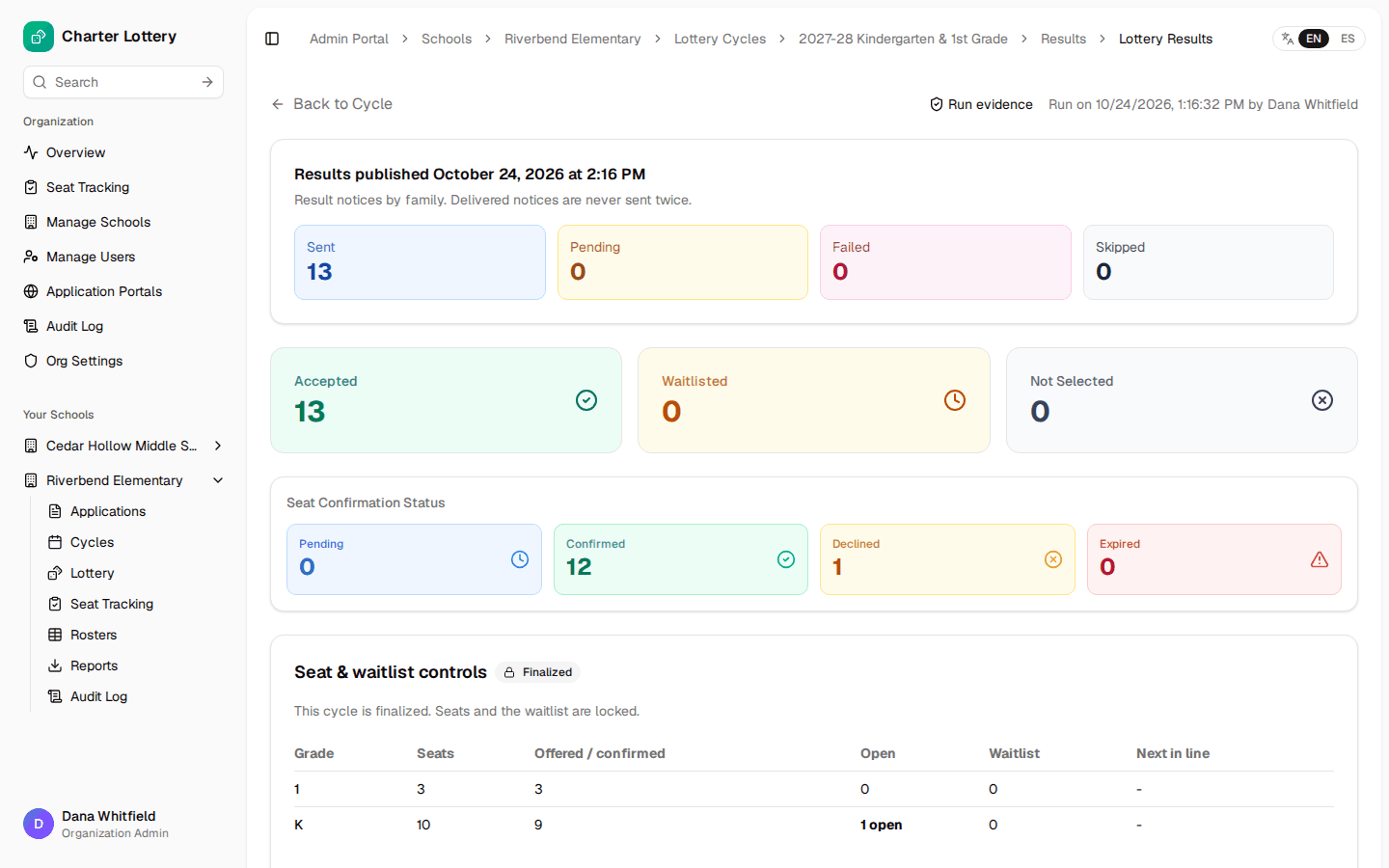
On the cycle's results page, Seat & waitlist controls shows, for each grade, the seats, offers, open seats, waitlist and who is next in line.
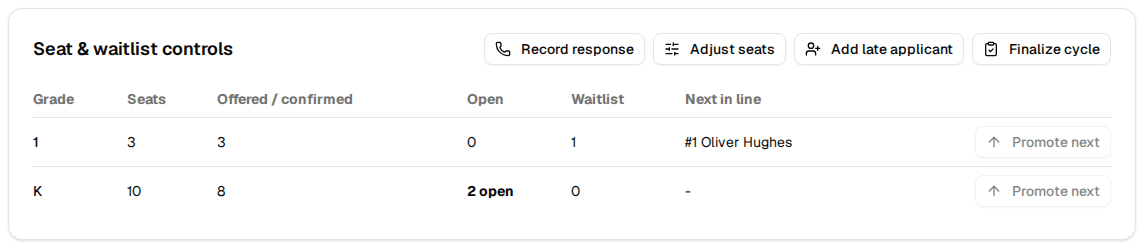
Record a family's answer (Record response). When a family tells you by phone, email or in person, record it so the seat is handled correctly. Choose the offer, Accepts the seat or Declines the seat, and add a note. Declining releases the seat and offers it to the next family on the waitlist straight away. The family gets an email confirming what you recorded.
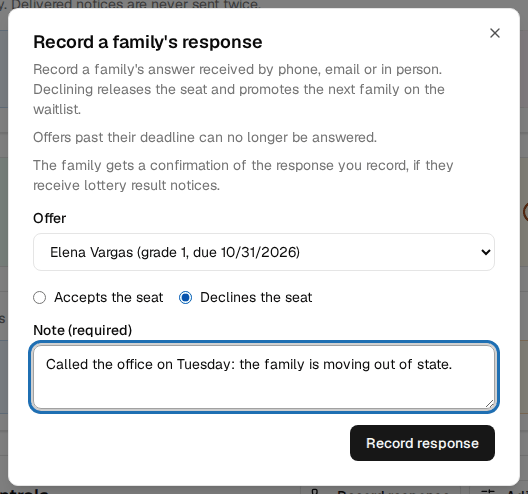
What happens automatically. When a family declines in the portal, or an offer passes its deadline without an answer (checked every night), the seat is offered to the next family on that grade's waitlist. They are notified and get the cycle's confirmation deadline. Everyone behind them moves up one place.
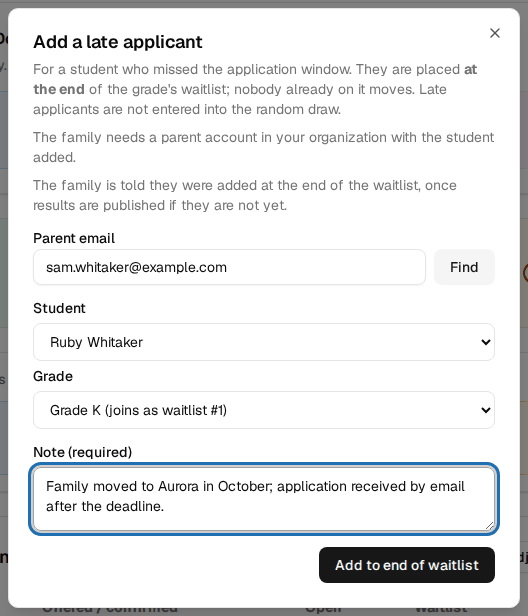
Add a late applicant. For a student who missed the application window: the family needs a parent account in your organization with the student added. Enter the parent's email, select Find, choose the student and grade, add a note, and select Add to end of waitlist. Late applicants are not entered into the random draw; they join the end of the grade's waitlist and nobody already on it moves.
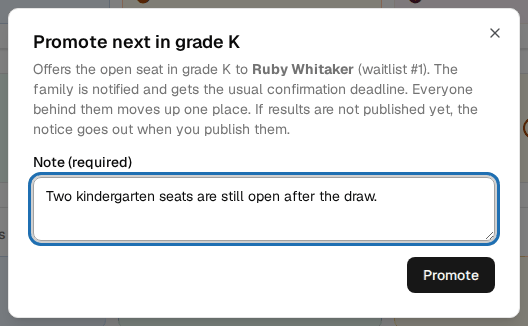
Promote next. If a grade has an open seat and a waitlist (for example after you add seats), select Promote next on that grade's row, add a note and select Promote. The next family is offered the seat and notified.
Adjust seats. Changes a grade's seat count after the draw. Added seats are filled straight away from the waitlist, in order, and those families are notified. A grade cannot go below the seats already offered or confirmed. The original lottery configuration stays on record.
Every manual action appears under Recent manual actions with its note, and in the audit log.
Part 7 · Close out the season
Export lists and reports
Open the school and choose Reports. Pick a report (Applications, Lottery Results, Waitlist, Notification Log or Audit Trail), a cycle and CSV or PDF, then Generate & Download.
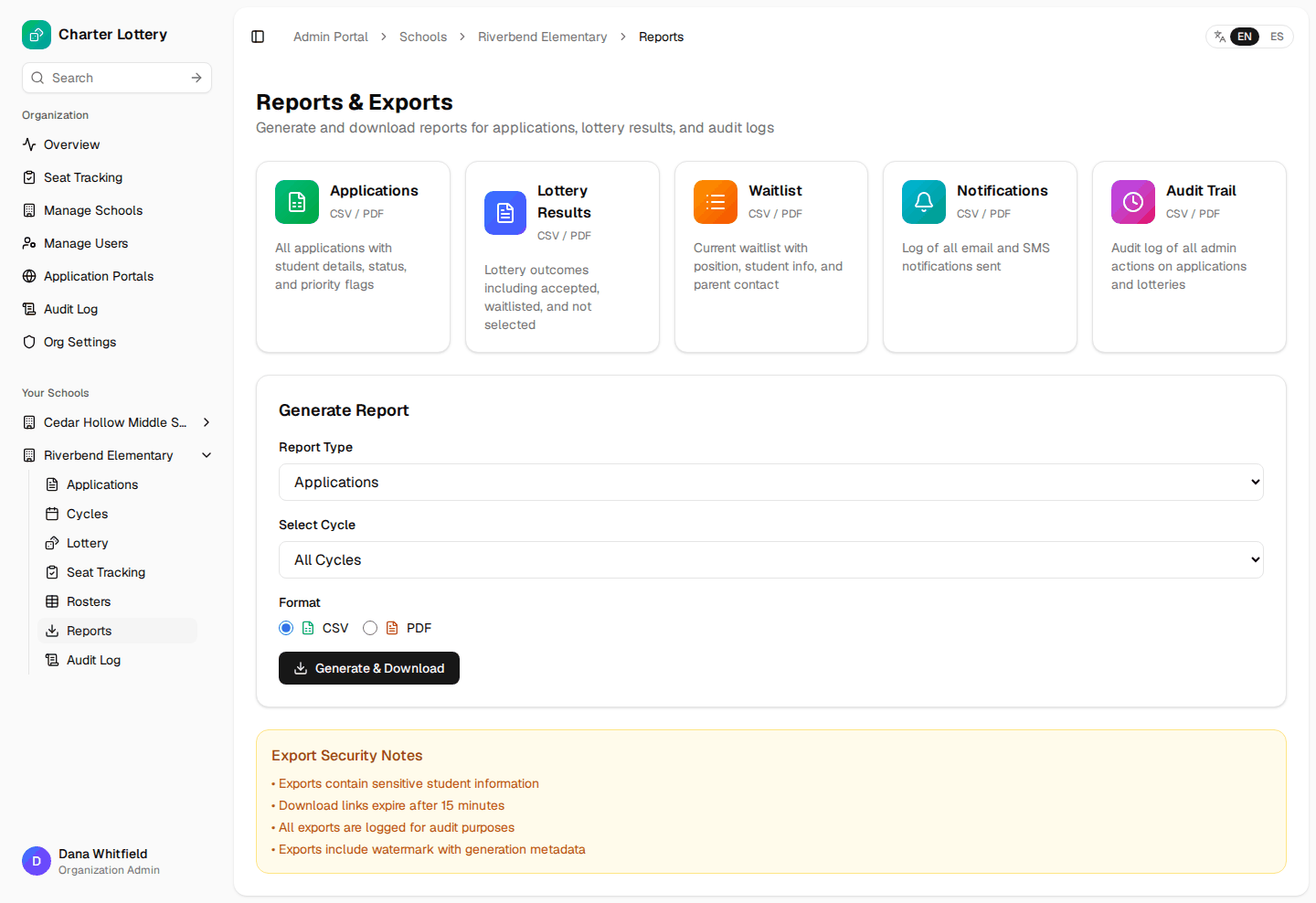
Exports contain student information. The download link expires after 15 minutes, every export is logged, and each file carries who generated it and when. Store downloaded files according to your school's records policy.
Check the audit log
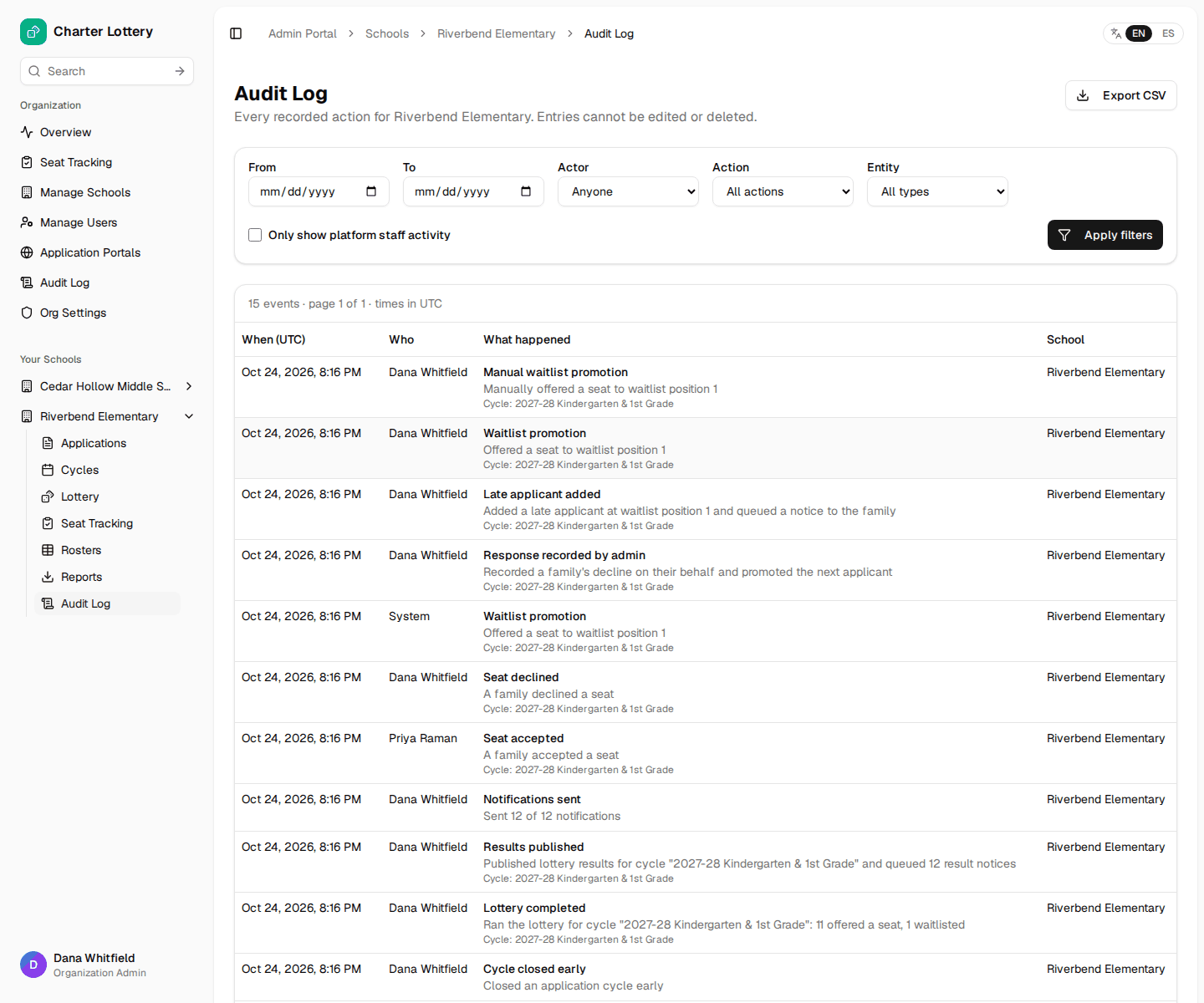
Audit Log (per school, or for the whole organization) lists every recorded action: who did it, when and to what. Entries cannot be edited or deleted. Filter by date, person, action or school, and use Export CSV to keep a copy.
Finalize the cycle
When every offer has been accepted, declined or has expired:
- On the results page, select Finalize cycle.
- Type the cycle label to confirm, and add a note if you like.
- Select Finalize.
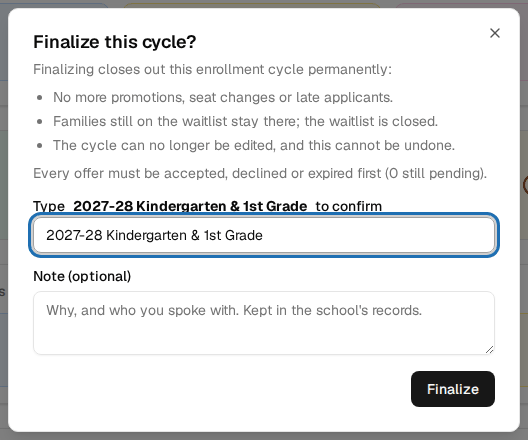
Finalizing locks the cycle: no more promotions, seat changes or late applicants, the waitlist closes, and the cycle cannot be edited or invalidated. It cannot be undone.
What school admins can and cannot do
A school admin sees only the schools an organization admin assigned to them.
| Task | Organization admin | School admin |
|---|---|---|
| Overview, organization seat tracking, organization audit log | Yes | No |
| Add or edit schools | Yes | No |
| Invite users, change roles and school assignments; suspend or reinstate school admins | Yes | No |
| Notification, lottery and billing settings; portals | Yes | No |
| Subscribe a school when prompted before a lottery | Yes | Yes, for their schools |
| Document requirements and rosters | Yes | Yes, for their schools |
| Create, edit, open and close cycles | Yes | Yes, for their schools |
| Review documents, verify, mark ineligible, override priorities | Yes | Yes, for their schools |
| Run the lottery and publish results | Yes | Yes, for their schools |
| Evidence record and Selection Audit Packet | Yes | Yes, for their schools |
| Invalidate a draw | Yes | No |
| Seat controls, reminders, late applicants, finalize | Yes | Yes, for their schools |
| Reports, exports and the school audit log | Yes | Yes, for their schools |
The admin area for schools is available in Spanish (select ES at the top); the organization pages are in English only.