For IT staff and managed service providers who support schools using Charter Lottery: what to set up, what to allowlist, how staff accounts work, and how data is handled.
Charter Lottery is a hosted web application at https://charterlottery.com. There is nothing to install on school computers or servers. Families and staff use an ordinary web browser.
Every statement here was checked against the application in October and November 2026.
For the first-run steps with full-window screenshots, see the MSP onboarding walkthrough.
In this guide
- Roles
- Create and invite staff accounts
- Sign-in methods
- Two-step sign-in (MFA) for staff
- Offboarding: suspend or remove staff
- Email and SMS: what to allowlist
- Browsers and devices
- Link the parent portal from the school website
- Data handling, FERPA and retention
- Exports and audit logs
- Support
Roles
Each account belongs to one organization (the school or charter network) and has one role. Permissions come from Charter Lottery's database, not from the identity provider, and are rechecked on every request.
| Role | Scope | Typical user |
|---|---|---|
Organization admin (ORG_ADMIN) | Every school in the organization, users, settings, billing | Head of school, operations lead |
School admin (SCHOOL_ADMIN) | Only the schools assigned to them | Enrollment coordinator, front office |
Parent (PARENT) | Their own children and applications | Families |
A separate platform role (site owner) is held by the Charter Lottery operator only. The admin guide lists exactly what organization and school admins can each do.
Create and invite staff accounts
Only an organization admin can invite staff.
-
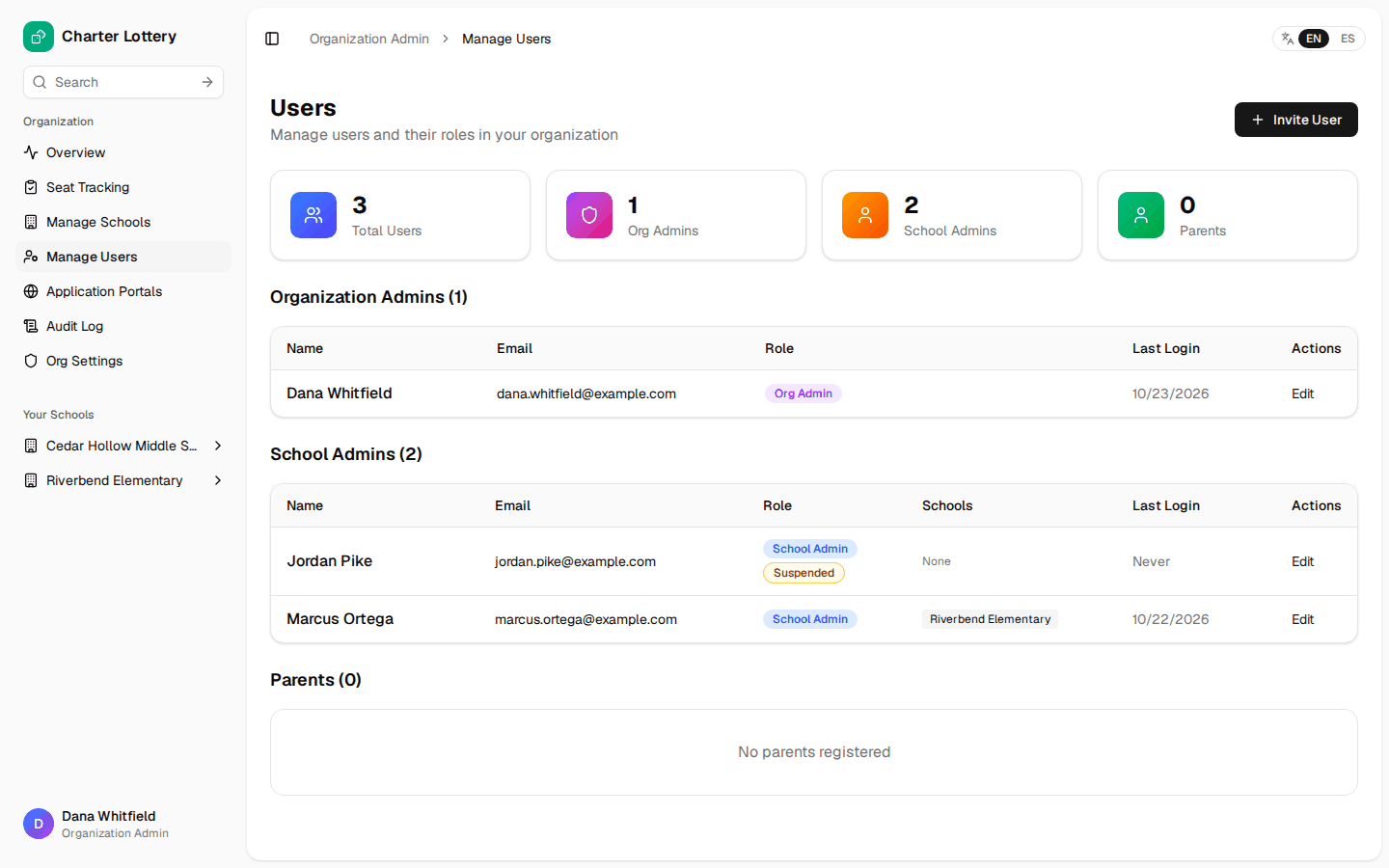
Choose Manage Users. The page lists organization admins, school admins (with their schools) and parents.
-
Select Invite User.
-
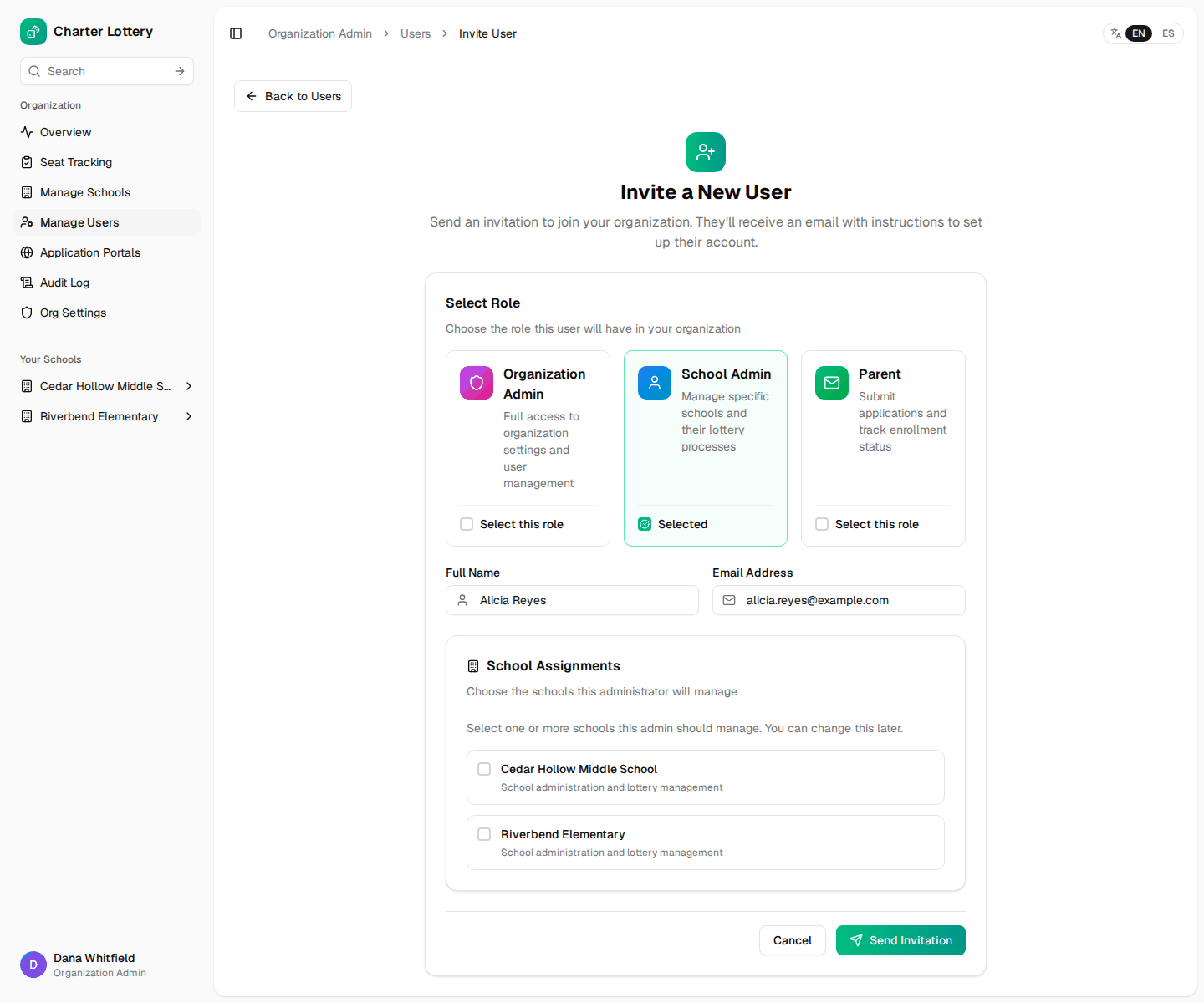
Choose the role. For a School Admin, tick at least one school.
-
Enter the person's full name and email address.
-
Select Send Invitation.
What happens next:
- Charter Lottery creates the account in its identity provider (Amazon
Cognito, AWS us-east-2) and emails the invitee from
noreply@charterlottery.com. The email, titled "You're invited to organization on Charter Lottery", contains a temporary password and a link to the sign-in page. - At first sign-in the user must choose a new password, then (staff only) set up two-step sign-in.
- If the email cannot be sent, the account is still created and the admin is told so.
- Invitations are in English only.
Resend an invitation. Open the user (Edit). For someone who has never signed in, a resend option issues a new temporary password. Limits: 10 resends per hour per admin; per invitee, 1 every 5 minutes and 3 per hour. For anyone who has already signed in, use password reset instead.
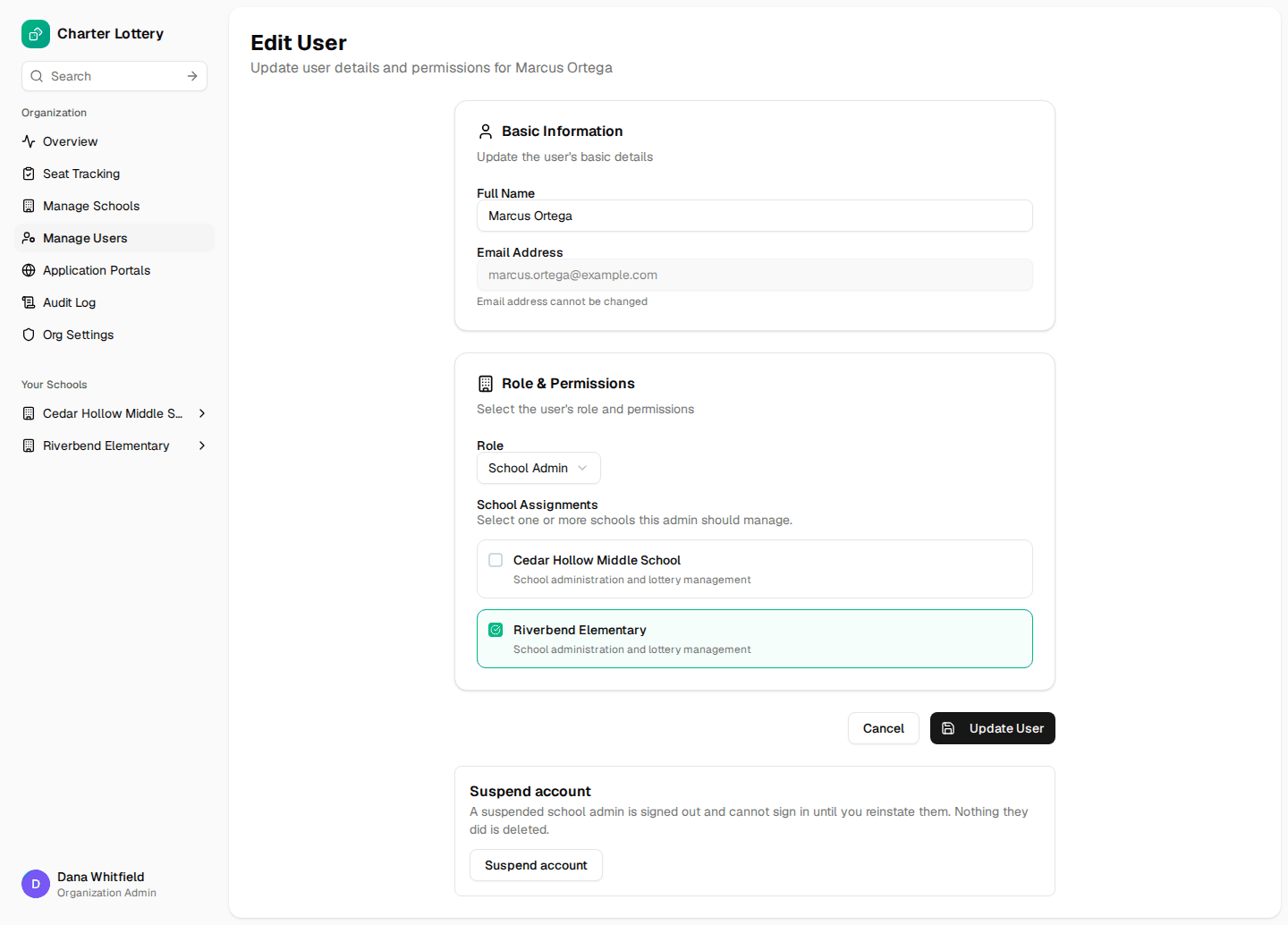
Change a role or school assignments. Open the user, change Role and tick the schools, then Update User. Saving replaces the user's school list. Changing a school admin to another role removes all their school assignments. The email address cannot be changed.
The emailed temporary password stays valid for 7 days. After that, an admin resends the invitation.
Sign-in methods
| Method | Who | Notes |
|---|---|---|
| Email and password | Everyone | Password: at least 12 characters with uppercase, lowercase, a number and a symbol |
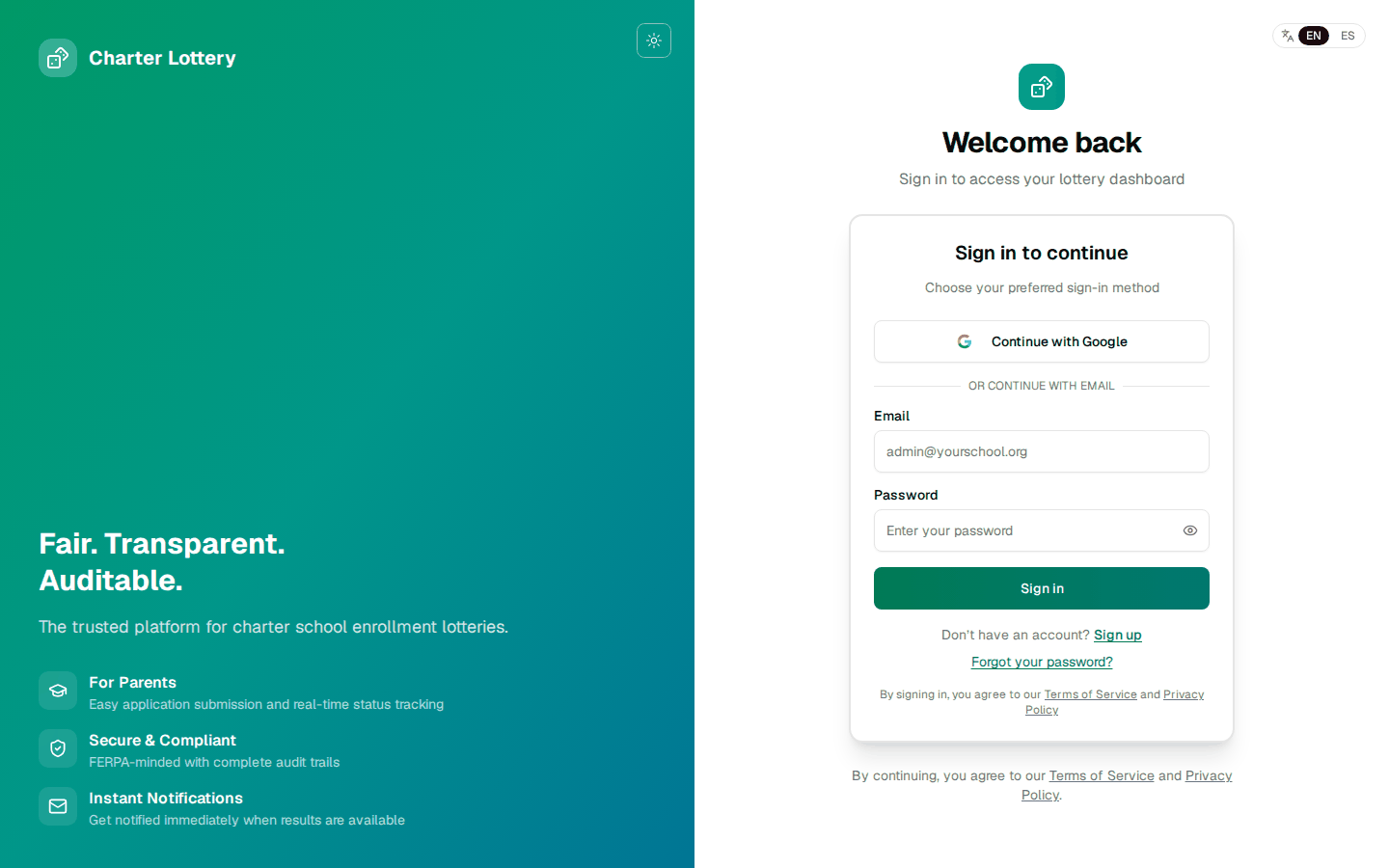
| Continue with Google | Shown on the main sign-in page | Goes through the Cognito hosted sign-in page and Google |
| School portal sign-in | Parents, on /portal/<school>/sign-in | Email and password only |
Invited staff can use Google. An invited organization or school admin who has not signed in yet can choose Continue with Google instead of the temporary password, as long as the Google account uses the same email address as the invitation and Google has verified it. The first Google sign-in connects Google to the invited account. It does not work (the person is taken to "complete sign-up" instead) if the invitation has already been used, if two invitations share that email, or if the Google account's email differs or is unverified. In those cases, use the emailed temporary password.
Connect Google later. Staff who already use email and password can open Account security (their name at the bottom of the menu), choose Connect Google and sign in with a Google account that has the same email address. Disconnect Google removes it again, provided the account has a password; it also signs out any session that came in through Google. Connecting and disconnecting are recorded in the organization's audit log.
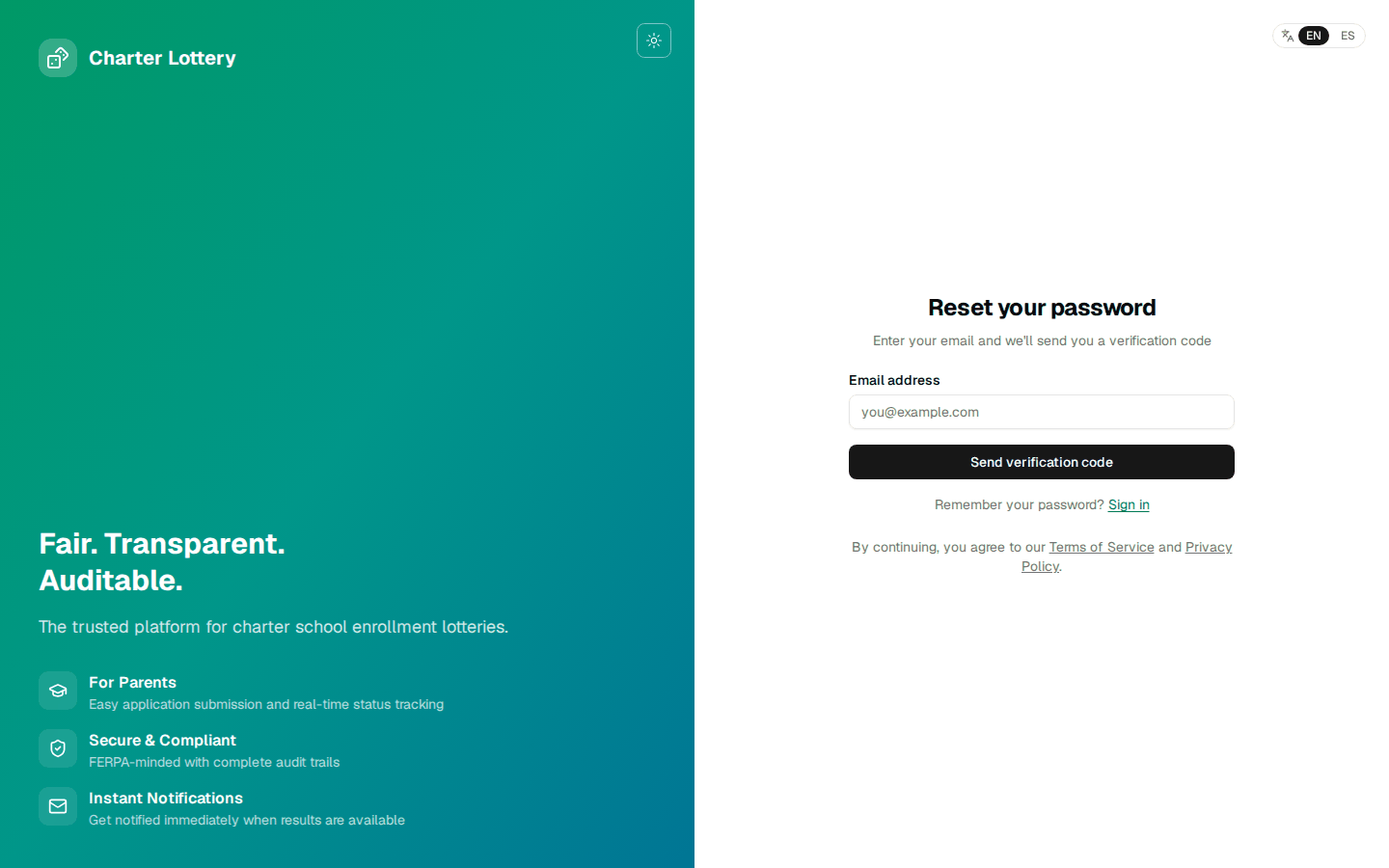
Forgotten password. Forgot your password? on the sign-in page emails a verification code; the user enters it with a new password. The page never reveals whether an account exists.
New parent accounts confirm their email with a six-digit code before they can sign in.
Idle timeout. Signed-in users are signed out after 30 minutes without mouse or keyboard activity, with a warning 5 minutes before. Signing in again does not end sessions on other devices.
Two-step sign-in (MFA) for staff
Organization admins and school admins use an authenticator app (any app that supports time-based codes, such as Microsoft Authenticator, Google Authenticator, 1Password or Authy). Parents do not use two-step sign-in.
It applies to email-and-password sign-ins and personal Google accounts (such
as @gmail.com), and to the Charter Lottery operator's own accounts. Once a
staff member has set it up, they must use it at every new sign-in.
Google Workspace accounts are not asked. When staff sign in with a school Google Workspace account (a Google account managed by the school's domain), Charter Lottery does not ask for its authenticator code, offer the one-time skip, or ask again before sensitive actions. The school's own Google 2-Step Verification is the control, so IT should enforce 2-Step Verification for staff in the Google Admin console. This applies to that Google sign-in only: the same person signing in with email and password still gets two-step. Each staff sign-in is recorded in the audit log with its method and whether it was a Workspace sign-in.
| Sign-in | Charter Lottery two-step |
|---|---|
| Email and password | Yes |
| Google, personal account | Yes |
| Google, school Workspace account | No (Google's 2-Step Verification applies) |
When Charter Lottery requires two-step sign-in for staff, a staff member who has not set it up yet:
| Sign-in | What happens |
|---|---|
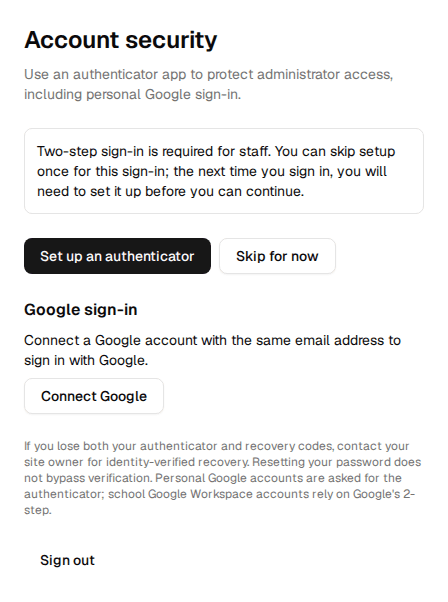
| First sign-in without two-step | Taken to Account security. They can set it up now or choose Skip for now once and carry on working for the rest of that sign-in. |
| Any later sign-in | Setup is required. No staff page, report or action works until it is set up. Skip for now is not offered again. |
The one skip is per person, not per browser or device, and is recorded in the organization's audit log. Reloading pages or opening new tabs in the same sign-in does not use it up again; signing out and back in, or signing in on another device, counts as a new sign-in. If the setting is off, staff are not prompted at all, but anyone who has set up an authenticator still has to use it.
Set it up
-
Sign in. You are taken to Account security (or open your name at the bottom of the menu and choose Account security).
-
Select Set up an authenticator.
-
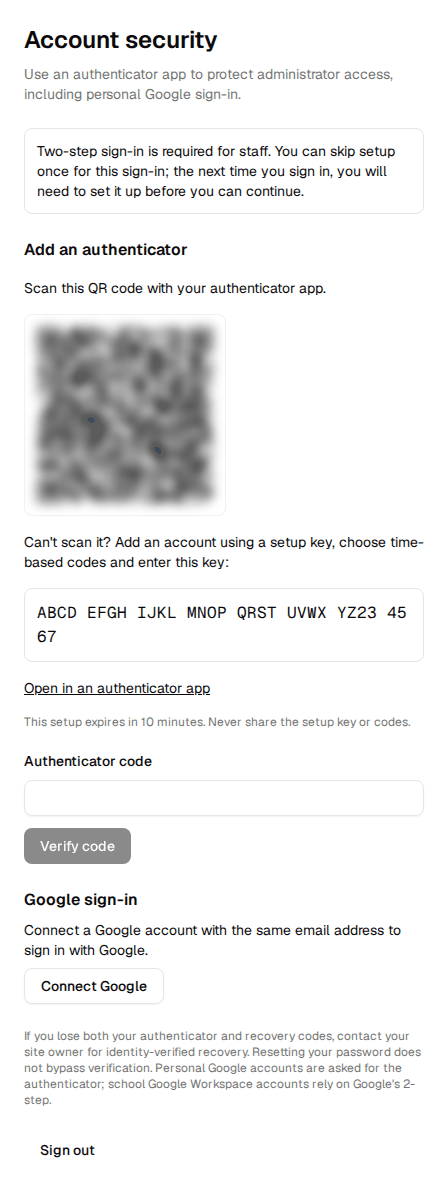
Scan the QR code with the authenticator app. If you cannot scan it, enter the setup key shown below it, or use Open in an authenticator app on a phone. The setup expires after 10 minutes. The QR code is drawn in the browser, so the key is not sent to any outside service.
-
Enter the six-digit code from the app and select Verify code.
-
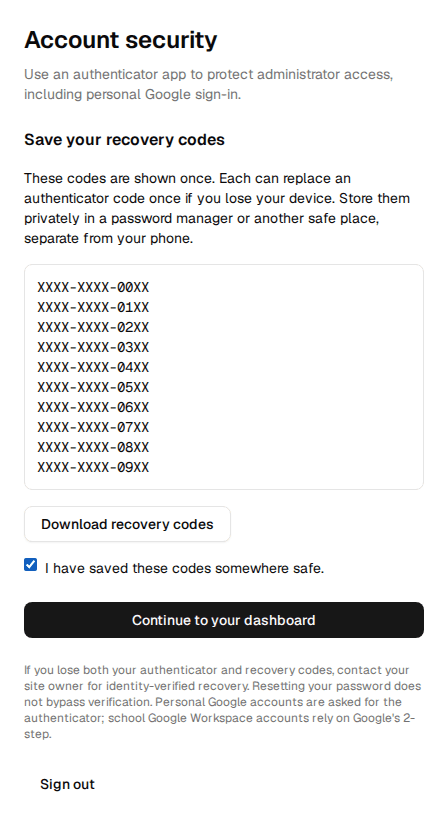
Save the 10 recovery codes. They are shown once. Each can be used once instead of an authenticator code. Download them or copy them into a password manager, separate from the phone.
-
Tick the confirmation. Continue to your dashboard stays unavailable until you do.
A verification lasts 12 hours on that browser. After 5 wrong codes in 10 minutes, verification is blocked for 15 minutes.
Lost phone
- Sign in and choose Use a recovery code. The page shows how many codes remain. Then set up the new phone.
- To get a fresh set of codes, verify first (within the last 5 minutes), then regenerate them on Account security.
- Lost both the phone and every recovery code: there is no self-service or school-admin reset. Contact Charter Lottery support; recovery requires an identity check and is recorded. Password reset and personal Google sign-in do not bypass two-step sign-in.
Offboarding: suspend or remove staff
Organization admins can suspend school admins themselves. Deleting a staff account, or suspending another organization admin, still goes through Charter Lottery support.
To offboard a school admin:
- Open Manage Users, select Edit on the person, and under Suspend account select Suspend account, then Yes, suspend. Suspension takes effect on the person's next request: they are signed out and cannot sign in again. Reinstate account undoes it. Both are recorded in the audit log.
- To delete the account, or to offboard an organization admin, email support@charterlottery.com.
Notes:
- Suspension blocks the account in Charter Lottery; it does not disable the login in the identity provider. Deleting a staff account removes it from Charter Lottery's database but not from the identity provider.
- The Users list marks suspended accounts Suspended next to the role.
- You cannot suspend yourself, another organization admin, or a parent account.
- Audit history keeps the person's actions after they leave.
Email and SMS: what to allowlist
Ask your mail administrator to make sure these reach staff and families.
| Item | Value | Status |
|---|---|---|
| Sender address | noreply@charterlottery.com | Confirmed (production configuration) |
| Reply-to | support@charterlottery.com | Confirmed (production configuration) |
| Sending service | Amazon SES, us-east-2, domain charterlottery.com (DKIM verified) | Confirmed |
| SPF and DMARC | Mail is DKIM-signed by Amazon SES; bounces use mail.charterlottery.com; charterlottery.com publishes a DMARC policy | Confirmed |
| Password-reset and sign-up code emails | support@charterlottery.com ("Charter Lottery"), sent by Amazon Cognito through SES | Confirmed |
| Sign-in page for Google | charterlottery.auth.us-east-2.amazoncognito.com | Confirmed |
| Text messages (SMS) | +1 844 586 1238 (US toll-free, registered) | Confirmed |
Emails sent include: staff invitations, application submitted, verified or ineligible, document approved or rejected, lottery result (accepted or waitlisted), results replaced after a redraw, late applicant added to the waitlist, waitlist promotion, seat-deadline reminders, seat confirmed, and a receipt when staff record a family's answer for them. Families receive them in English or Spanish.
Texts are only sent when the organization has SMS on and the parent has added and verified their mobile number and agreed to the SMS terms. Replies STOP, UNSUBSCRIBE, CANCEL, QUIT or END opt out; HELP returns help text. Texts follow the parent's language.
If parents report missing email, ask them to check spam, and check whether
the school's filters quarantine charterlottery.com.
Browsers and devices
- Charter Lottery is tested on current desktop Chrome and mobile Chrome on Android (automated tests). It is built for current versions of Chrome, Edge, Firefox and Safari, but Safari and Firefox are not part of the main automated tests and there is no published supported-browser list. The one exception is portal embedding, which has an automated check in Chromium, Firefox and WebKit (Safari's engine).
- Parents can do everything on a phone. One known layout problem: on narrow phones the Confirm Seat button can sit partly off the edge of the results card (see the parent guide).
- Accessibility target: WCAG 2.1 A/AA, checked automatically in English and Spanish.
- JavaScript and cookies must be enabled. A cookie banner appears on public pages; Google Analytics runs only on public marketing pages after a visitor accepts, never inside the signed-in app or school portals.
Link the parent portal from the school website
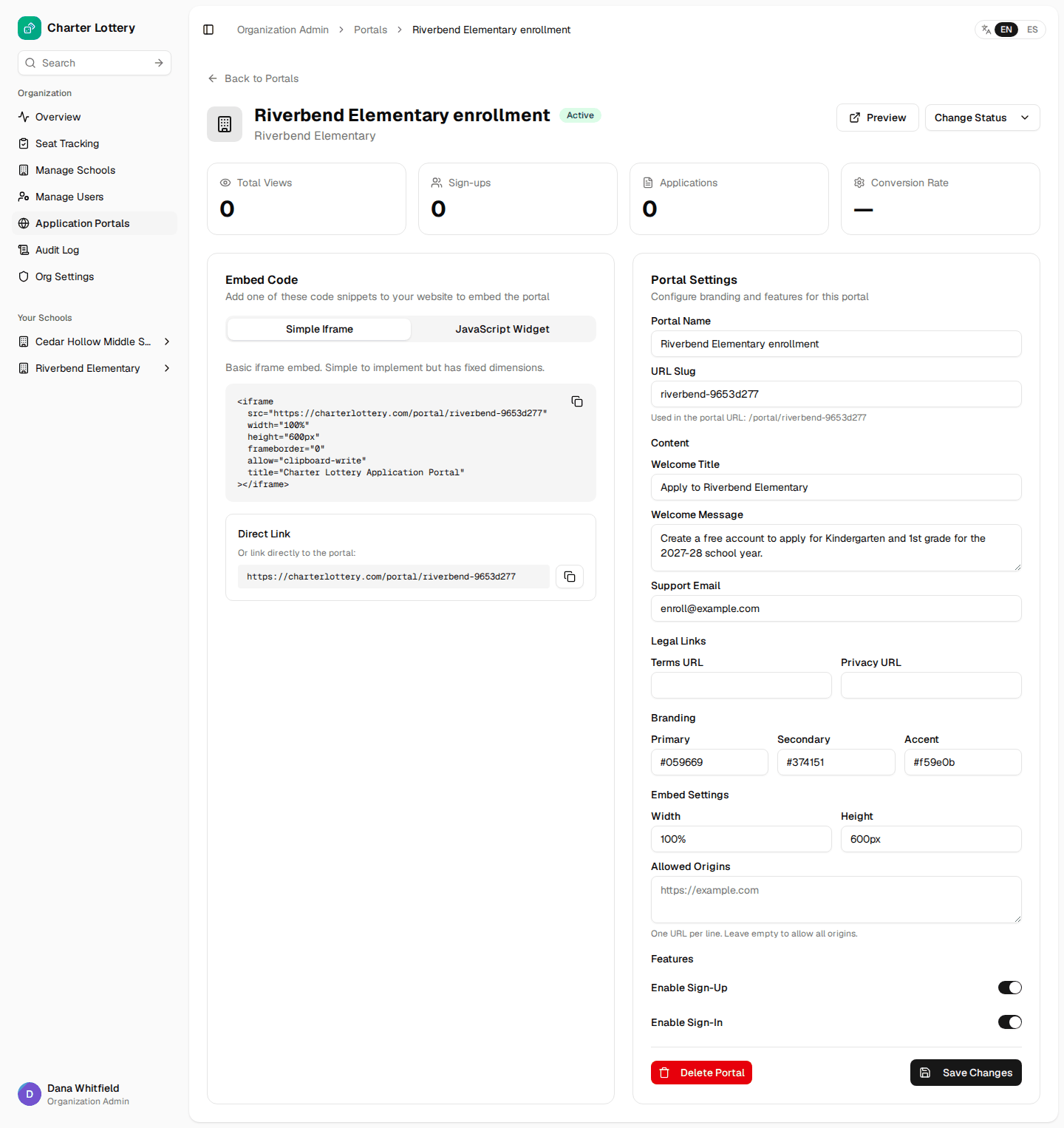
Each school (or the whole organization) can have an application portal: a branded page where families create an account and apply. An organization admin creates it under Application Portals in the menu and must set its status to Active.
Open the portal to find three ways to publish it:
| Option | How | Notes |
|---|---|---|
| Direct link (recommended) | Link a button such as "Apply for enrollment" to https://charterlottery.com/portal/<portal-slug> | Works everywhere; best on phones |
| Simple iframe | Paste the iframe snippet into the website | Fixed height (600 px by default); families may need to scroll inside the frame |
| JavaScript widget | Paste the script snippet | It does not resize itself yet; treat it like the iframe |
What works inside an iframe (checked 2026-10-24 in Chromium, Firefox and WebKit/Safari with an automated cross-site test):
| Step | Inside the iframe | What families see |
|---|---|---|
| Portal welcome page, open enrollment periods, how it works | Works in all three | The page renders in the frame |
| Create Account | Opens in a new tab | The sign-up form, full window |
| Sign In | Opens in a new tab | The sign-in form, full window |
| Applying, results, dashboard | Never in the frame | Continues in the new tab after sign-in |
Signing in cannot work inside a frame on another site in any current browser:
the sign-in and session cookies are SameSite=Lax, which browsers do not send
in a cross-site frame (Safari and Firefox would also block them as third-party
cookies). The portal therefore detects when it is framed and opens account
creation and sign-in in a new tab; if a sign-up or sign-in page is framed
directly, it shows an Open in a new tab button instead of the form. The
school's page stays open in the original tab.
Headers: portal pages (/portal/...) send Content-Security-Policy: frame-ancestors 'self' * and no X-Frame-Options, so any website may frame
them. Every other page (staff sign-in, the parent and staff apps, the
marketing site) sends X-Frame-Options: DENY and frame-ancestors 'none'
and cannot be framed. The portal's Allowed Origins setting restricts the
portal API, not which websites can frame the page.
If your site's own Content-Security-Policy has a frame-src or child-src
directive, add https://charterlottery.com to it, or the embed will be blank.
Because families have to move to a new tab to do anything, the direct link
remains the better choice for most schools.
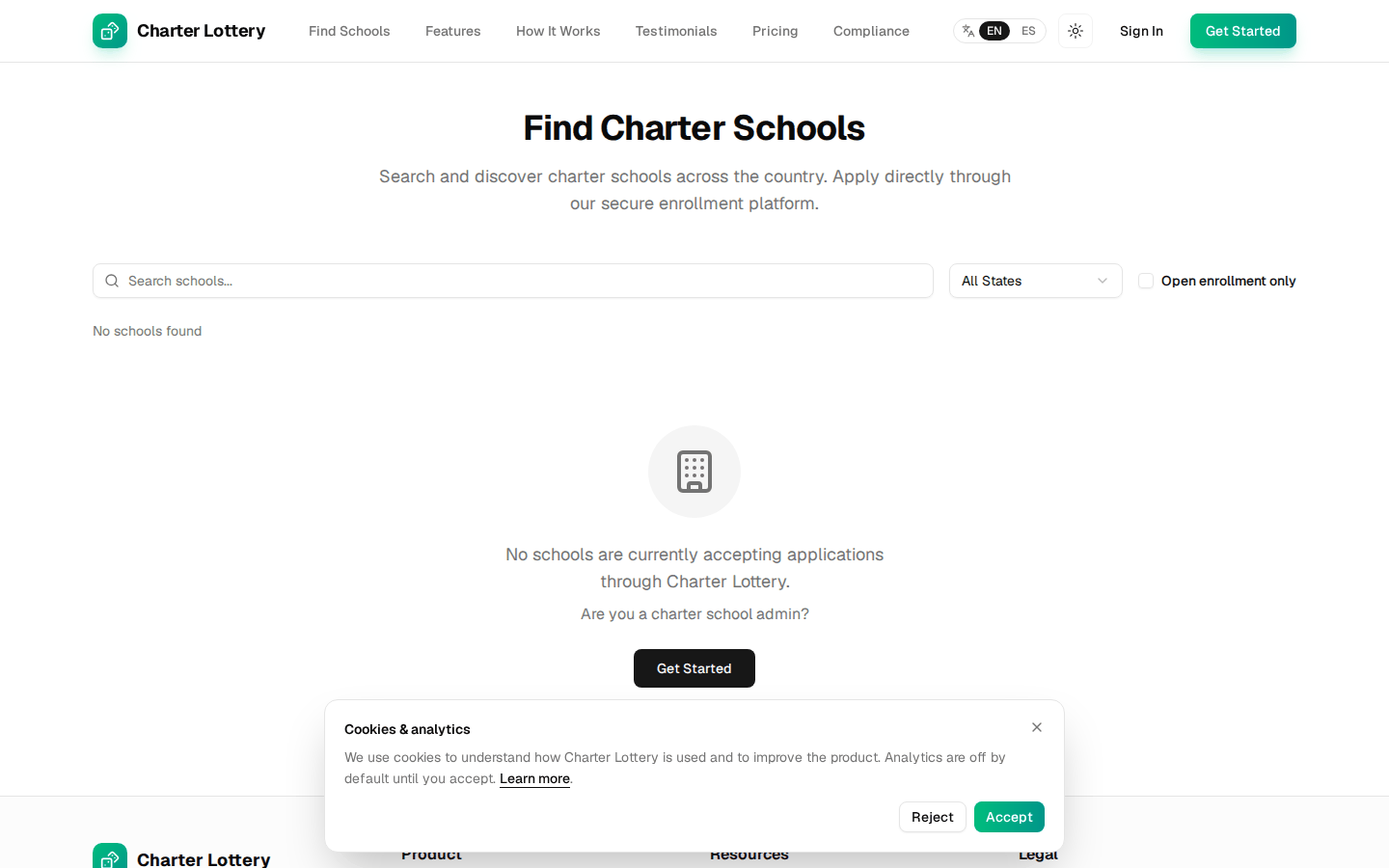
The public directory Find Schools (https://charterlottery.com/find-schools)
lists a school only while it has an open enrollment period. It shows the school
name, city and state, never the full address, phone, staff or student data.
Data handling, FERPA and retention
| Topic | Summary |
|---|---|
| Hosting | Amazon Web Services, US East (Ohio, us-east-2). Database on the application server; files in private S3 storage |
| Encryption | TLS in transit; AES-256 at rest |
| Backups | Nightly encrypted, restore-tested backups, kept up to 90 days (plus up to 30 days as superseded versions) |
| FERPA | Charter Lottery acts as a "school official" with a legitimate educational interest. A FERPA data processing addendum is available as a draft template; have counsel review it before signing |
| Tenant separation | Every query is scoped to the organization; staff only see their organization (school admins only their schools) |
| Logs | Audit entries record IDs, not names, birth dates or emails |
| Sub-processors | AWS (hosting, email, SMS, sign-in), Stripe (payments) |
| Breach notice | Within 72 hours under the draft addendum |
Retention policy (the automatic deletion job is not yet switched on; until it is, nothing is deleted automatically):
| Data | Kept for |
|---|---|
| Uploaded documents | 3 years after the cycle ends |
| Applications never entered in a lottery | 3 years after the cycle ends |
| Applications entered in a lottery, draws and results | 7 years after the cycle ends |
| Audit log | 7 years |
| Admin exports (downloaded files in storage) | 30 days |
| Accounts | Until deletion is requested |
Parent self-service. Parents can download their own data (ZIP with a readable page and JSON, plus copies of their uploaded documents; up to 3 times a day) and delete their account. Lottery records the school must keep are de-identified instead of deleted.
Staff accounts cannot be self-deleted. An organization admin can suspend a school admin; to delete a staff account, ask support.
Exports and audit logs
-
Exports (Applications, Lottery Results, Waitlist, Notification Log, Audit Trail) are generated as CSV or PDF per school. Download links expire after 15 minutes; every export is logged and carries who generated it, when and for which organization. Stored copies are removed after 30 days. Once downloaded, the file is the school's responsibility: store it according to your records policy.
-
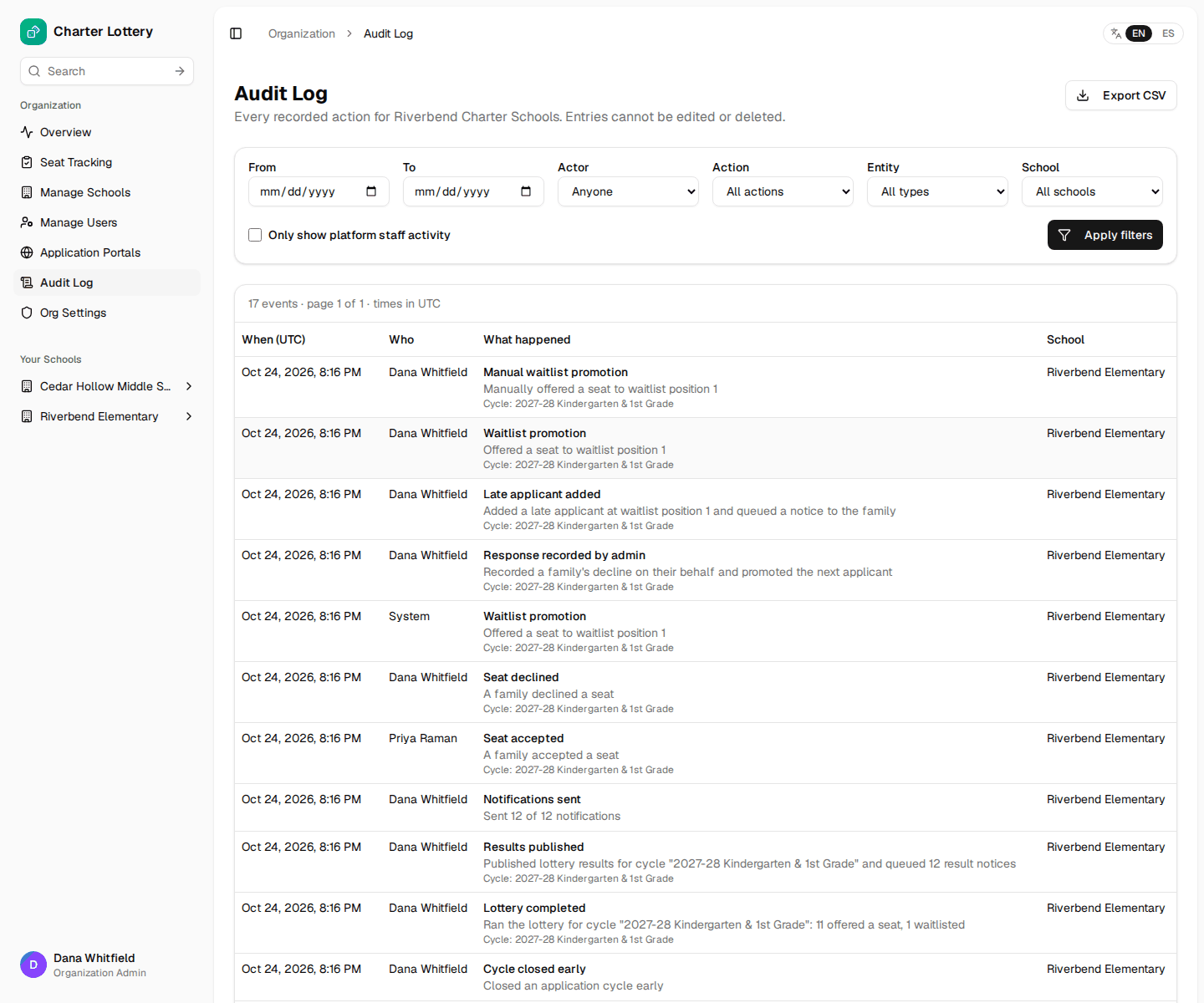
Audit logs exist per school and for the whole organization. Entries cannot be edited or deleted. Filter by date, person, action and school, and export to CSV.
-
Selection Audit Packet (PDF) per lottery cycle: the evidence an authorizer or auditor needs, watermarked on every page. See the admin guide.
-
Org Settings also has an Export All Data button (not exercised for this guide).
Support
| Need | Contact |
|---|---|
| Product help, sign-in problems, deleting staff accounts, MFA recovery | support@charterlottery.com |
| Legal, privacy, data processing addendum | legal@charterlottery.com |
| Security reports | security@charterlottery.com |
| Sales, adding SMS | sales@charterlottery.com |
Write to the address for your need, or use the form on the contact page; replies come by email. Charter Lottery does not publish support hours or a response time. Product troubleshooting and billing help are included in the subscription; optional setup, training and custom work is $175 per hour, agreed in advance. There is no written service-level agreement.