This guide is for parents and guardians applying to a charter school that uses Charter Lottery. You can do everything on a phone, tablet or computer.
The pictures show a made-up school, Riverbend Elementary, and a made-up parent, Priya Raman, applying for her daughter Asha. Your school's name, dates and grades will be different.
In this guide
- Find your school
- Create your account
- Add your child
- Apply
- Upload documents
- Check your application
- See your lottery result
- Accept or decline a seat
- If you are on the waitlist
- Emails and text messages
- Use Charter Lottery in Spanish
- Your account and your data
- Getting help
1. Find your school
Most schools put a link to their application portal on their own website. Use that link if you have it: it takes you straight to the right school.
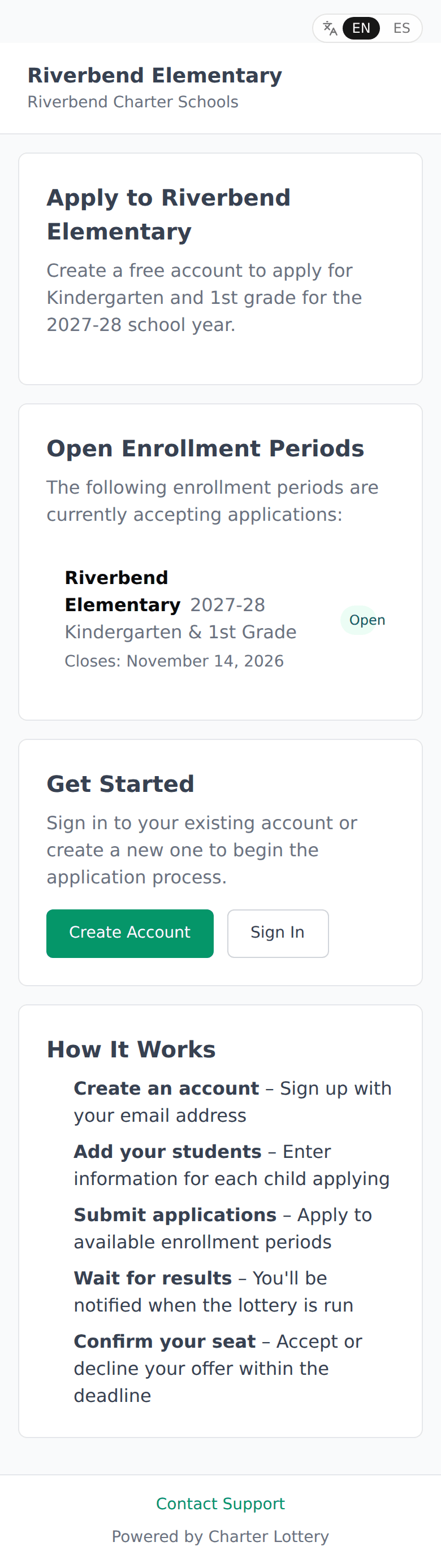
The portal shows the school's welcome message, the enrollment periods that are open now and when they close, and buttons to Create Account or Sign In.
If you do not have a link, you can search for the school:
- Go to charterlottery.com and choose Find Schools.
- Type the school's name, or pick your state.
- Choose the school to see its open enrollment periods and closing dates.
- Select Apply Now.
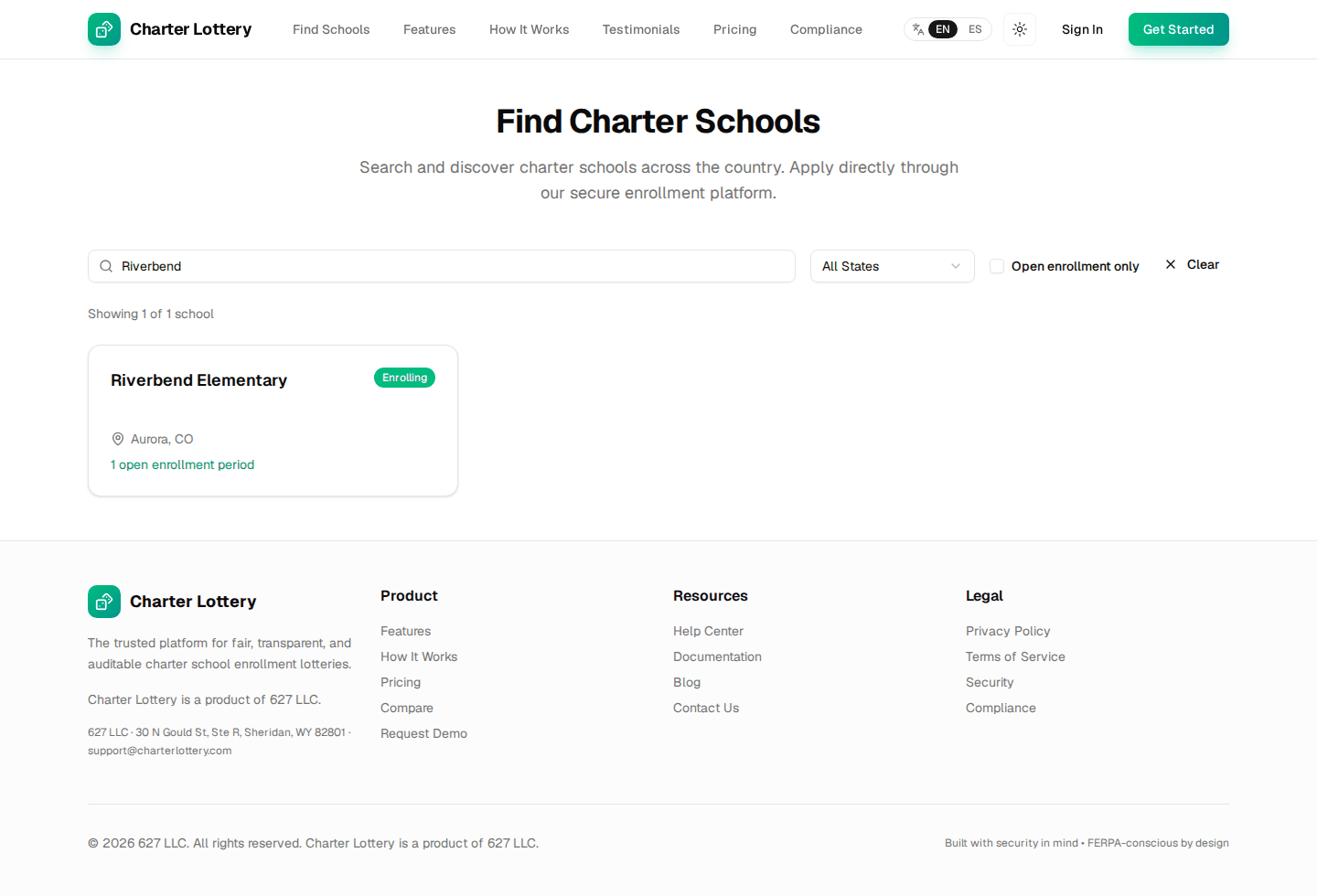
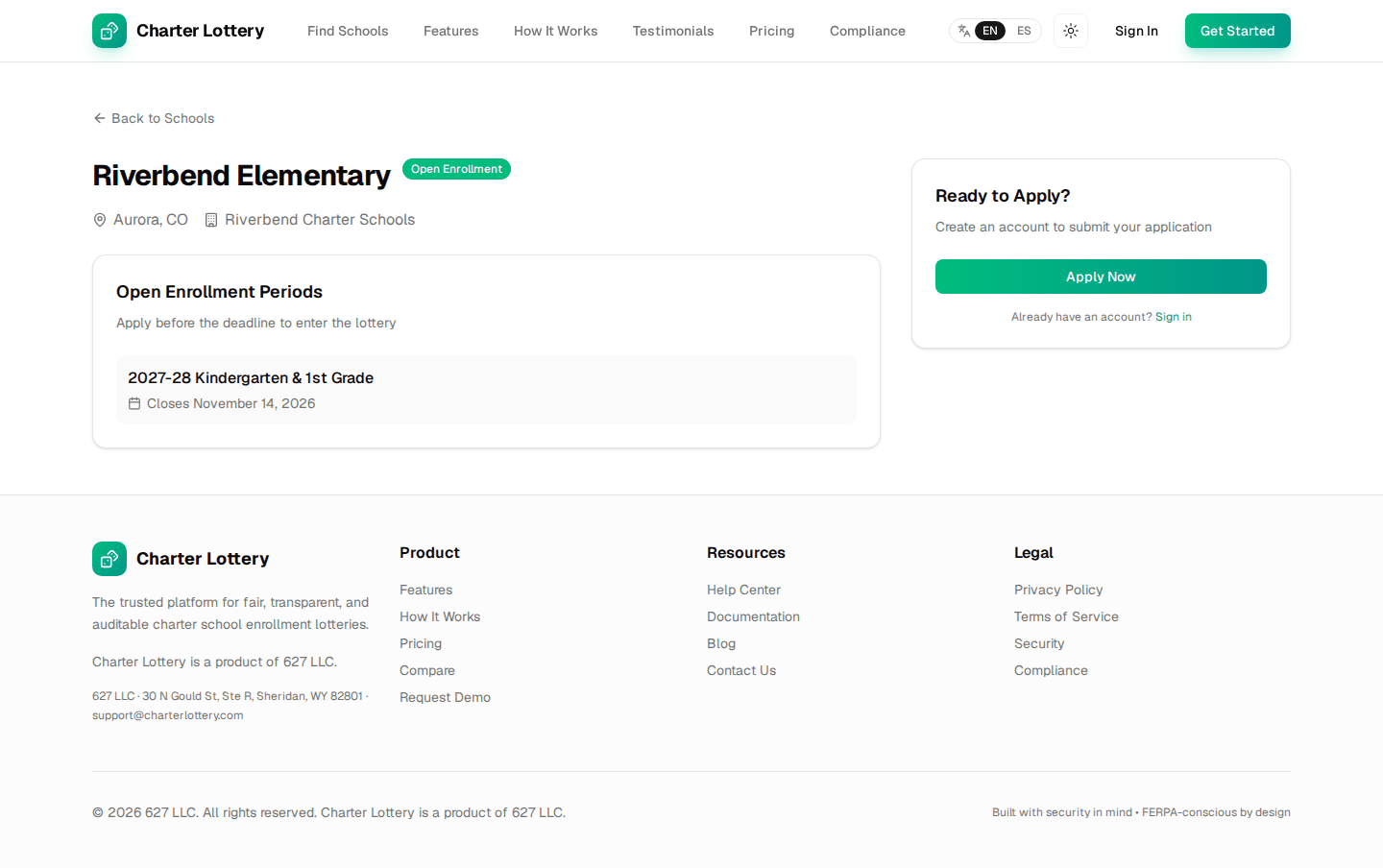
Schools only appear in the search while they are accepting applications.
2. Create your account
You need one account per family. You will add each child to it.
- On the portal, select Create Account.
- Enter your full name and email address.
- Choose a password with at least 12 characters, including an uppercase letter, a lowercase letter, a number and a symbol.
- Select Create Account.
- Check your email for a six-digit code and enter it on the "Verify your email" page. This proves the email address is yours.
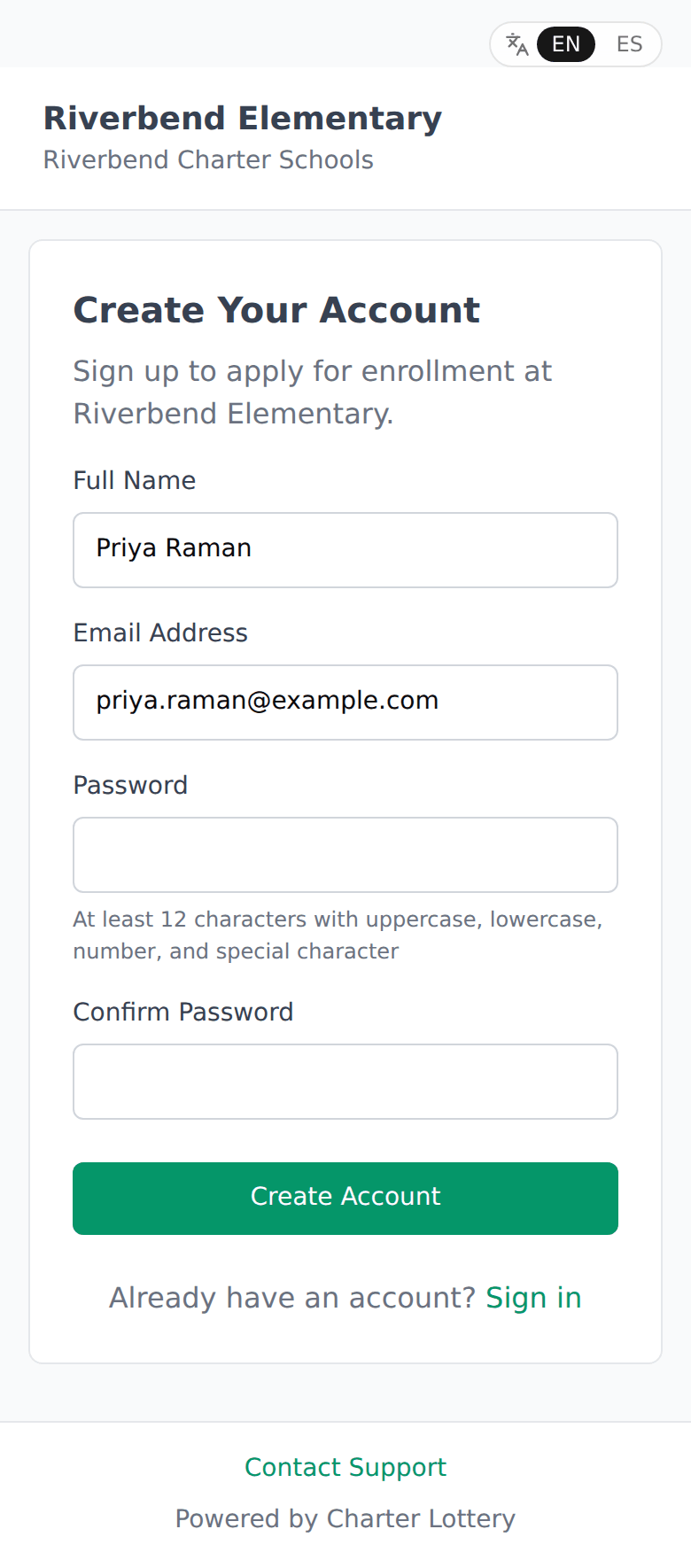
If the code does not arrive within a few minutes, check your spam folder, then use Send a new code.
If you came from Find Schools and the school has no portal, you will see "Apply as a Parent" instead, with the school already chosen: just create your account the same way. If you open that page directly, search for the school first, select Continue, then create your account.
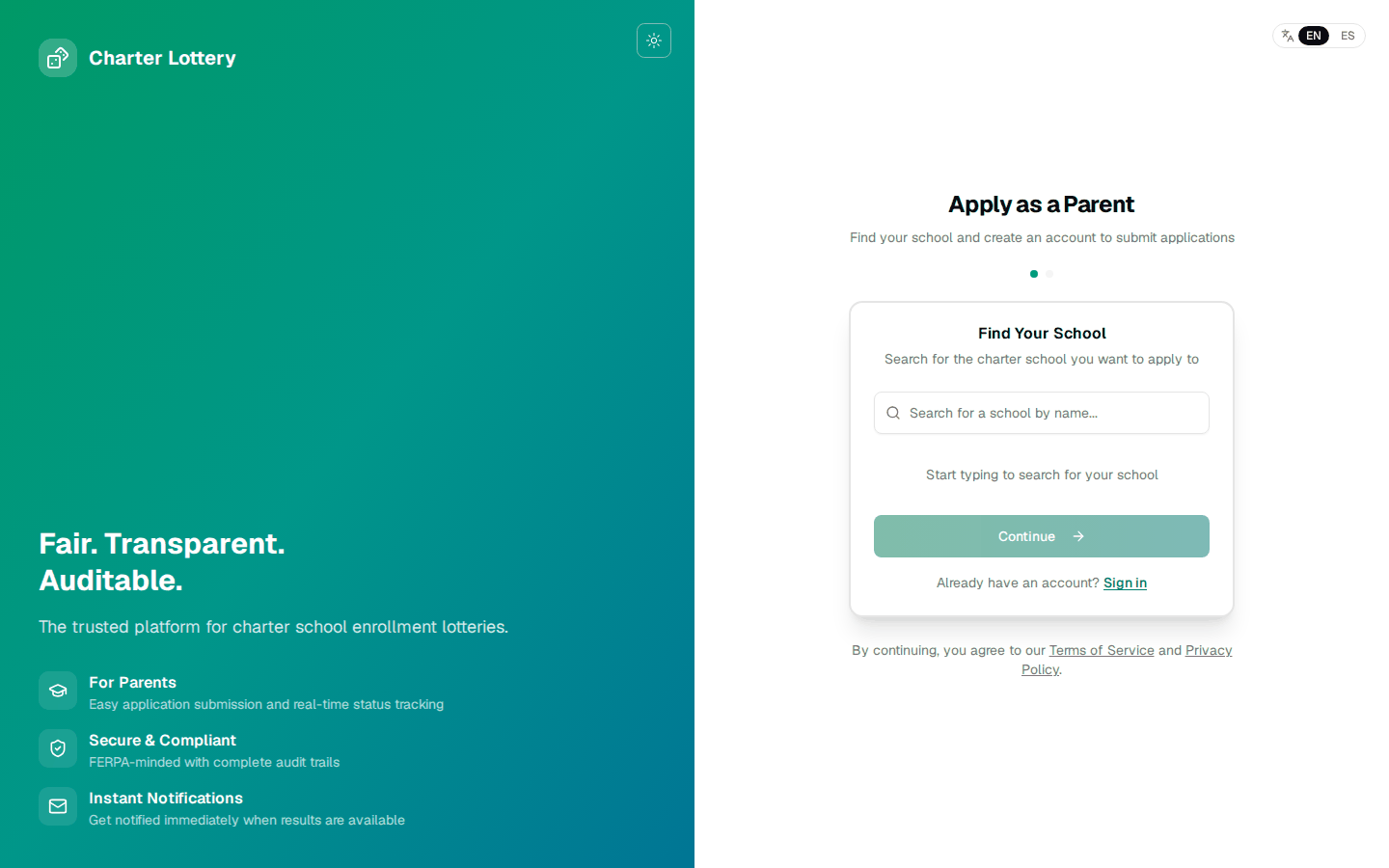
Already have an account? Select Sign In instead. If you forgot your password, use Forgot your password? on the sign-in page; we email you a code to set a new one.
3. Add your child
After you sign in you will see your dashboard. It shows your children, your applications, results waiting for you, and the schools open for applications.
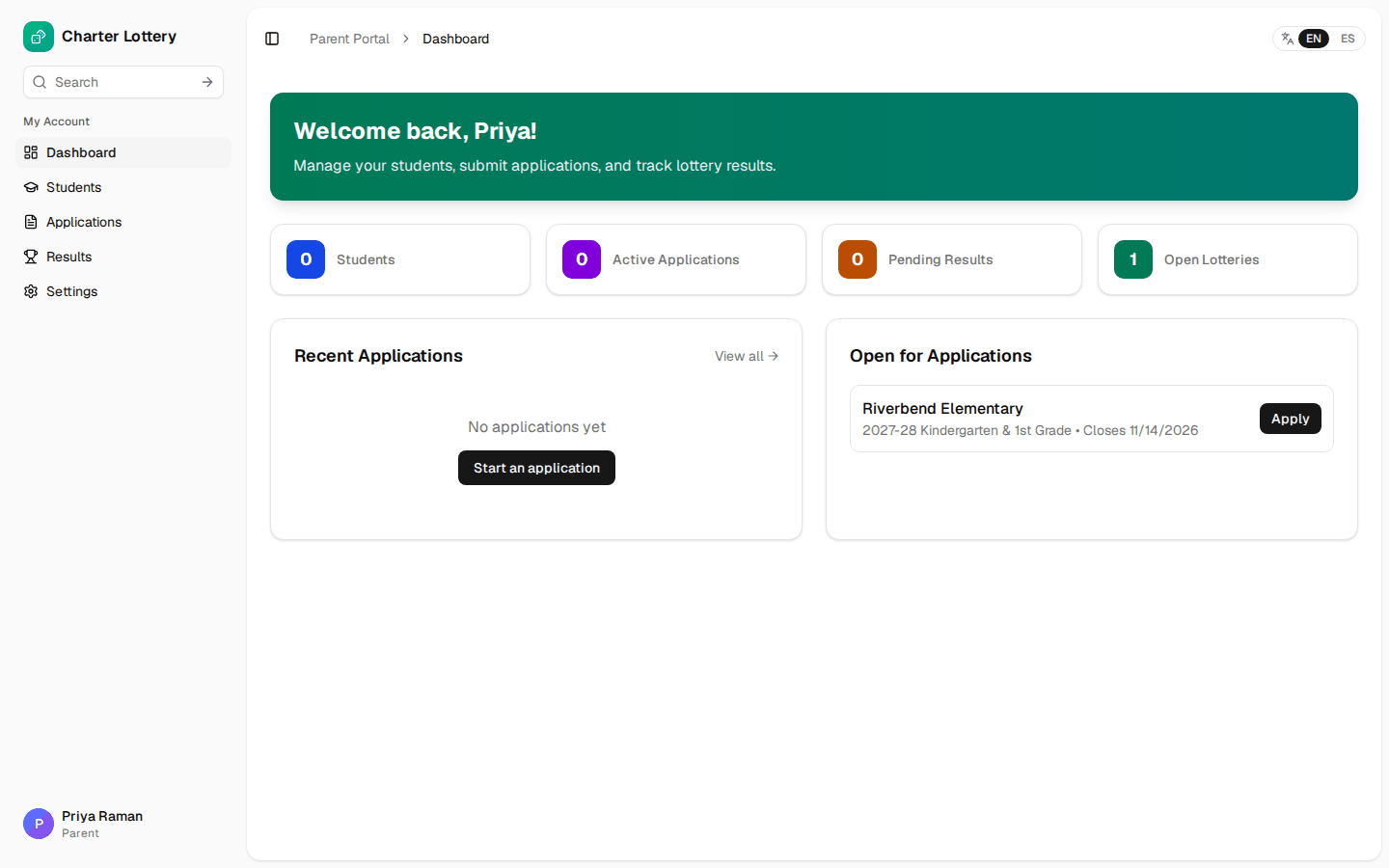
- Choose Students in the menu, then Add Student.
- Enter your child's first name, last name and date of birth.
- Select Add Student.
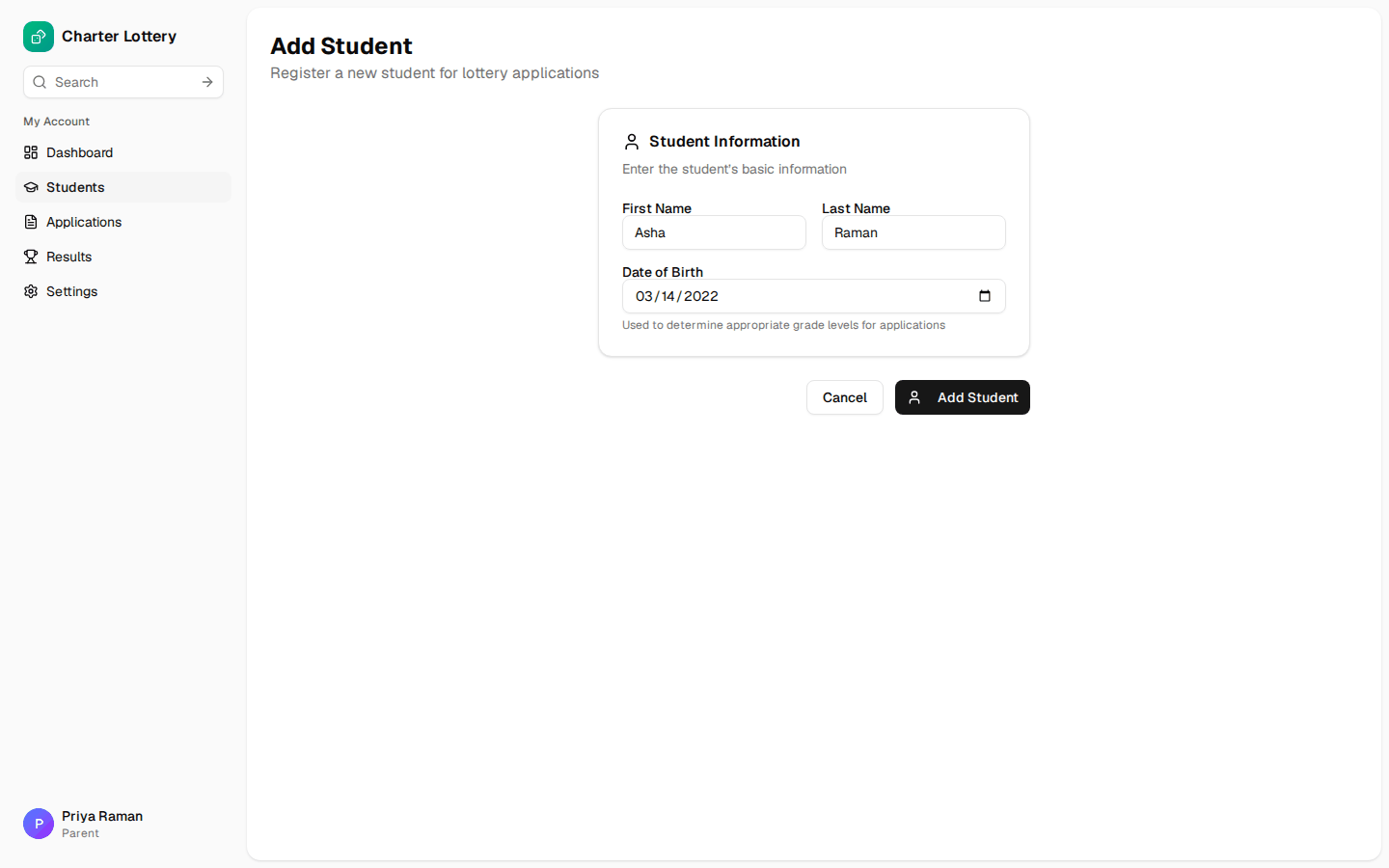
Repeat this for each child who is applying.
4. Apply
- Choose Applications, then New Application (or select Apply next to the school on your dashboard).
- Select Student: choose your child.
- Select School & Cycle: choose the school and the enrollment period ("lottery cycle"). You will see when applications close and which grades are available.
- Application Details: choose the grade your child is applying for.
- If any extra priorities apply to your child (foster youth, McKinney-Vento or homeless, military family, economically disadvantaged, special education), tick them. The school may ask for a document to confirm each one. Sibling and resident priorities are worked out from the school's records, and school staff can correct any priority.
- If the school gives priority to families who live in a certain area, you are asked for your home ZIP code or address. This is optional and used only for that priority.
- Select Review & Submit, check the details, then Submit Application.
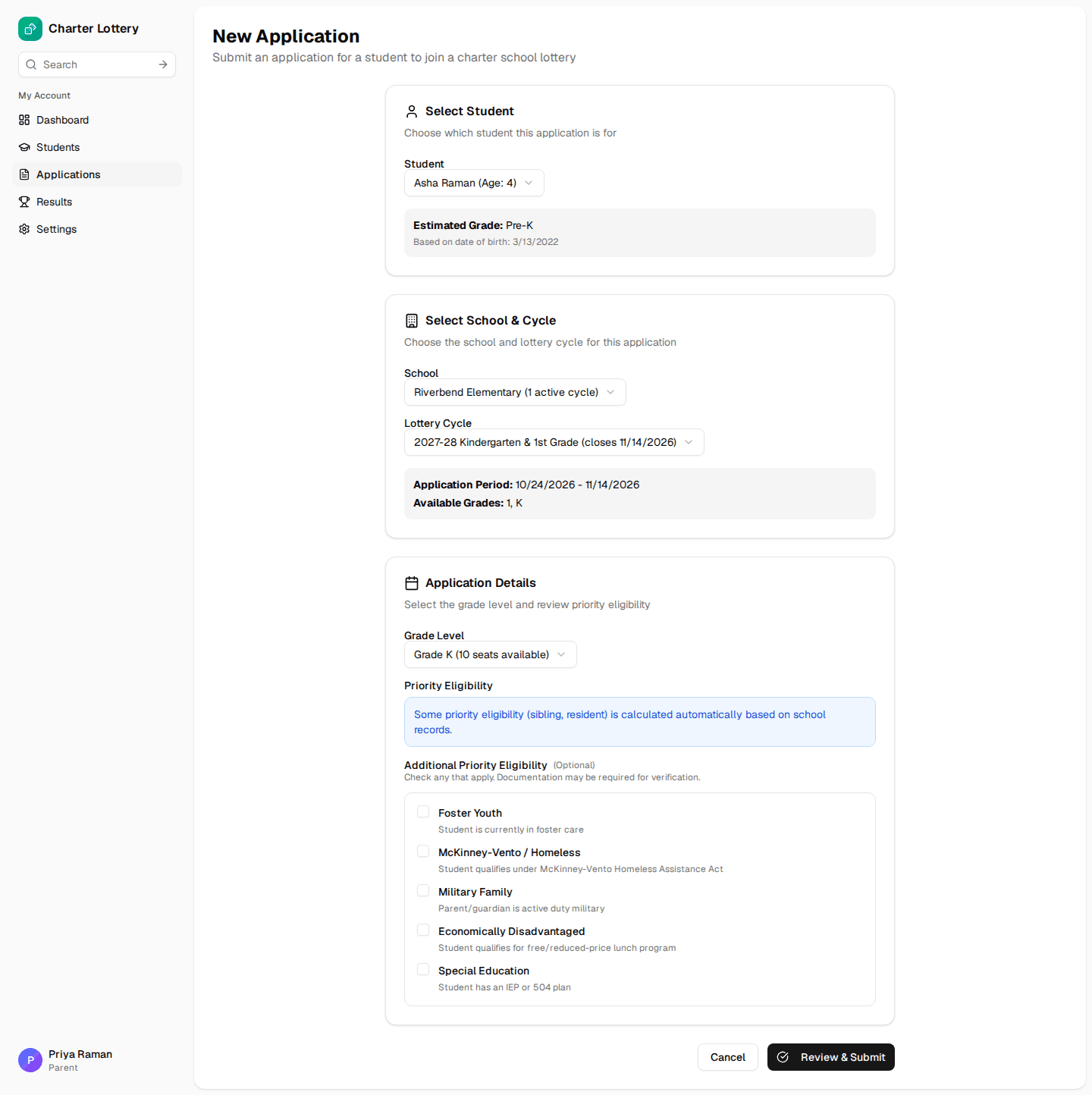
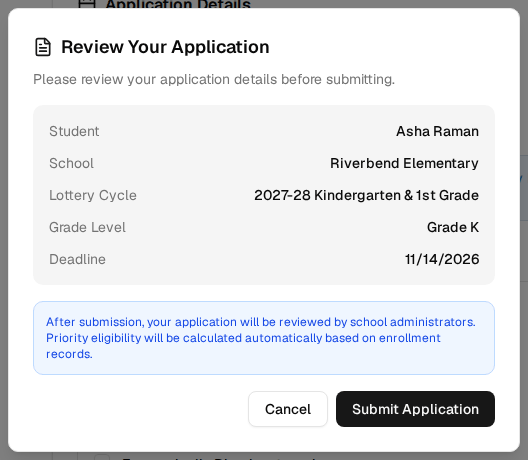
You can apply to more than one school, and for more than one child. Each child can have one application per school enrollment period.
5. Upload documents
After you submit, the application page opens. Many schools ask for documents, such as proof of where you live. A Required Documents Checklist shows what the school needs.
- Under Supporting Documents, open Document Category and choose the type of document.
- Select Choose File to Upload and pick the file or take a photo. Accepted formats: PDF, JPEG, PNG or Word, up to 10 MB.
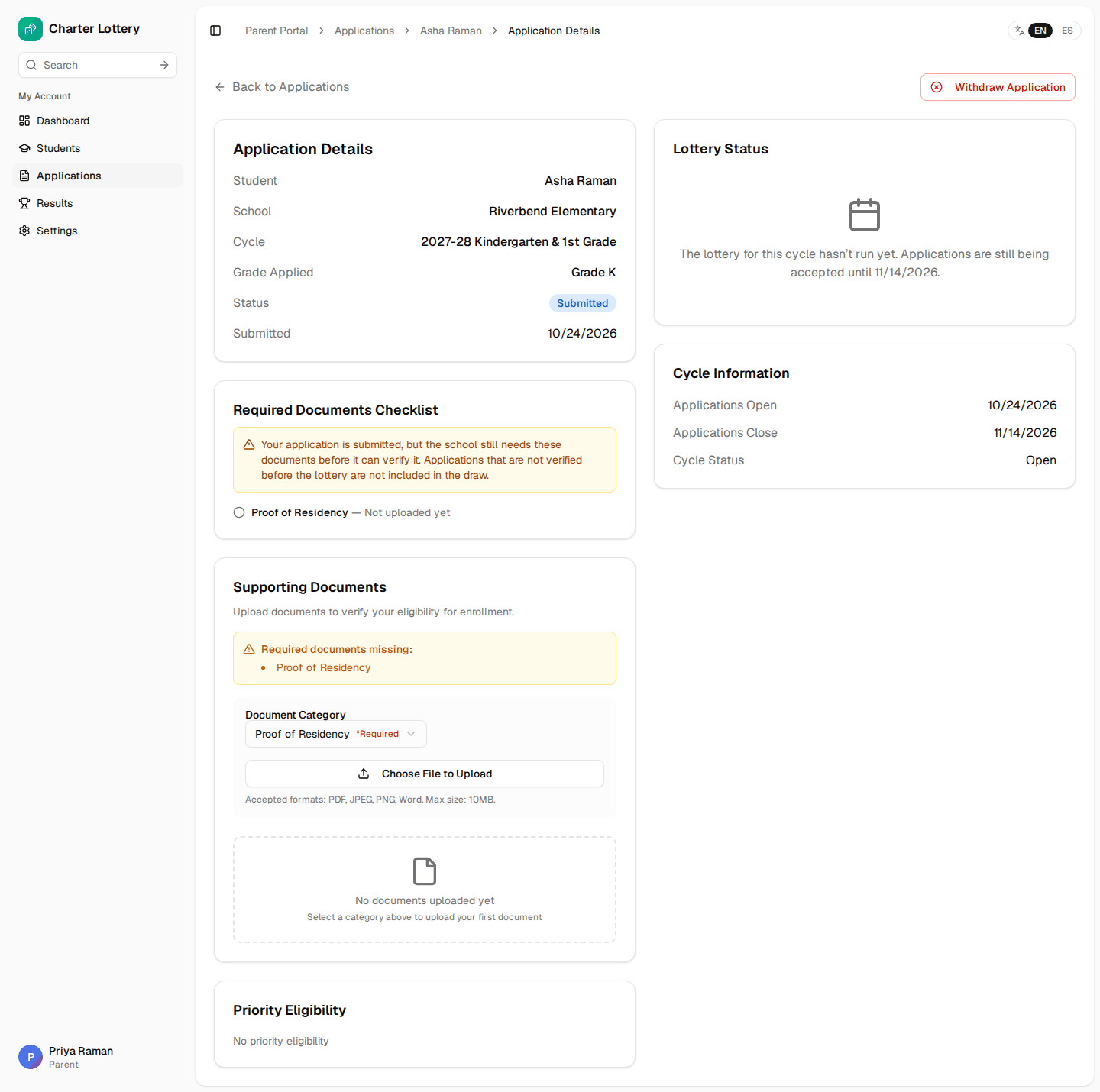
After uploading, the document shows as Pending review until the school checks it.
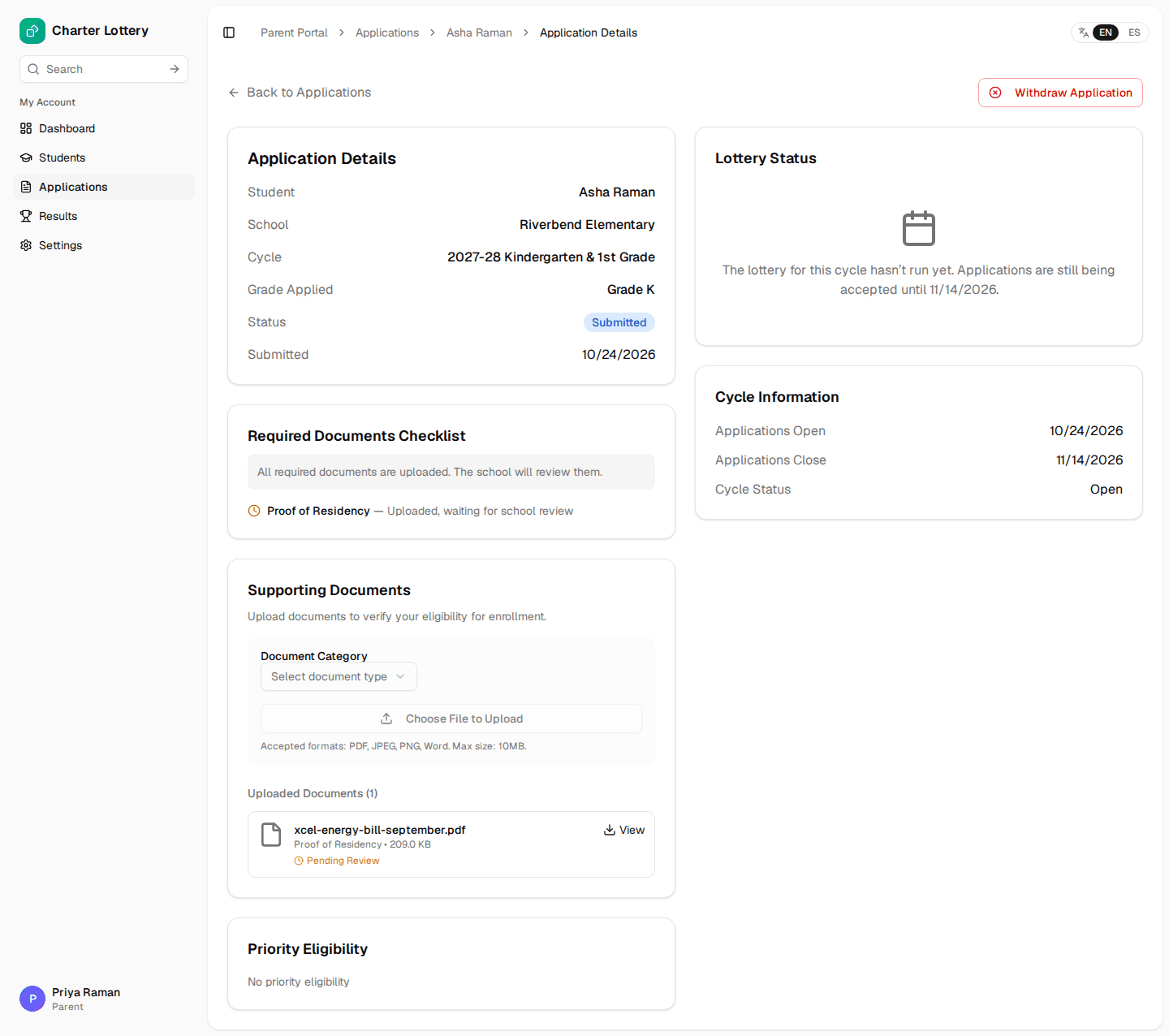
Important: the school must approve required documents before it can verify your application, and only verified applications are entered into the lottery. Upload them as early as you can.
If the school rejects a document, you get an email (and a text, if you turned texts on) with the reason. Upload a new document in the same category.
Some schools require documents before you can submit. In that case your application stays a draft; upload each required document, then select Submit Application on the application page before the closing date.
6. Check your application
Choose Applications to see each application and its status.
| Status | What it means |
|---|---|
| Draft | Not submitted yet. Finish it before the closing date. |
| Submitted | The school has it and has not finished checking it. |
| Verified | The school has checked it. It will be in the lottery. |
| Ineligible | The school found it cannot go into the lottery. The reason is shown. |
| Withdrawn | You withdrew it. |
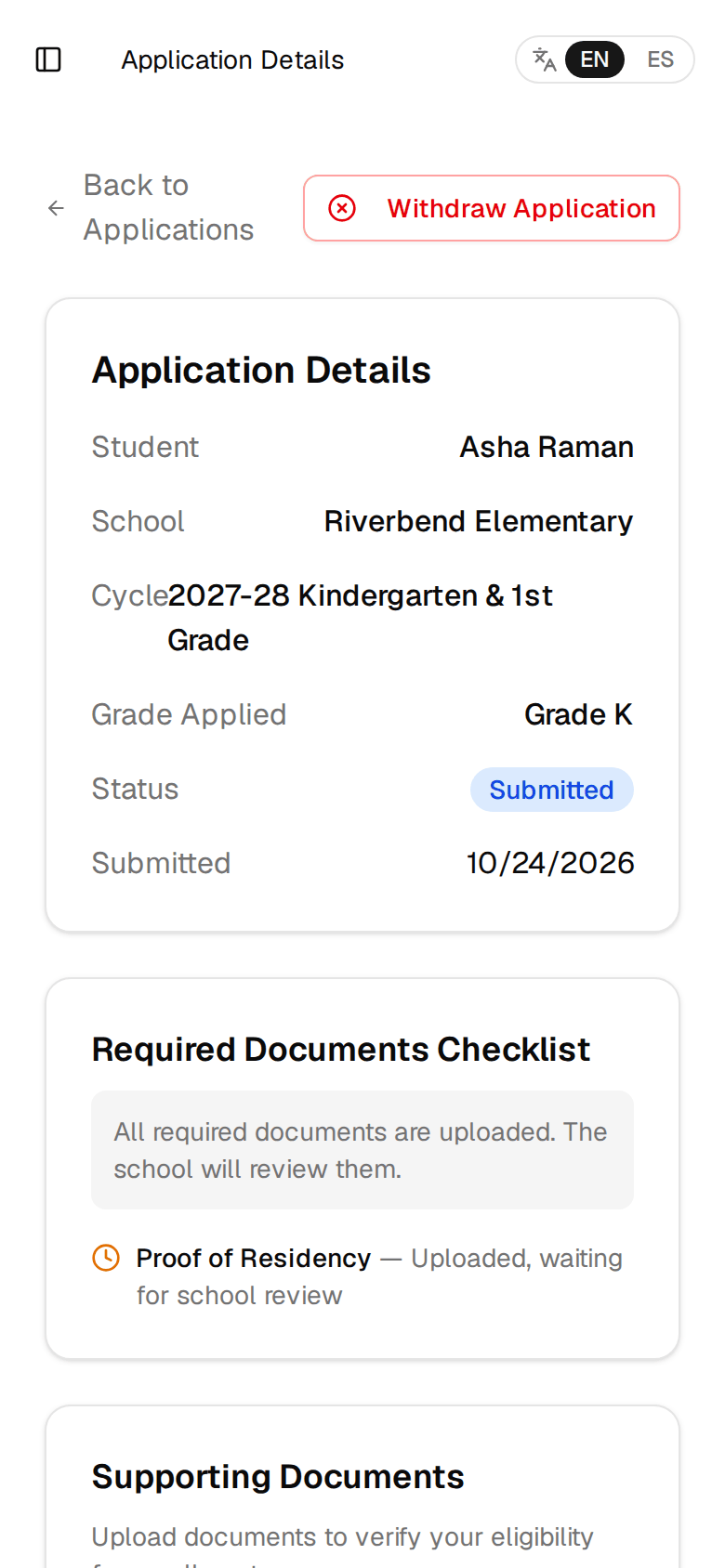
To withdraw an application before the lottery, open it and select Withdraw Application. You cannot resubmit for the same enrollment period afterwards, but you can apply in future ones.
7. See your lottery result
When the school publishes results, you get an email (and a text, if you turned texts on). Sign in and choose Results.
| Result | What it means |
|---|---|
| Accepted | Your child was offered a seat. You must confirm it by the deadline. |
| Waitlisted | Your child is on the waitlist. The number is your place in line. |
The lottery is random. If the school uses priorities (for example, siblings of current students), children with more priority are placed ahead; children with the same priority are put in a random order.
8. Accept or decline a seat
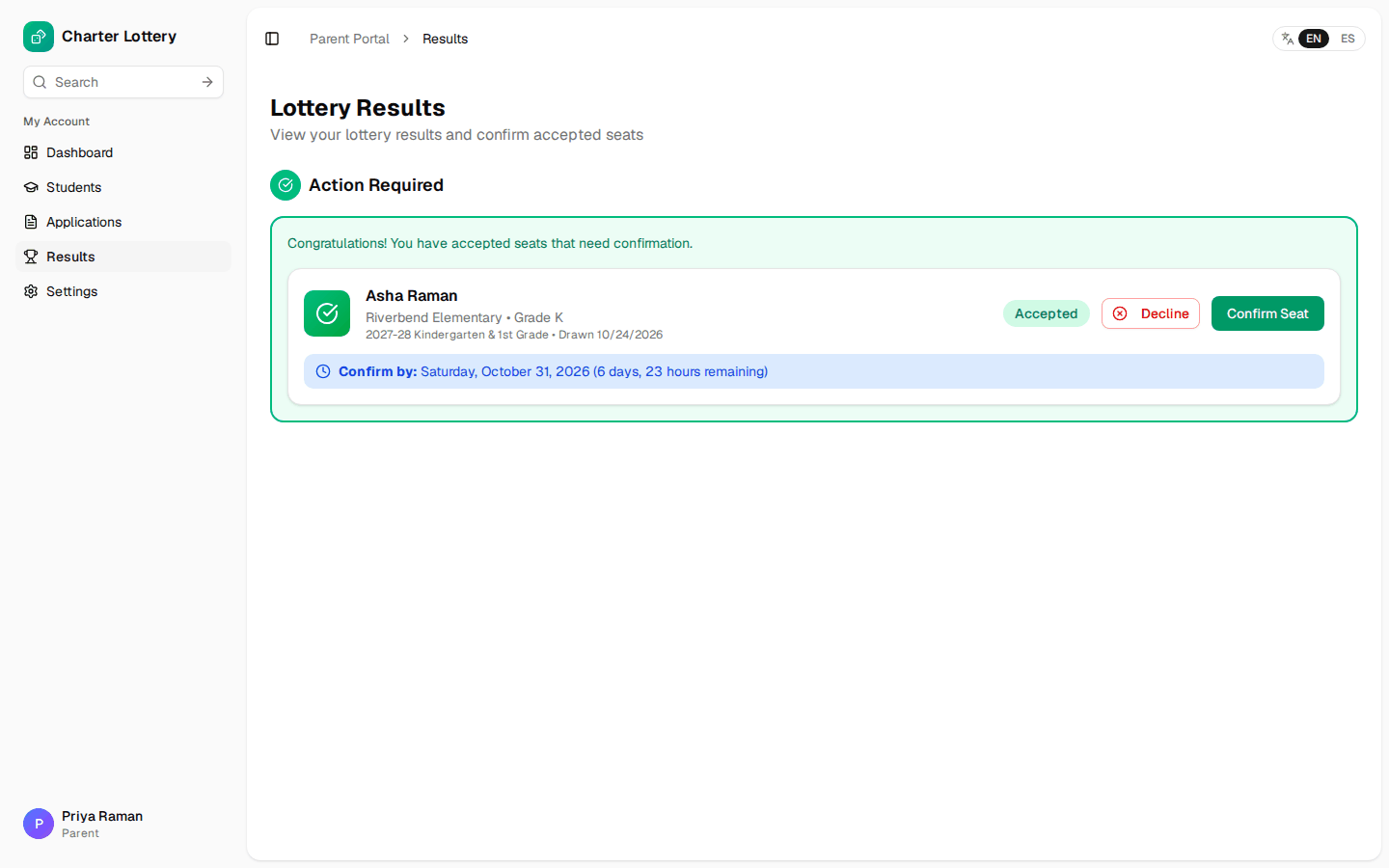
- On Results, find the offer under Action Required.
- Note the Confirm by date and how much time is left.
- Select Confirm Seat to accept, or Decline to give the seat up (then Yes, Decline Seat).
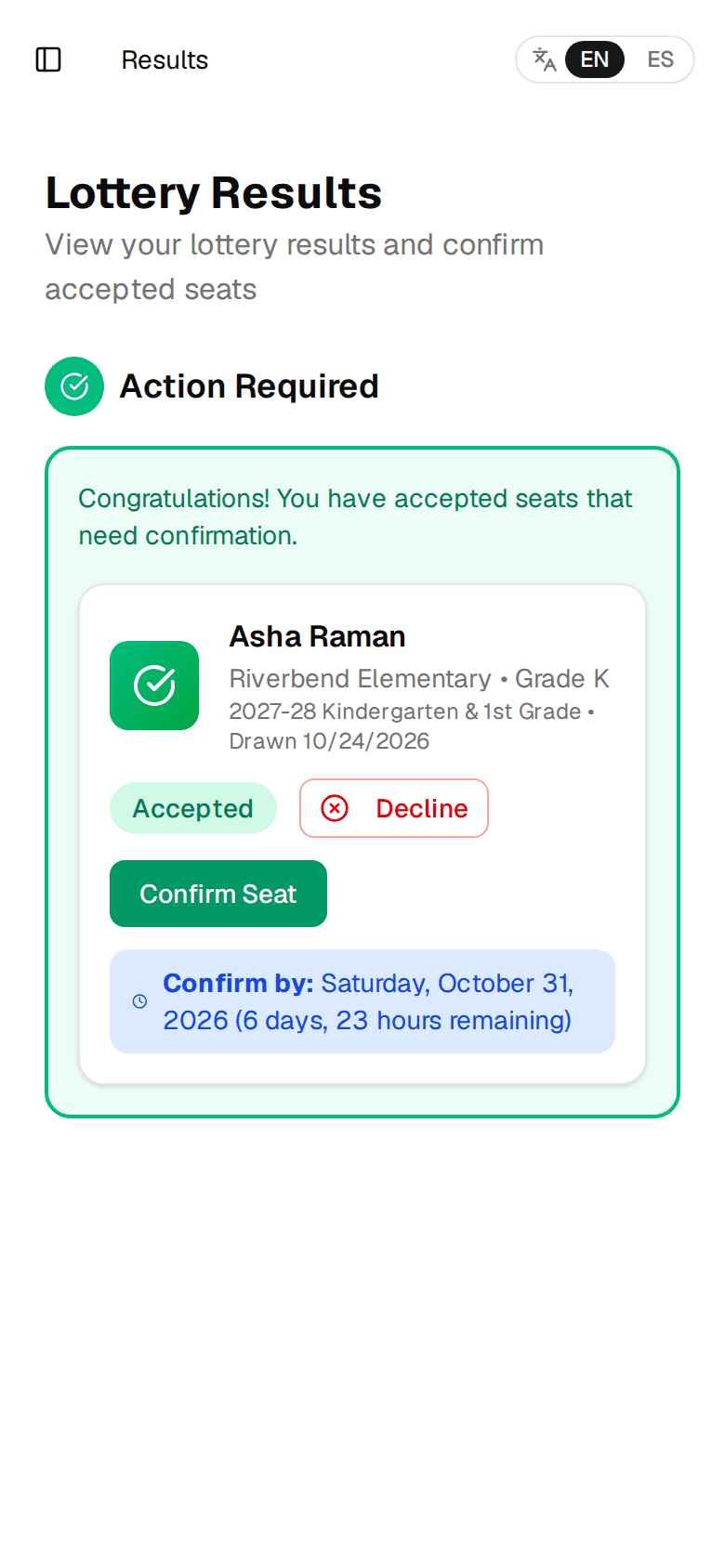
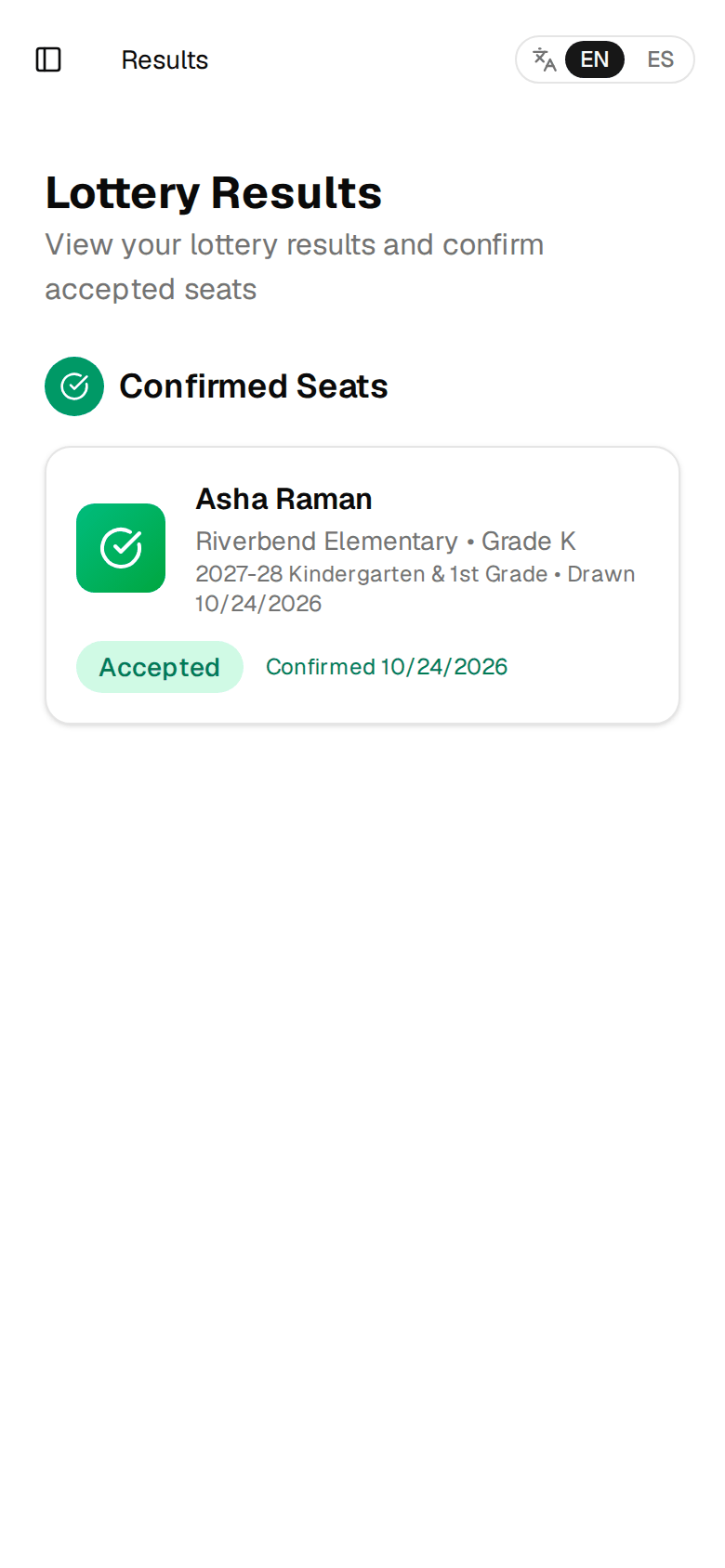
When you confirm, the offer moves to Confirmed Seats:
- Declining is final. The seat goes to the next family on the waitlist and you cannot claim it later.
- If you do nothing, the offer expires after the deadline and the seat goes to the next family. If you still want the seat after the deadline, contact the school.
- If you cannot use the website, you can tell the school by phone or email: staff can record your answer, and you get an email confirming it.
We send reminders as the deadline gets close.
9. If you are on the waitlist
Your Waitlist Position shows your place in line for that grade. #1 is next. The page also shows whether you have moved since the lottery. Some schools do not show the number: then you see only Waitlisted.
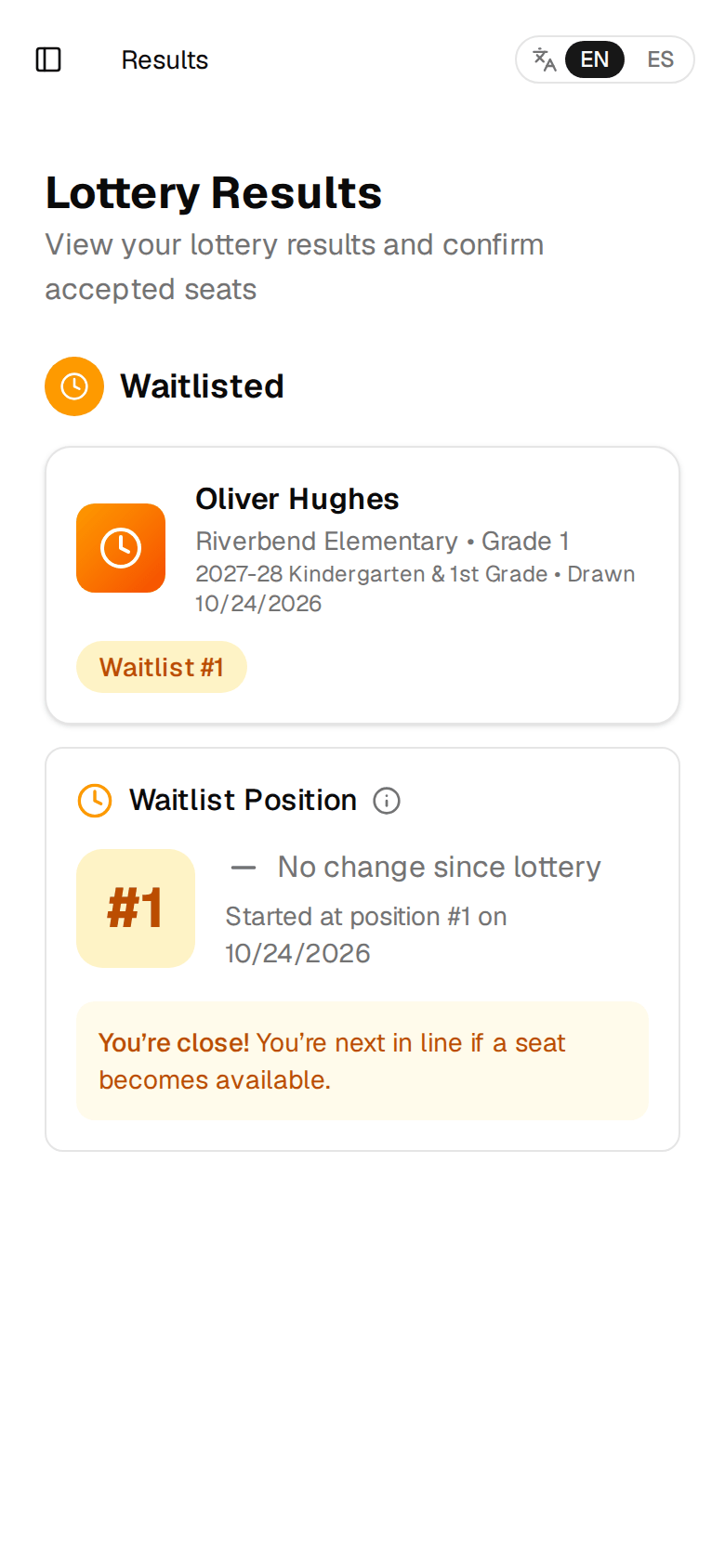
When a family declines or does not answer, the seat is offered to the next family on the waitlist. If that is you, you get an email (and text) and the offer appears on Results with its own deadline. Accept it the same way as in step 8.
Once the school finalizes the enrollment period, the waitlist closes and no more offers are made.
10. Emails and text messages
Choose Settings to control what we send you.
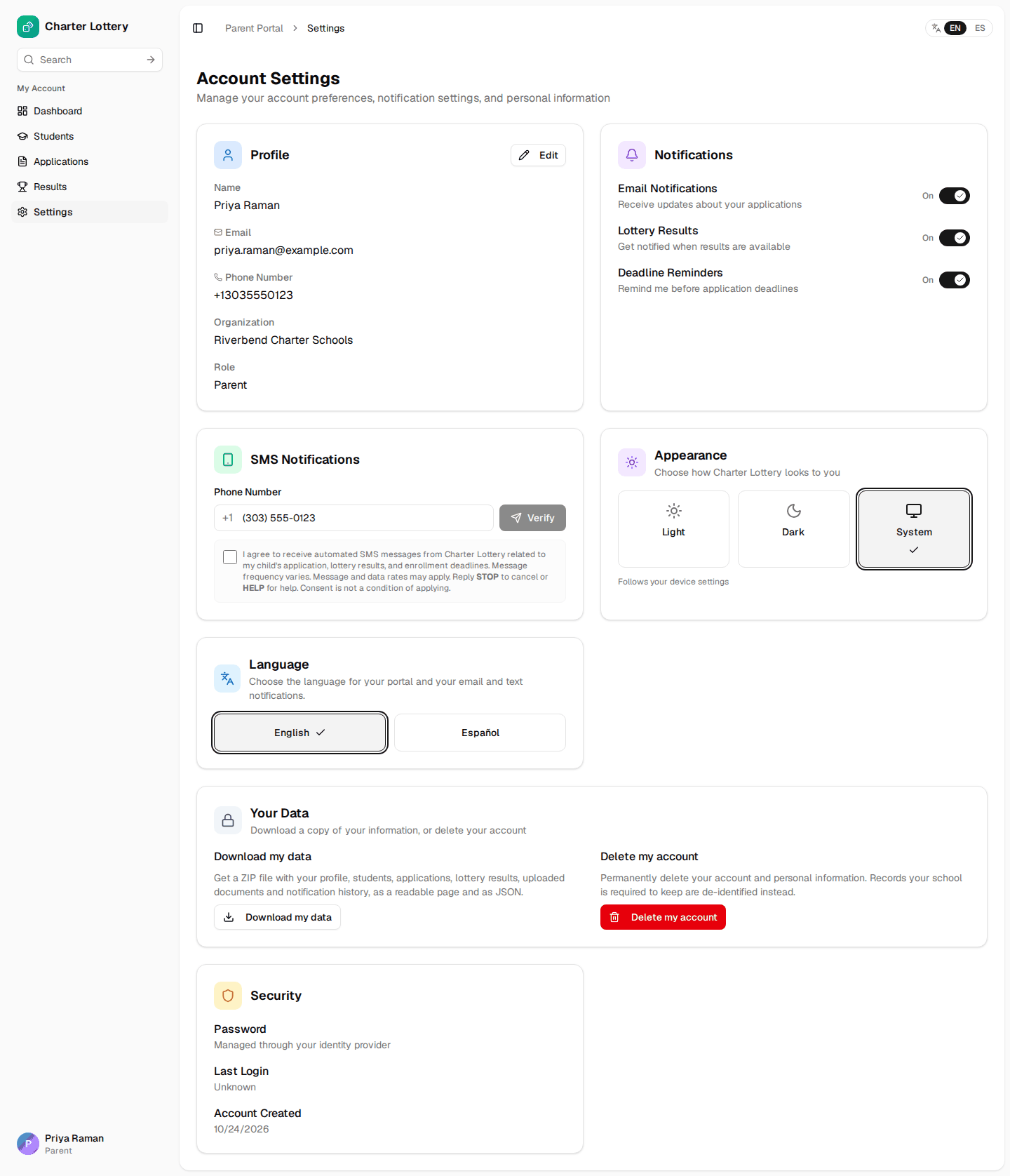
Email. Turn email updates, lottery result emails and deadline reminders on or off. Even with result emails off, your result still appears on the Results page.
Text messages (SMS). Texts come from +1 844 586 1238. Save it as a contact named "Charter Lottery" so you recognise lottery texts. If your school has texts turned on:
- Under SMS Notifications, enter your mobile number.
- Tick the box to agree to receive texts.
- Select Verify, then enter the six-digit code we text you.
- Choose which texts you want: lottery results and deadline reminders.
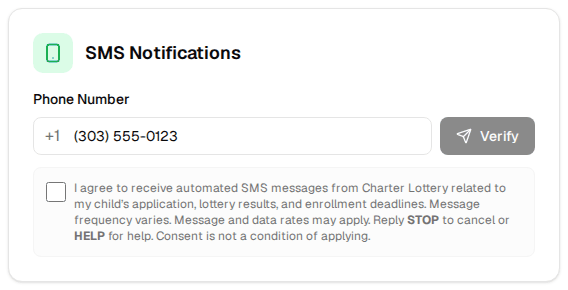
Reply STOP to any text to stop all texts, or HELP for help. You can also remove your number in Settings at any time. Your carrier's message and data rates may apply.
If the SMS section says "SMS notifications are not currently enabled for your organization", your school has not turned texts on.
11. Use Charter Lottery in Spanish
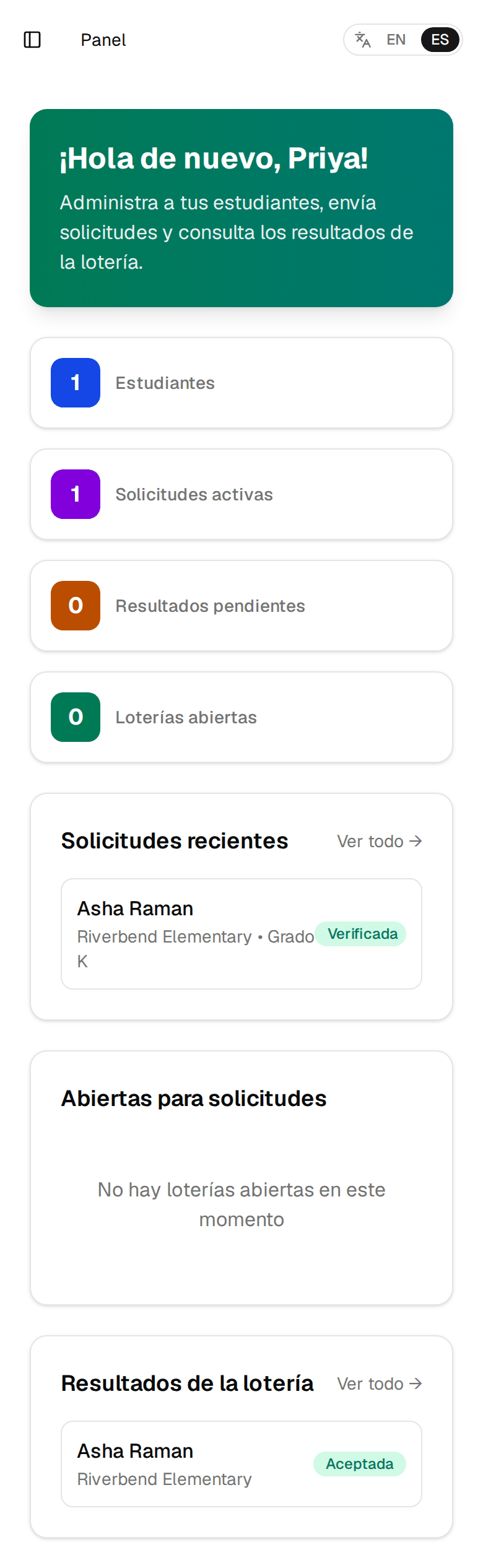
Charter Lottery works in English and Spanish. Select ES at the top of any page, or choose Settings → Language → Español. Your emails and texts then also come in Spanish.
12. Your account and your data
In Settings → Your Data:
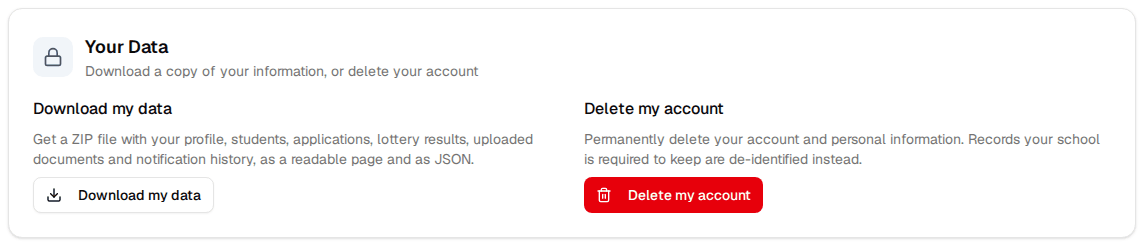
- Download my data gives you a ZIP file with your profile, children, applications, lottery results, uploaded documents and notification history. You can do this up to 3 times a day.
- Delete my account permanently deletes your account. You cannot delete it while an application is waiting for the lottery, a seat offer is waiting for your answer, you have a confirmed seat in an enrollment period the school has not finalized yet, or your child is on an active waitlist. The school must keep lottery records, so applications that were in a lottery are kept with your child's name, birth date and address removed.
The Students page shows all your children. Open one to see their applications.
13. Getting help
- This guide: once you are signed in, select Help at the bottom of the menu. It opens in a new tab.
- Questions about the school, deadlines or your result: contact the school. Its email is usually on the portal page (Contact Support).
- Problems with the website or signing in: email support@charterlottery.com.