How an IT provider takes a charter school network from nothing to a live application portal in Charter Lottery. Every picture is a full 1440 × 900 laptop window from the current application, using a made-up network, Riverbend Charter Schools, and a made-up technician, Sam Torres.
Companion to the IT and MSP guide.
Decide first
| Question | Answer |
|---|---|
| How many organizations? | One network is one organization, with each campus as a school inside it. Separately governed networks are separate organizations. |
| Which login does the MSP use? | One email address belongs to one organization. A technician serving two clients needs a different address for each. There is no multi-client MSP console. |
| Who holds Organization Admin? | Name at least two people, ideally one at the MSP and one at the school. Offboarding an organization admin goes through Charter Lottery support. |
| Google or password? | Google Workspace schools can use Continue with Google. Microsoft 365 schools use email and password with an authenticator app: there is no Microsoft Entra, SAML or SCIM connection today. |
| Which campuses are billed? | $999 per school per year. Setup, portals and collecting applications are free; a subscription is needed when a school runs its lottery. |
Gather first
- Network name, as families should see it
- Each campus: name, public phone and email, street address, time zone
- Staff list: name, work email, role, and which campuses each person runs
- Grades, seats, dates and priority rules for the first lottery cycle
- Who can edit each school's website, for the portal link
- Access to the mail filter, to allowlist the senders listed at the end of this guide
Part 1 · Create the organization
Step 1. Start from the home page
Go to charterlottery.com and use Get Started, or the sign-up card on the page. The same form is at /sign-up.
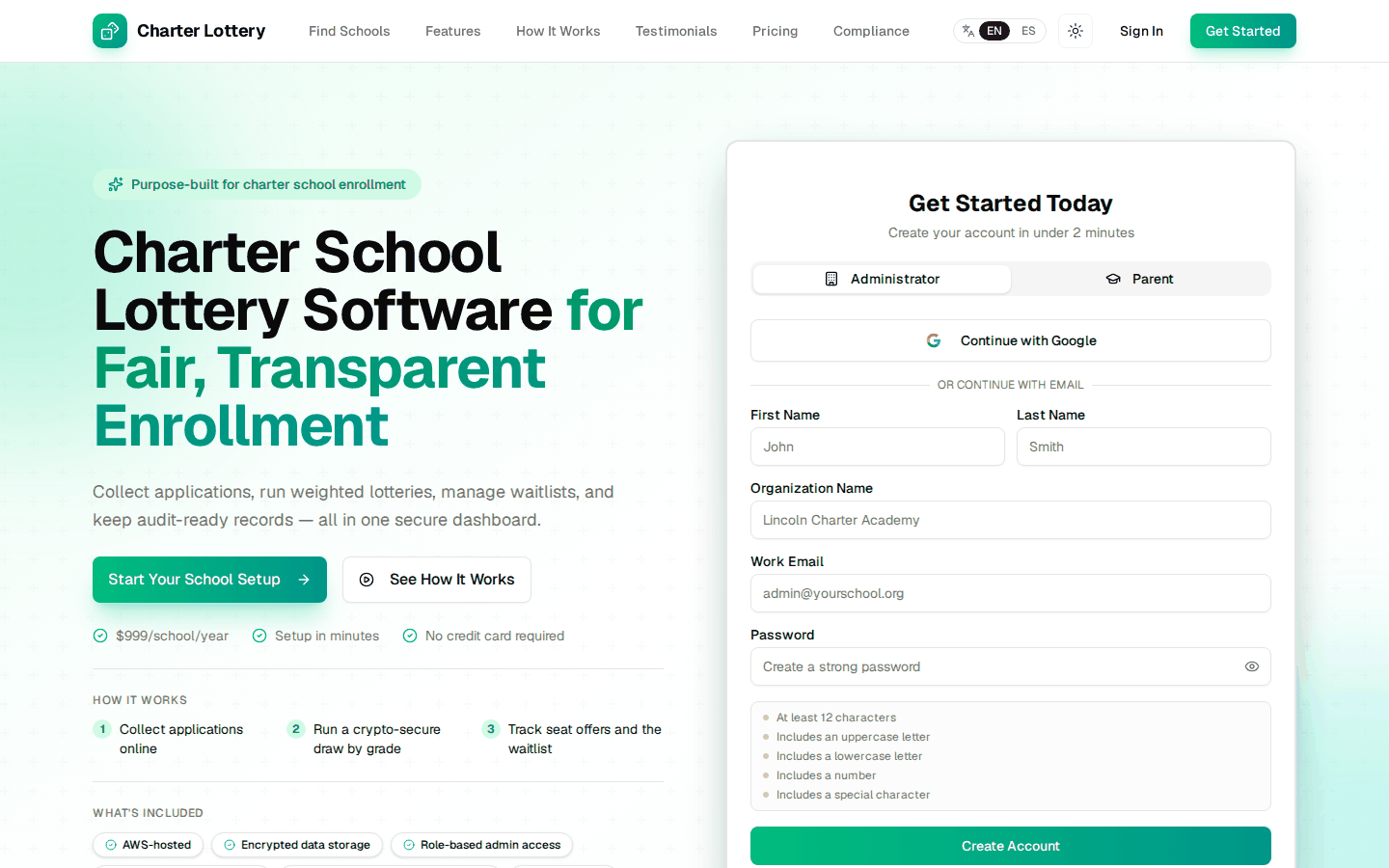
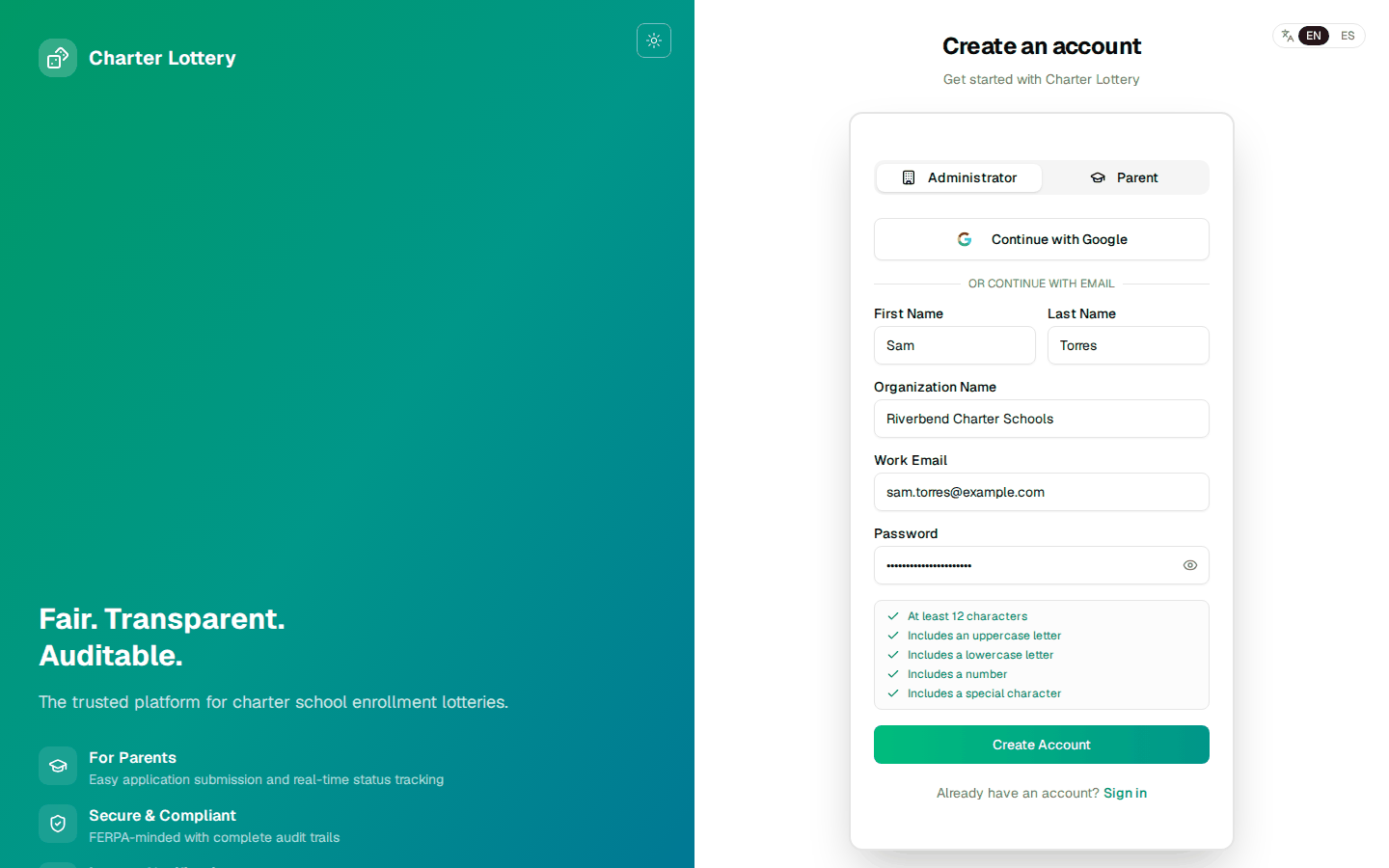
Step 2. Create the administrator account
Stay on the Administrator tab. Enter your name, the network as Organization Name, your work email and a password of at least 12 characters with upper and lower case, a number and a symbol. The checklist confirms each rule as you type.
This creates the organization and makes you its first Organization Admin.
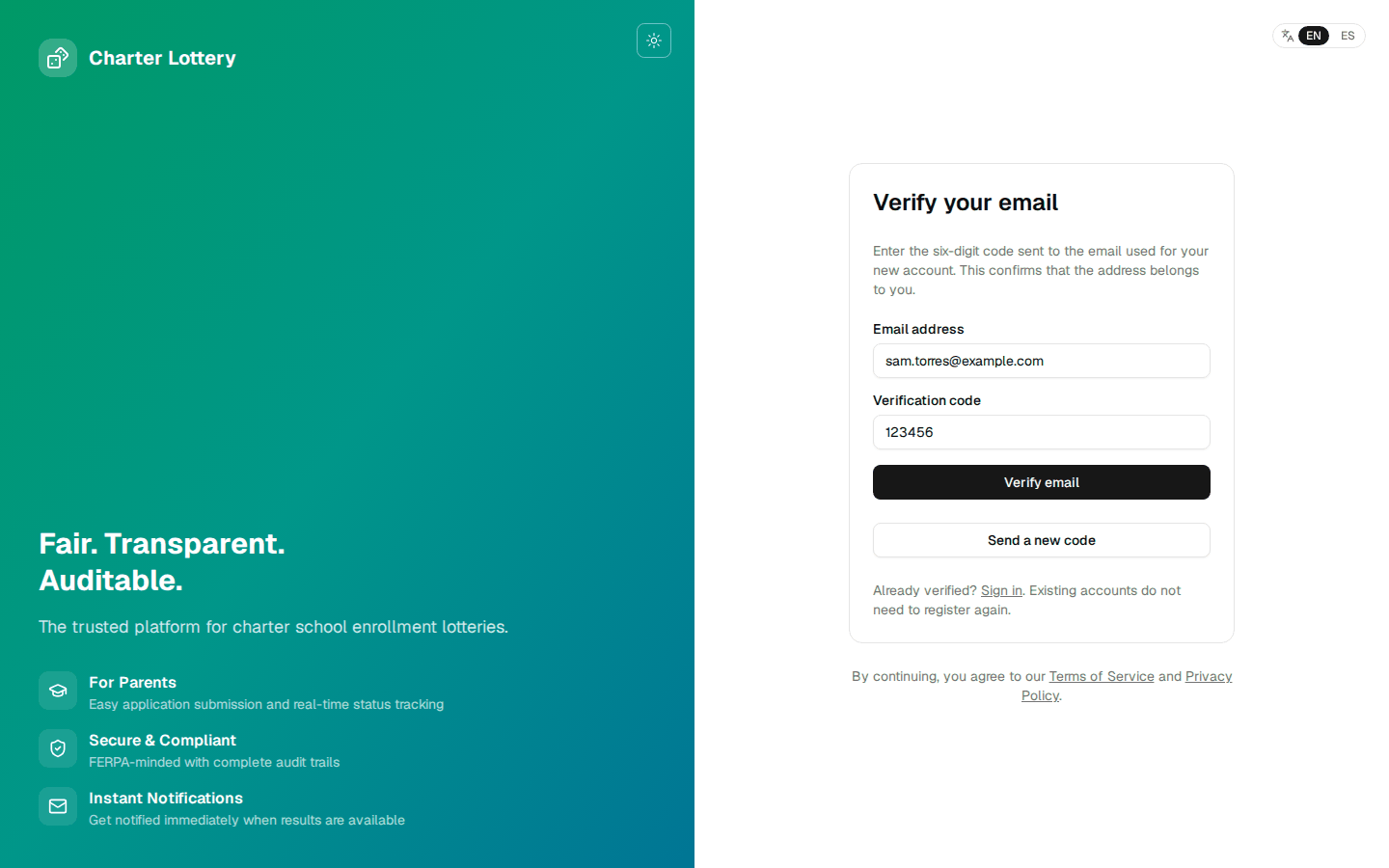
Step 3. Verify the email address
A six-digit code arrives from support@charterlottery.com. Enter it and select Verify email. If it does not arrive, check quarantine, then use Send a new code.
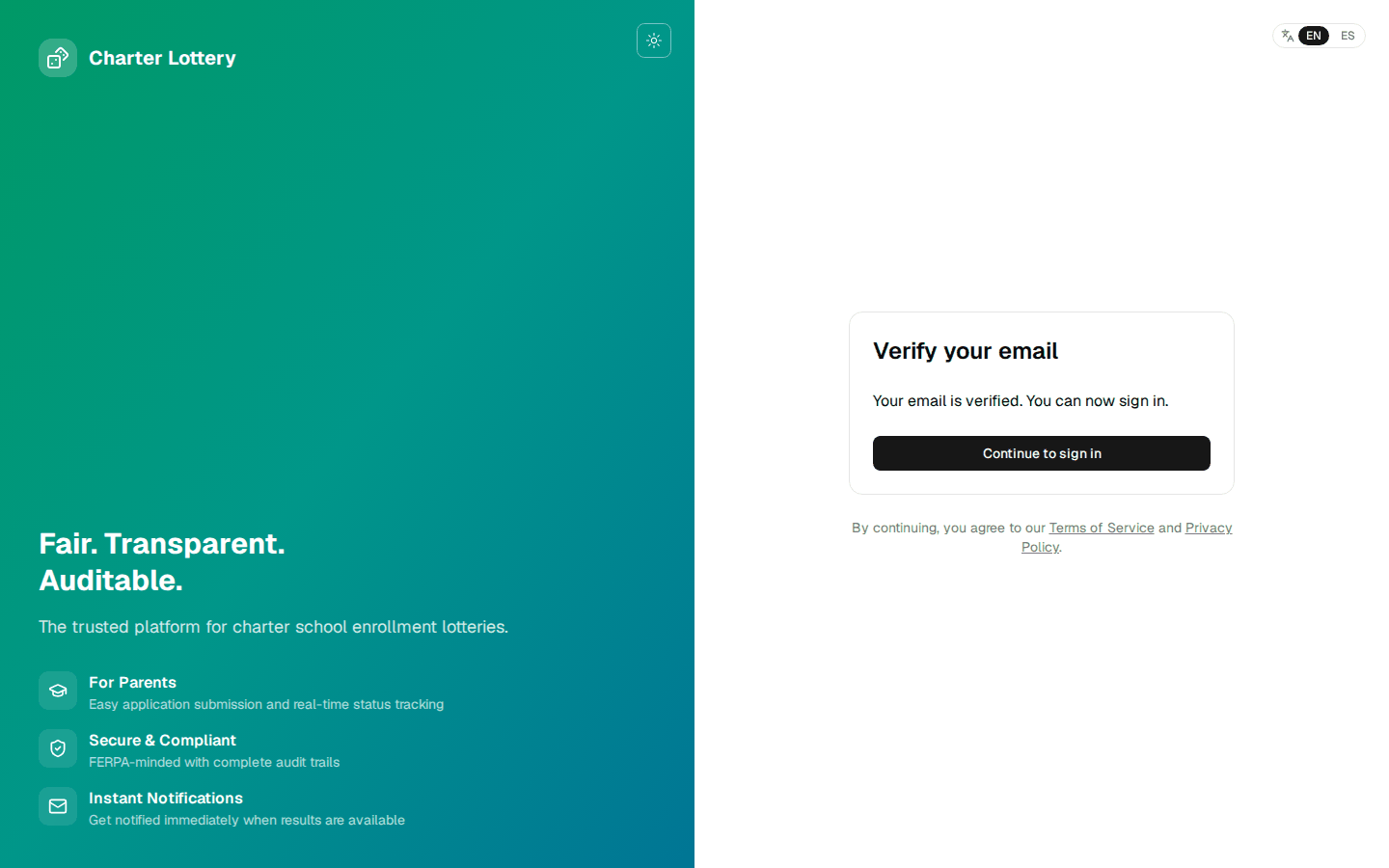
Step 4. Sign in
Sign in with the new email and password.
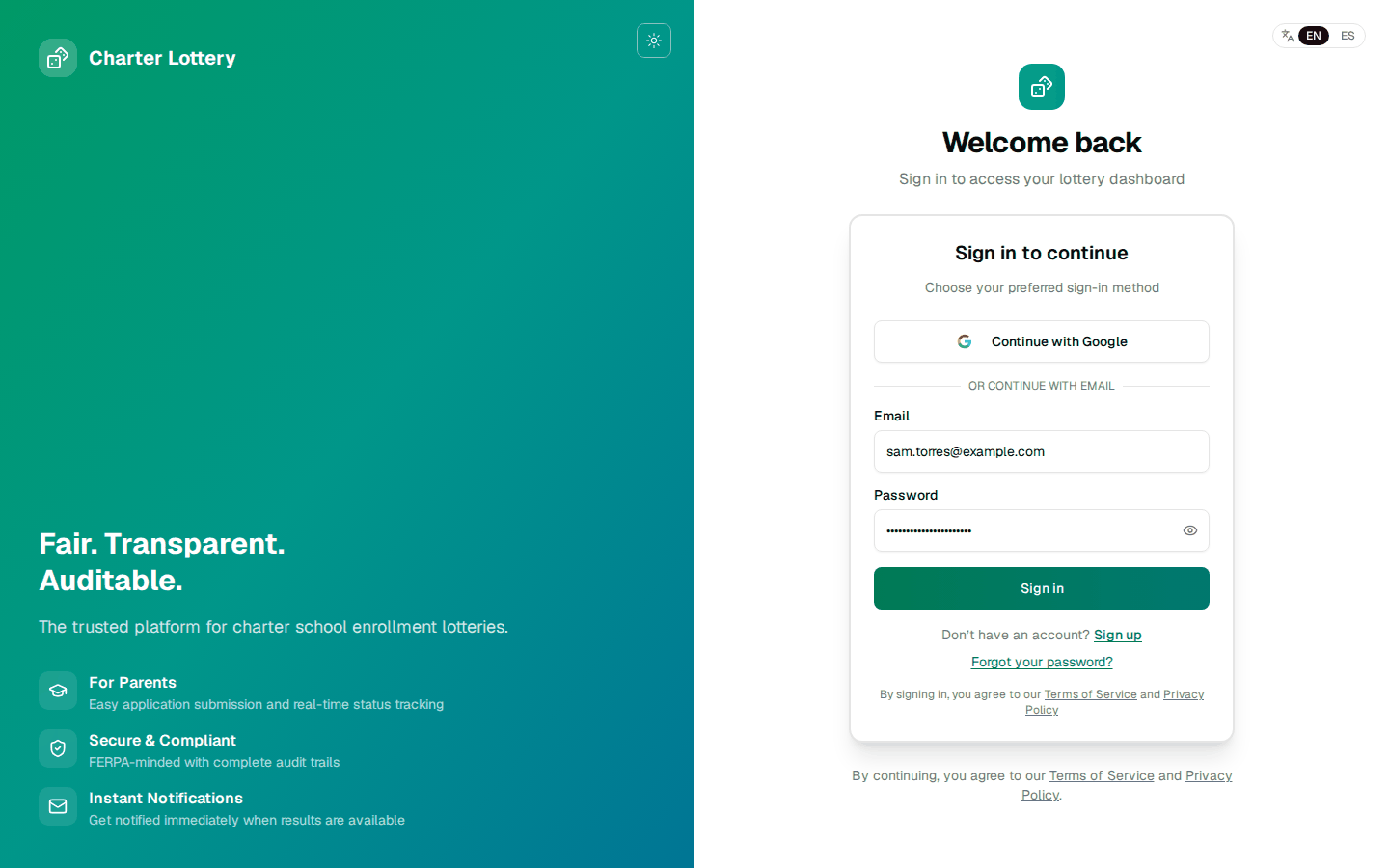
Step 5. Google Workspace alternative
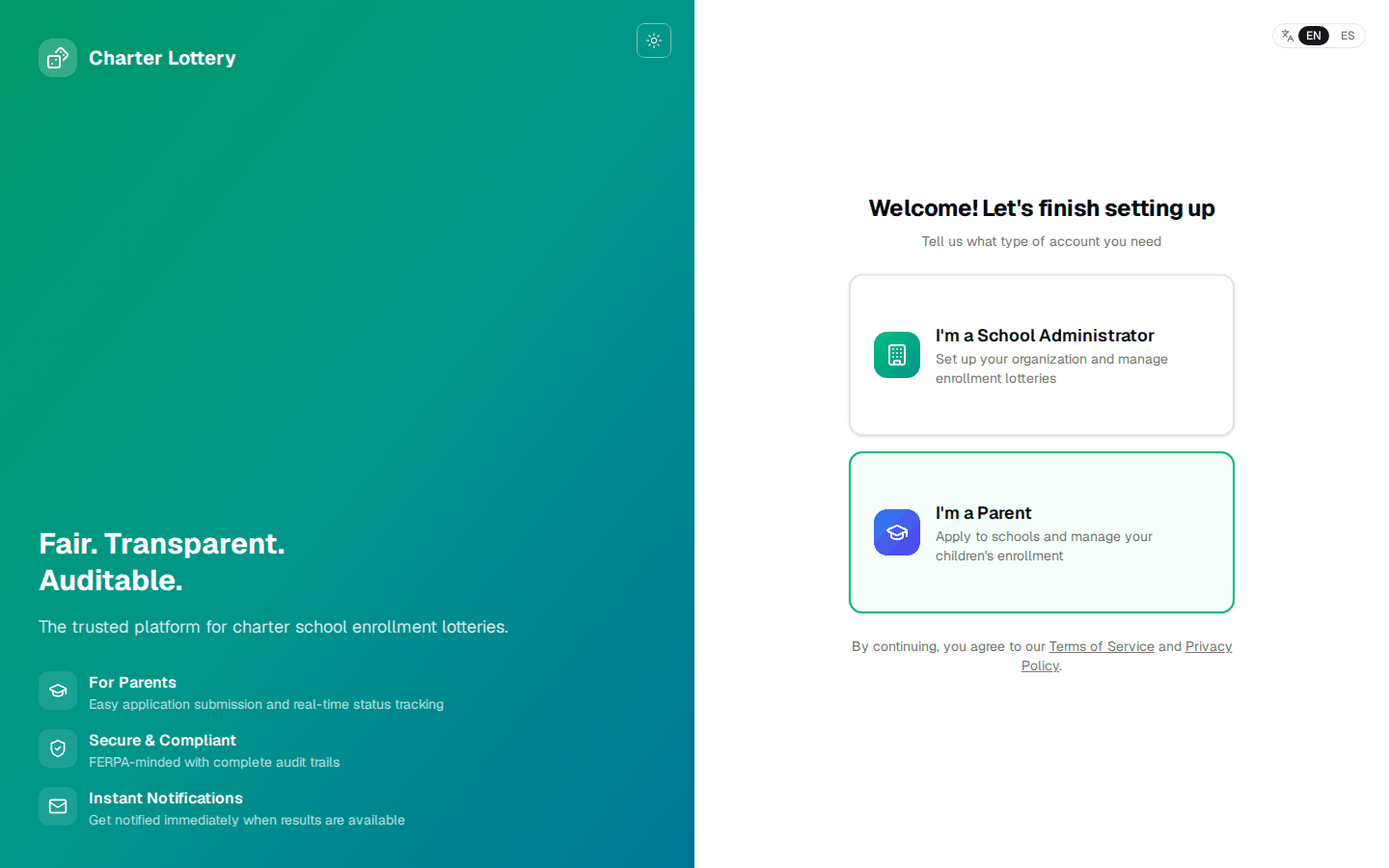
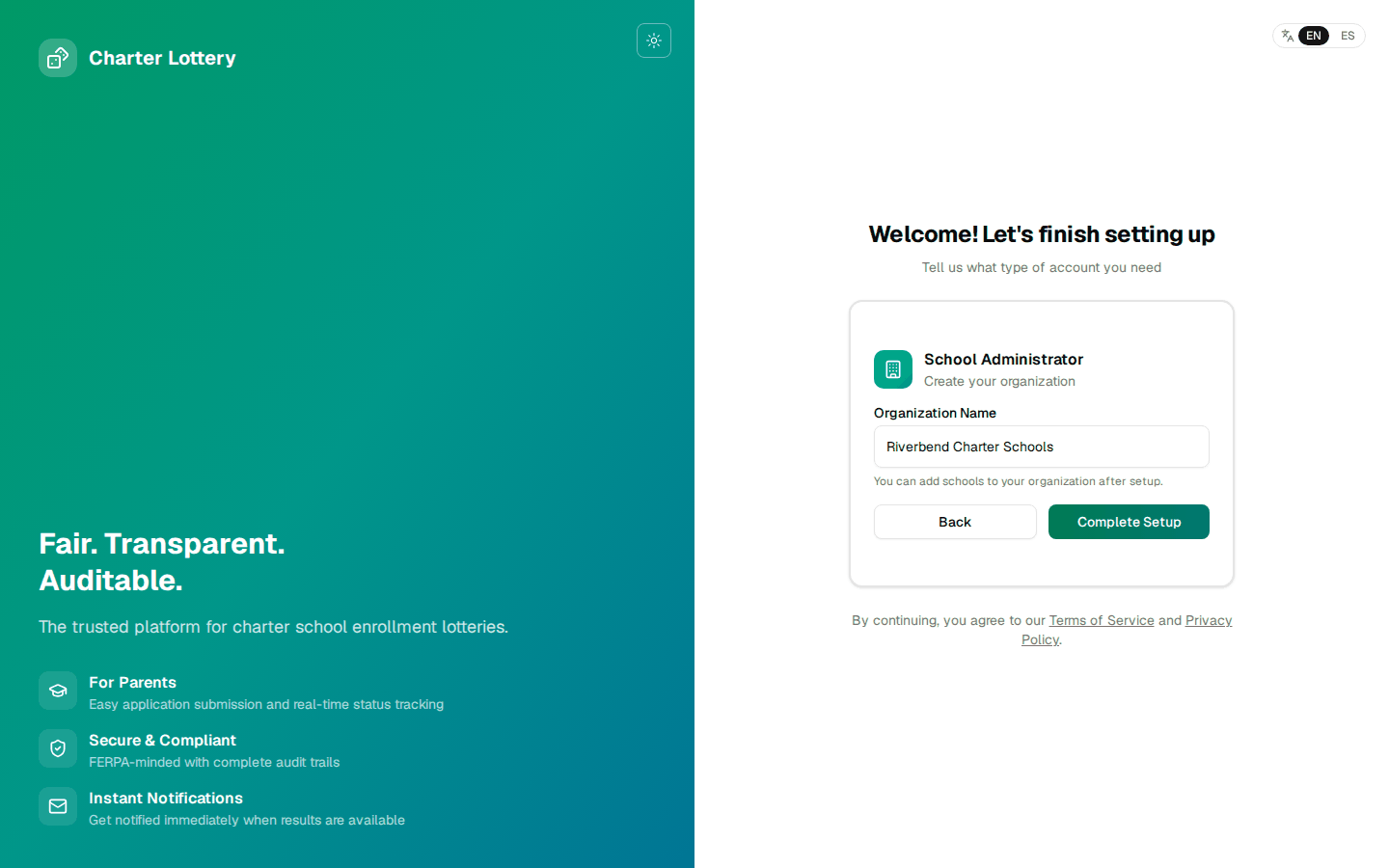
Choosing Continue with Google replaces Steps 2 to 4. After Google, Charter Lottery asks what kind of account you need. Choose I'm a School Administrator and enter the organization name.
Part 2 · Secure the account
Step 6. Set up two-step sign-in
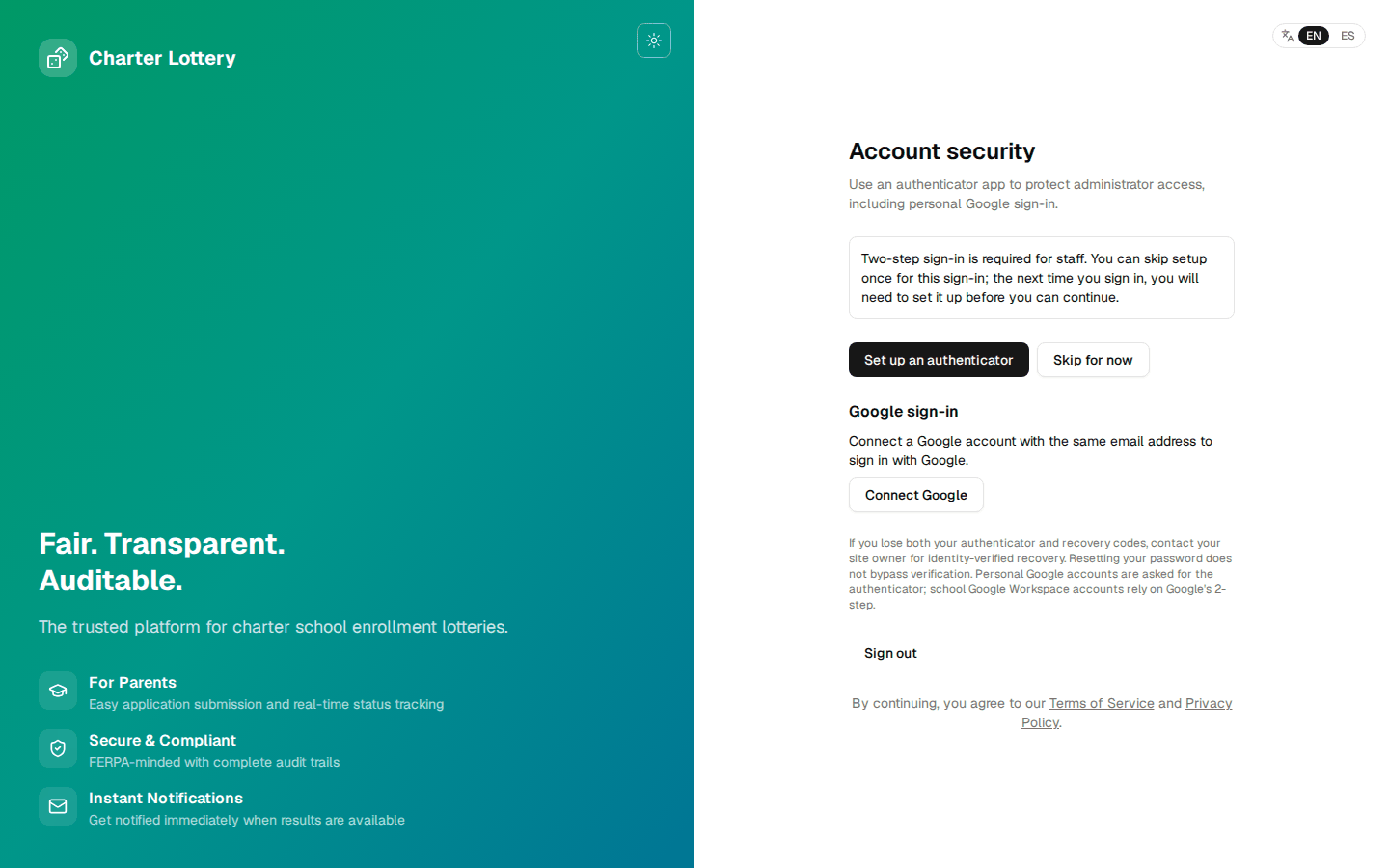
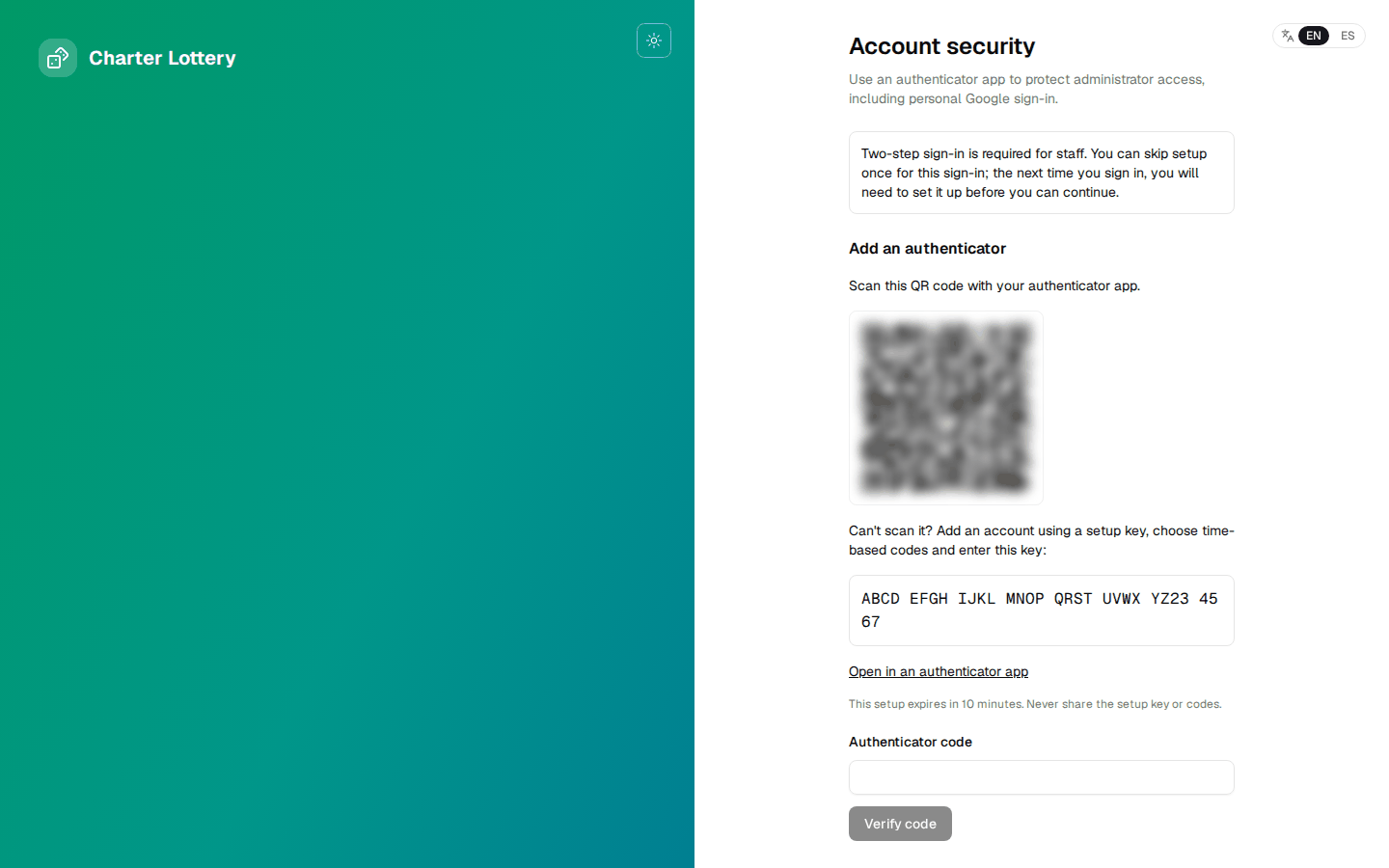
Staff are taken to Account security. Select Set up an authenticator. Any app that supports time-based codes works: Microsoft Authenticator, Google Authenticator, 1Password or Authy.
Skip for now works once. The next sign-in requires setup. Staff signing in with a Google Workspace account are not asked, because Google's 2-Step Verification applies instead, so enforce it in the Google Admin console.
Step 7. Scan the QR code
Scan the QR code with the authenticator app, or enter the setup key shown below it. Then enter the six-digit code and select Verify code. The setup expires after 10 minutes. The QR code and key are masked in this picture.
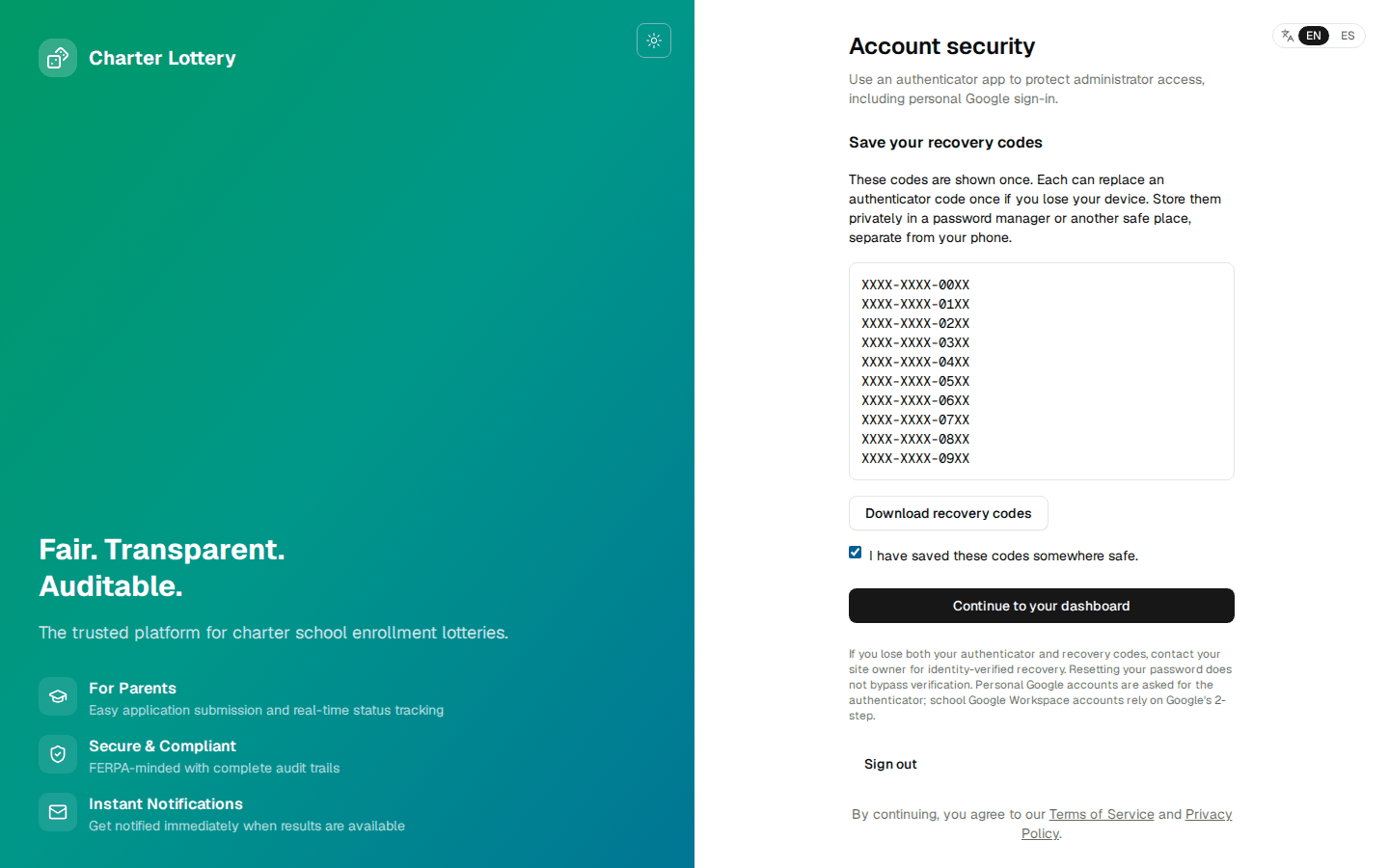
Step 8. Save the recovery codes
The 10 recovery codes are shown once. Put them in your password manager, away from the phone, tick the confirmation, then select Continue to your dashboard. Connect Google is optional and available later on Account security. Someone who loses both the phone and the codes needs an identity check through Charter Lottery support.
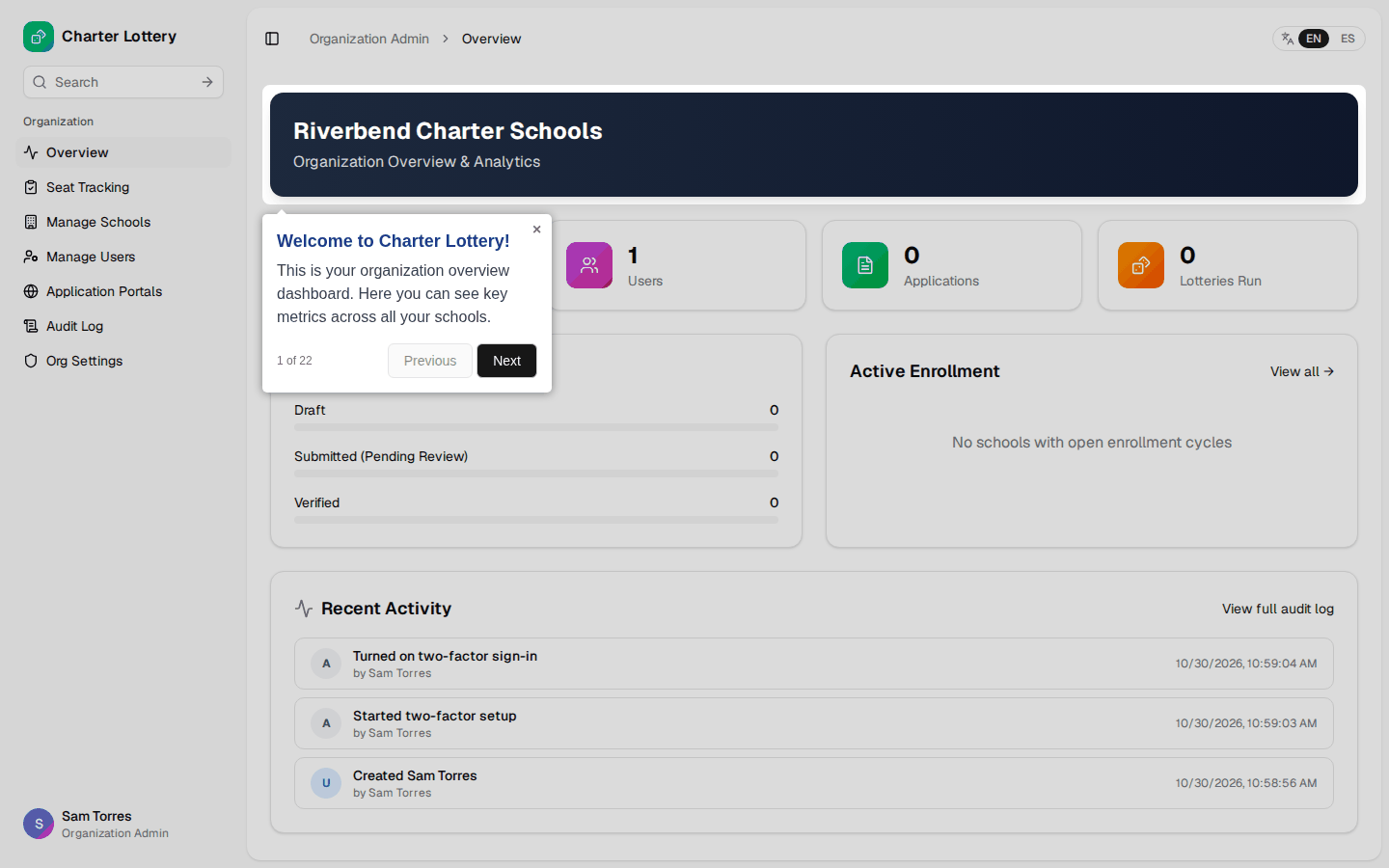
Step 9. Take or dismiss the welcome tour
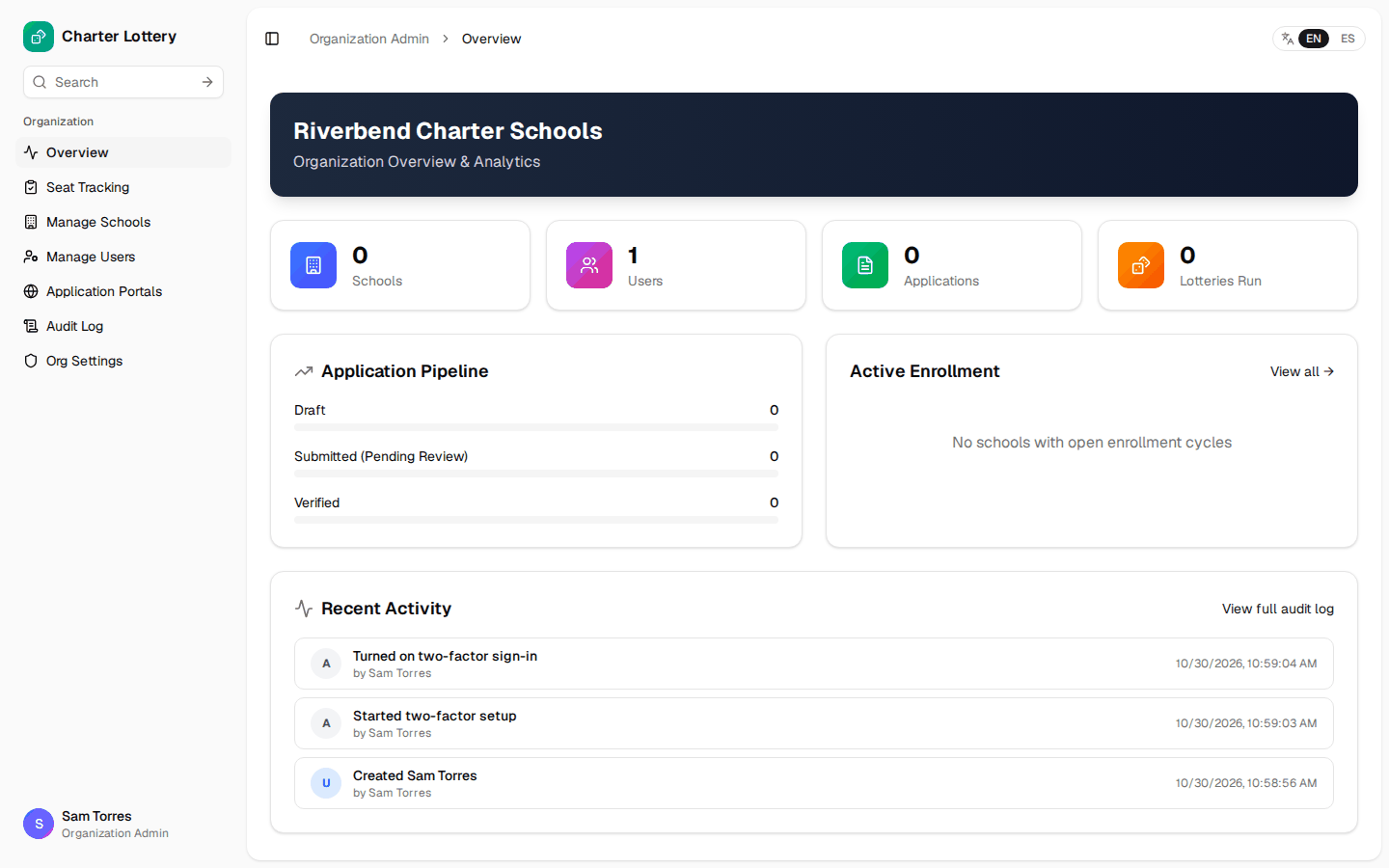
Organization Admins get a 22-step tour on first arrival. Close it with × and restart it later from Account Settings. Demo pages in the tour use sample data.
Part 3 · Add the schools
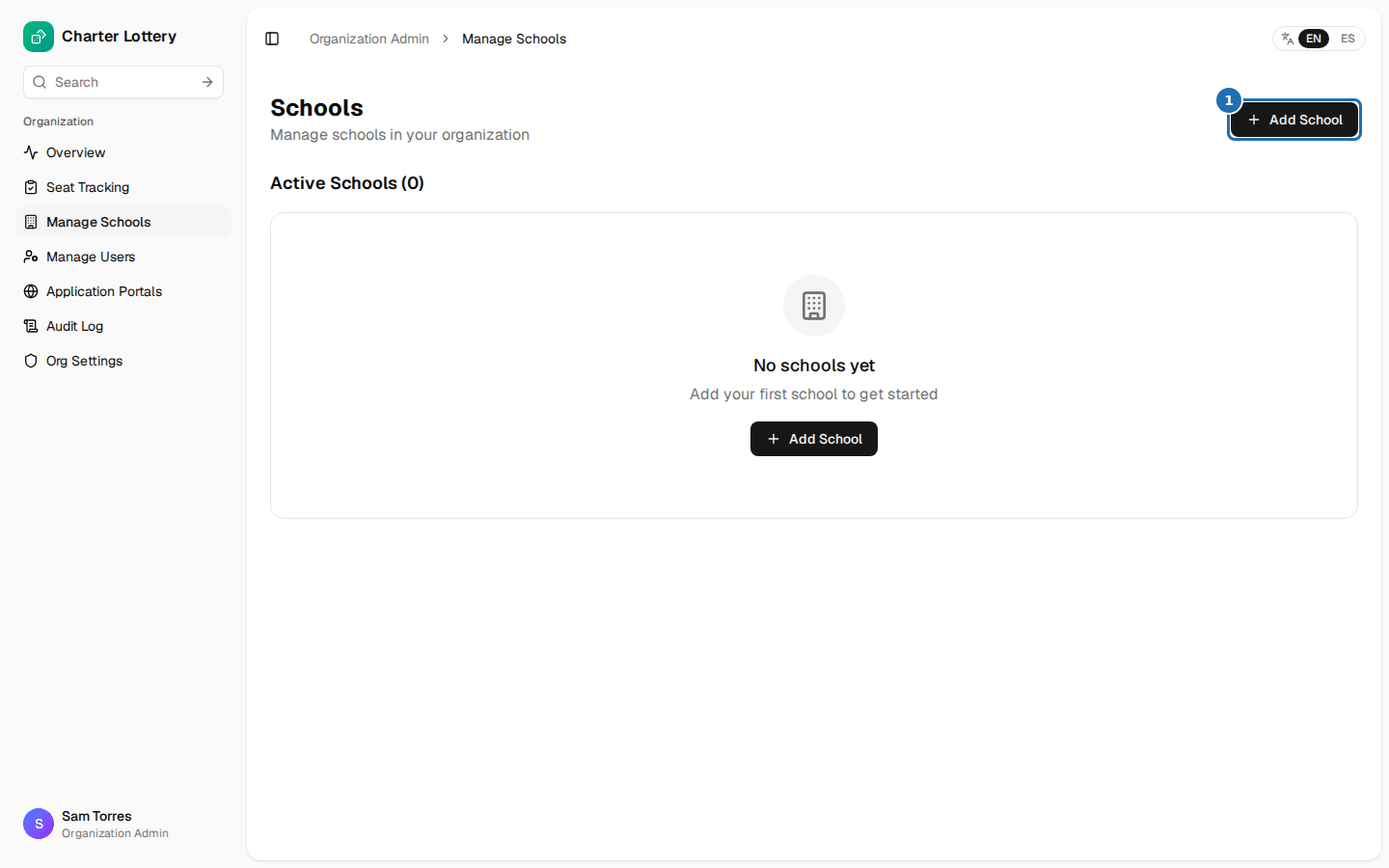
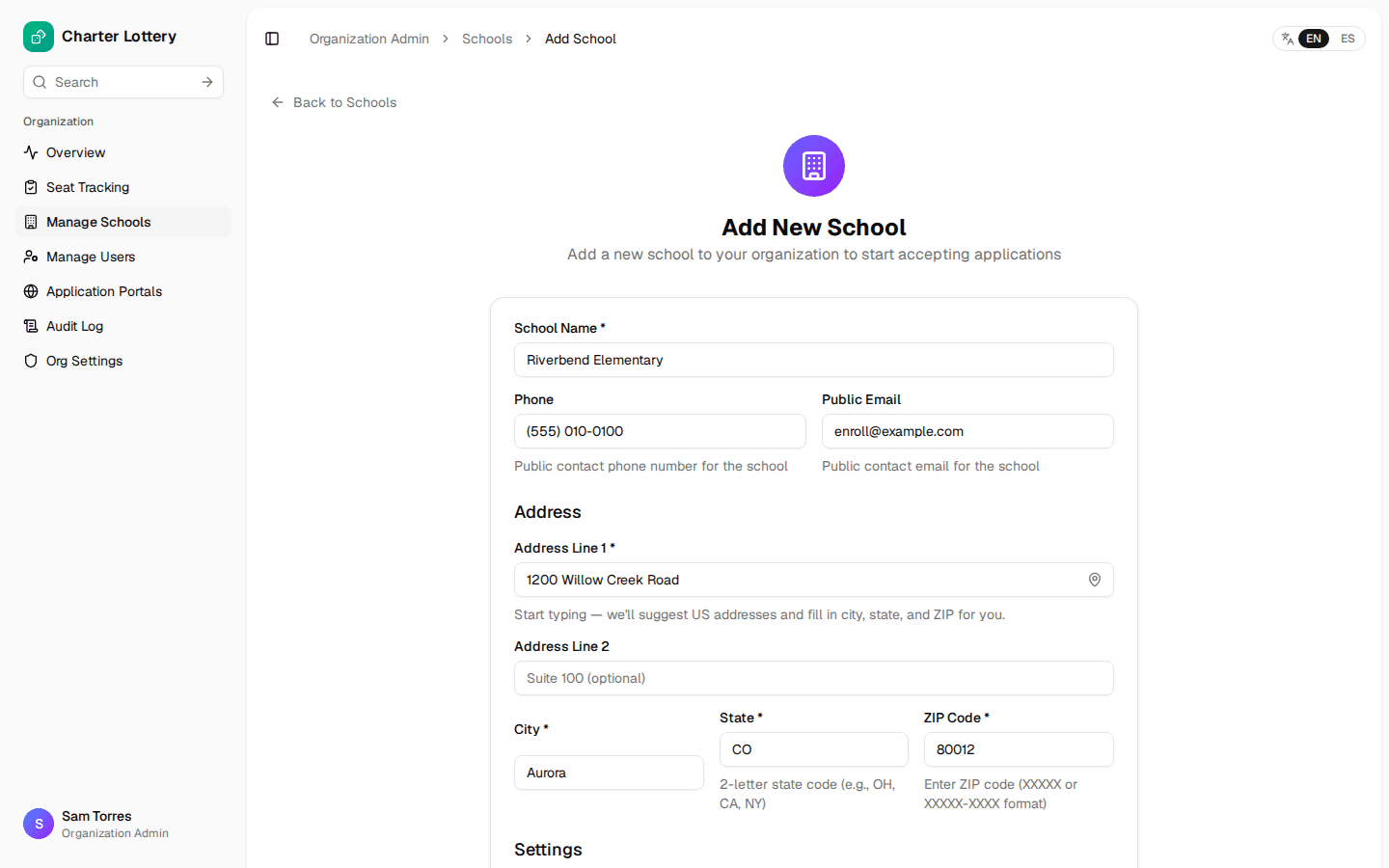
Step 10. Add each campus
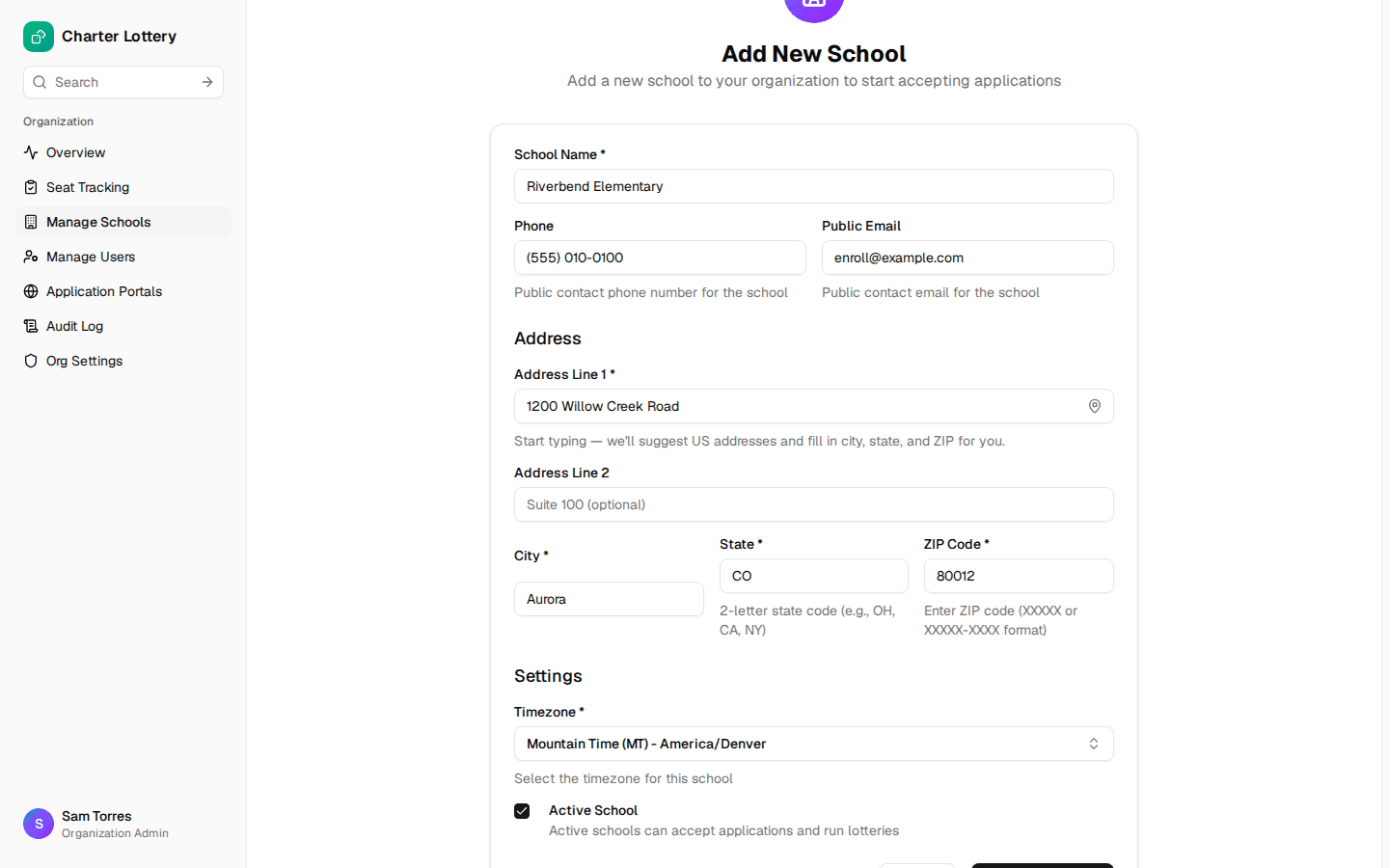
Choose Manage Schools, then Add School. On the live site, typing the street address offers suggestions that fill in city, state and ZIP.
Check the Timezone, because deadlines display in it. Keep Active School ticked. Select Create School and repeat for each campus.
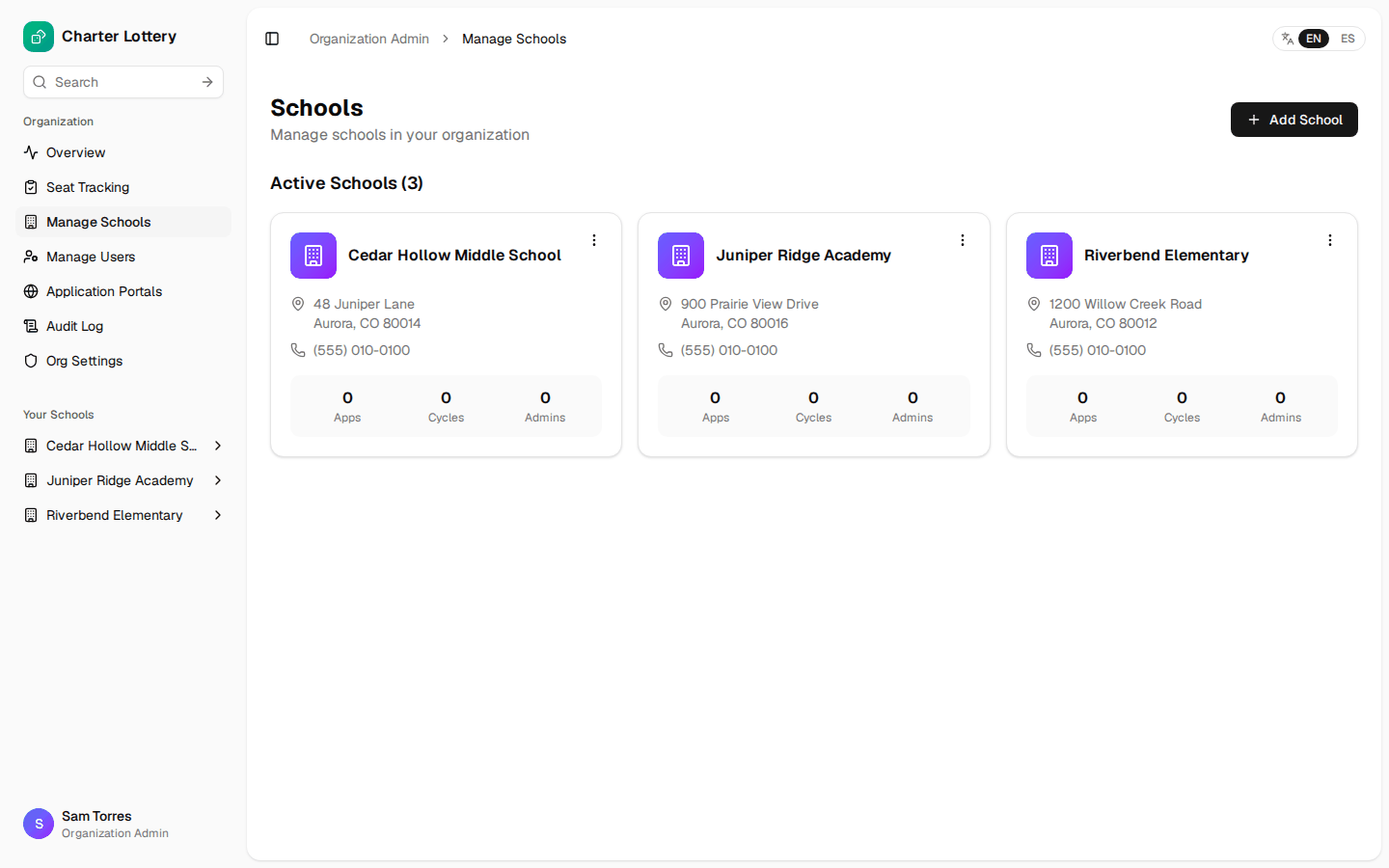
Step 11. Confirm the list
Each campus runs its own lotteries and has its own subscription.
Part 4 · Invite the staff
Step 12. Choose a role
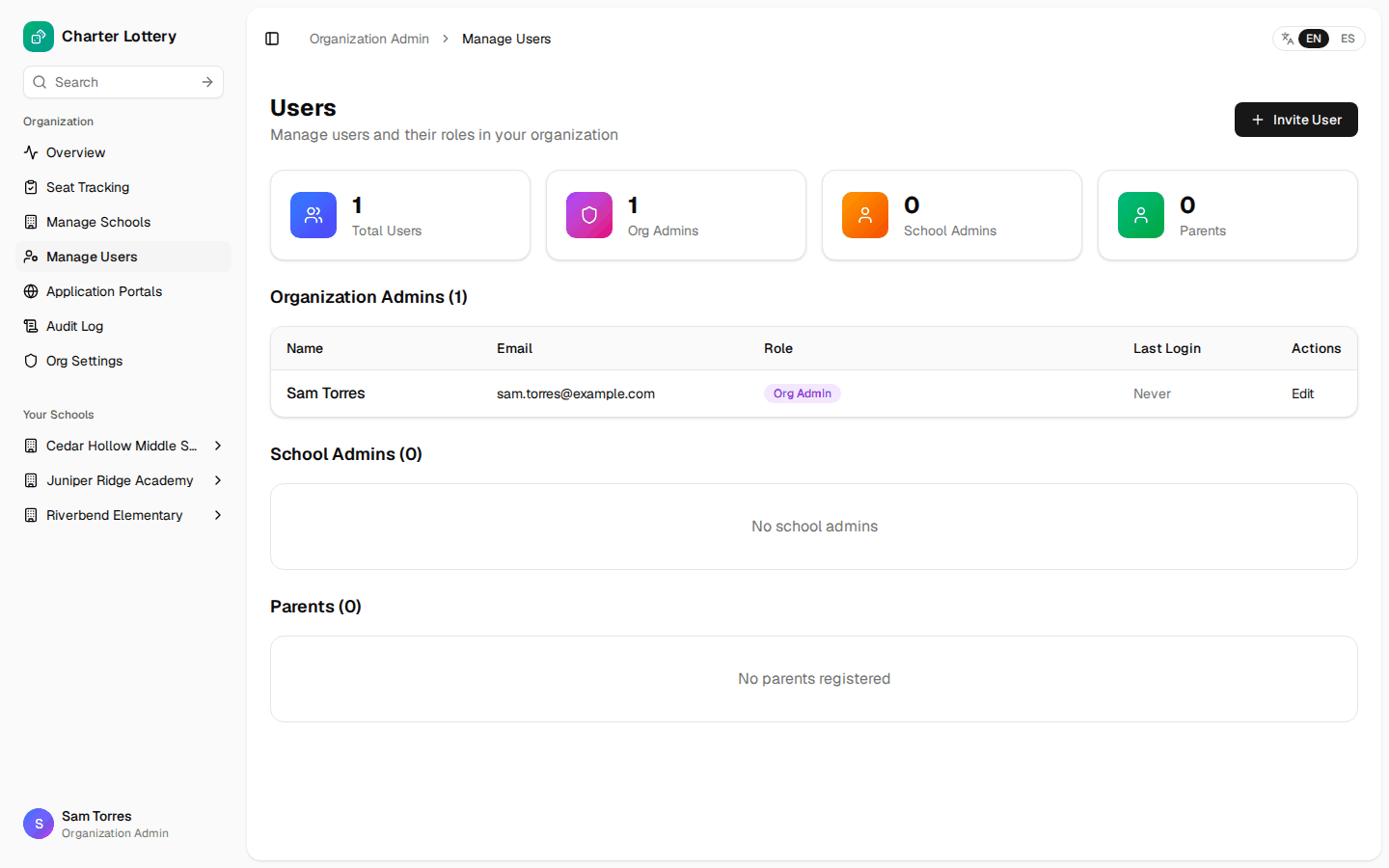
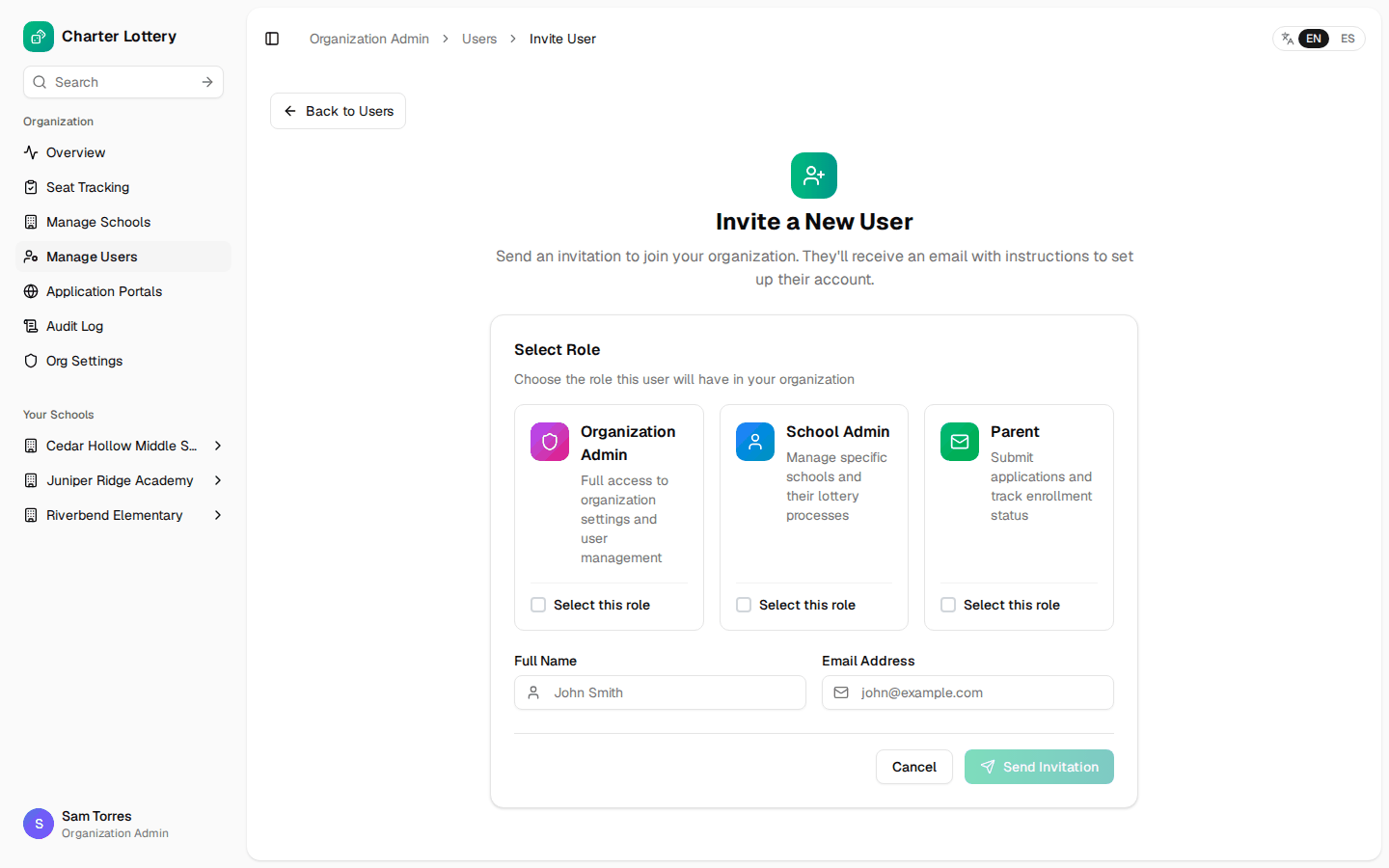
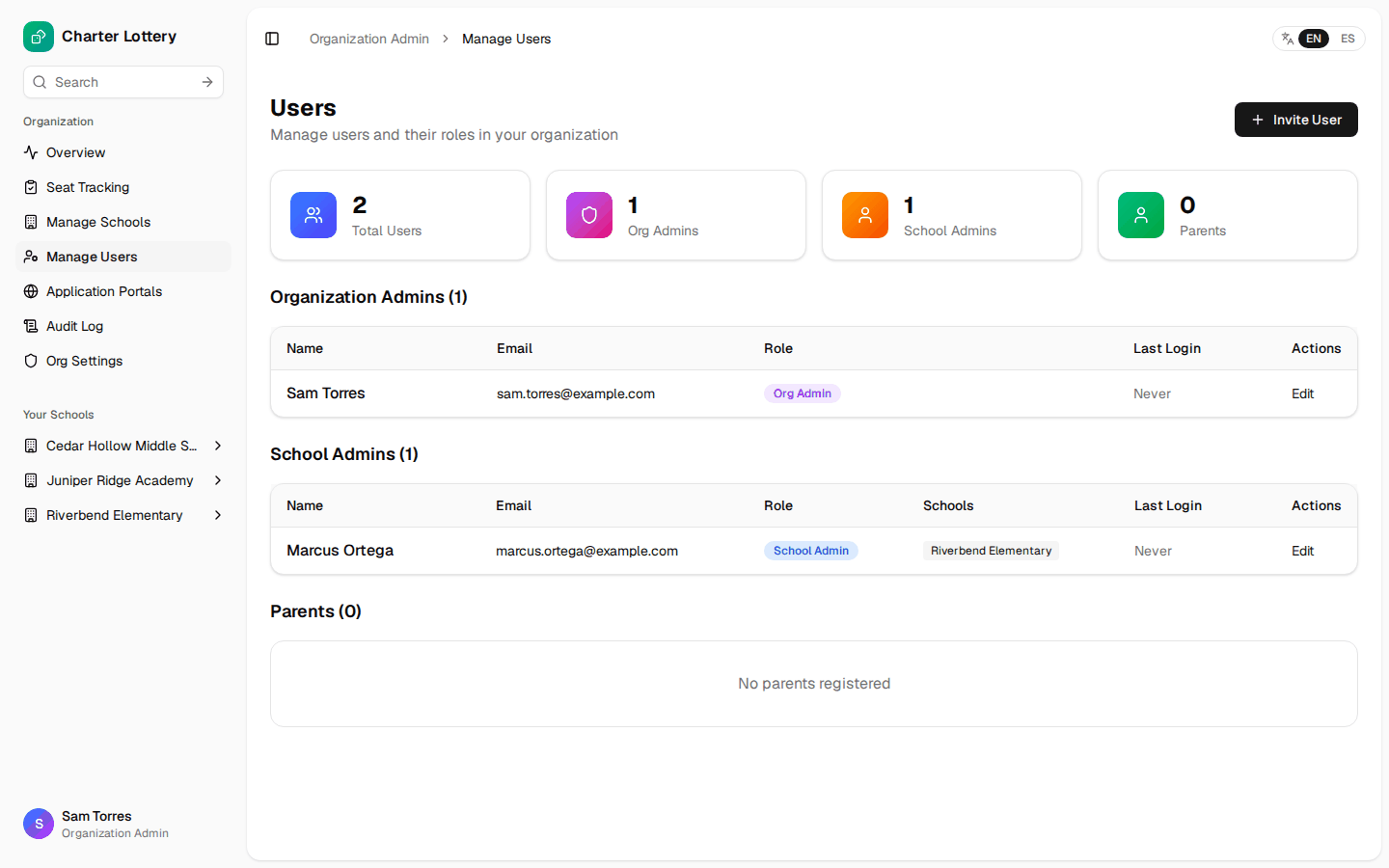
Choose Manage Users, then Invite User. Organization Admin covers every school, users, settings and billing. School Admin covers only the schools you tick. Parents normally create their own accounts through the portal.
Step 13. Send the invitation
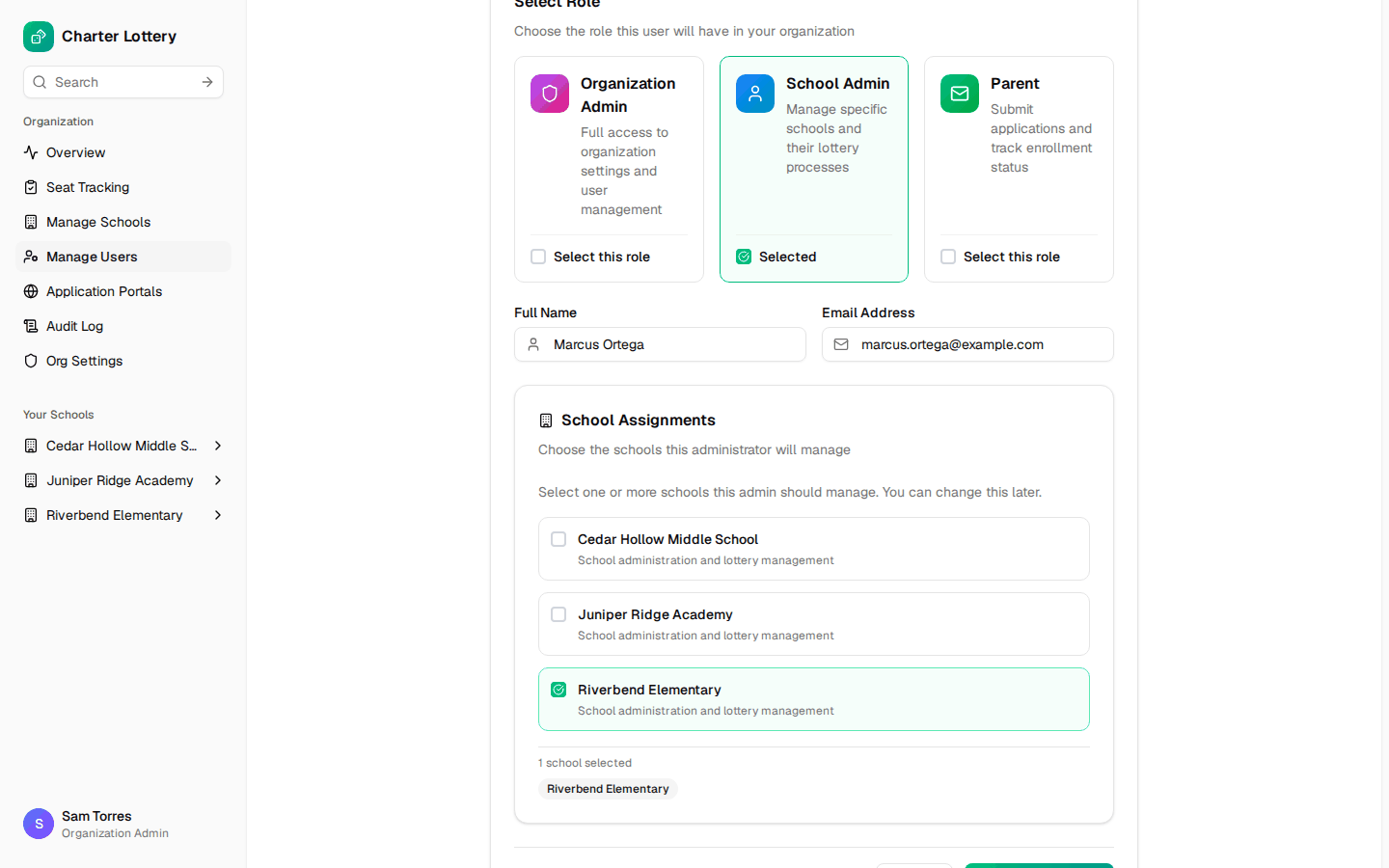
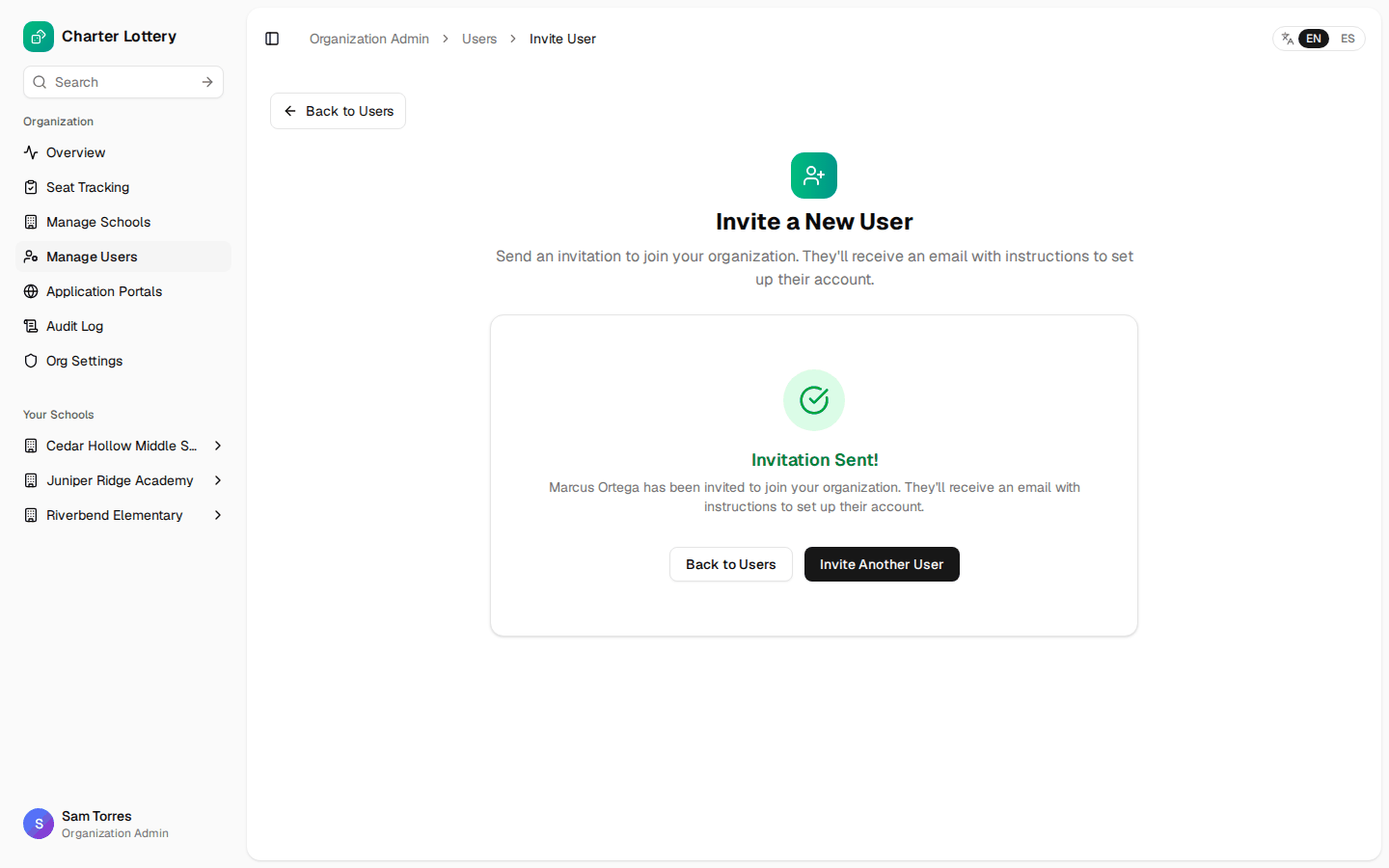
Enter the name and email, tick the schools for a School Admin, and select Send Invitation. The person appears in the list straight away.
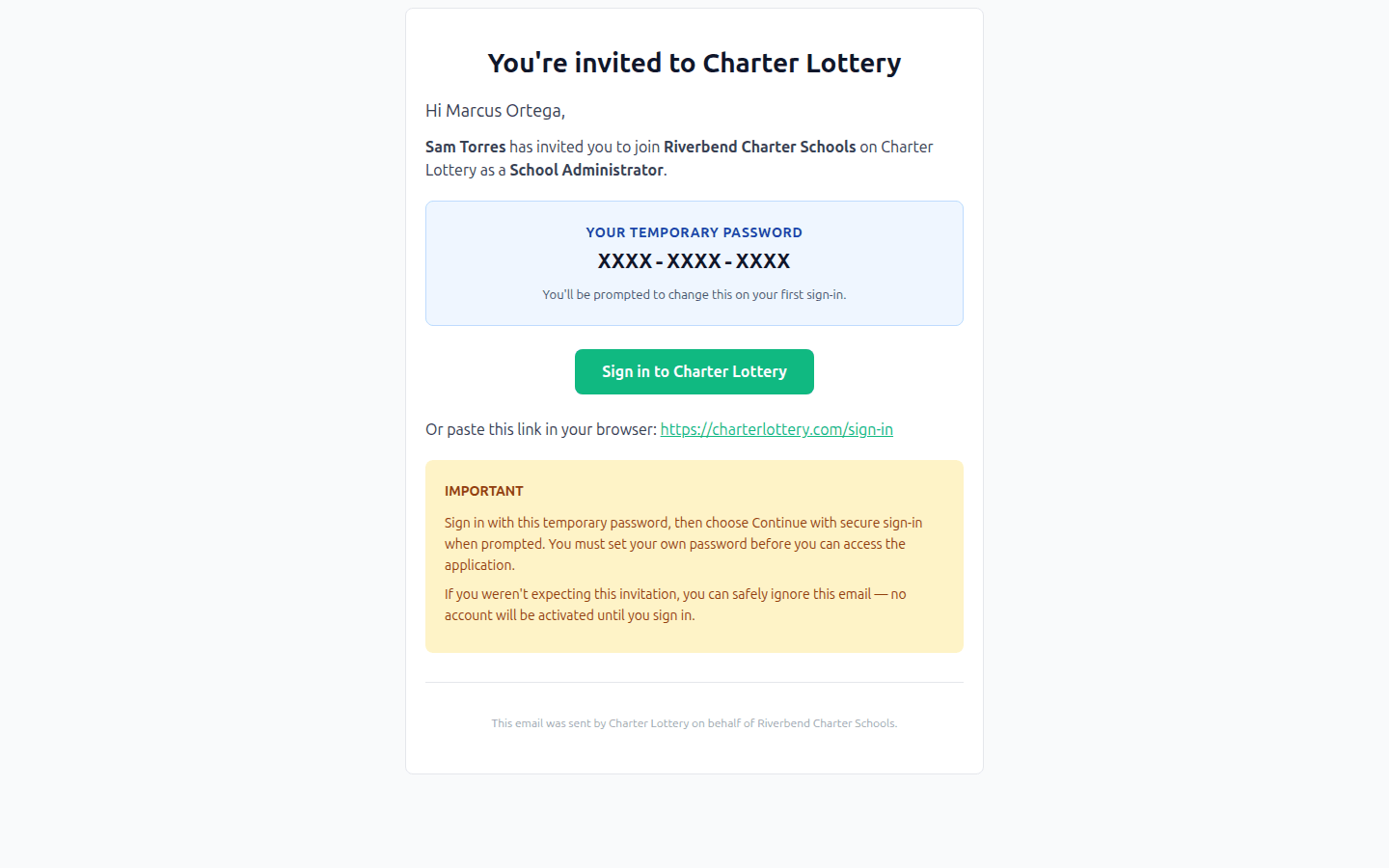
Step 14. What the invitee receives
The email comes from noreply@charterlottery.com with a temporary password valid for 7 days. After that, open the user and resend. Invitations are in English.
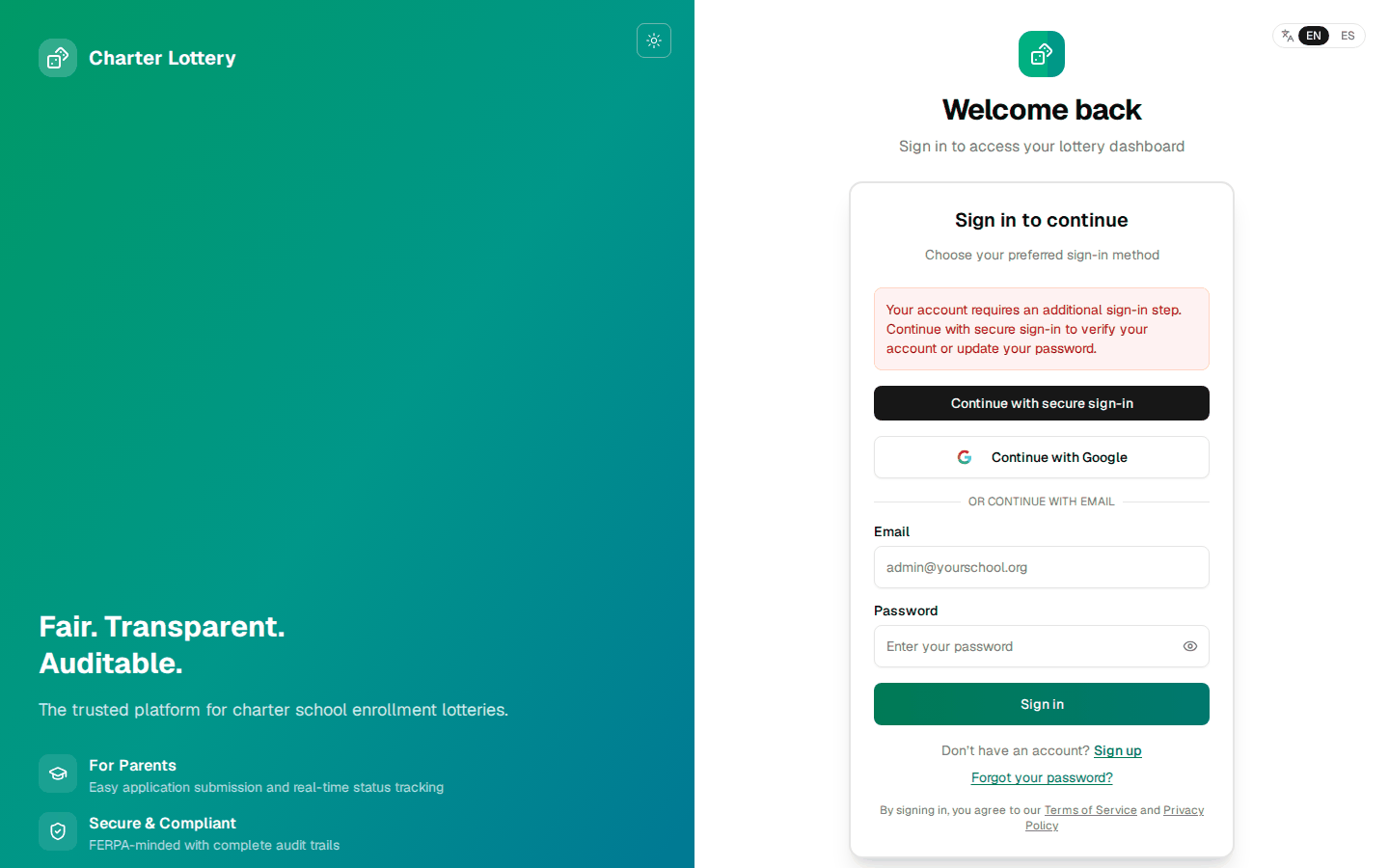
Step 15. The invitee's first sign-in
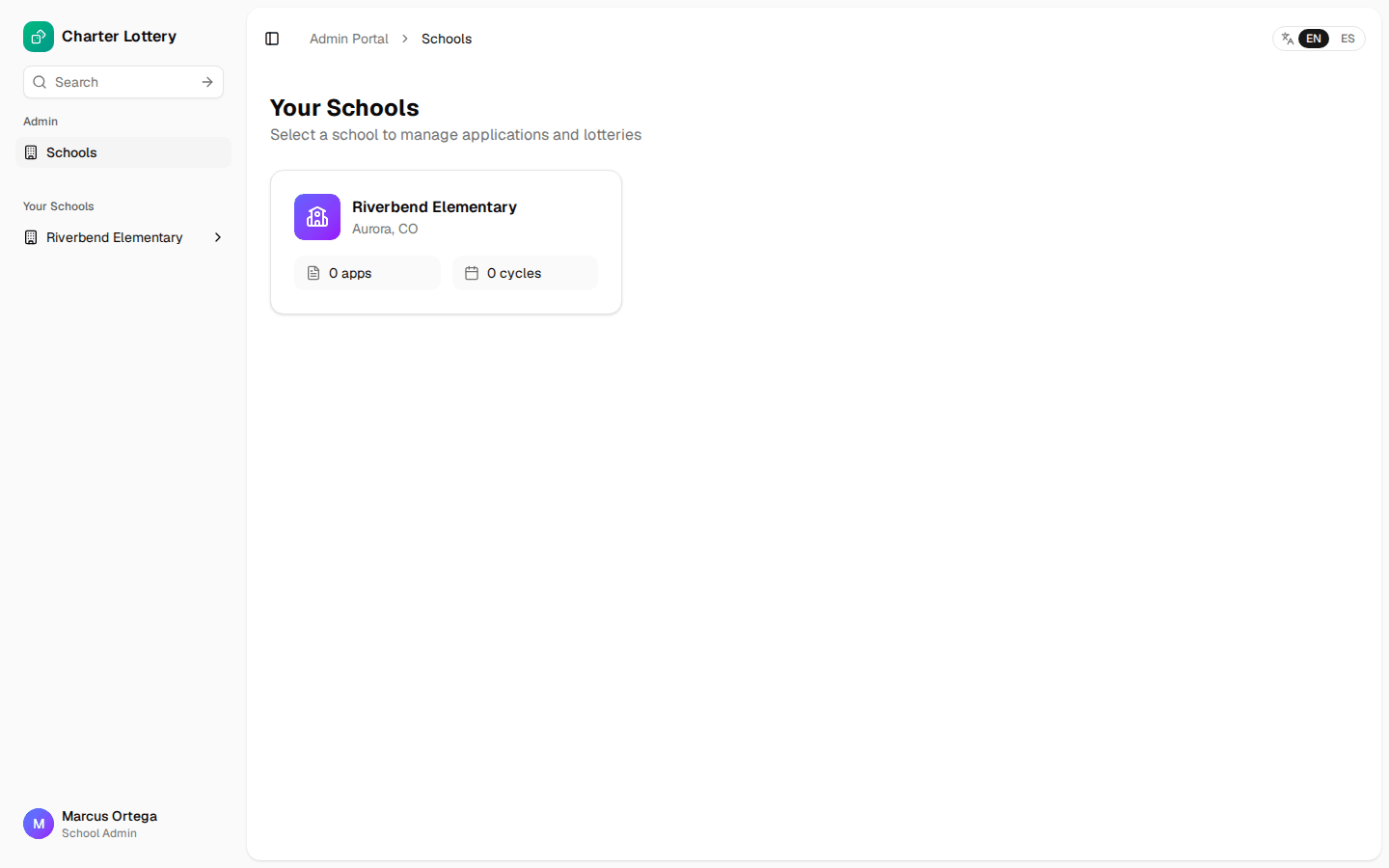
The invitee enters the temporary password on the sign-in page, then selects Continue with secure sign-in and sets their own password on the sign-in provider's page, which is not pictured. Two-step setup follows.
An invitee whose Google account uses the same verified email can choose Continue with Google instead, and the invitation links to that account.
Part 5 · Set organization defaults
Step 16. Review settings
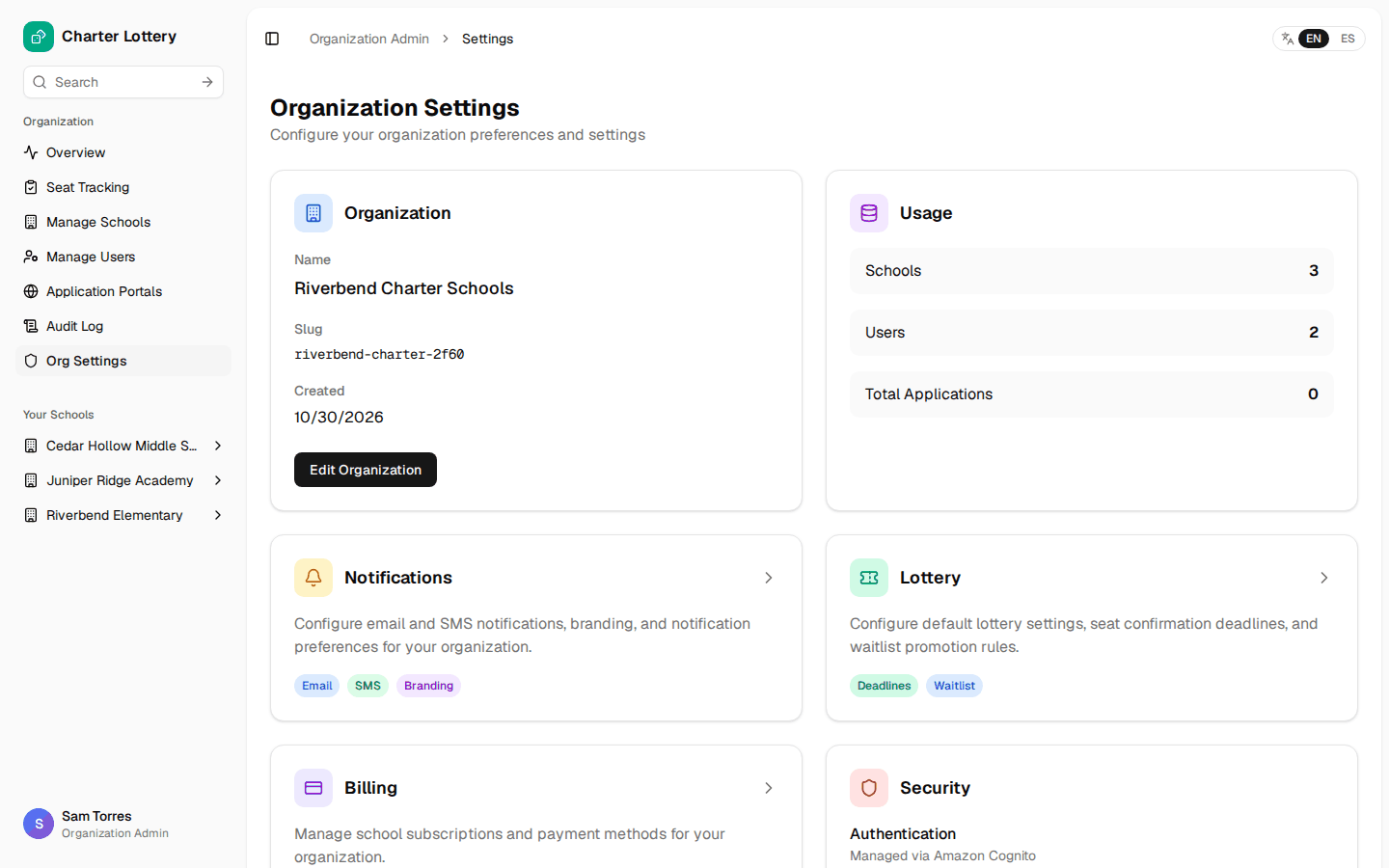
Org Settings holds the organization record and links to each settings page.
Step 17. Notifications
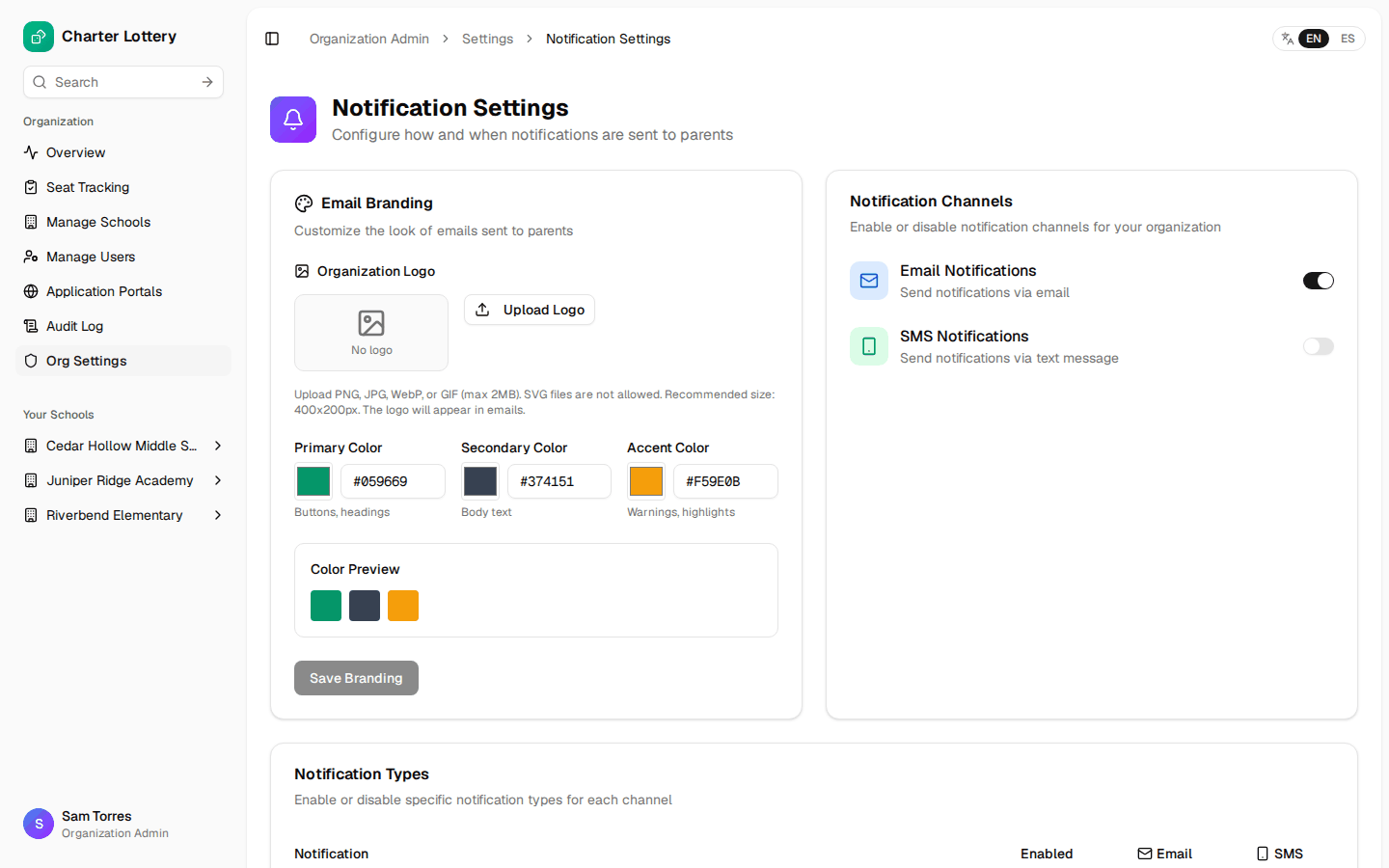
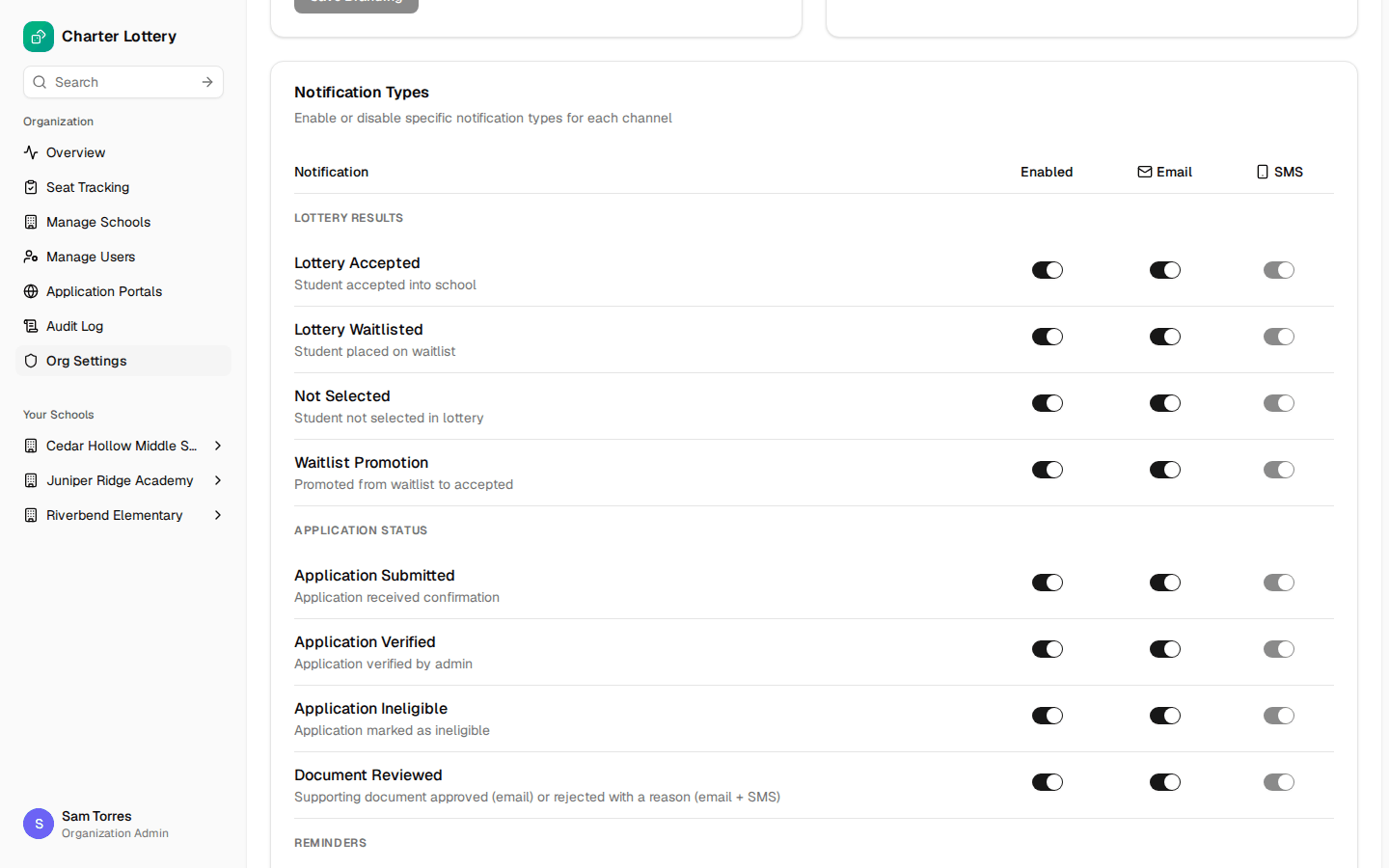
Add the logo and colors used on family emails. Turn email and SMS on or off for the organization, then choose each notice type by channel. SMS starts off. Families also have to verify a mobile number and agree to texts.
Step 18. Lottery defaults
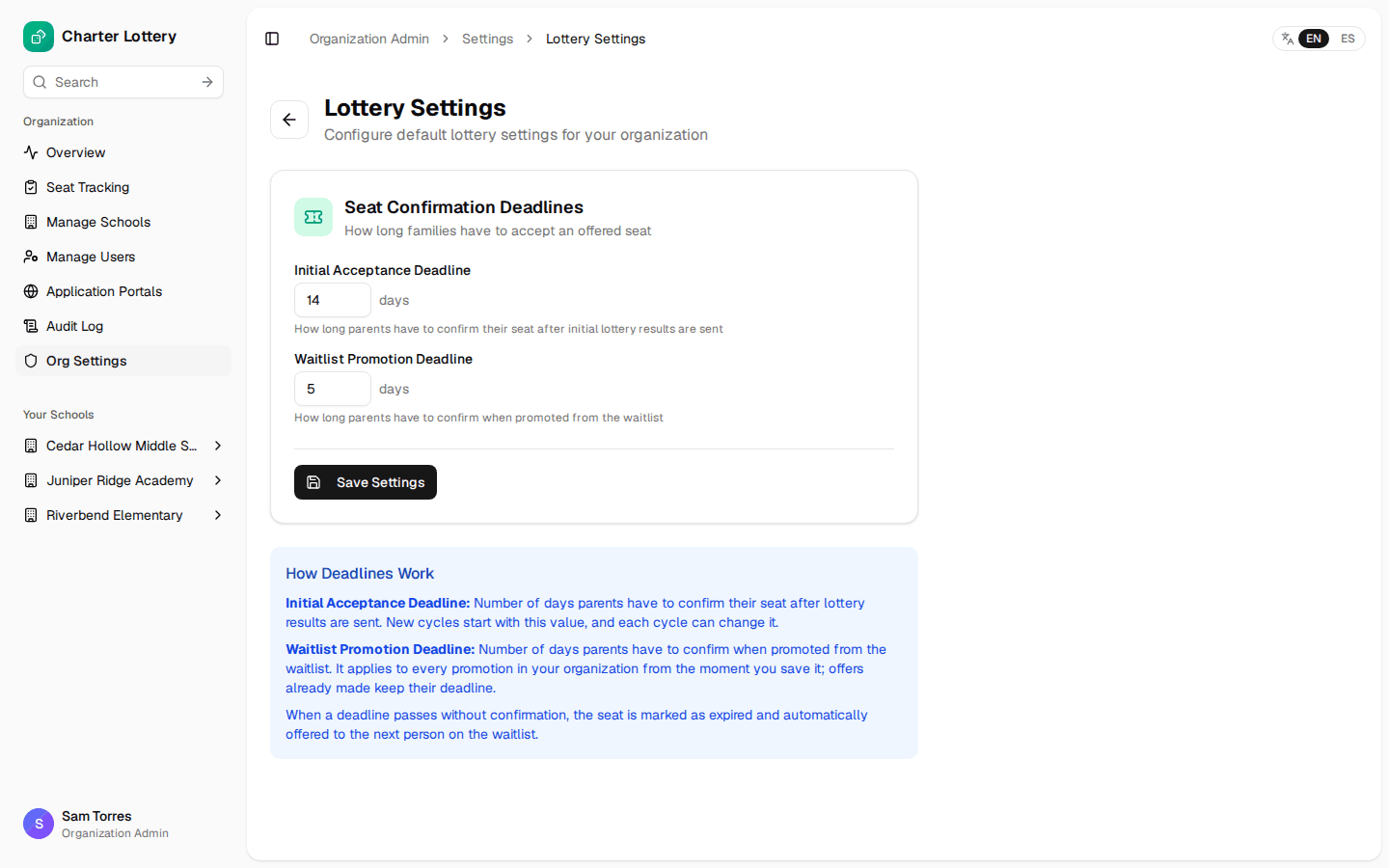
Set how long families have to accept a first offer, and how long they have when promoted from the waitlist. The first value fills in each new cycle, where it can be changed.
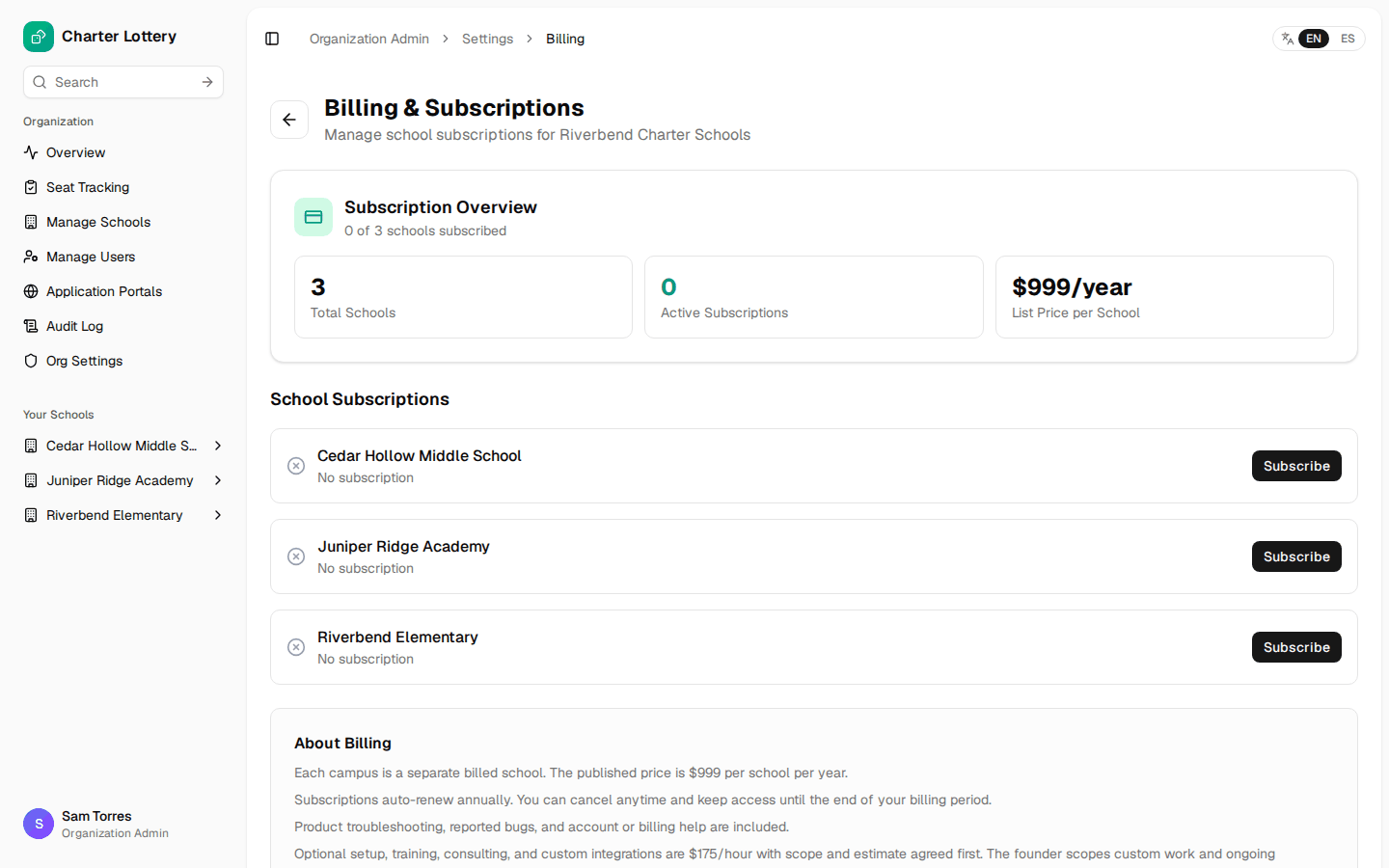
Step 19. Billing
Each school is listed with a Subscribe button. Payment is by card through Stripe. You can leave this until a school is ready to run its lottery, when Charter Lottery prompts for it.
Part 6 · Configure each school
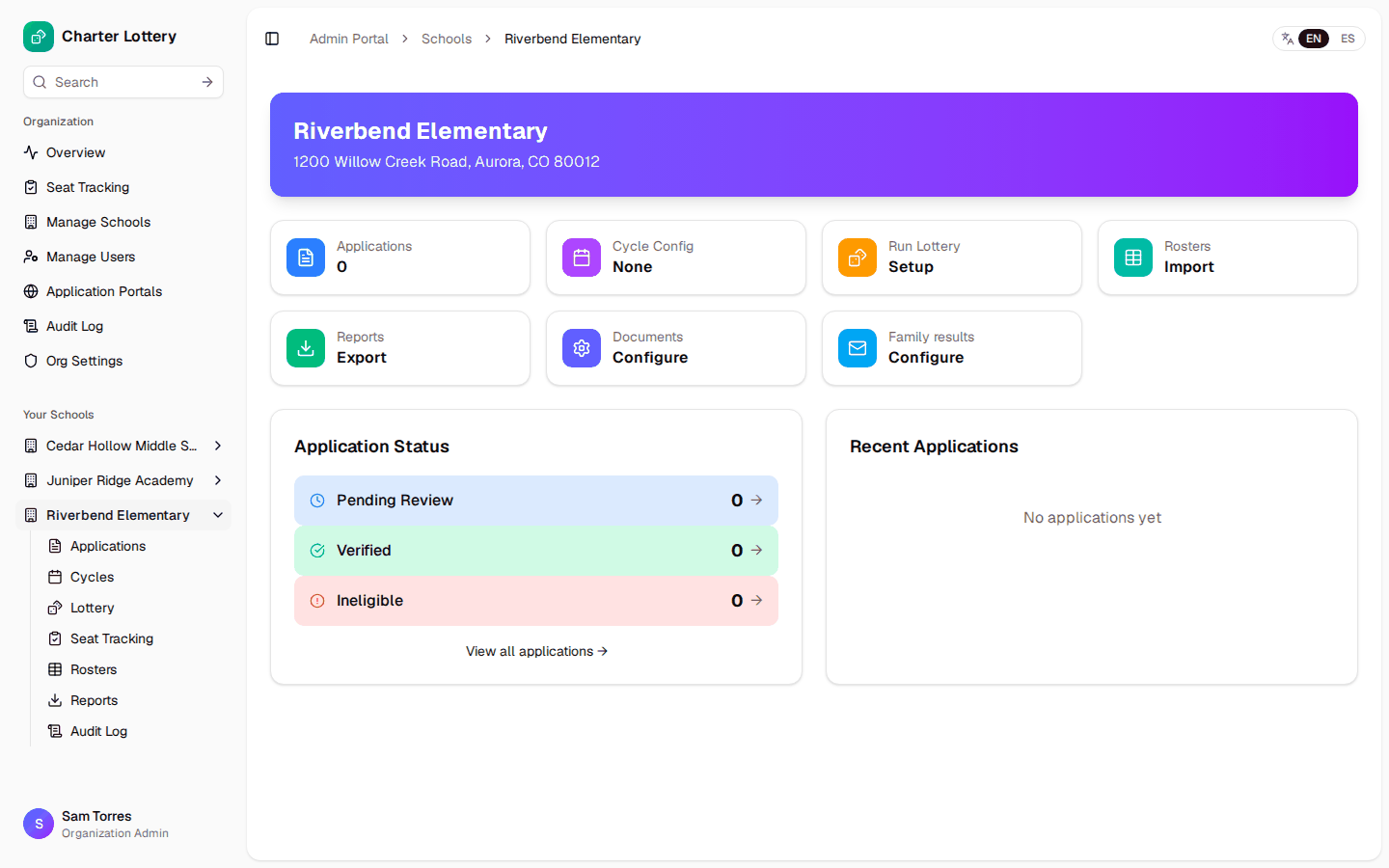
Step 20. Open the school dashboard
Choose a school under Your Schools. The dashboard links to everything for that campus.
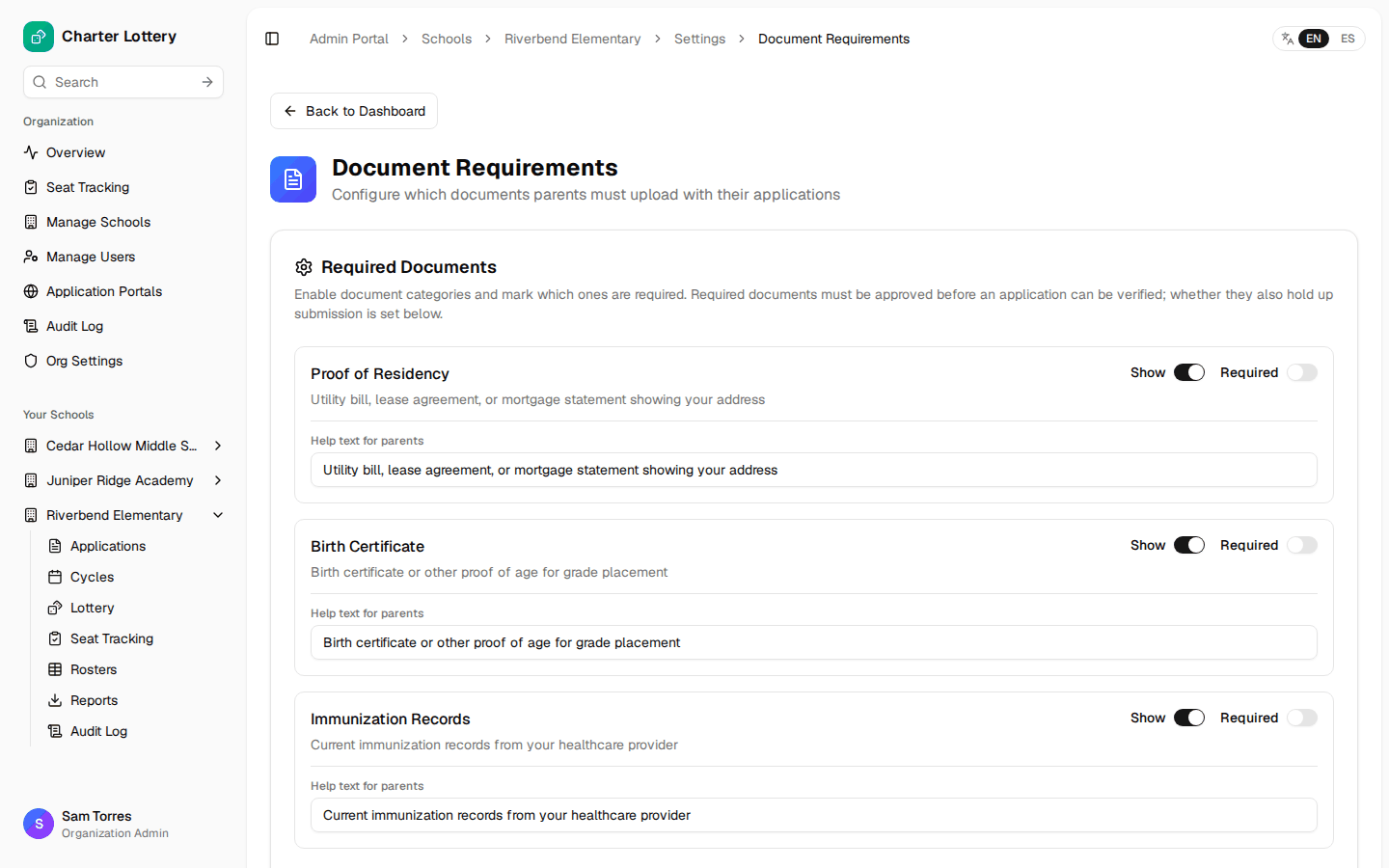
Step 21. Choose documents
Under Documents → Configure, choose what families can upload and what is required. A required document must be approved before an application can be verified.
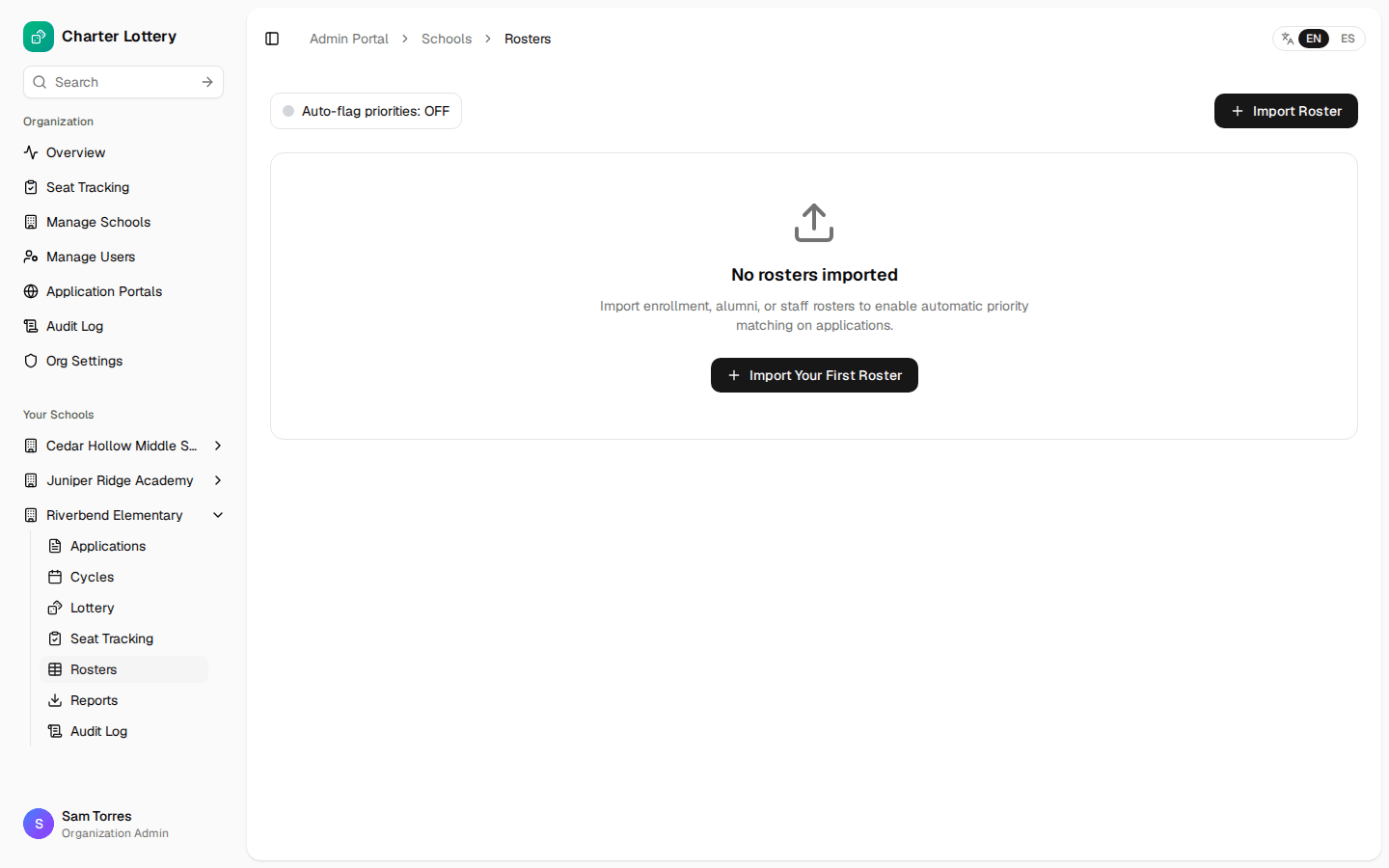
Step 22. Import rosters (optional)
Rosters let Charter Lottery spot siblings of current students, staff children and alumni children. Import Roster takes a CSV or Excel file and lets you match its columns.
Part 7 · Publish the parent portal
Step 23. Create the portal
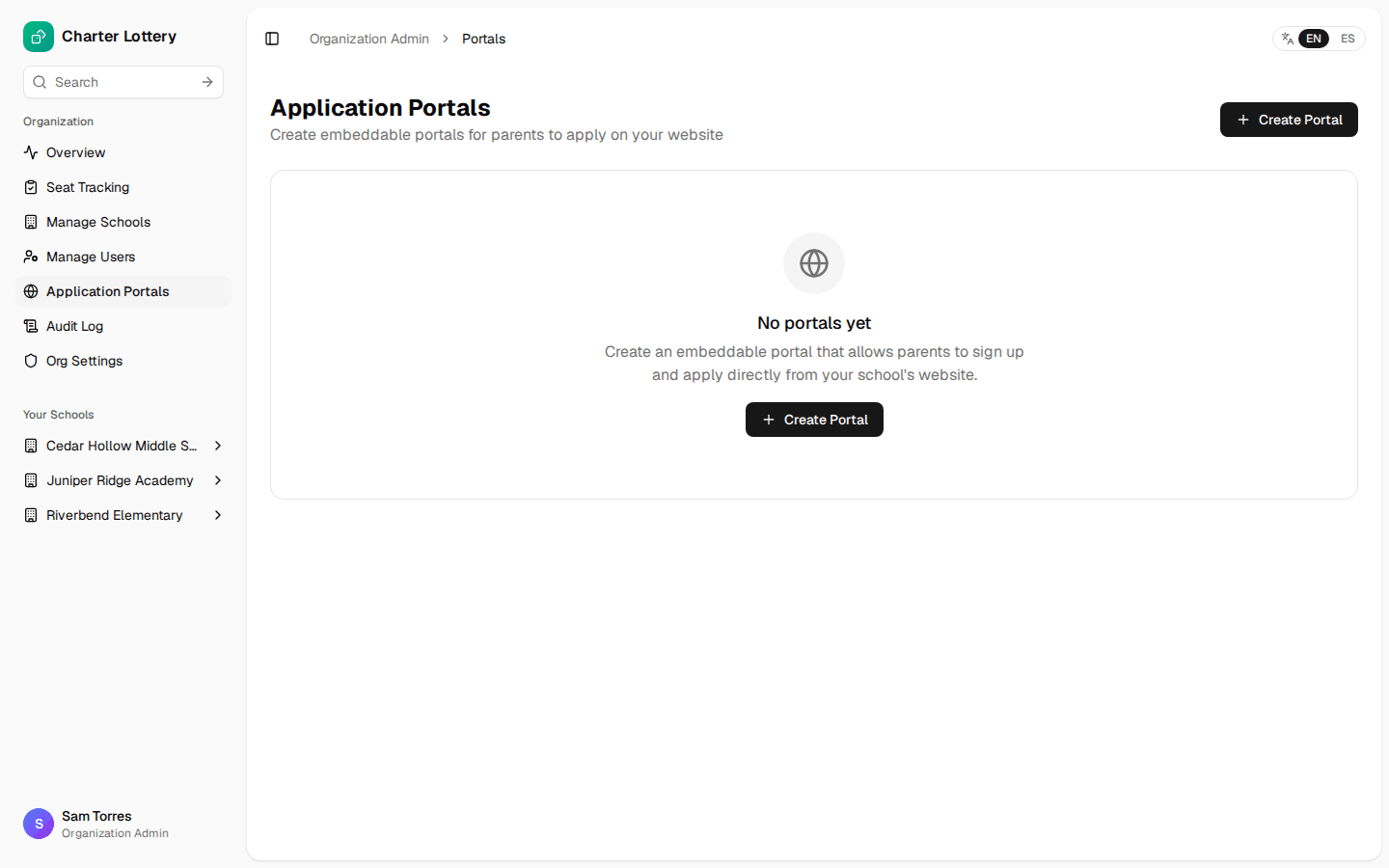
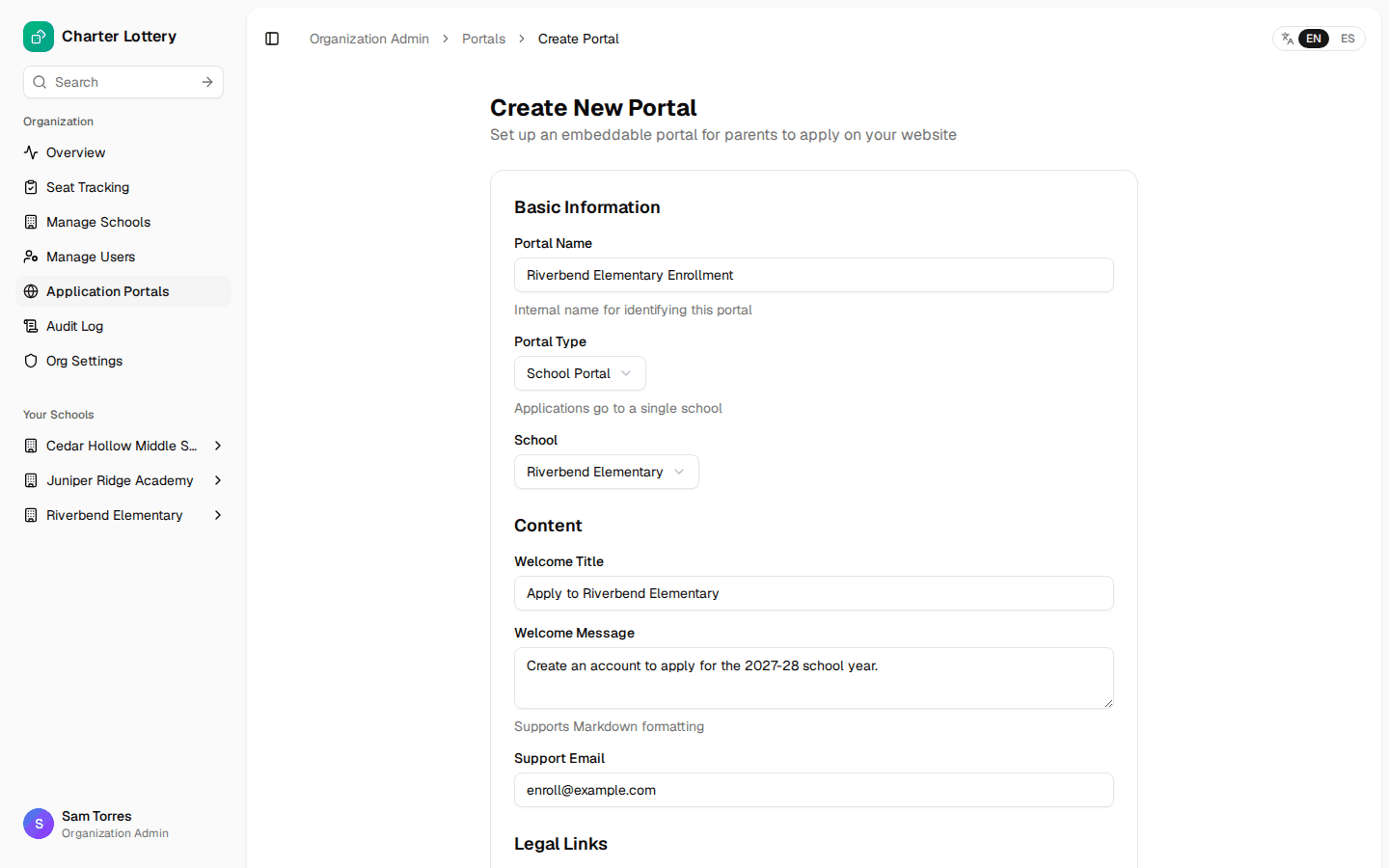
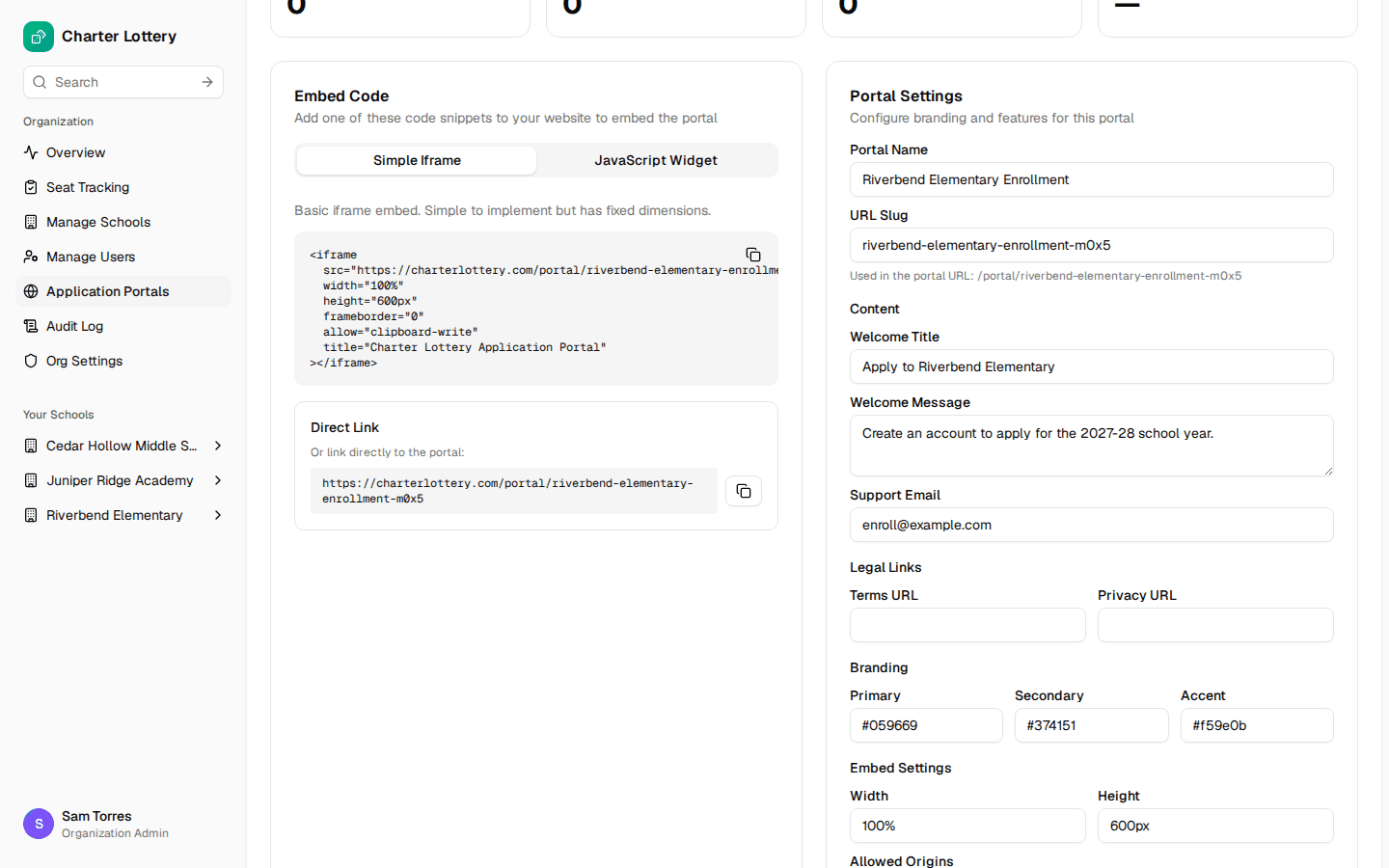
Choose Application Portals, then Create Portal. Use a School Portal for one campus or an Organization Portal to cover every school. Add a welcome message and a support email.
Step 24. Activate it
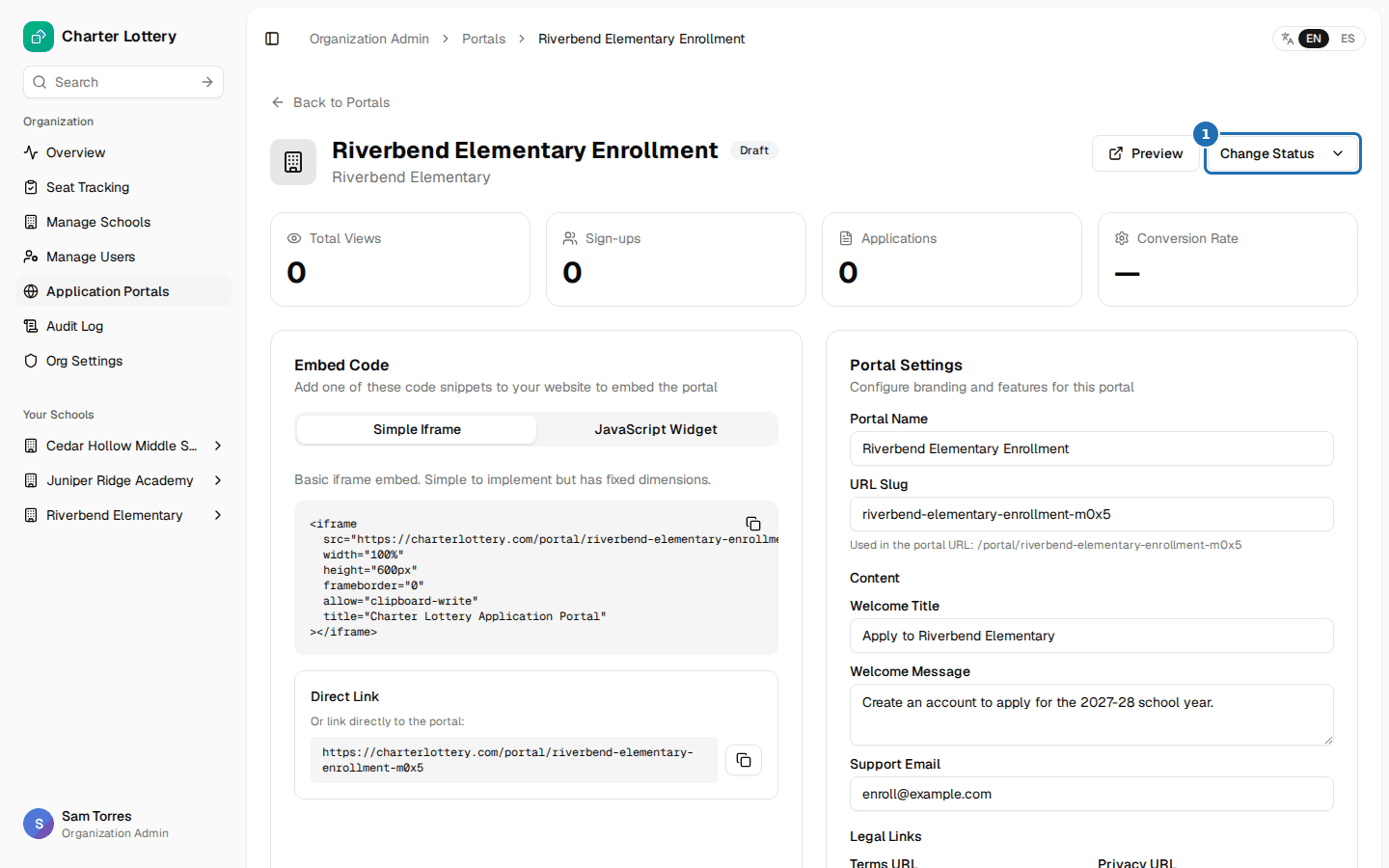
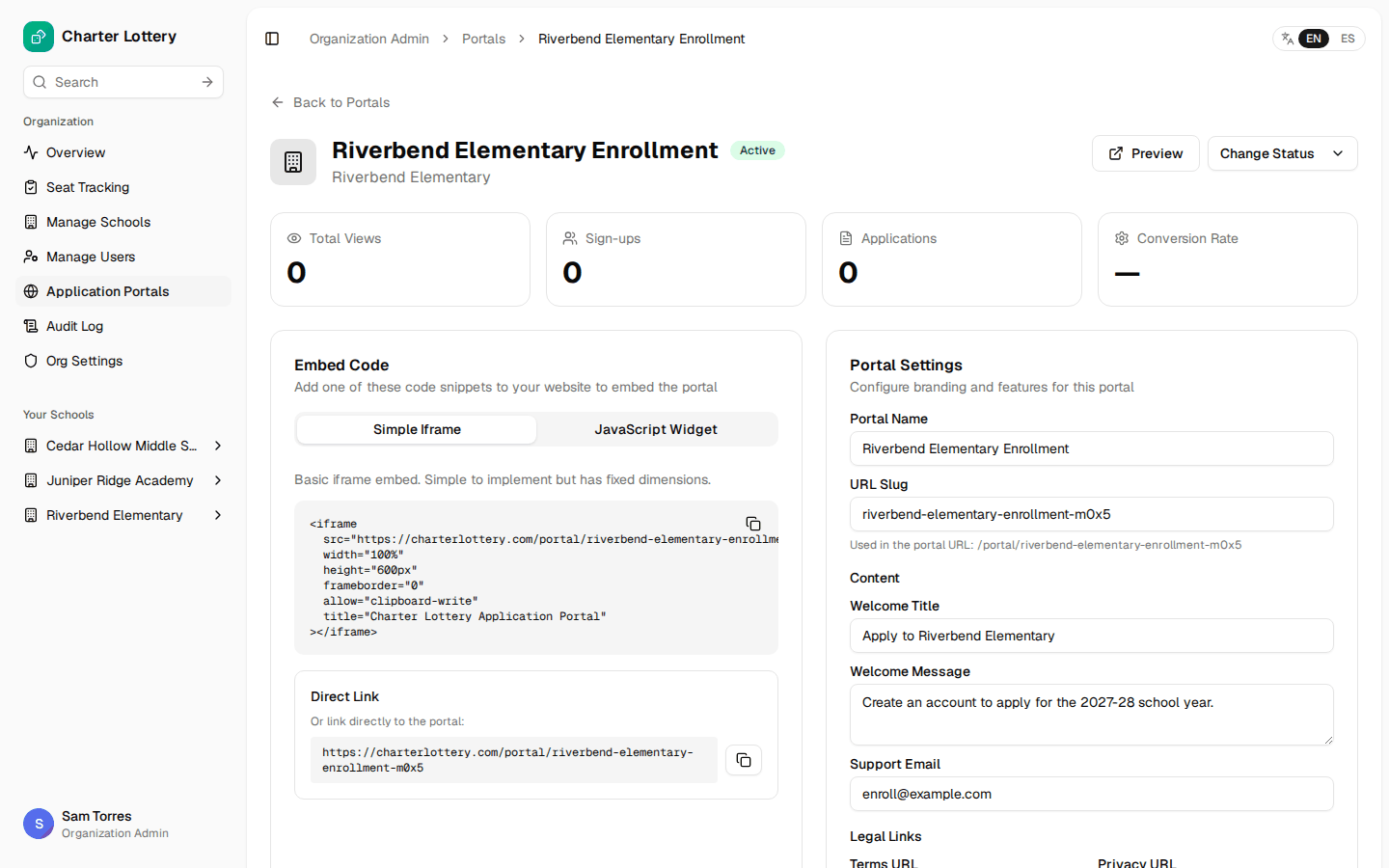
New portals start as Draft and families cannot see them. Select Change Status, then Activate.
Step 25. Link it from the school website
Use the Direct Link on a button such as "Apply for enrollment". It works everywhere and is best on phones.
An iframe also works. Create Account and Sign In open in a new tab, because browsers block sign-in inside another site's frame. If the school site sets a Content-Security-Policy with frame-src, add https://charterlottery.com.
Part 8 · Open the first cycle
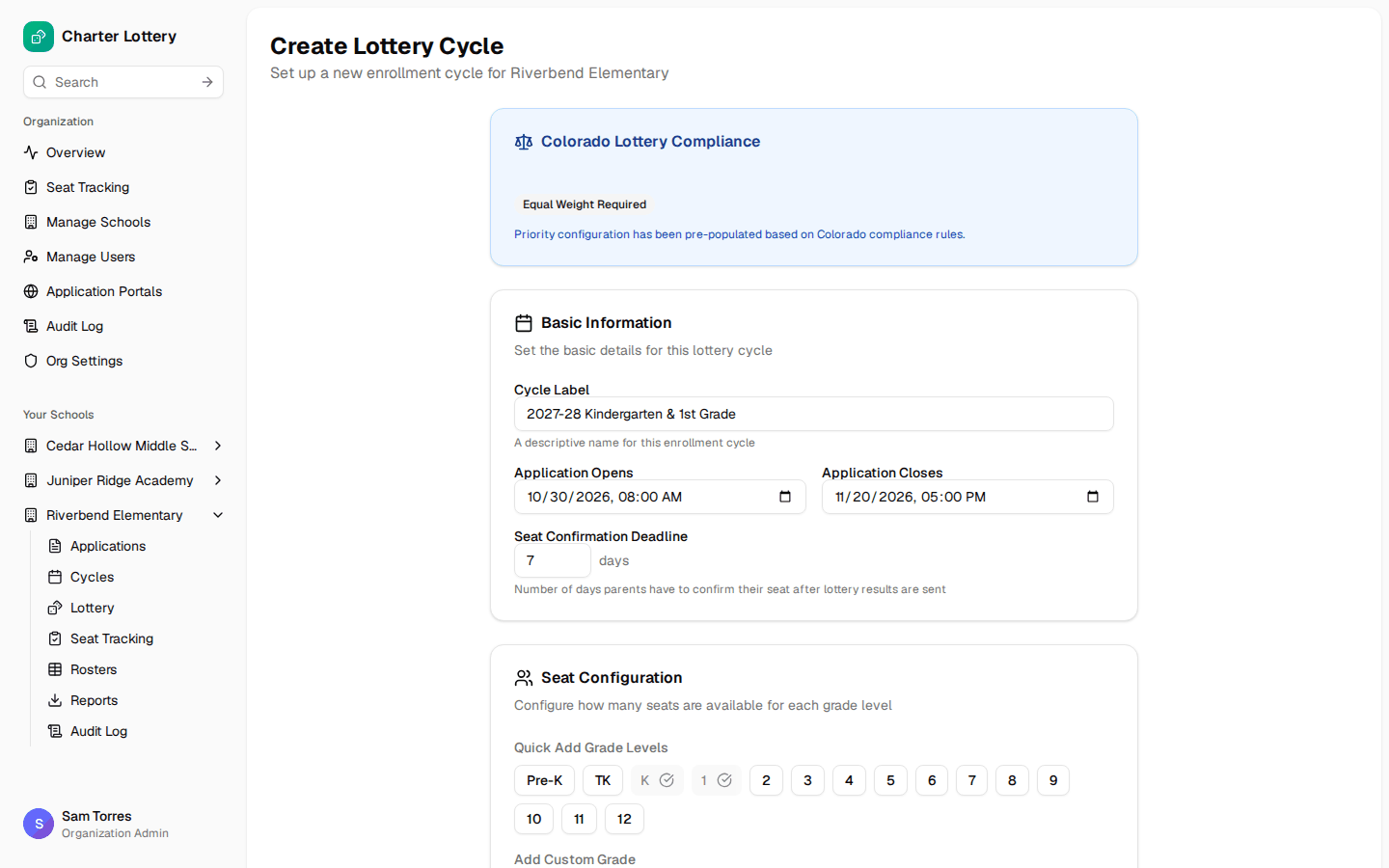
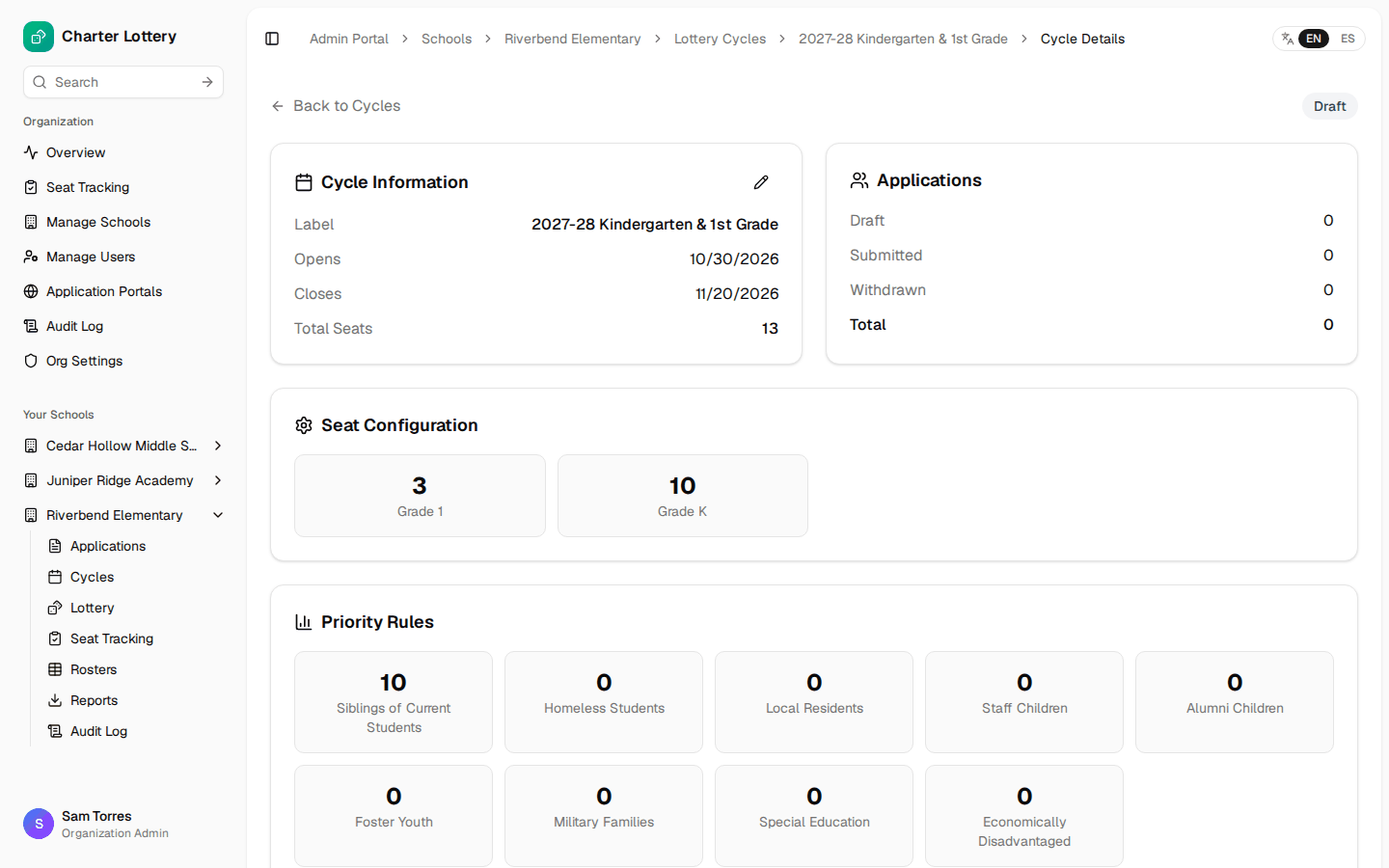
Step 26. Create the cycle
From the school, choose Cycles → New Cycle. Enter the label, dates and the days families have to accept a seat. The box at the top checks your choices against the school state's lottery rules.
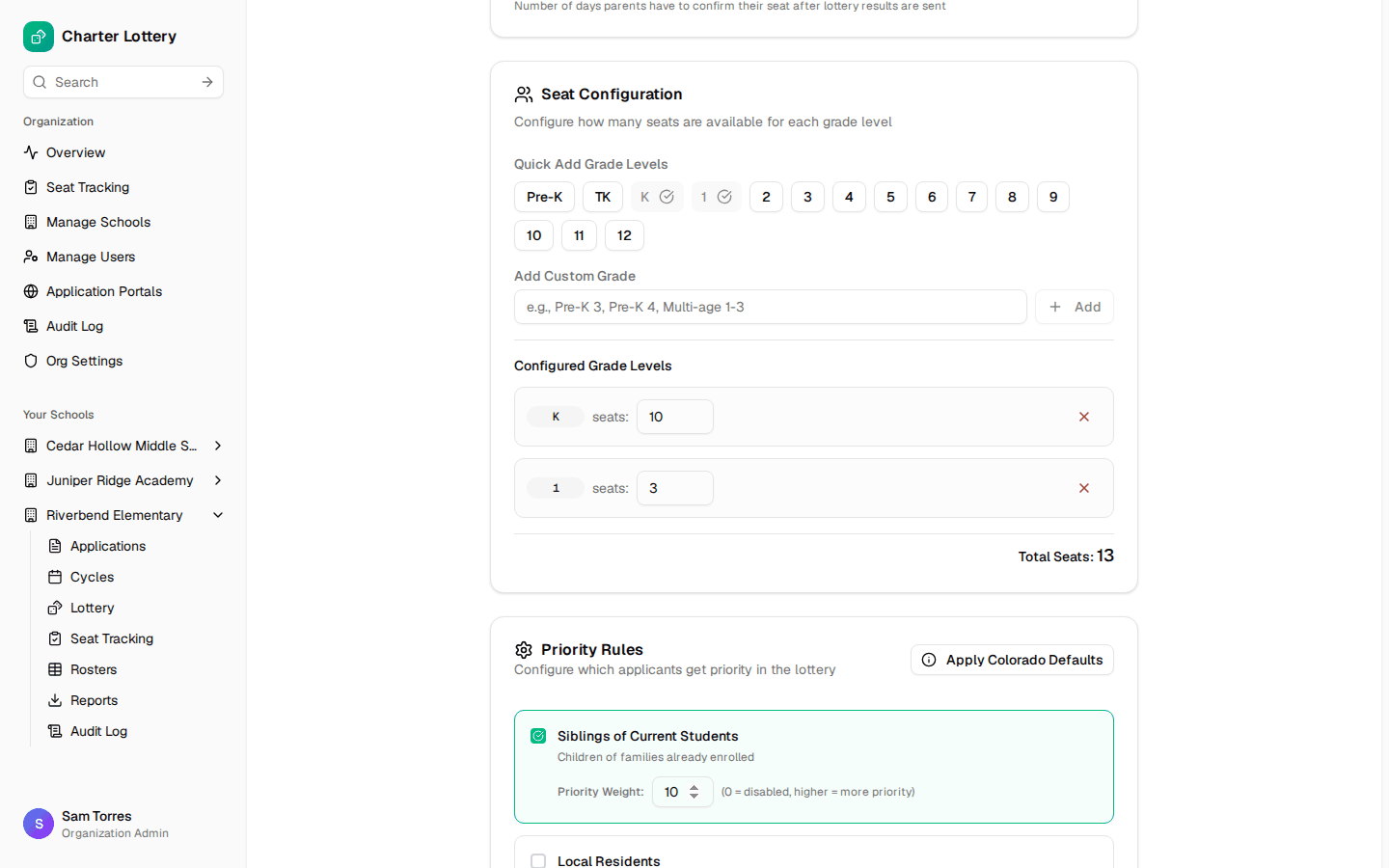
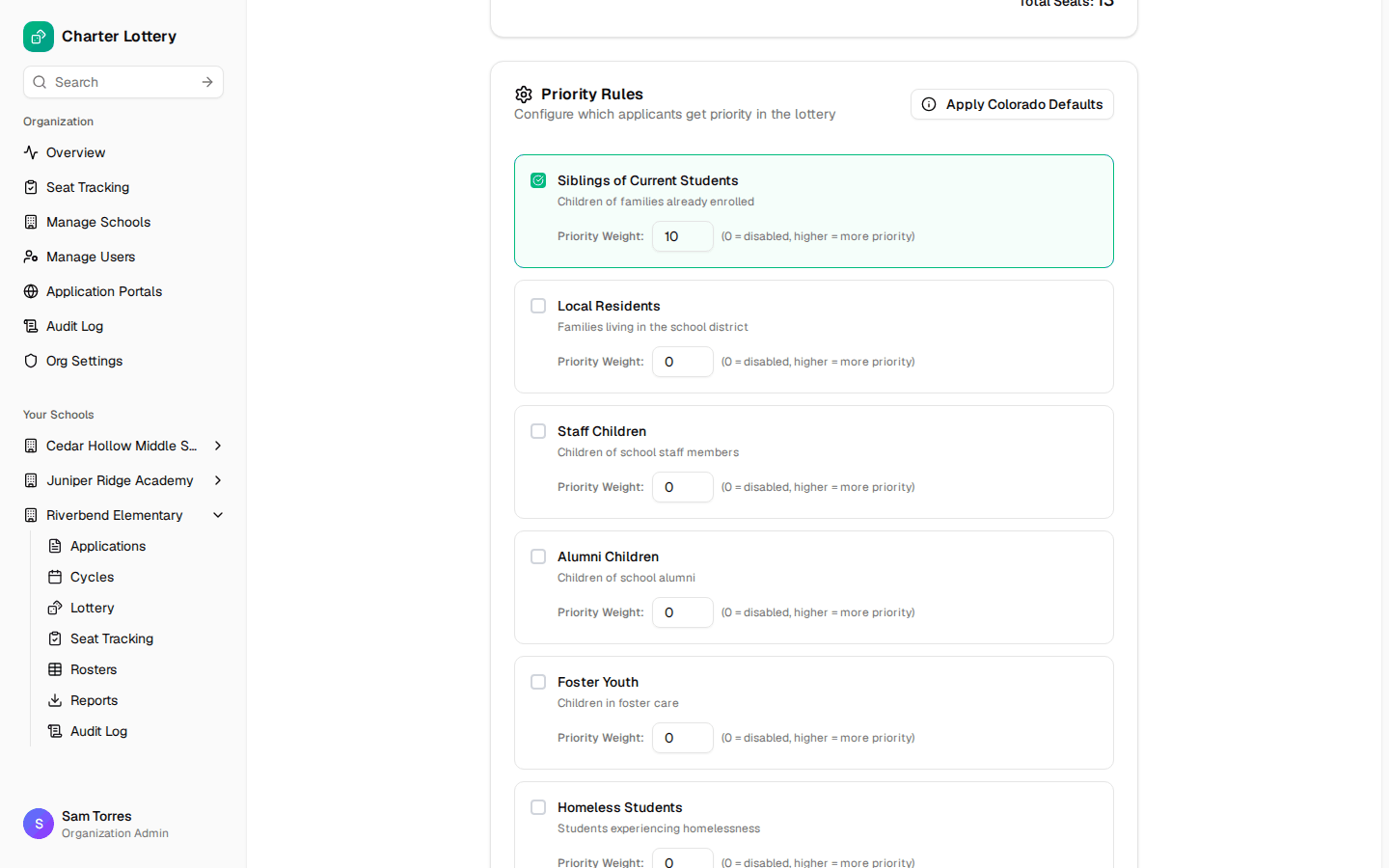
Step 27. Set seats and priorities
Select each grade and enter its seats. Give a weight to each priority the school uses, and 0 turns one off.
Step 28. Open applications
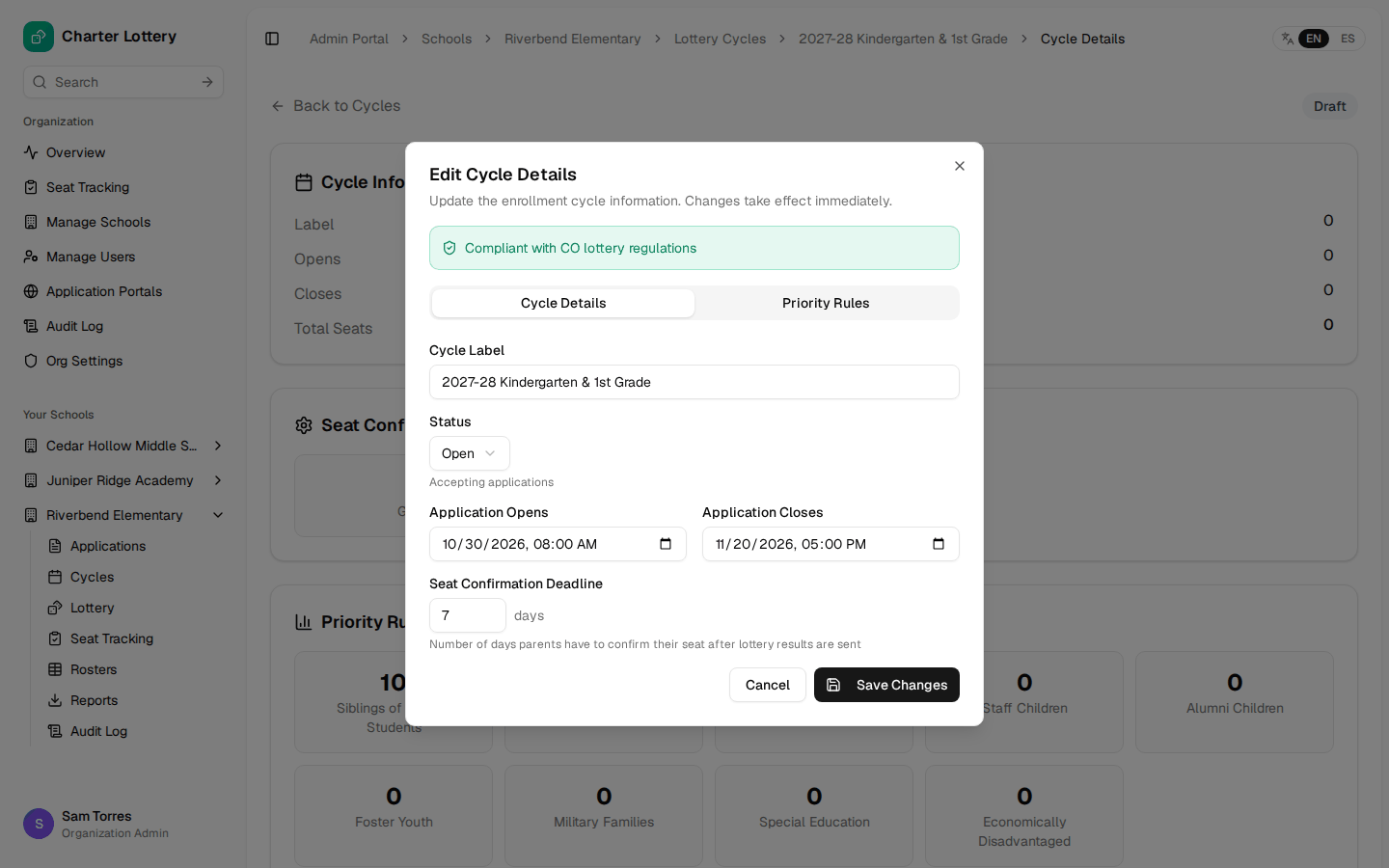
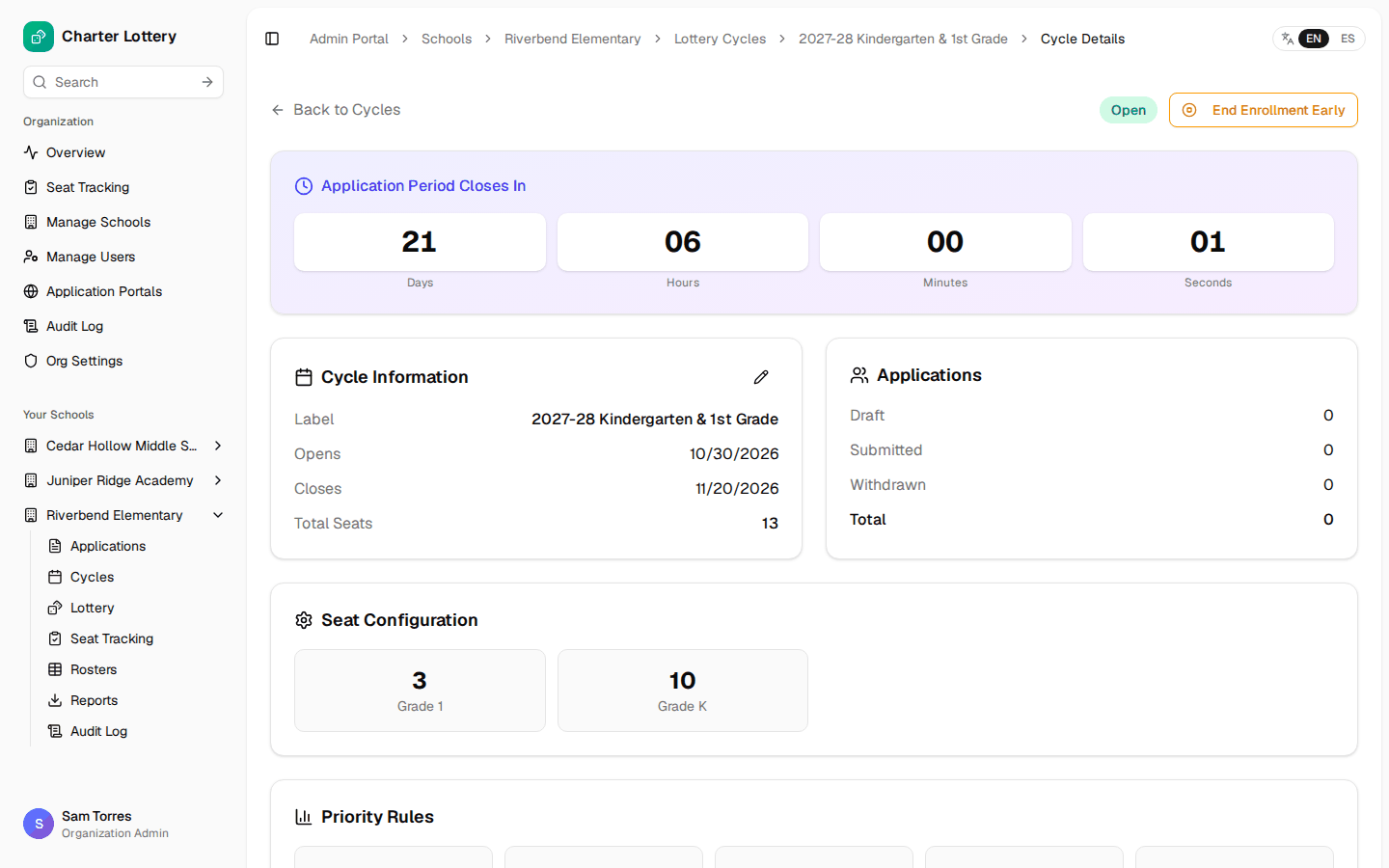
A new cycle is a Draft. It opens overnight once its open date has passed. To open it now, select the pencil, set Status to Open and save.
Part 9 · Confirm it works
Step 29. Check what families see
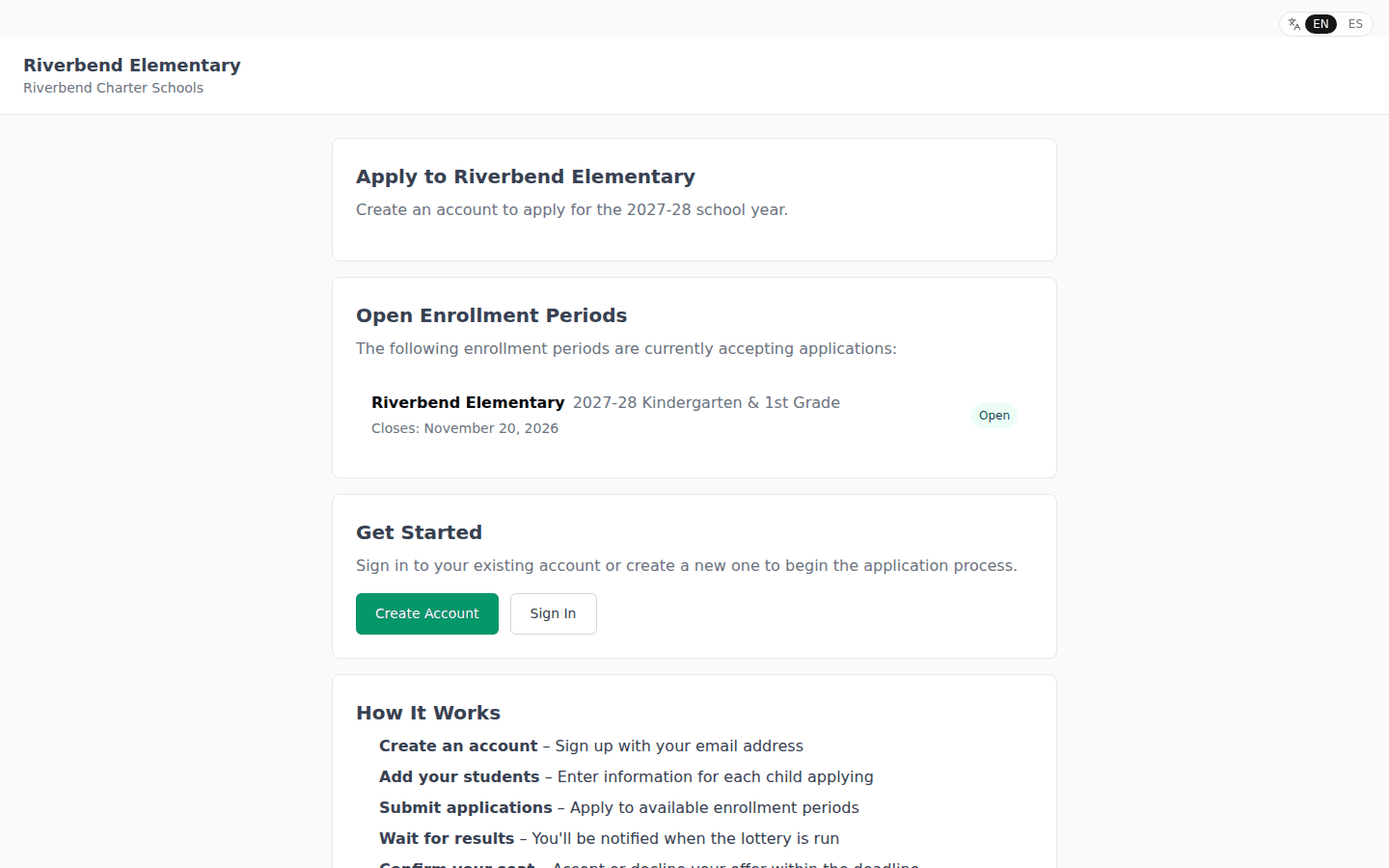
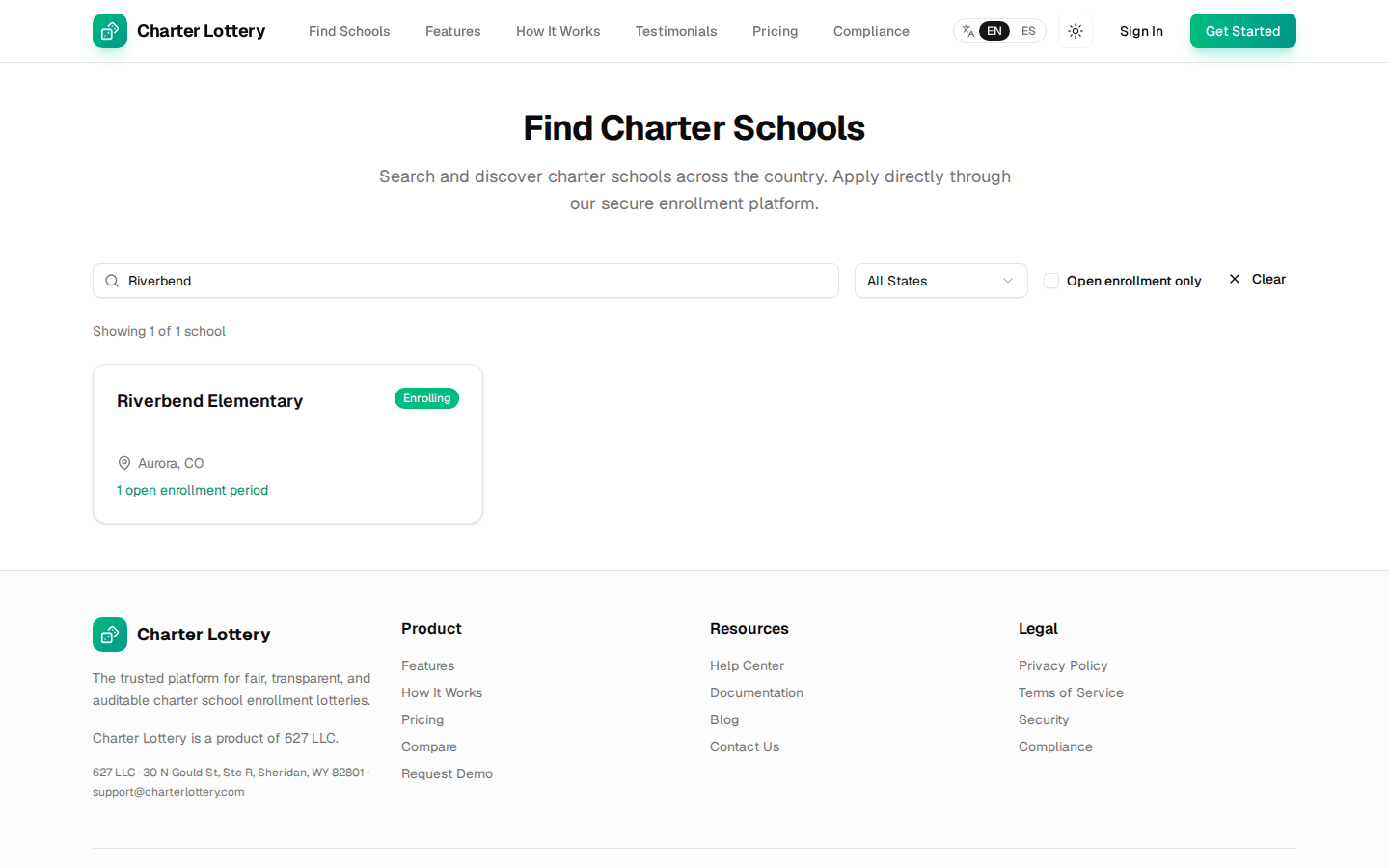
Open the portal link in a private window. The open cycle appears, with Create Account and Sign In. The school also appears on the public Find Schools page while a cycle is open. That page shows only name, city and state.
Step 30. Check the record
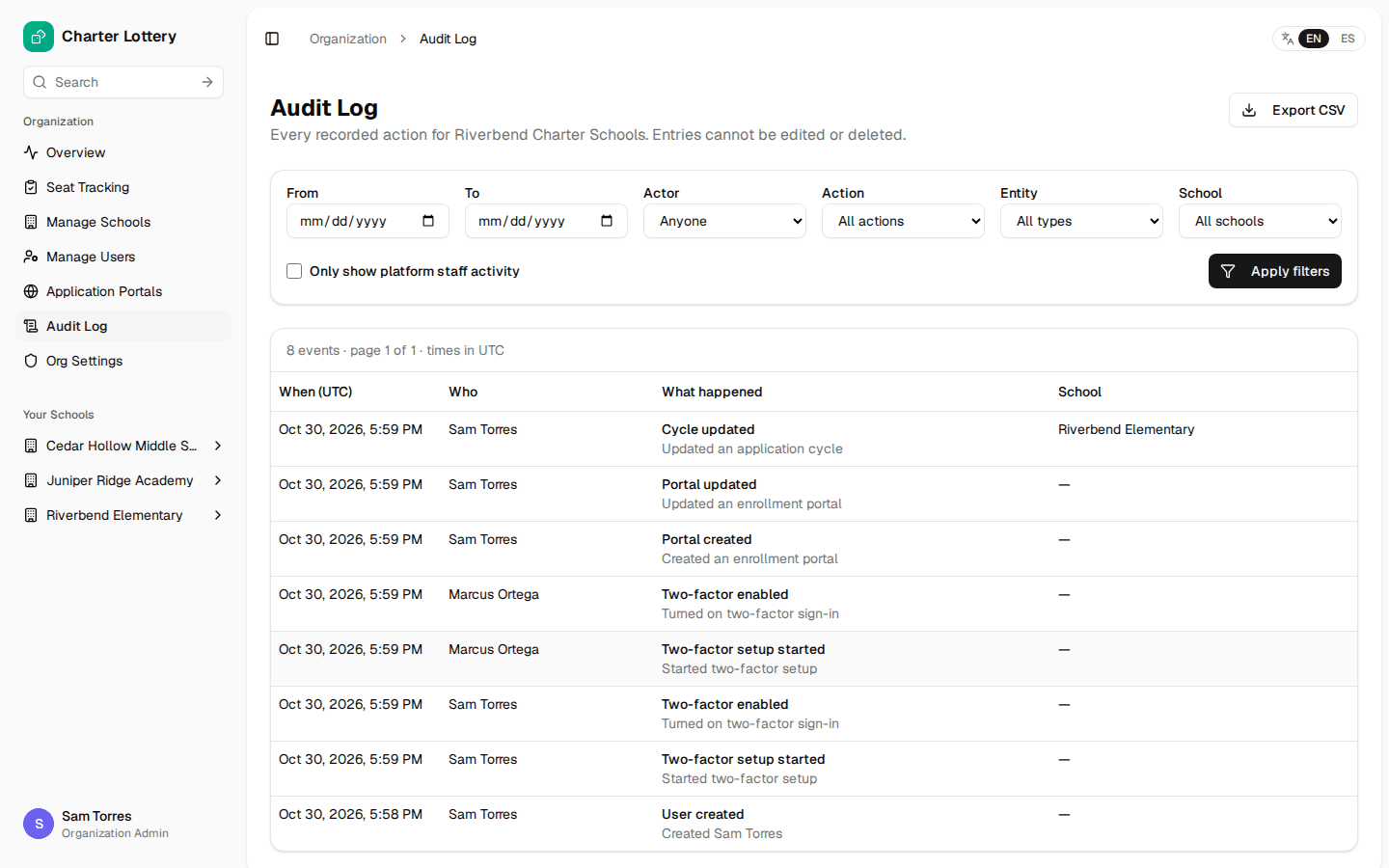
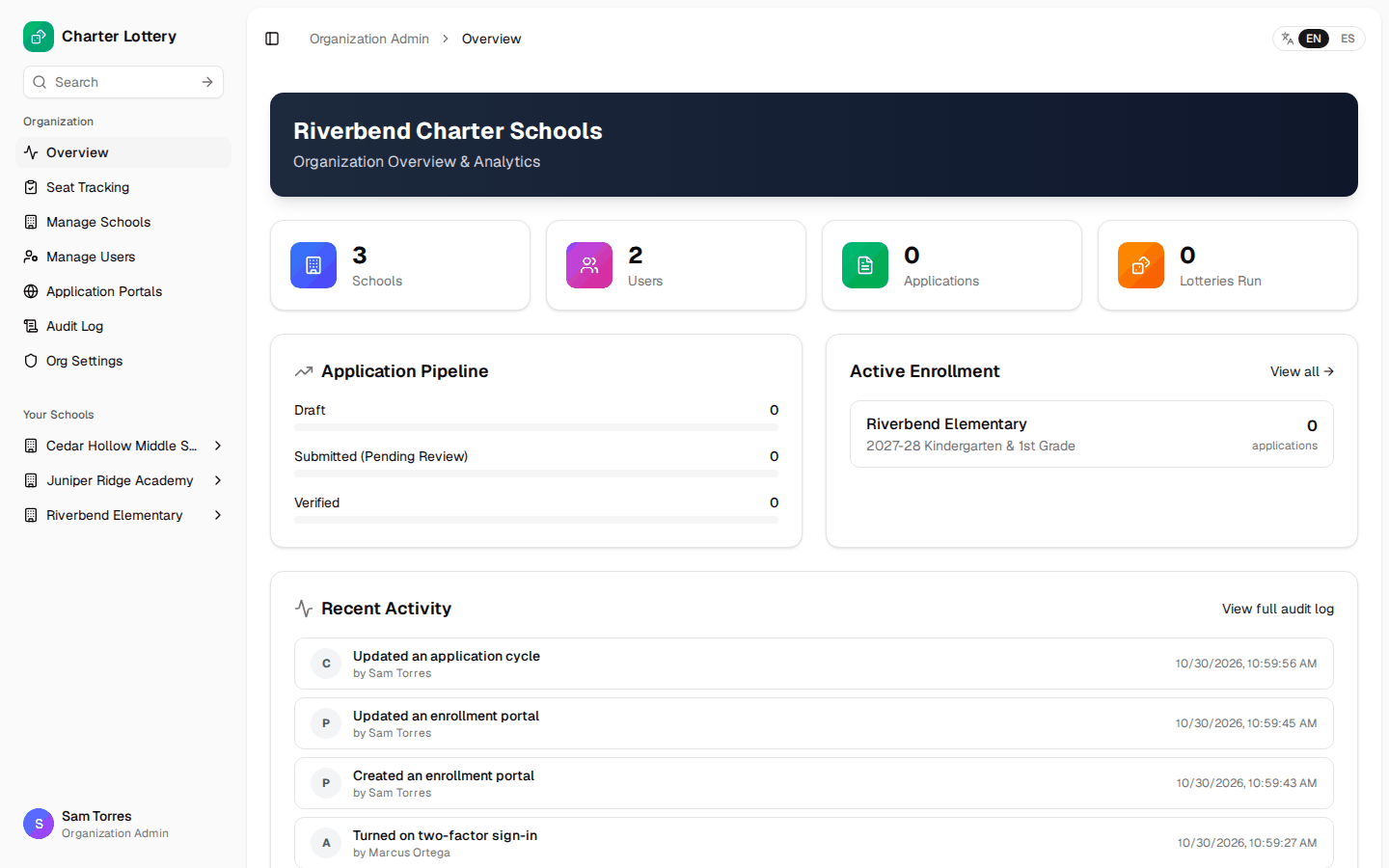
The Audit Log records who did what, and entries cannot be edited or deleted. Overview now shows the network with enrollment active.
Allowlist
| Item | Value |
|---|---|
| Application email | noreply@charterlottery.com |
| Reply-to, sign-up and password-reset codes | support@charterlottery.com |
| Sending service | Amazon SES, us-east-2, DKIM-signed for charterlottery.com |
| Bounce domain | mail.charterlottery.com |
| Google sign-in page | charterlottery.auth.us-east-2.amazoncognito.com |
| Text messages | +1 844 586 1238 (US toll-free) |
| Web application | https://charterlottery.com |
Go-live checklist
- Every Organization Admin has two-step sign-in or a Google Workspace login with 2-Step Verification enforced
- Recovery codes are in the password manager
- A test email reached a staff inbox and a family-style personal inbox
- Every school has the right time zone and document requirements
- Each portal is Active and linked from the school website
- The open cycle appears on the portal in a private window
Support
Help: support@charterlottery.com. Security reports: security@charterlottery.com. Privacy and the data processing addendum: legal@charterlottery.com. Charter Lottery does not publish support hours or a response time. Optional setup and training is $175 per hour, agreed in advance.