From your invitation email to a finished lottery season in Charter Lottery. Every picture is a full 1440 × 900 laptop window from the current application, seen as a School Admin, using a made-up school, Riverbend Elementary, and a made-up admin, Marcus Ortega.
Companion to the organization and school admin guide.
What your role covers
| Task | School Admin |
|---|---|
| Document requirements and rosters | Yes, for your schools |
| Create, edit, open and close cycles | Yes, for your schools |
| Review documents, verify, mark ineligible, override priorities | Yes, for your schools |
| Run the lottery and publish results | Yes, for your schools |
| Seats, waitlist, reports, finalize | Yes, for your schools |
| Invalidate a draw | No. Ask an organization admin |
| Invite staff, change settings, manage portals | No. Ask an organization admin |
Have ready
- The invitation email, opened within 7 days
- A phone with an authenticator app, and a password manager for recovery codes
- Grades, seats, and the dates applications open and close
- Your school's priority rules and which documents you require
- Optional: current-student, staff and alumni rosters as CSV or Excel
Part 1 · Sign in for the first time
Step 1. Open the invitation
Your organization admin invites you and assigns your schools. The email comes from noreply@charterlottery.com with a temporary password valid for 7 days. If it has expired, ask them to resend it.
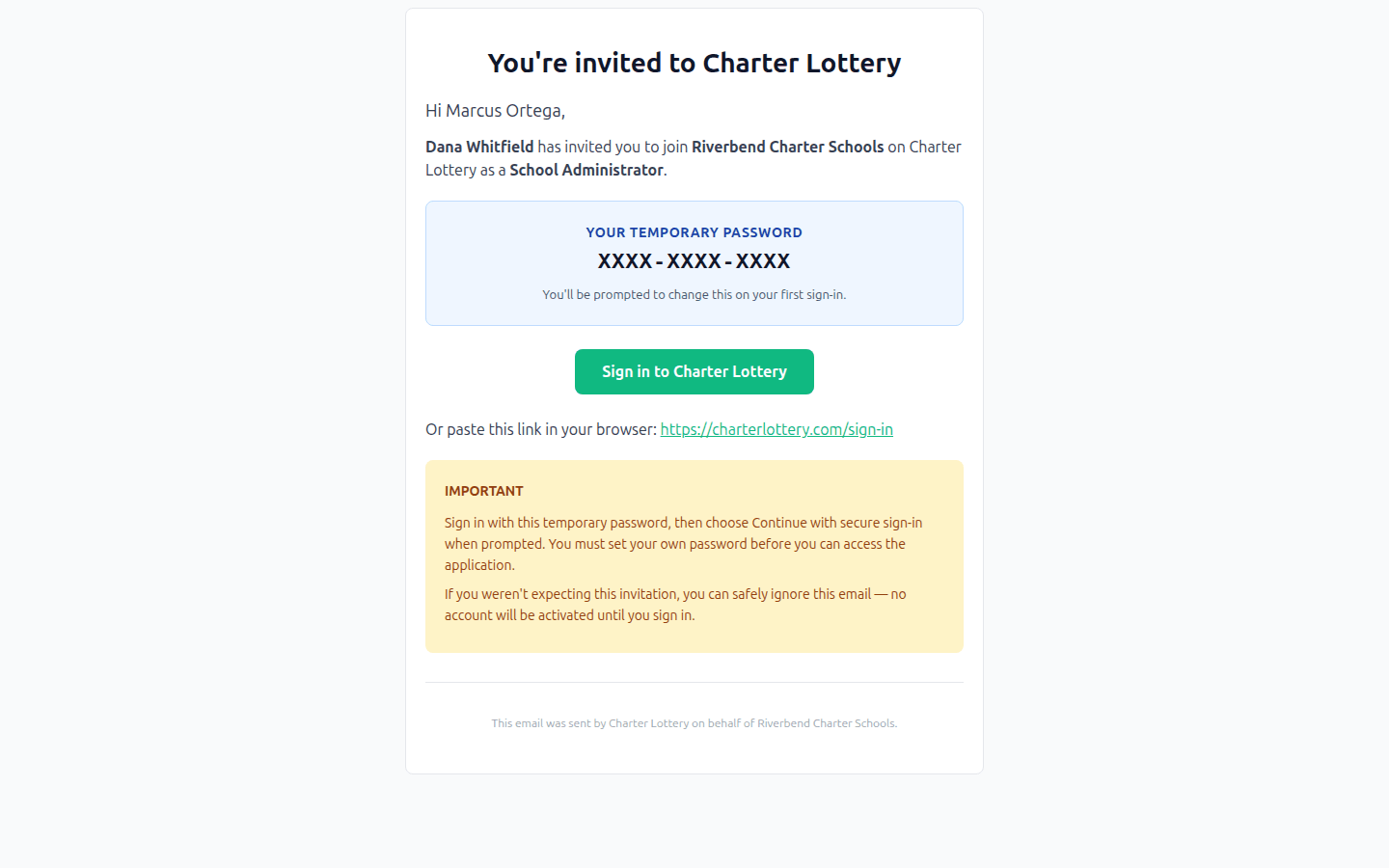
Step 2. Sign in and set your password
Enter your email and the temporary password, then select Sign in.
Select Continue with secure sign-in when prompted and choose your own password on the page that opens, which is not pictured.
If your Google account uses the same verified email, you can use Continue with Google instead.
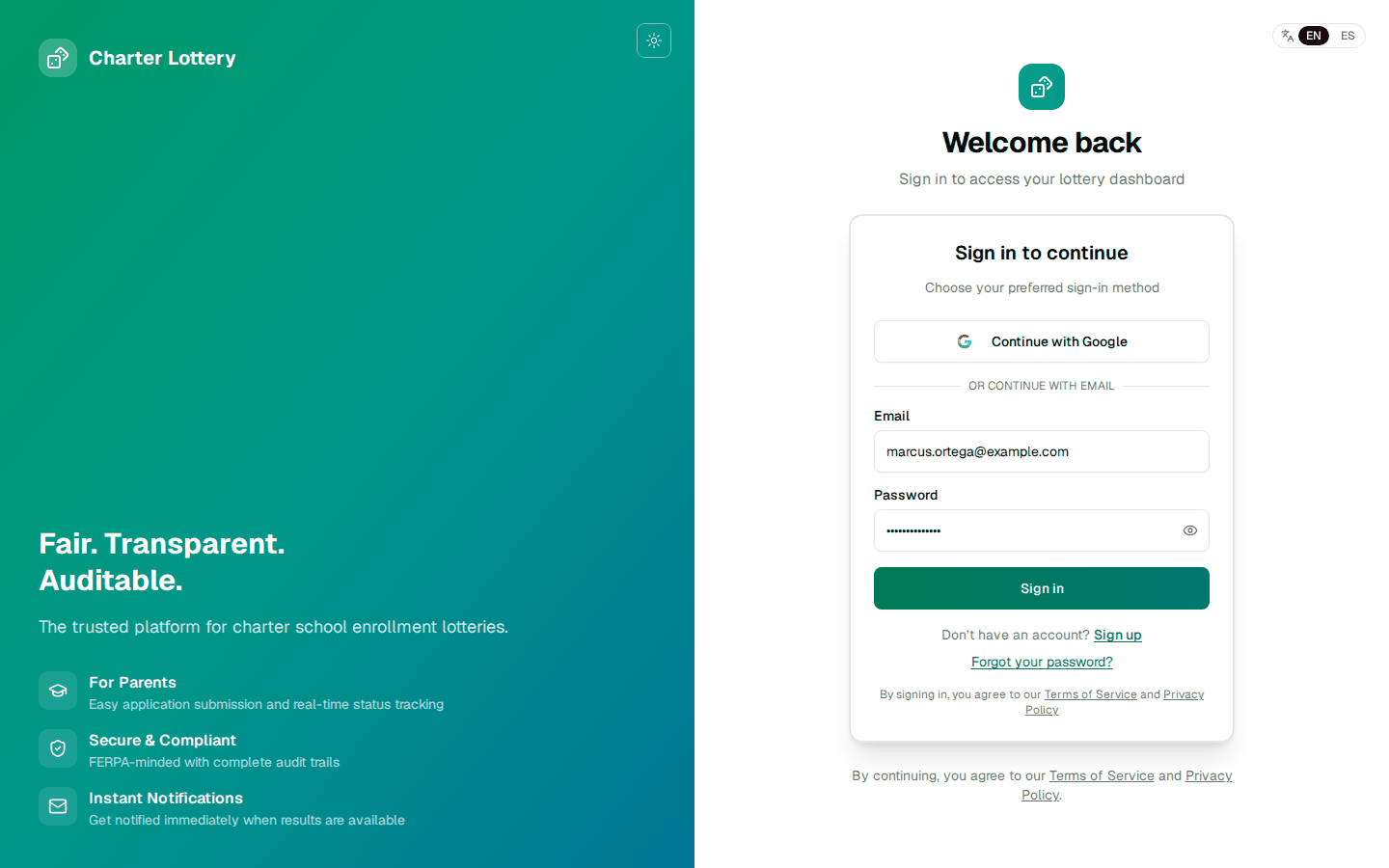
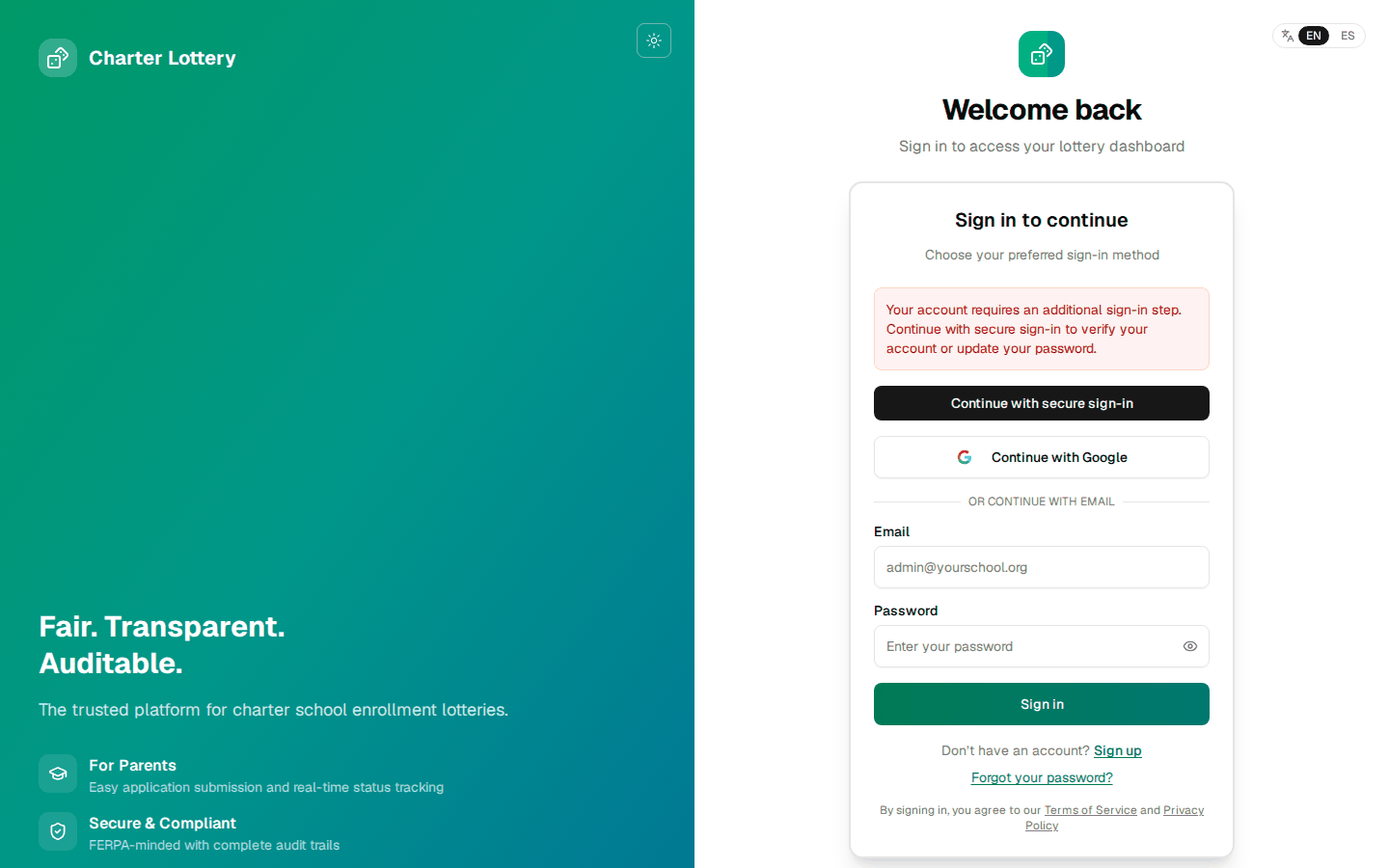
Step 3. Set up two-step sign-in
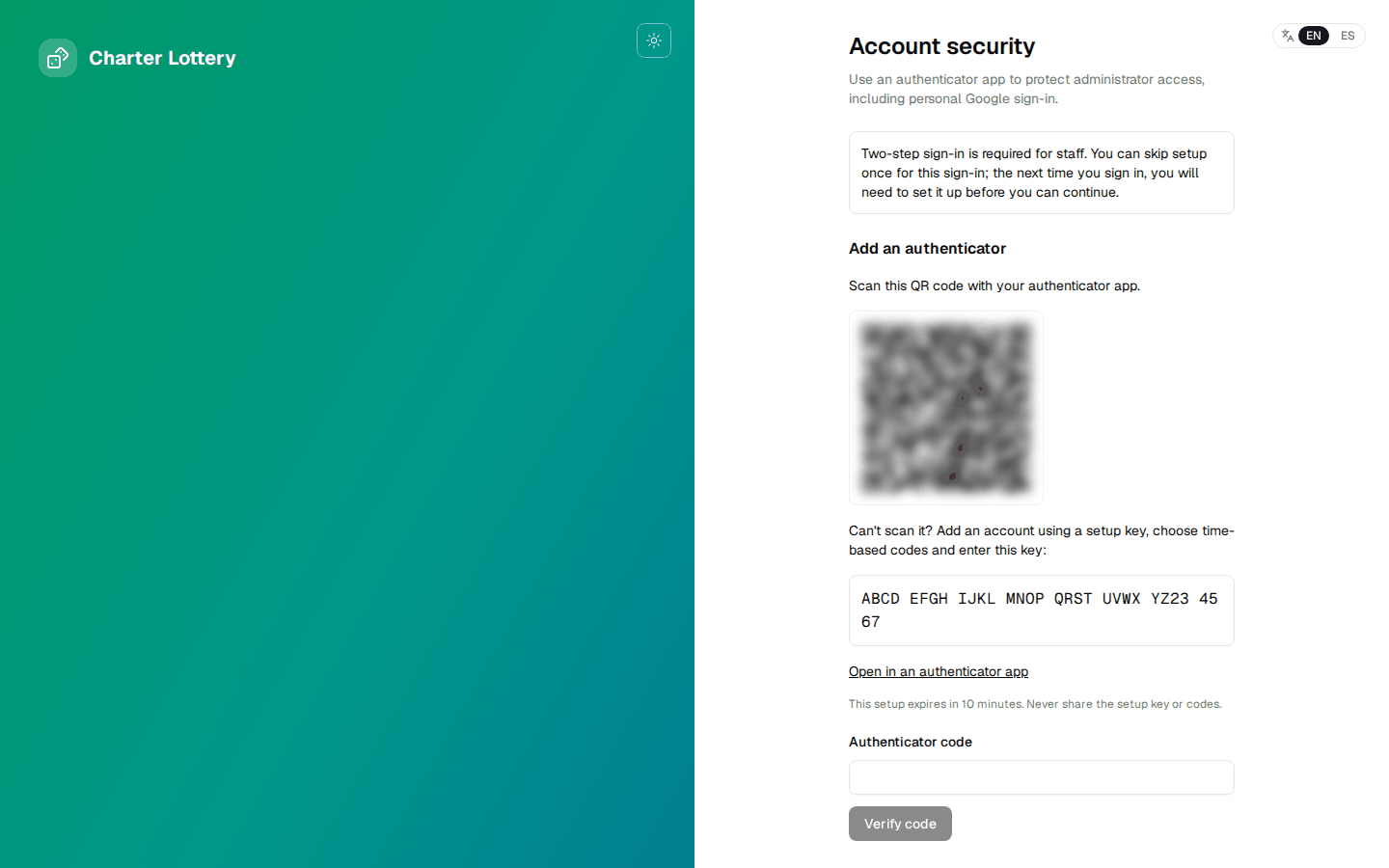
Select Set up an authenticator. Any app with time-based codes works, such as Microsoft Authenticator, Google Authenticator, 1Password or Authy.
Skip for now works once. You must set it up at your next sign-in. School Google Workspace sign-ins are not asked, because Google's own 2-Step applies.
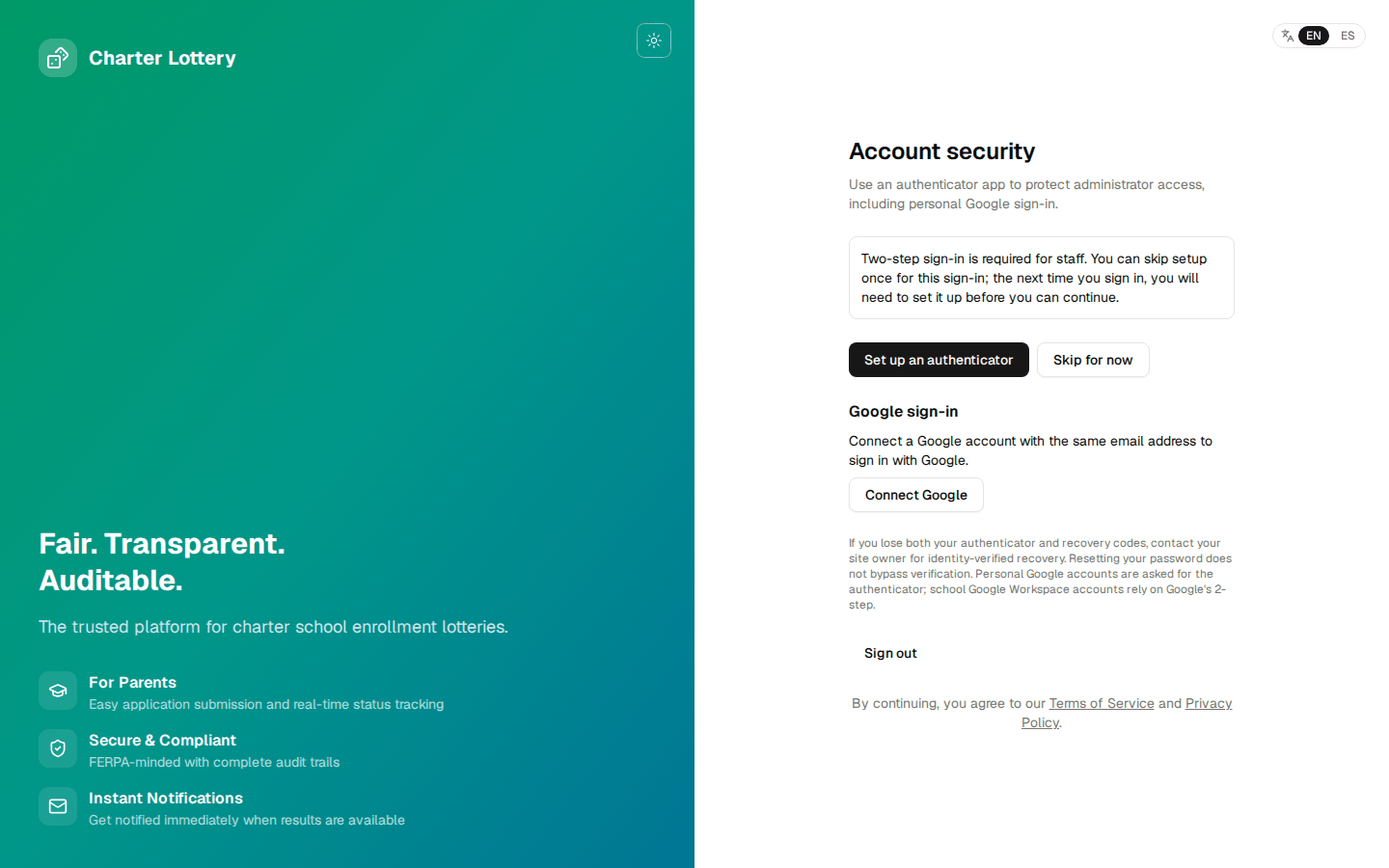
Step 4. Scan the QR code
Scan the code with your app, or enter the setup key below it. Enter the six-digit code and select Verify code. The setup expires after 10 minutes. The code and key are masked in this picture.
Step 5. Save your recovery codes
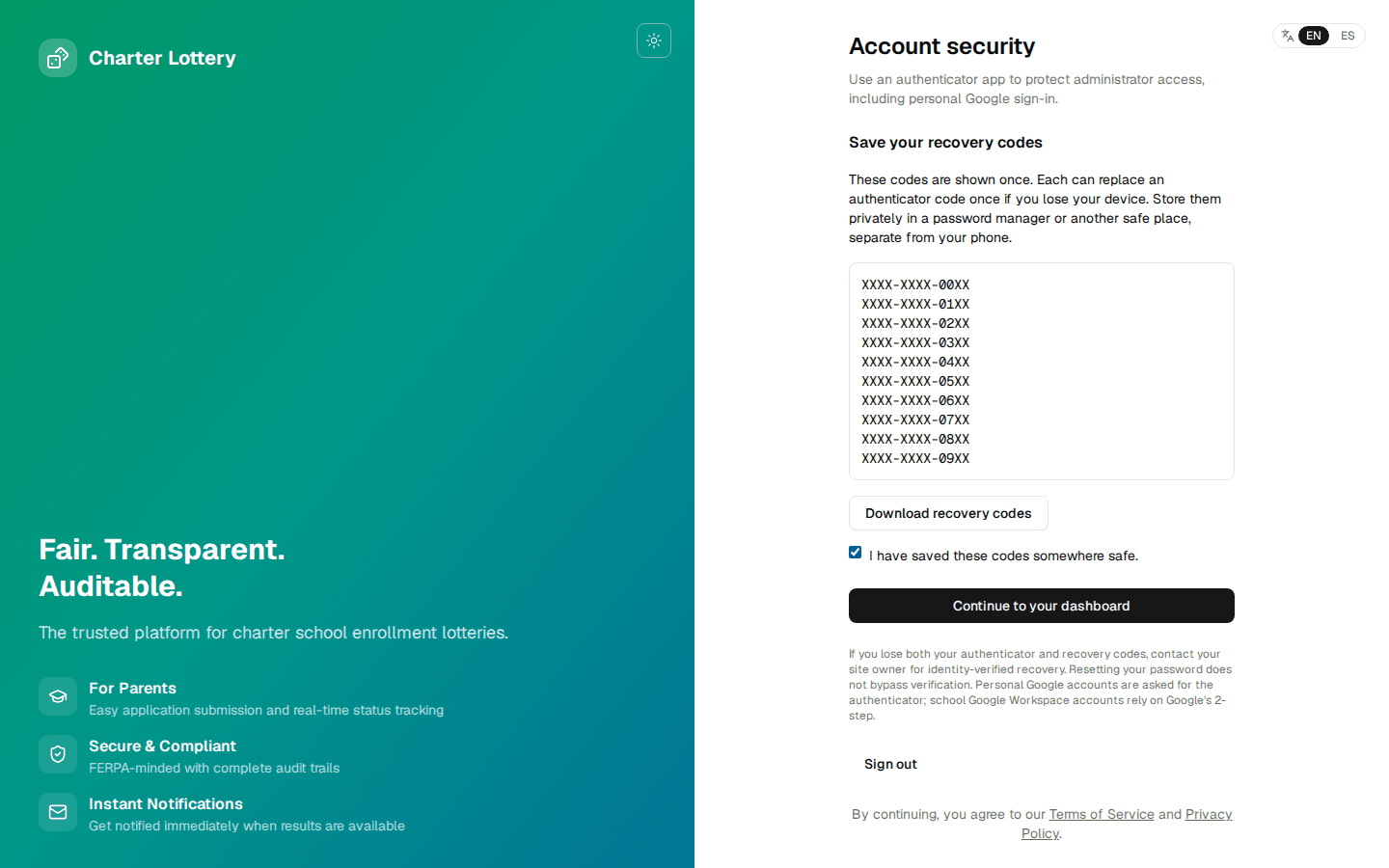
The 10 codes are shown once. Save them in a password manager, away from your phone. Tick I have saved these codes somewhere safe, then select Continue to your dashboard.
Part 2 · Find your way around
Step 6. Your Schools
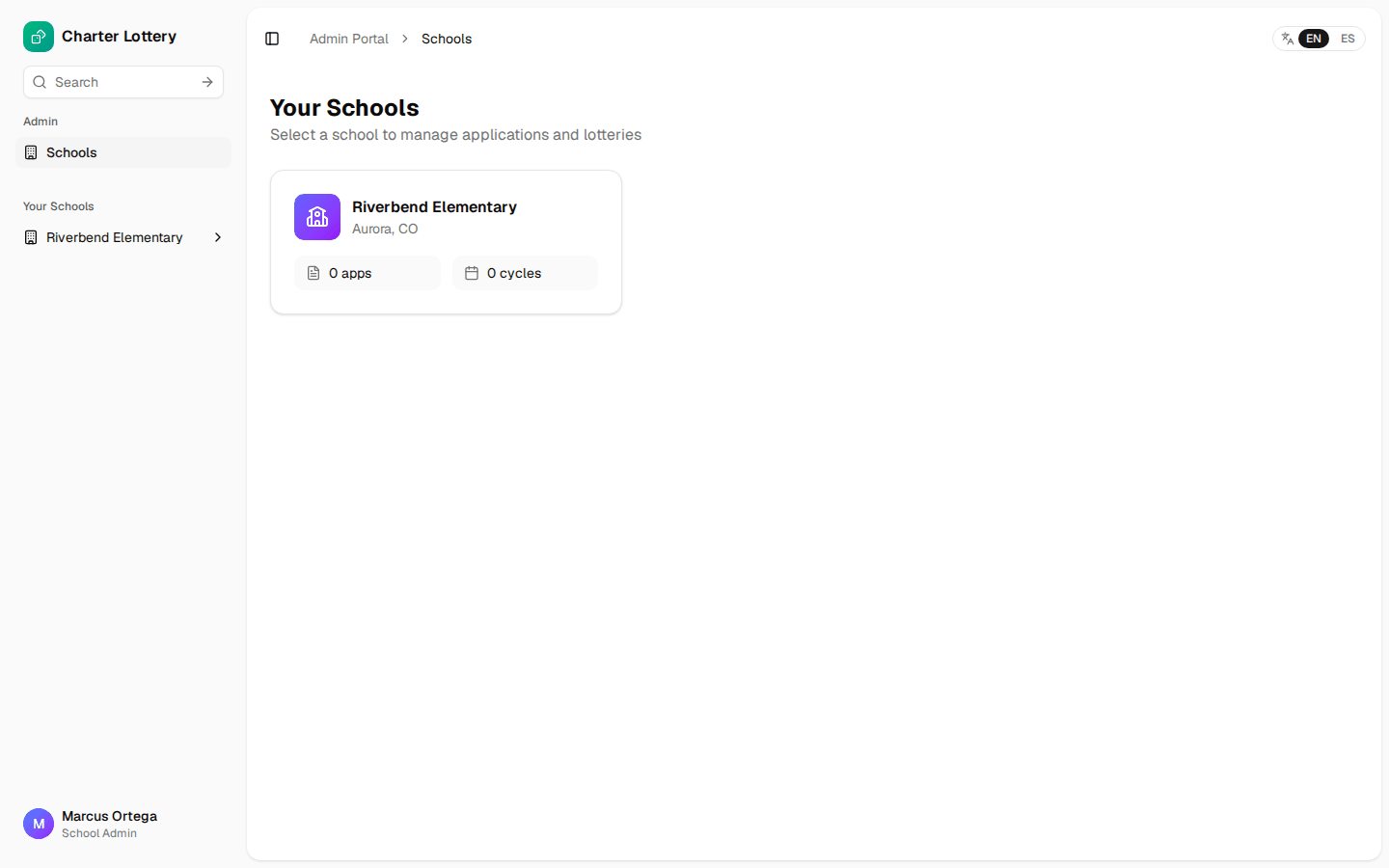
You see only the schools assigned to you. If one is missing, ask your organization admin.
Step 7. The school dashboard
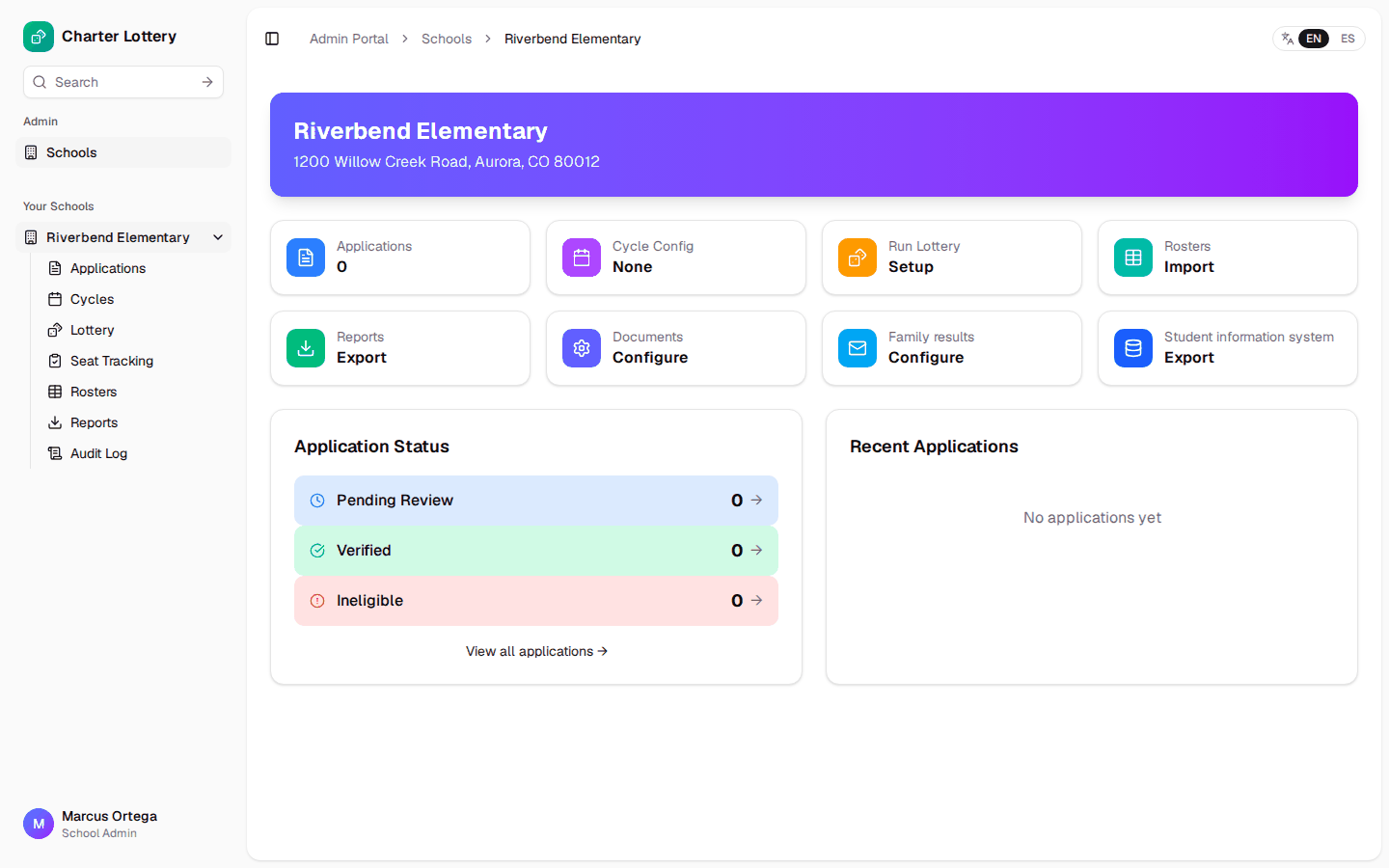
The tiles and the sidebar reach everything for the school. ES at the top switches the admin pages to Spanish.
Part 3 · Prepare the school
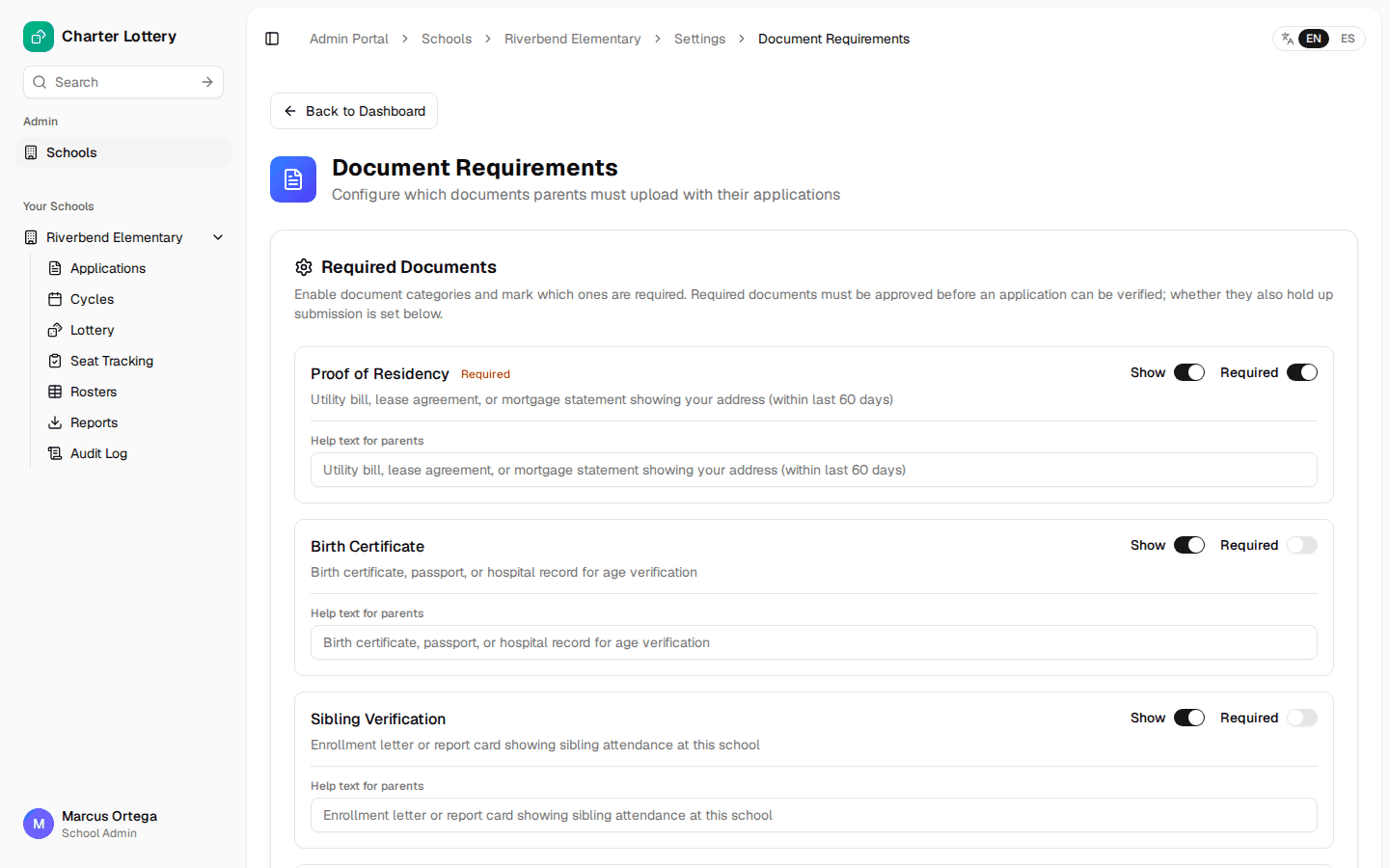
Step 8. Choose required documents
Under Documents → Configure, turn on what families can upload and mark what is required. A required document must be approved before you can verify an application. You choose separately whether a missing document also holds up submission.
Step 9. Choose what families see
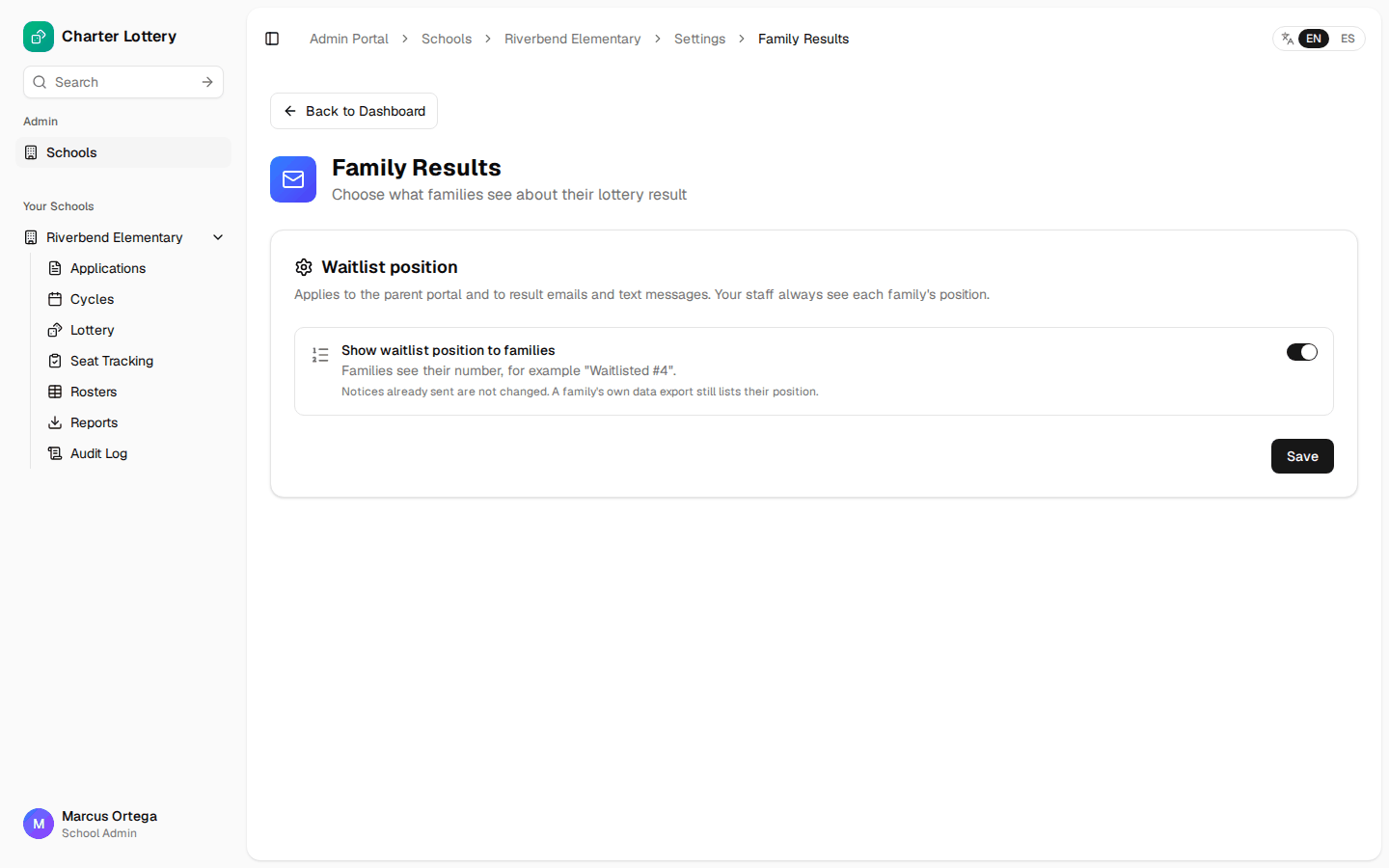
Under Family results → Configure, decide whether families see their waitlist number. Your staff always see it.
Step 10. Import rosters (optional)
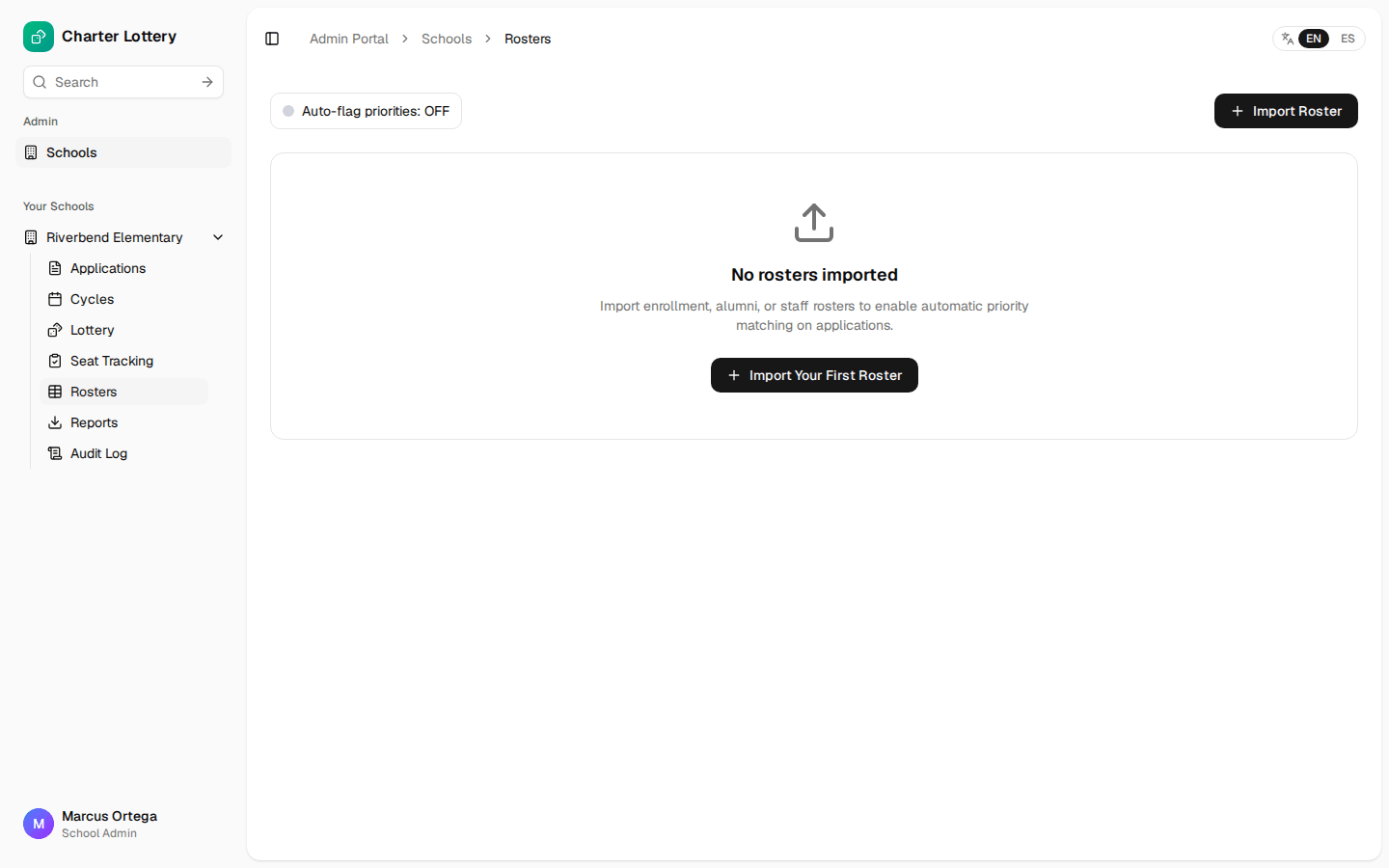
Rosters let Charter Lottery spot siblings of current students, staff children and alumni children. Select Import Roster, upload a CSV or Excel file and match its columns.
Part 4 · Open applications
Step 11. Create the cycle
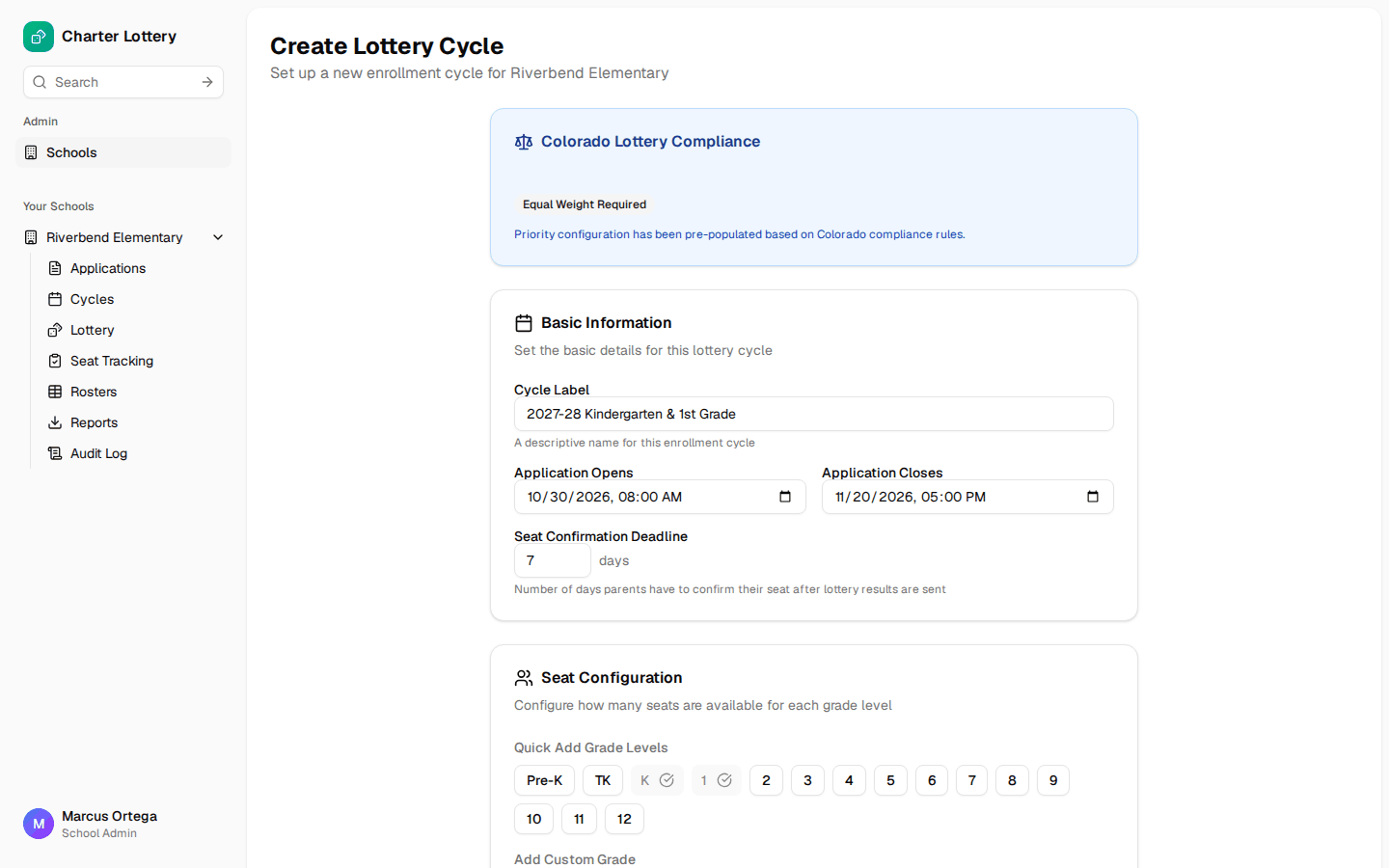
A cycle is one enrollment period. Choose Cycles → New Cycle. Enter a label, the dates and the days families have to accept a seat. The box at the top shows your state's lottery rules.
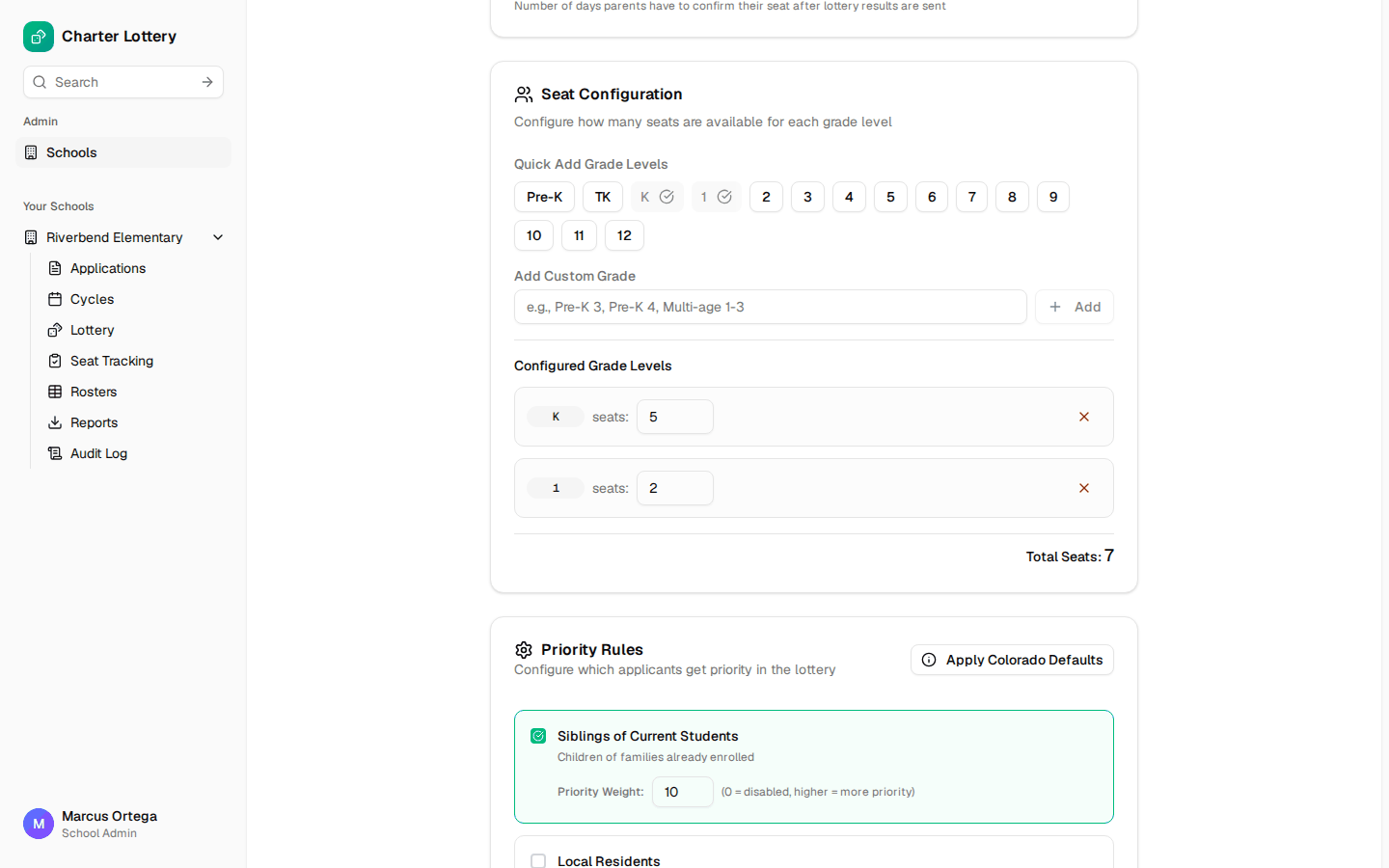
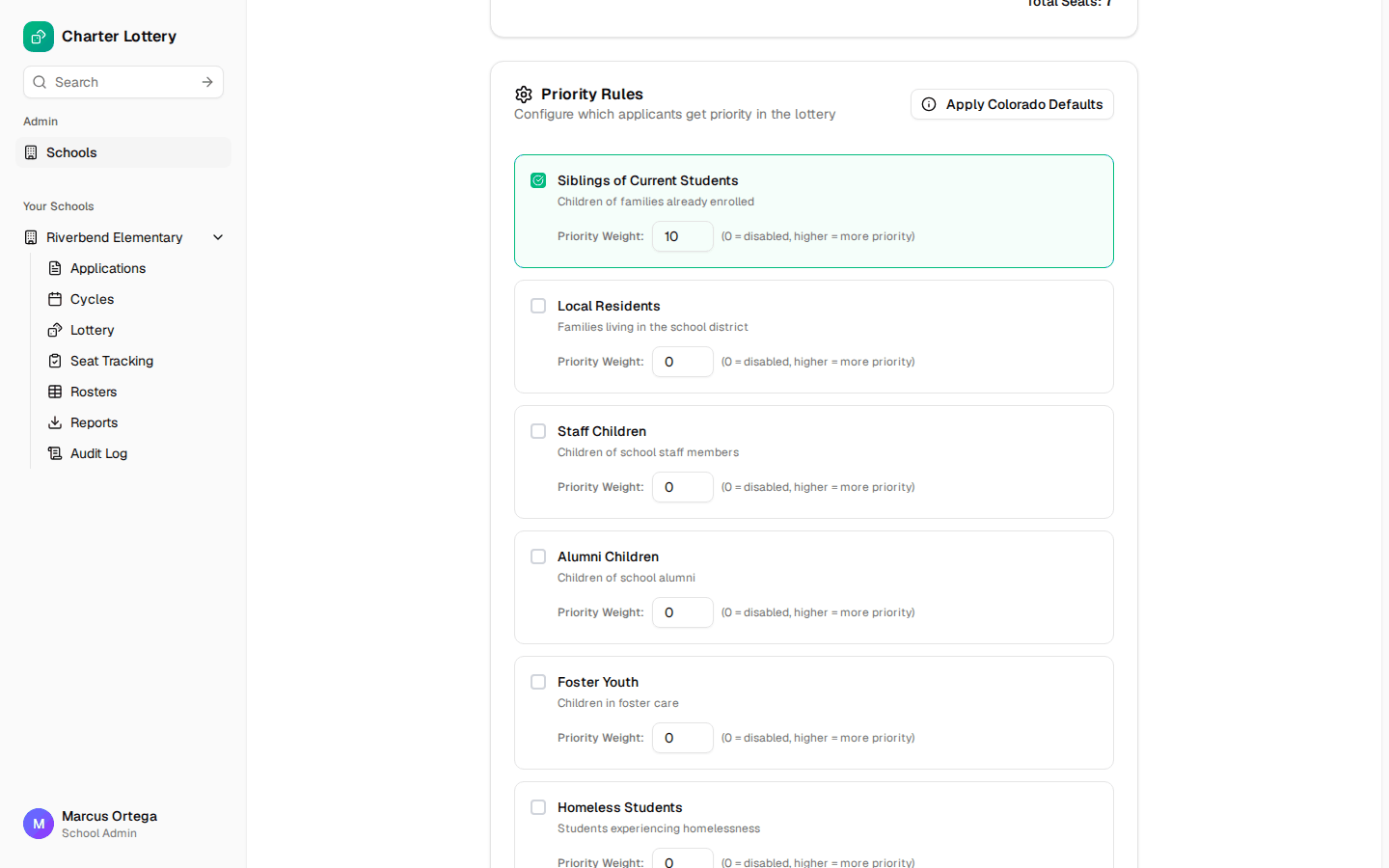
Step 12. Set seats and priorities
Select each grade and enter its seats. Give a weight to each priority you use. 0 turns a priority off and a higher number means more priority.
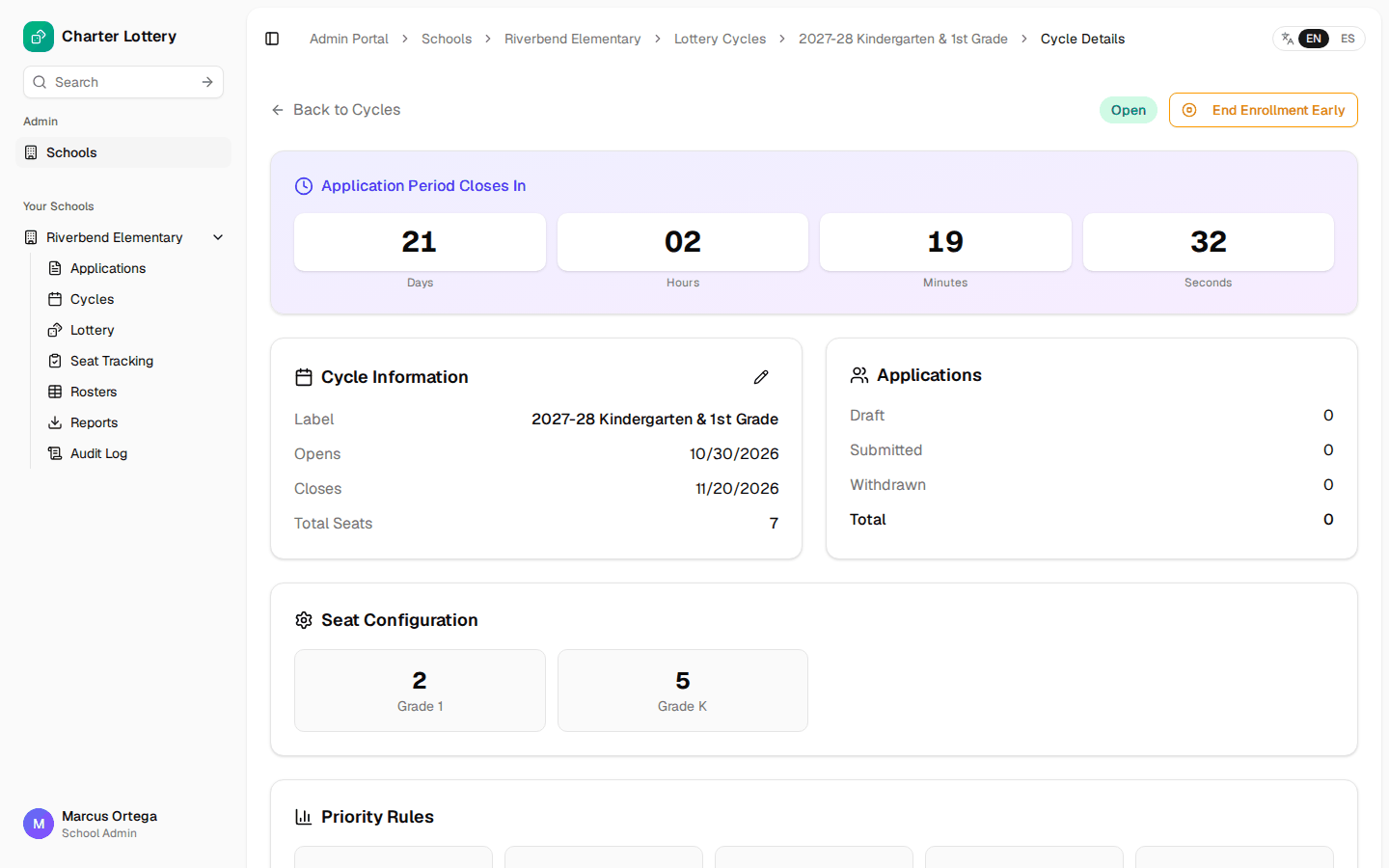
Step 13. Open the cycle
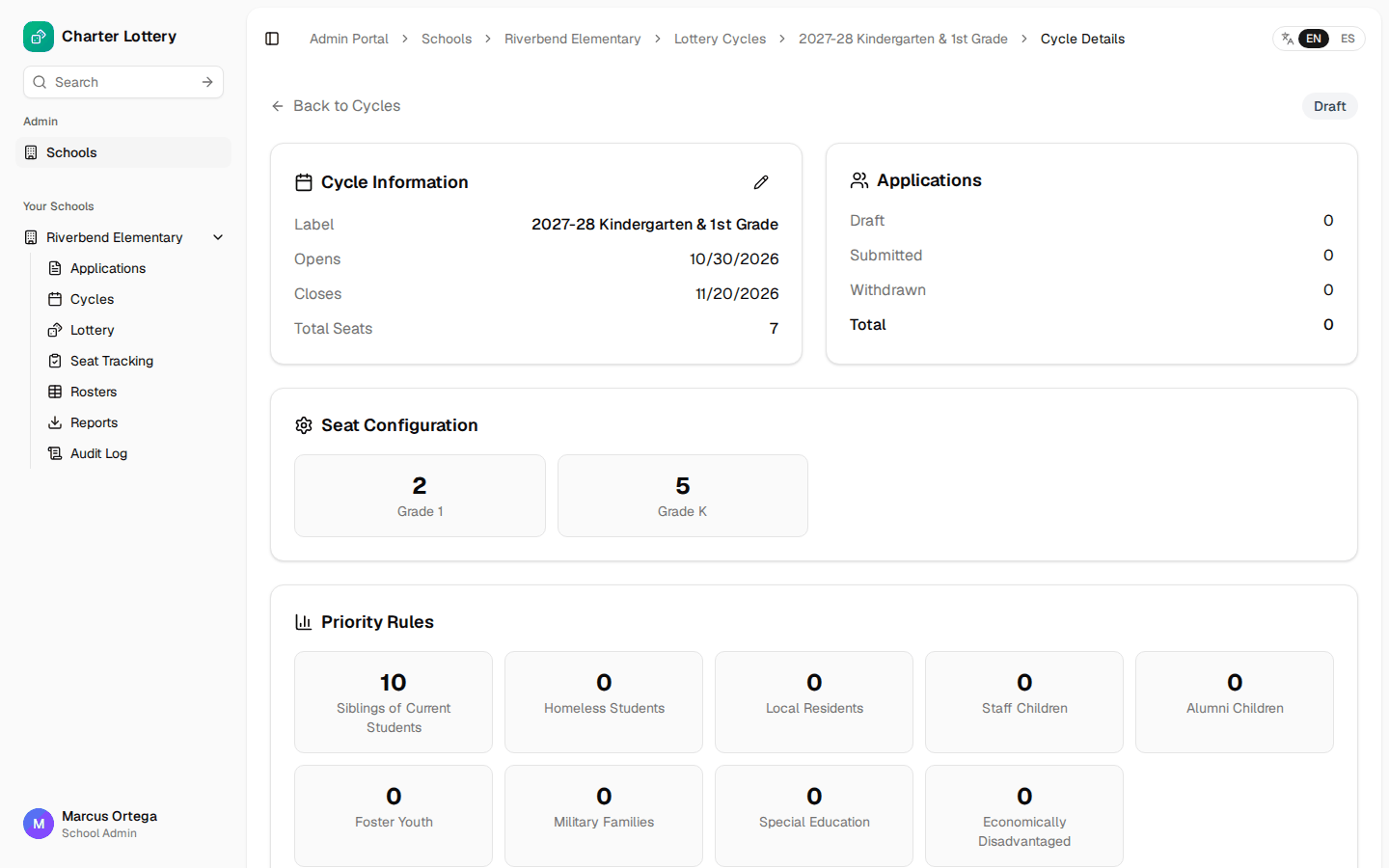
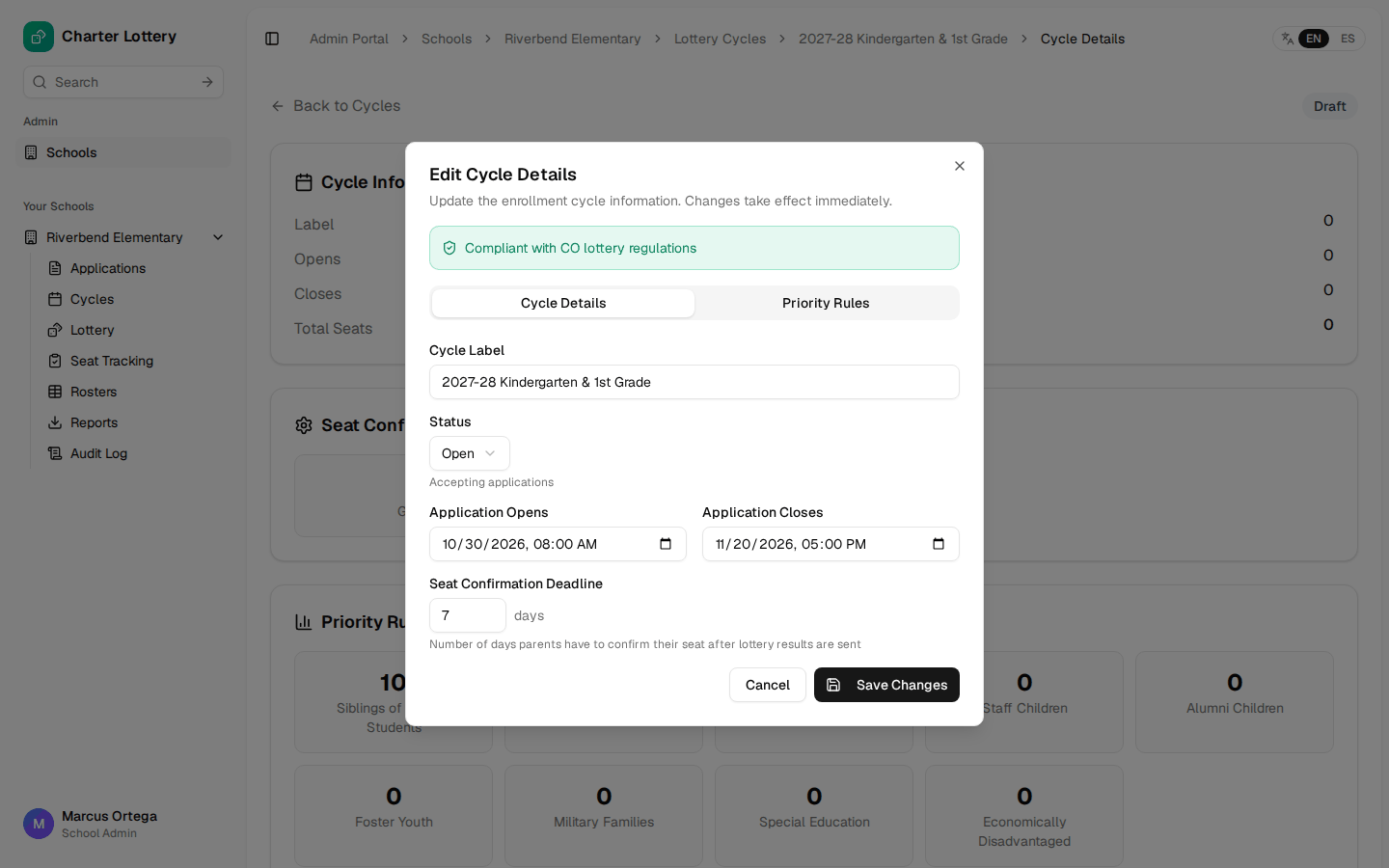
A new cycle is a Draft. It opens automatically overnight once its open date has passed. To open it now, select the pencil, set Status to Open and select Save Changes.
Part 5 · Review applications
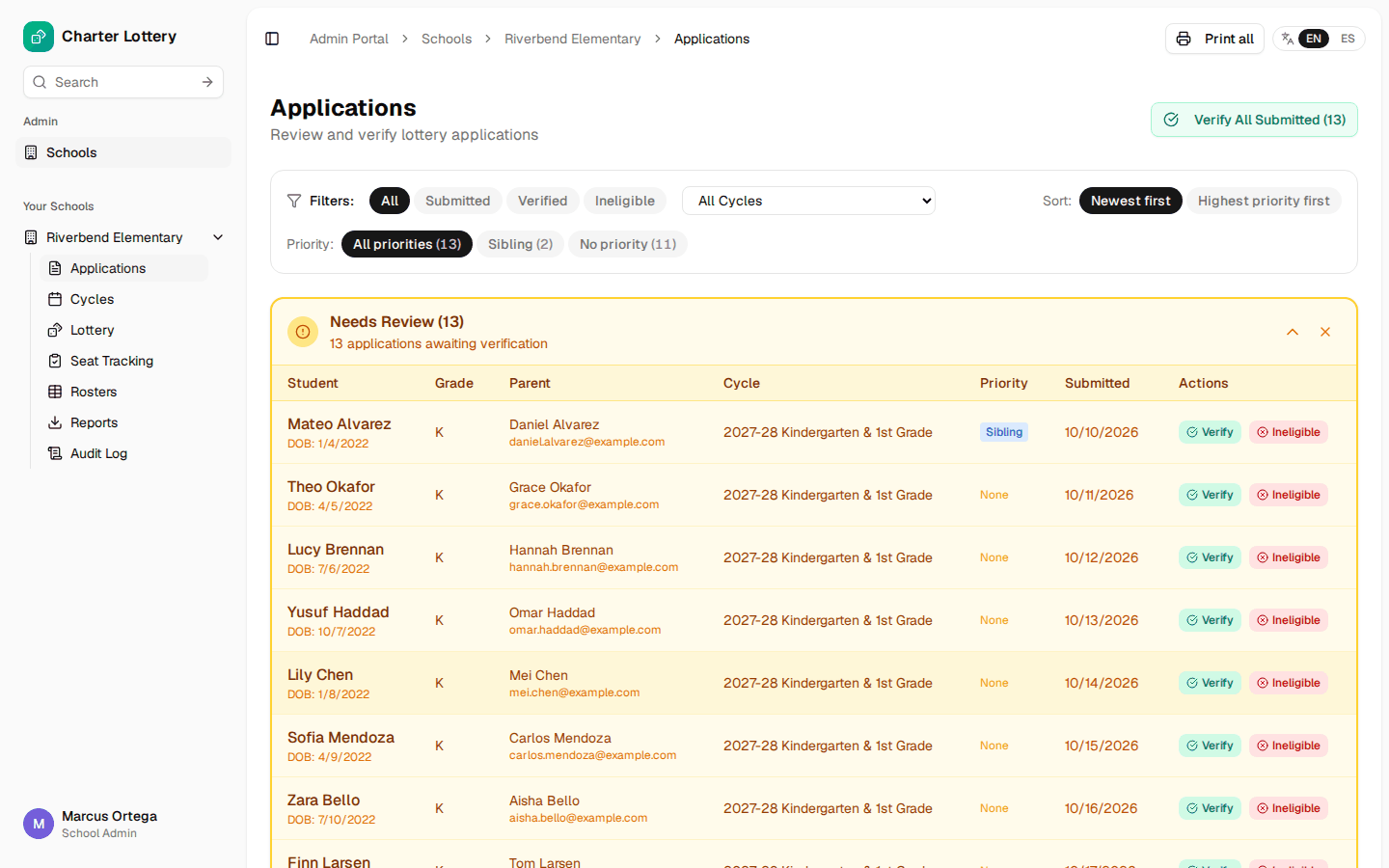
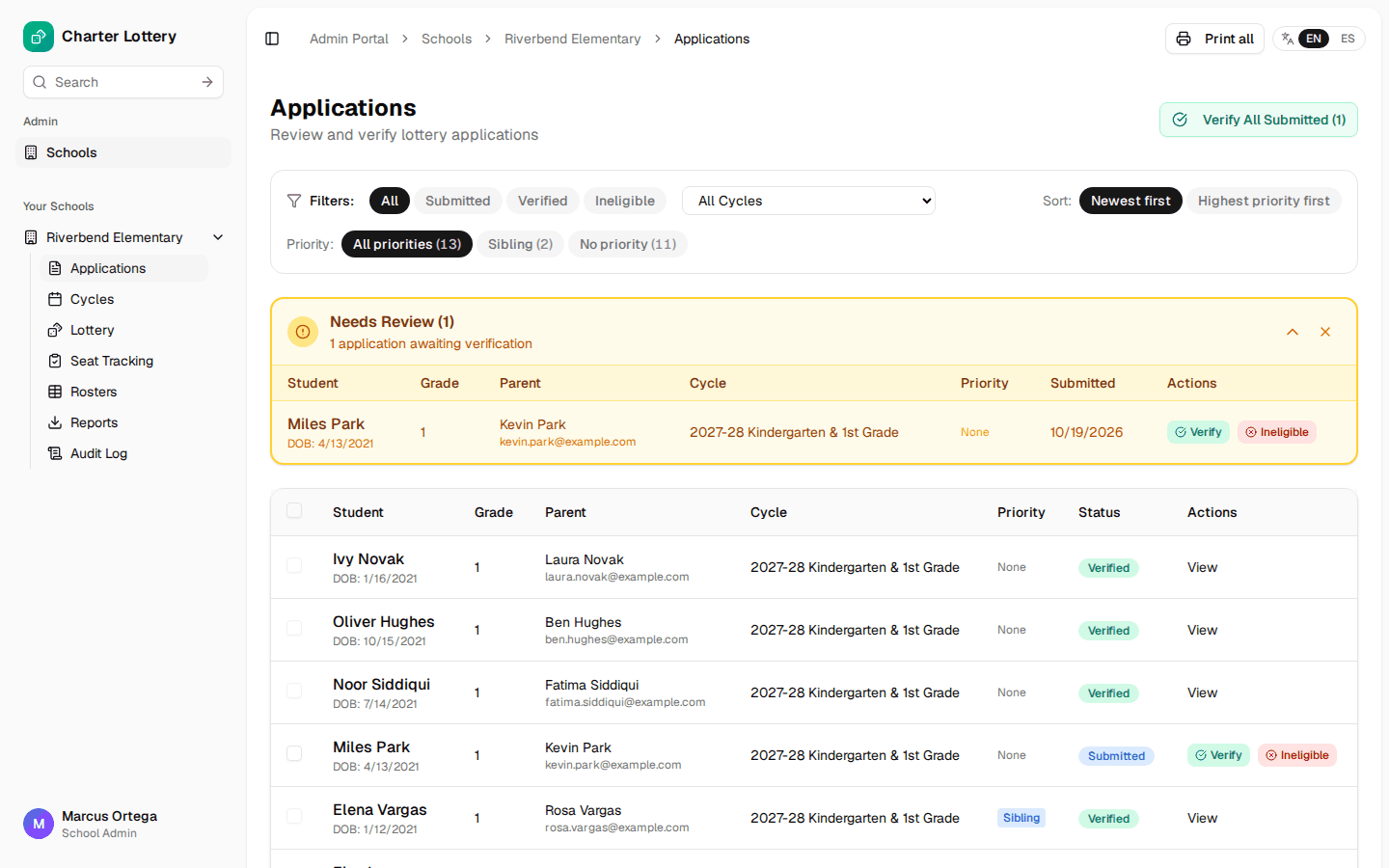
Step 14. Work the queue
Applications lists everything, with Needs Review at the top. Use the filters to narrow it. Verify All Submitted handles applications in bulk, but review individually when documents matter.
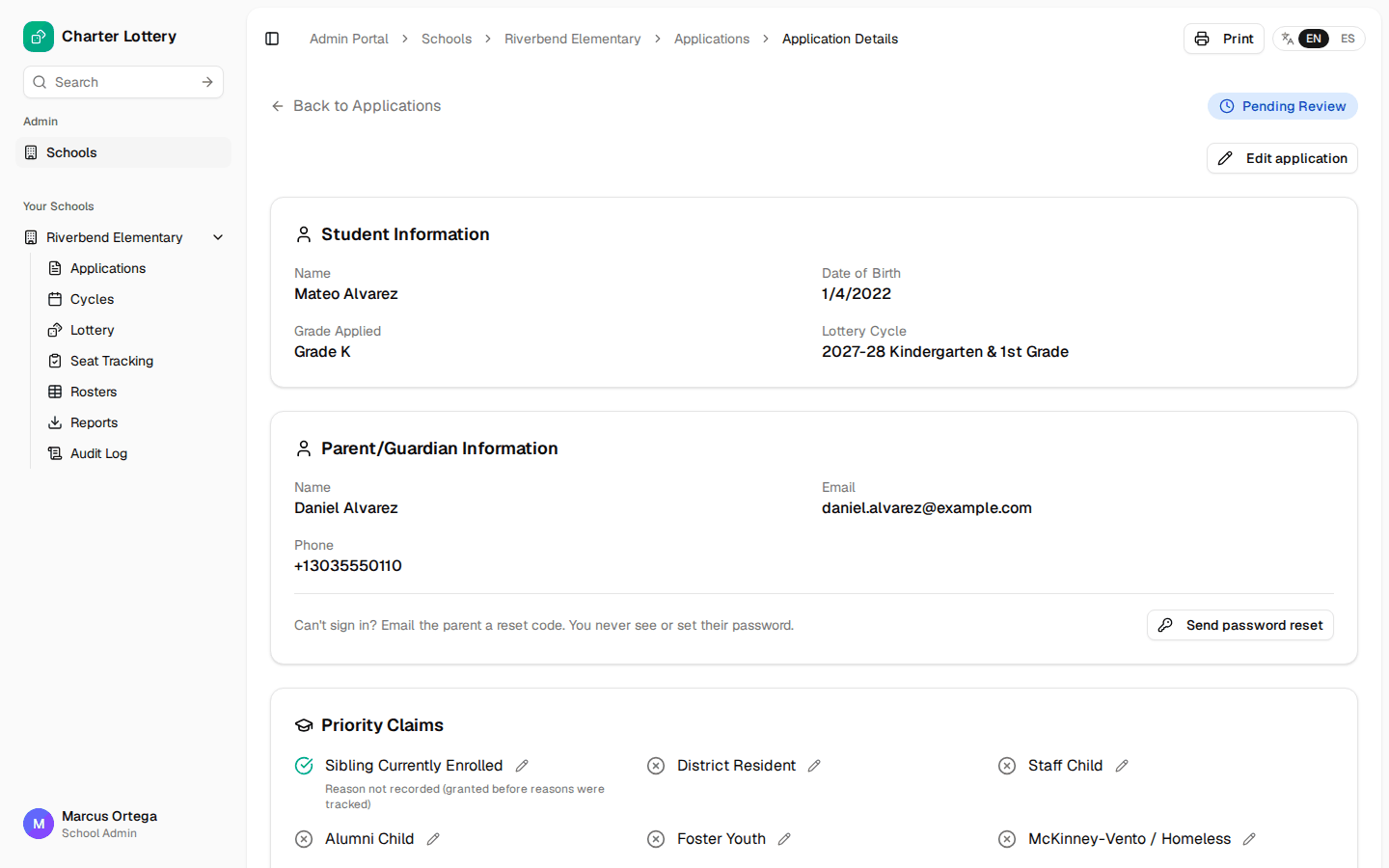
Step 15. Open an application
The page shows the student, the family, priority claims and roster matches. Send password reset emails a family a reset code when they cannot sign in. You never see or set their password.
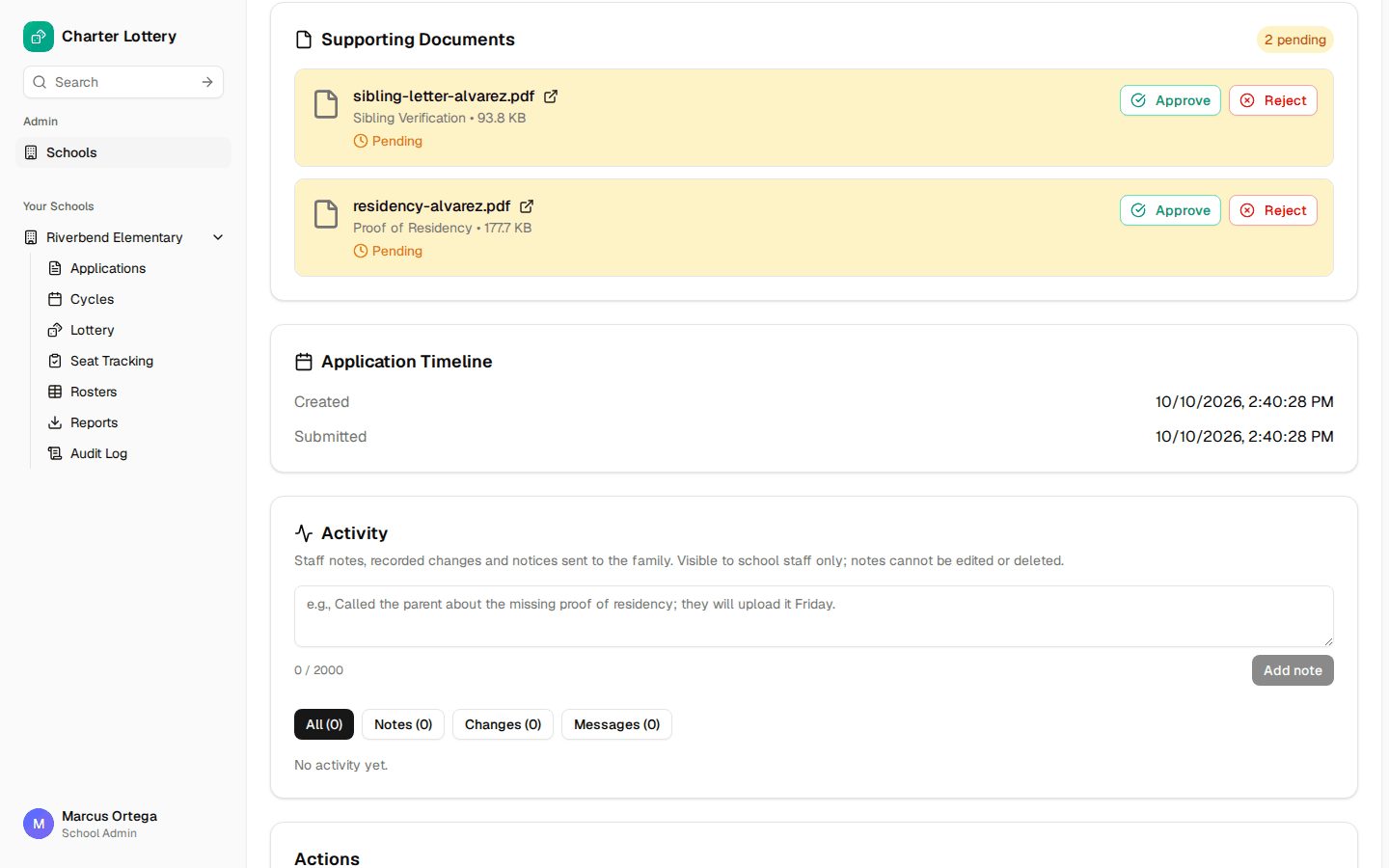
Step 16. Review the documents
Open each file, then select Approve or Reject. A rejection needs a reason, and the family can upload again.
Use Activity to keep a staff note. Families cannot see it, and notes cannot be edited or deleted.
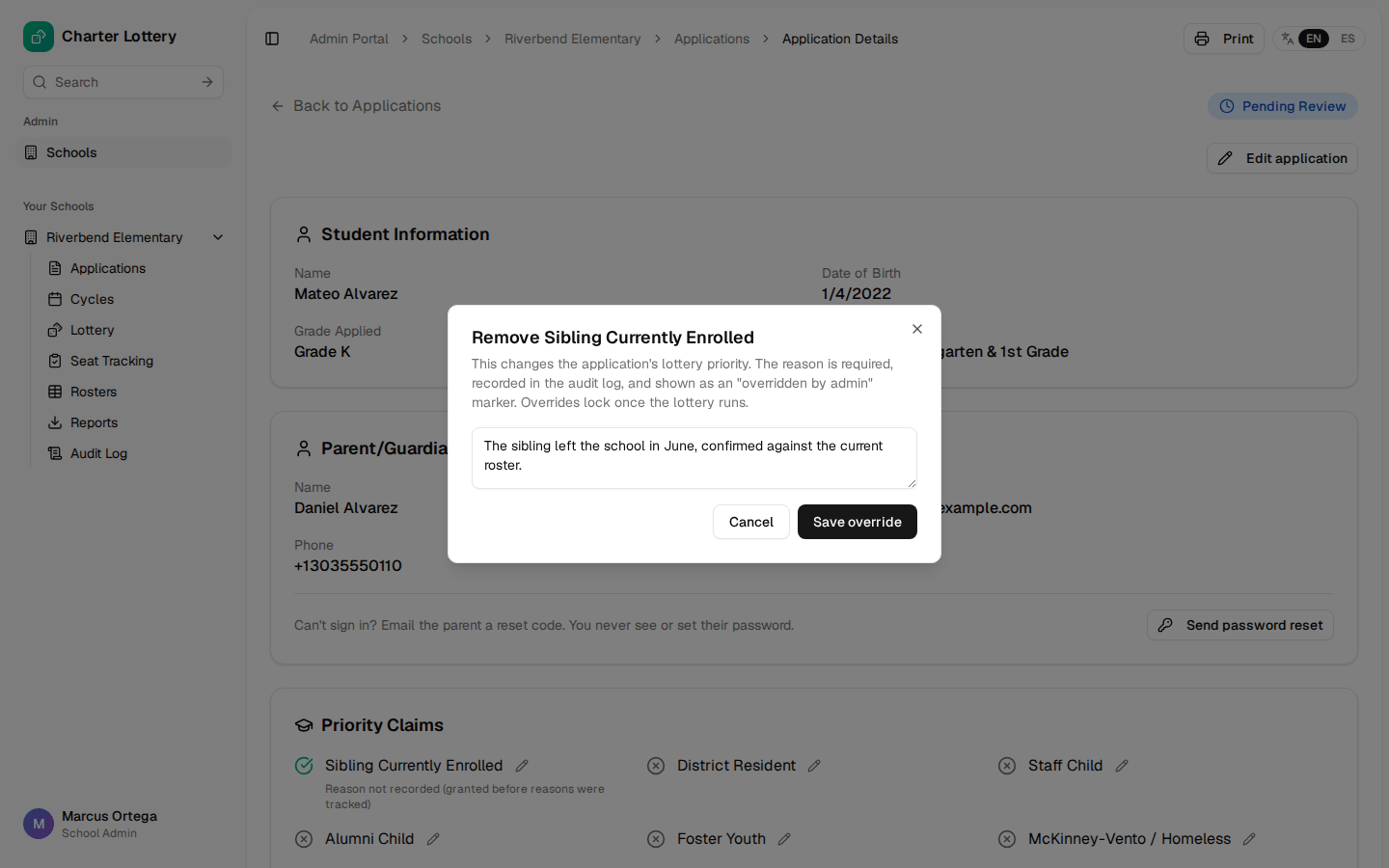
Step 17. Correct a priority
Select the pencil beside a priority to add or remove it. A reason is required, the change goes in the audit log, and overrides lock once the lottery runs.
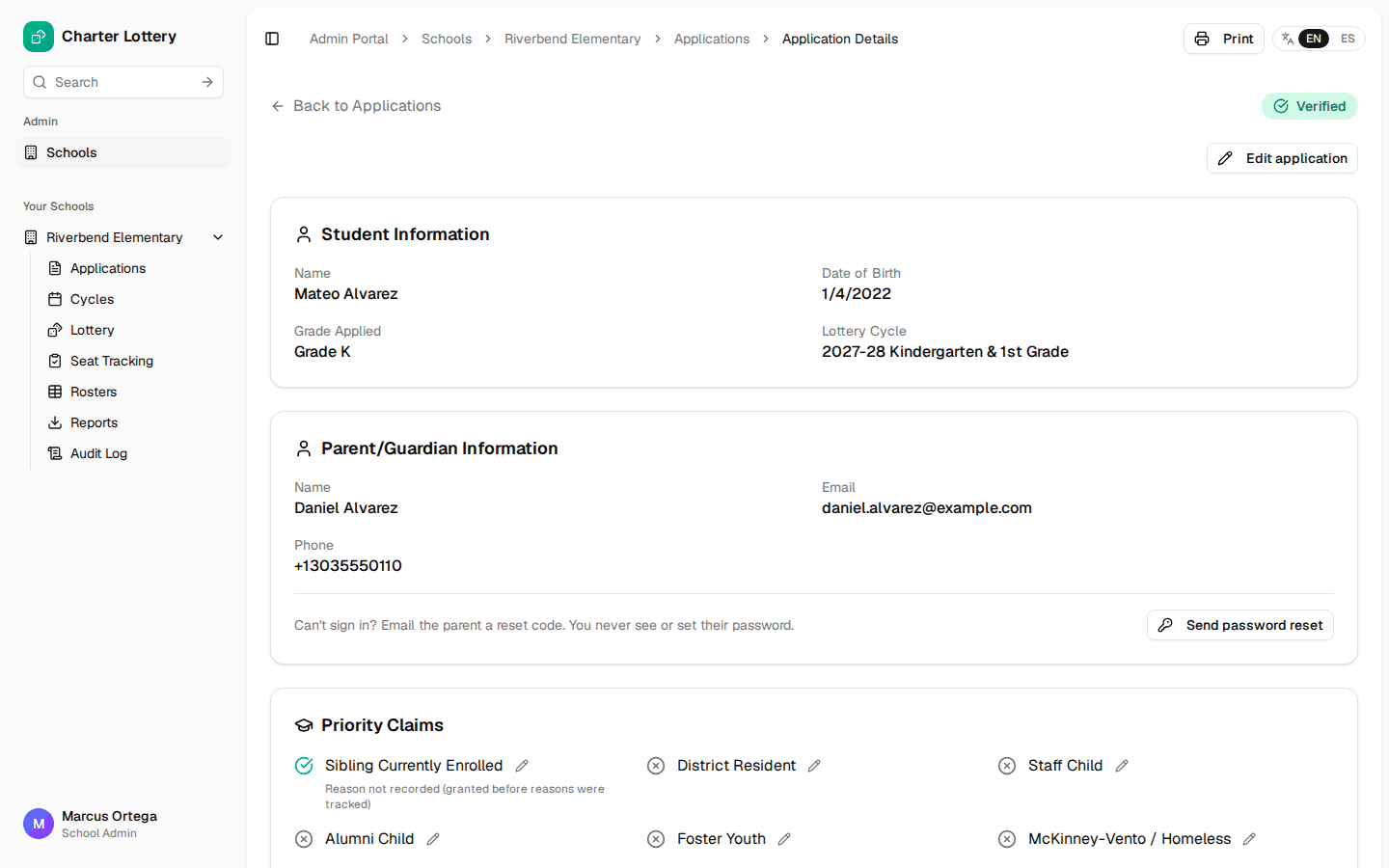
Step 18. Verify
Select Verify when the application is complete. Only verified applications go into the lottery.
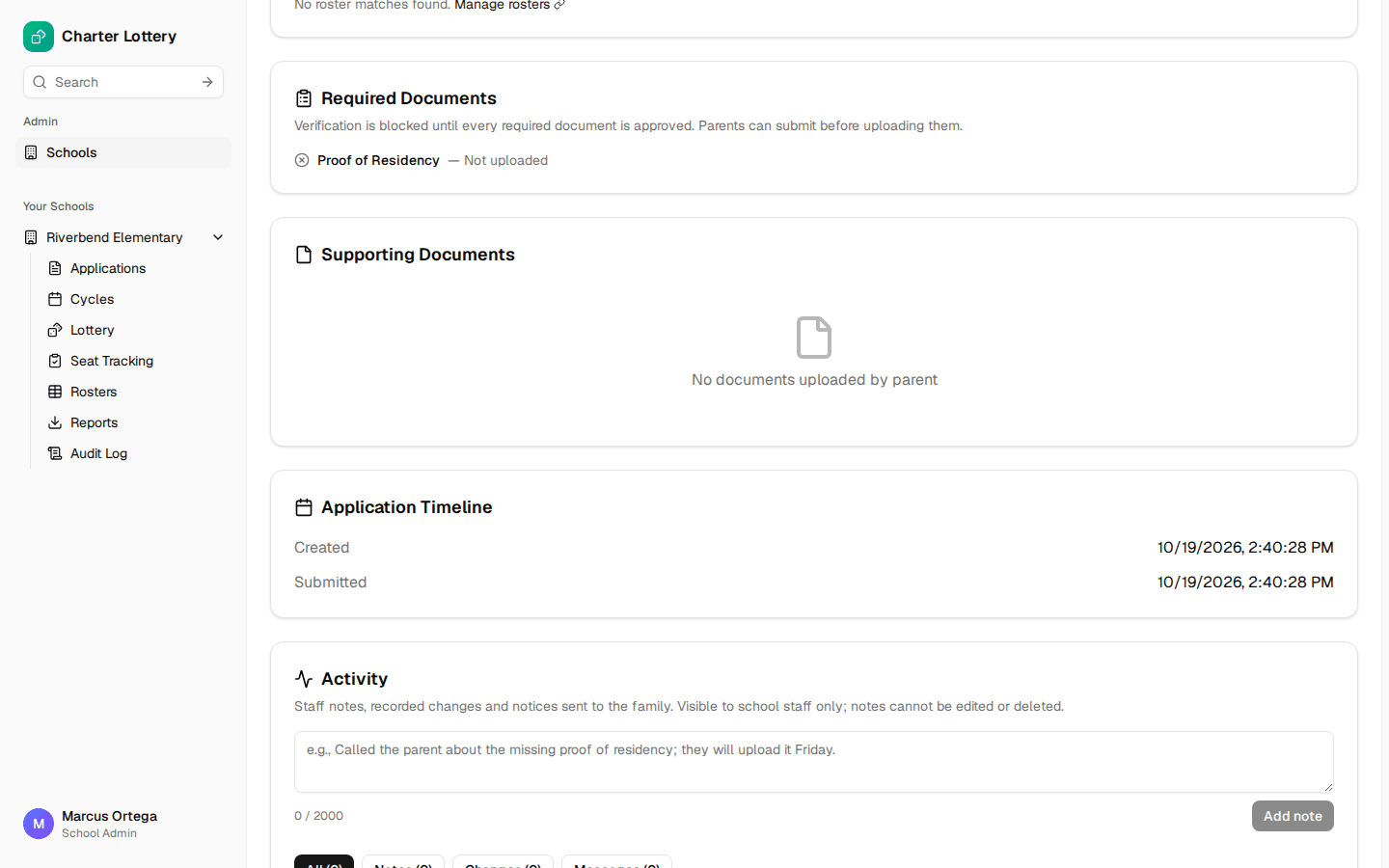
Step 19. When a required document is missing
You cannot verify until every required document is approved. Contact the family, and record the call in Activity.
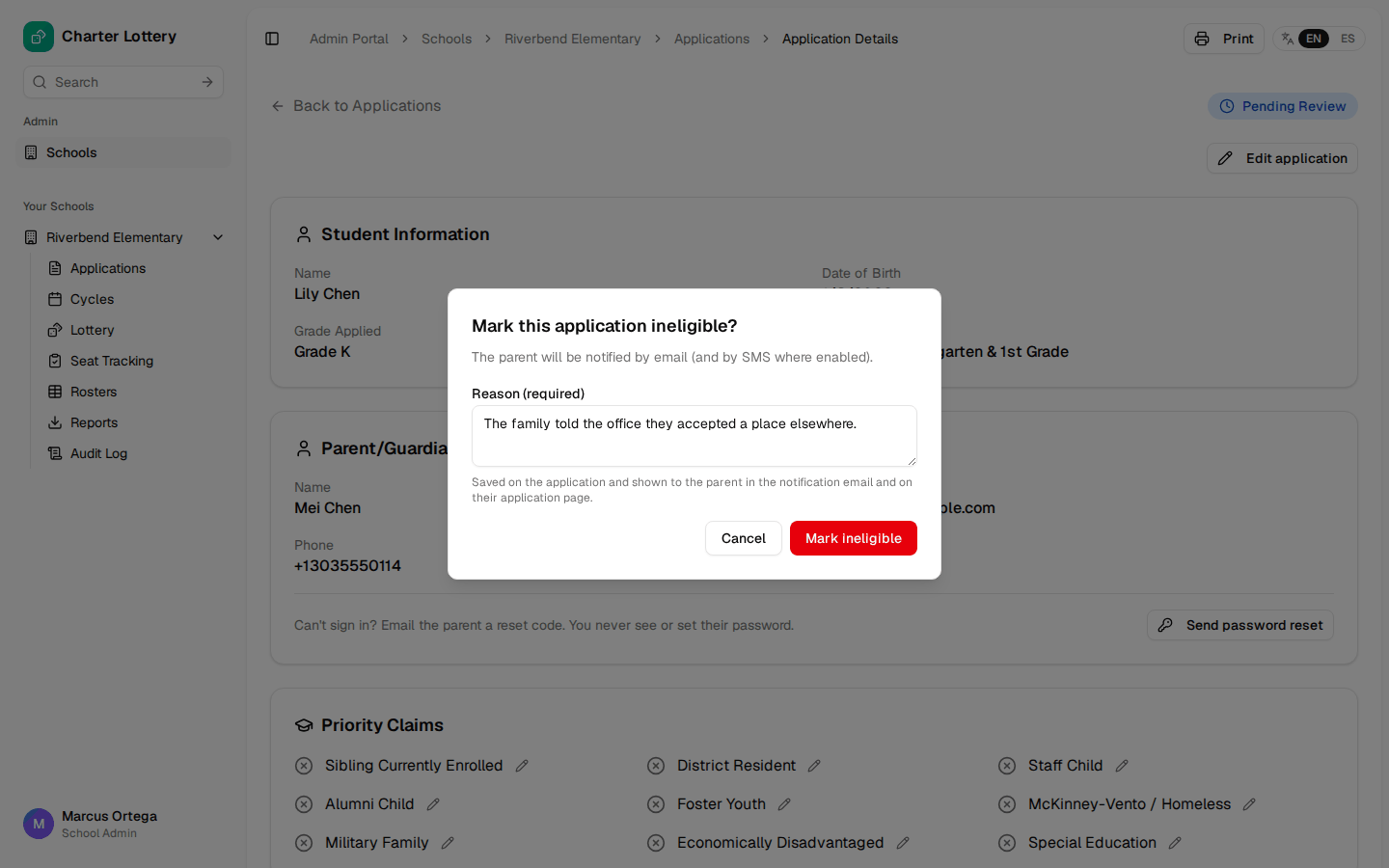
Step 20. Mark an application ineligible
Select Ineligible and enter a reason. The family sees that reason in their notice and on their application page, so write it for them.
Step 21. Clear the queue
Before closing, make sure Needs Review is empty or that each remaining application is held for a reason.
Part 6 · Run the lottery
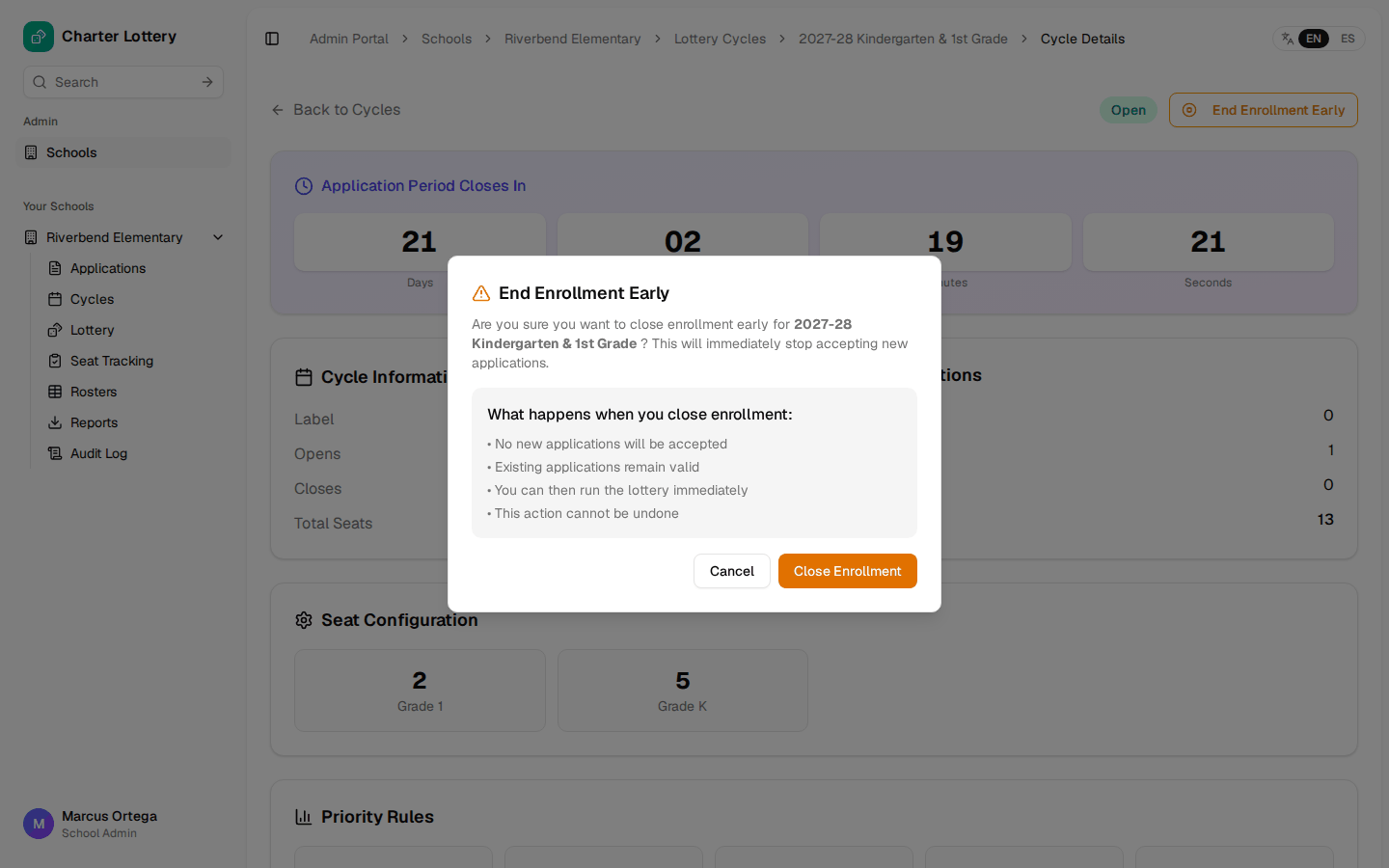
Step 22. Close enrollment
The cycle closes on its closing date. To close it sooner, select End Enrollment Early. This cannot be undone.
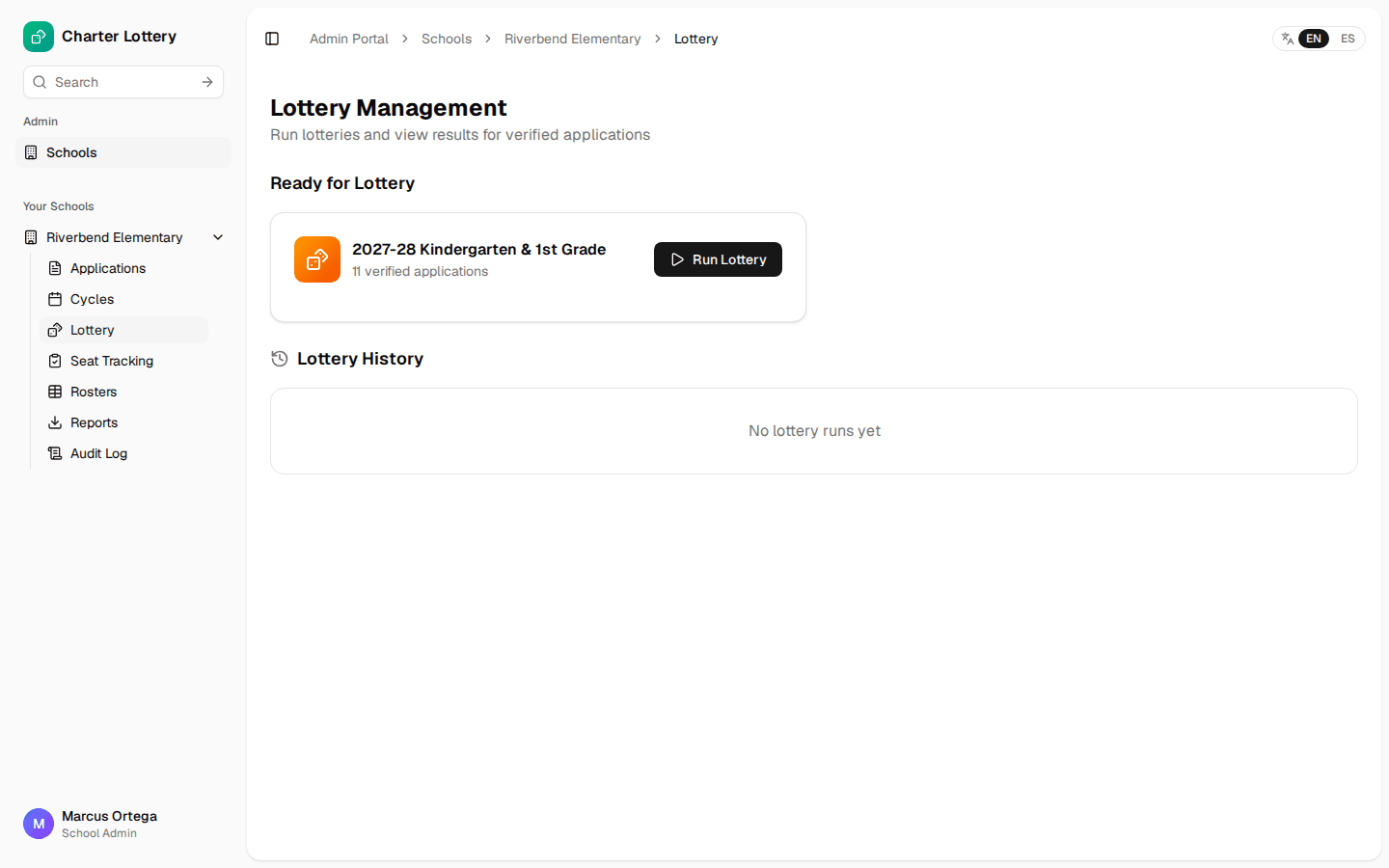
Step 23. Start the lottery
Choose Lottery, then Run Lottery. If the organization pays per school and this school has no subscription, Charter Lottery asks you to subscribe first.
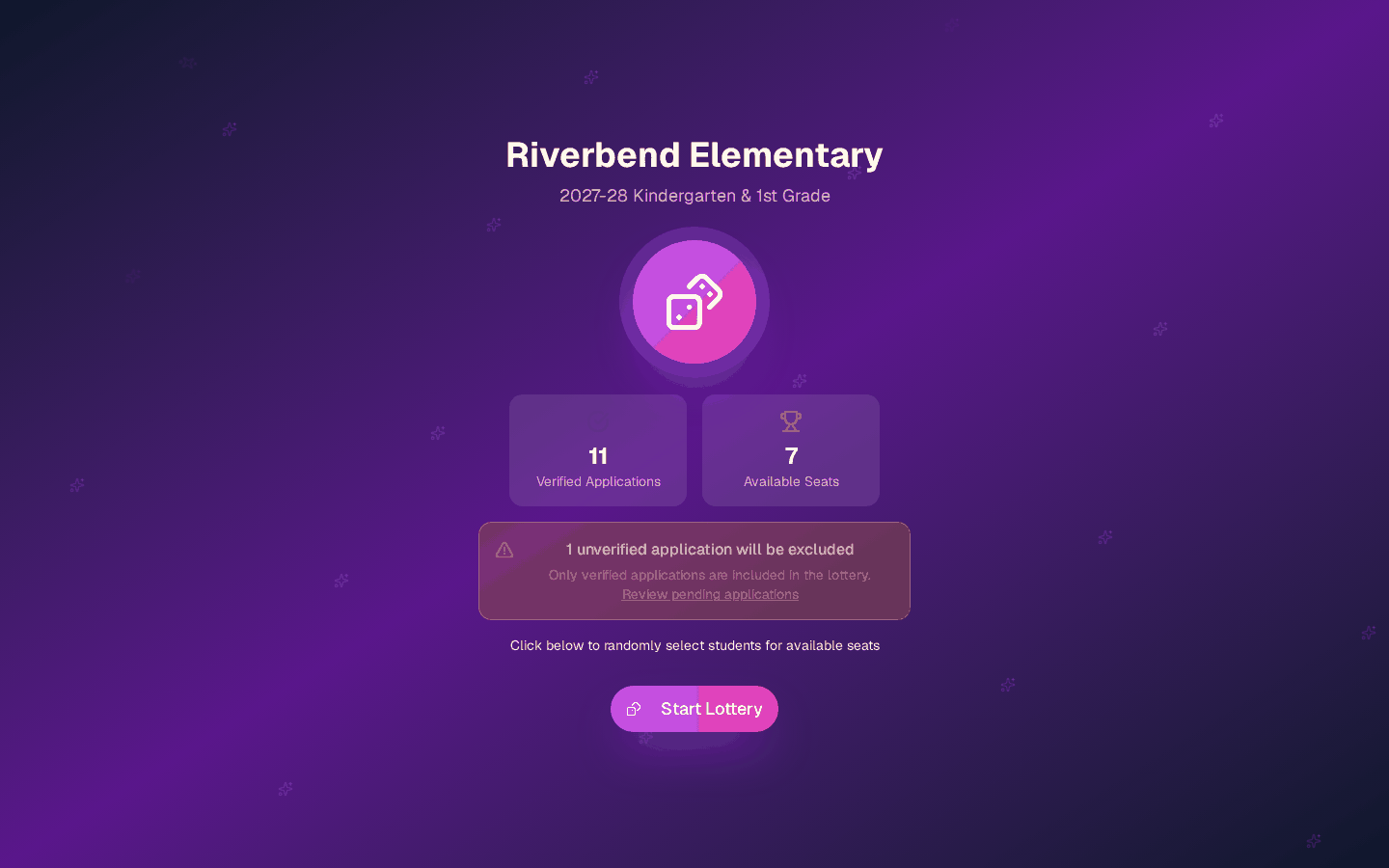
Step 24. Check the numbers
The page shows verified applications, seats, and how many unverified applications will be left out. If that number is wrong, go back and review them now. Select Start Lottery.
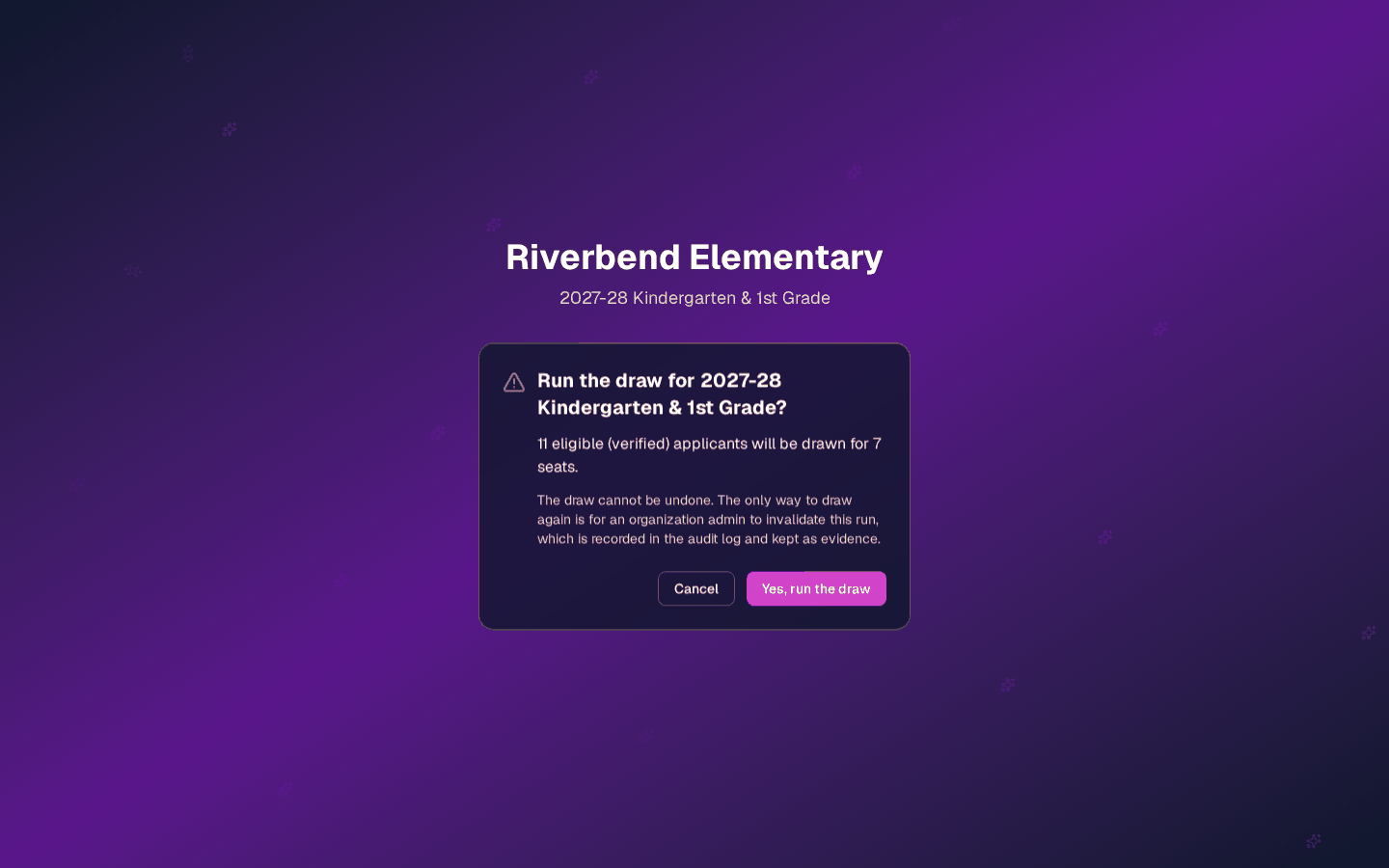
Step 25. Confirm the draw
The draw cannot be undone. Only an organization admin can invalidate a run, and that is recorded as evidence. Select Yes, run the draw.
Part 7 · Publish results
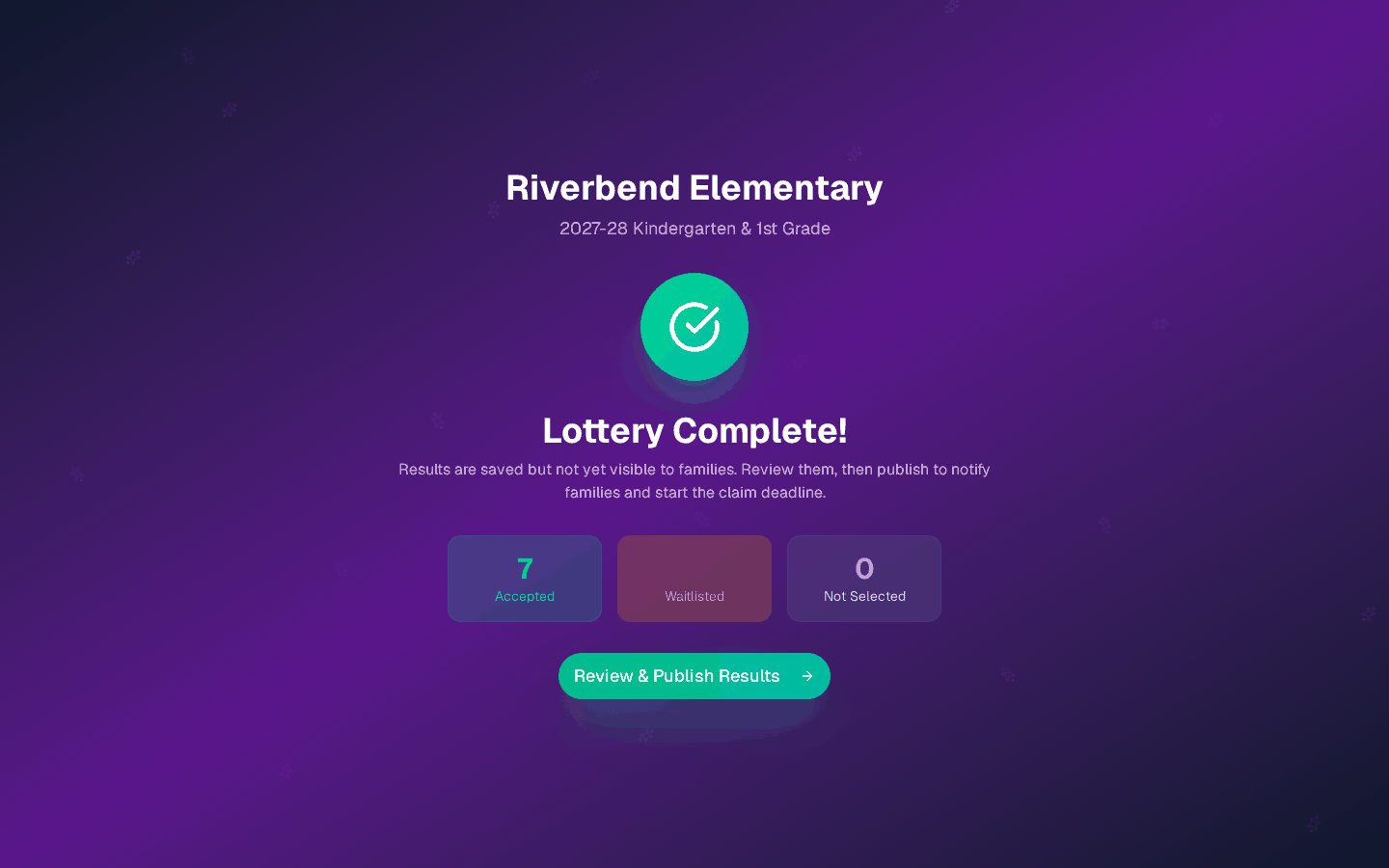
Step 26. Review before publishing
Results are saved but hidden. Check each grade. Everyone not offered a seat goes on the waitlist in draw order.
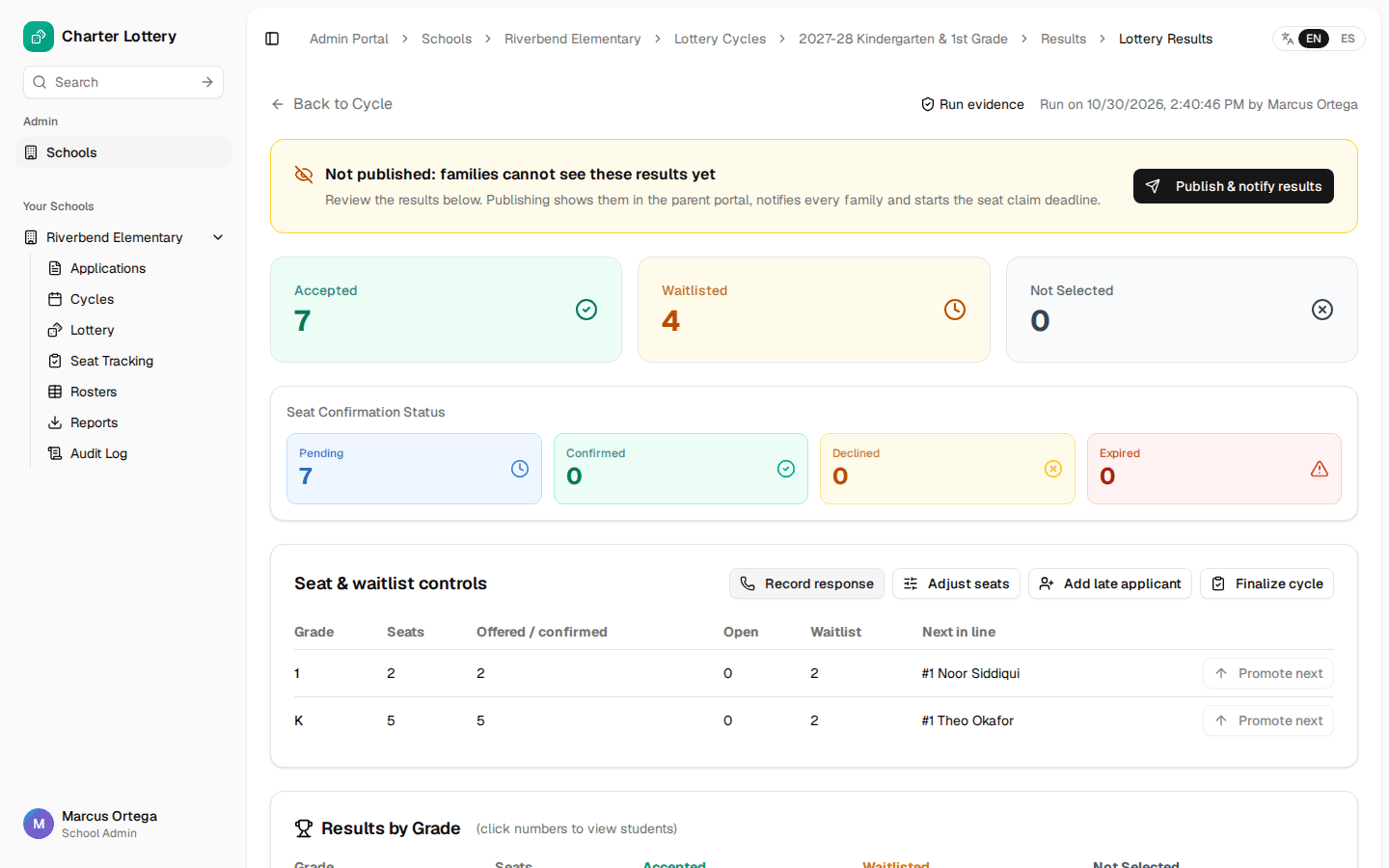
Step 27. Publish and notify
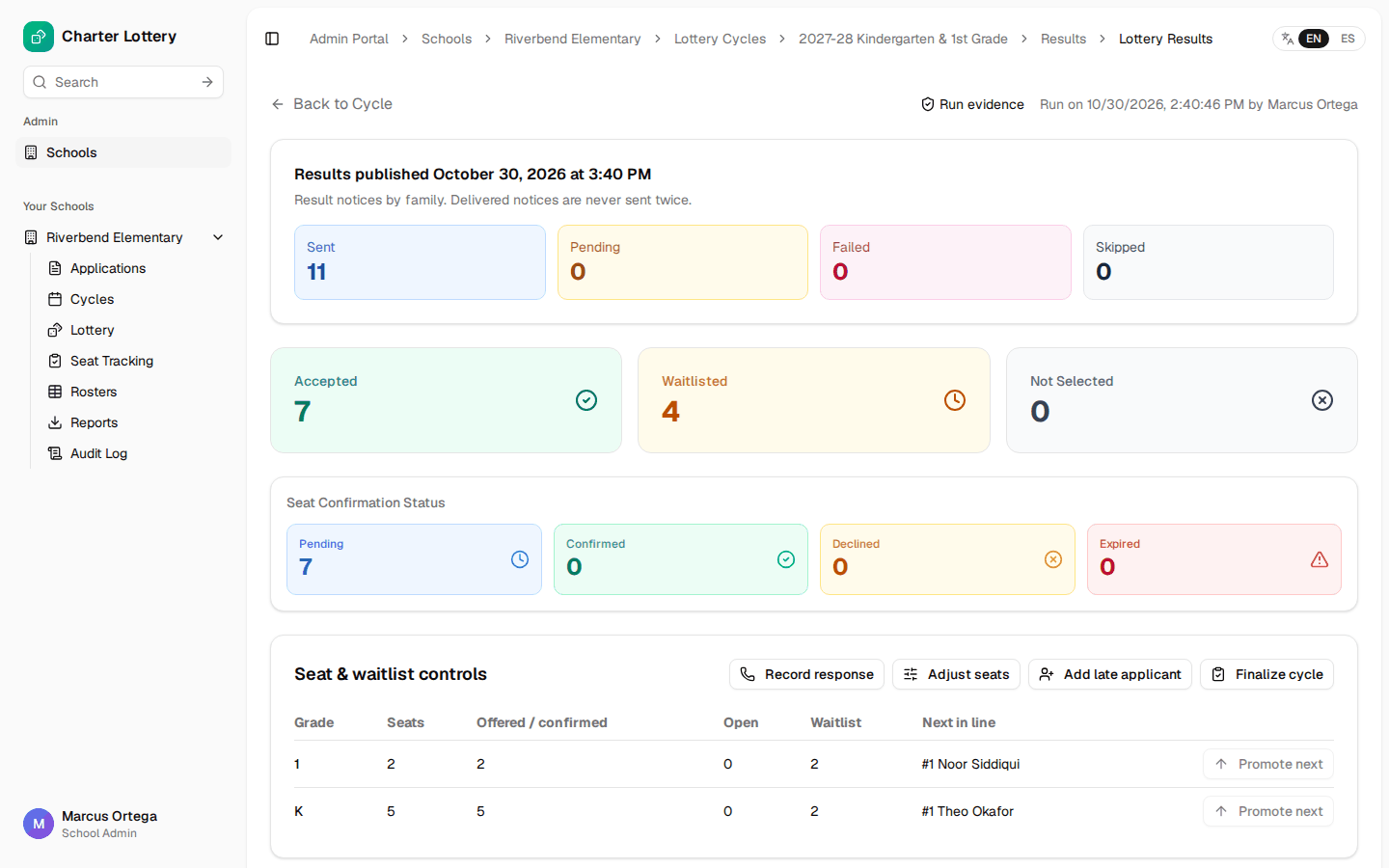
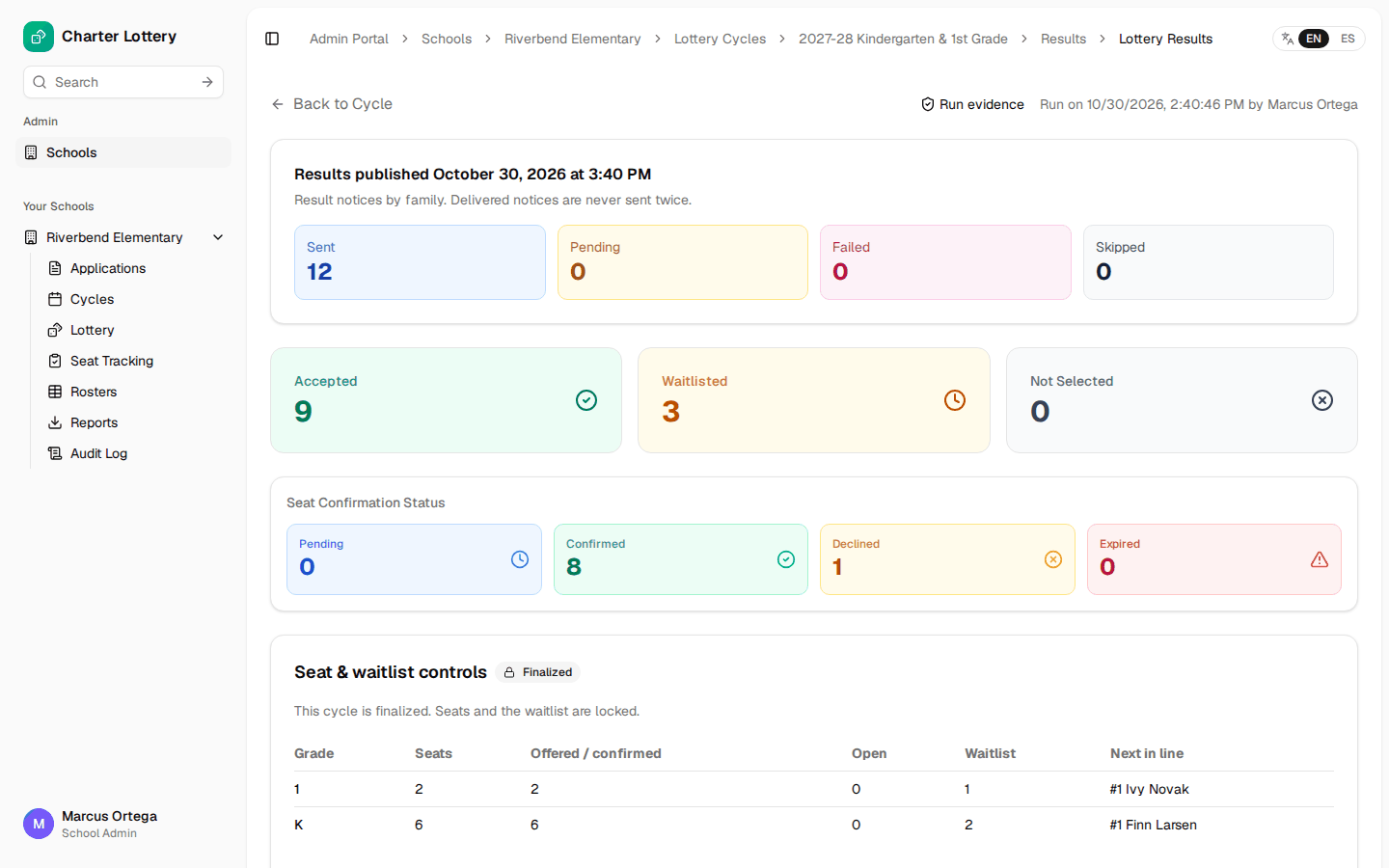
Select Publish & notify results. The dialog shows how many families will be told and the deadline to respond. Publishing cannot be undone. Afterward, check the Sent and Failed counts.
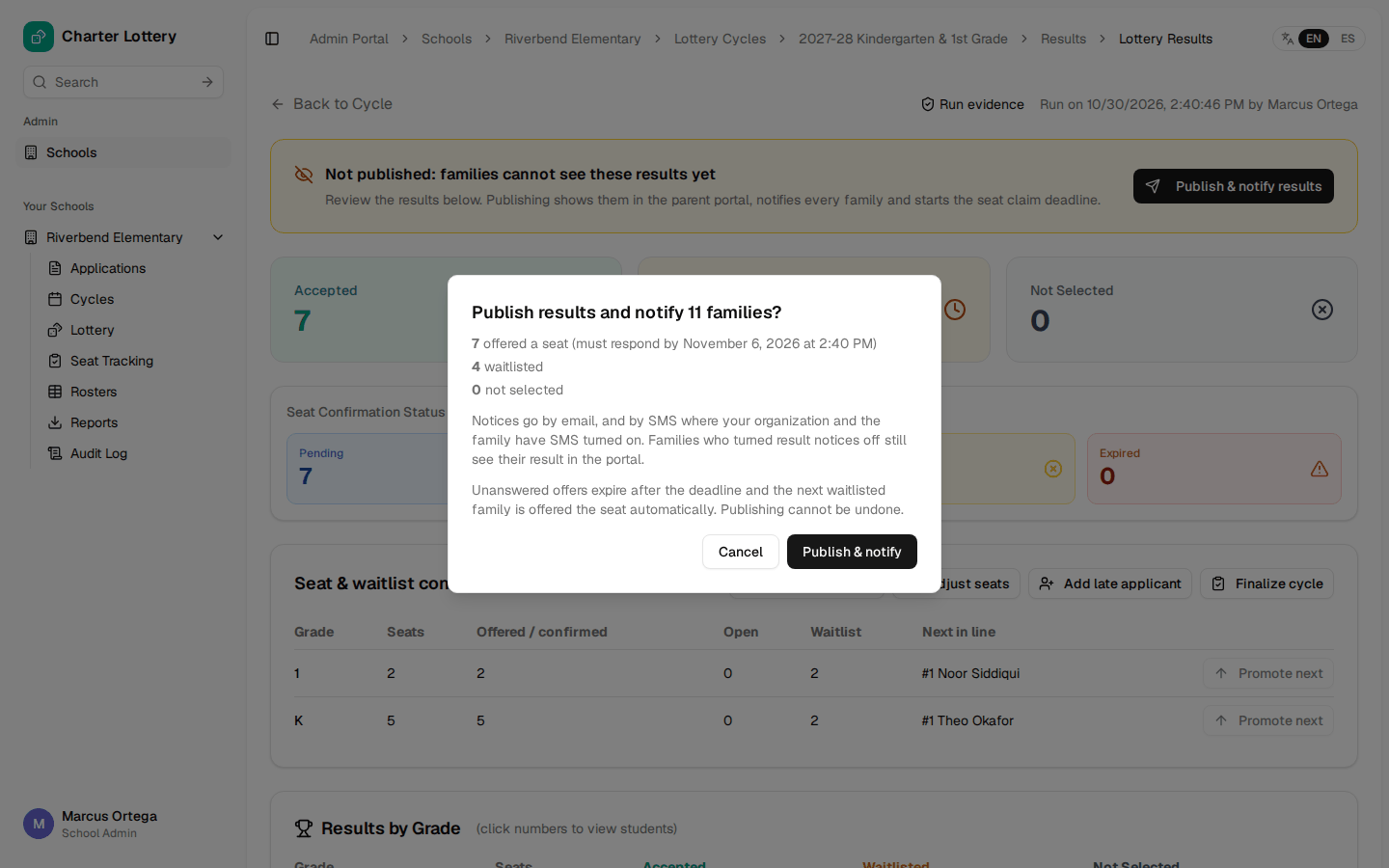
Step 28. Keep the evidence
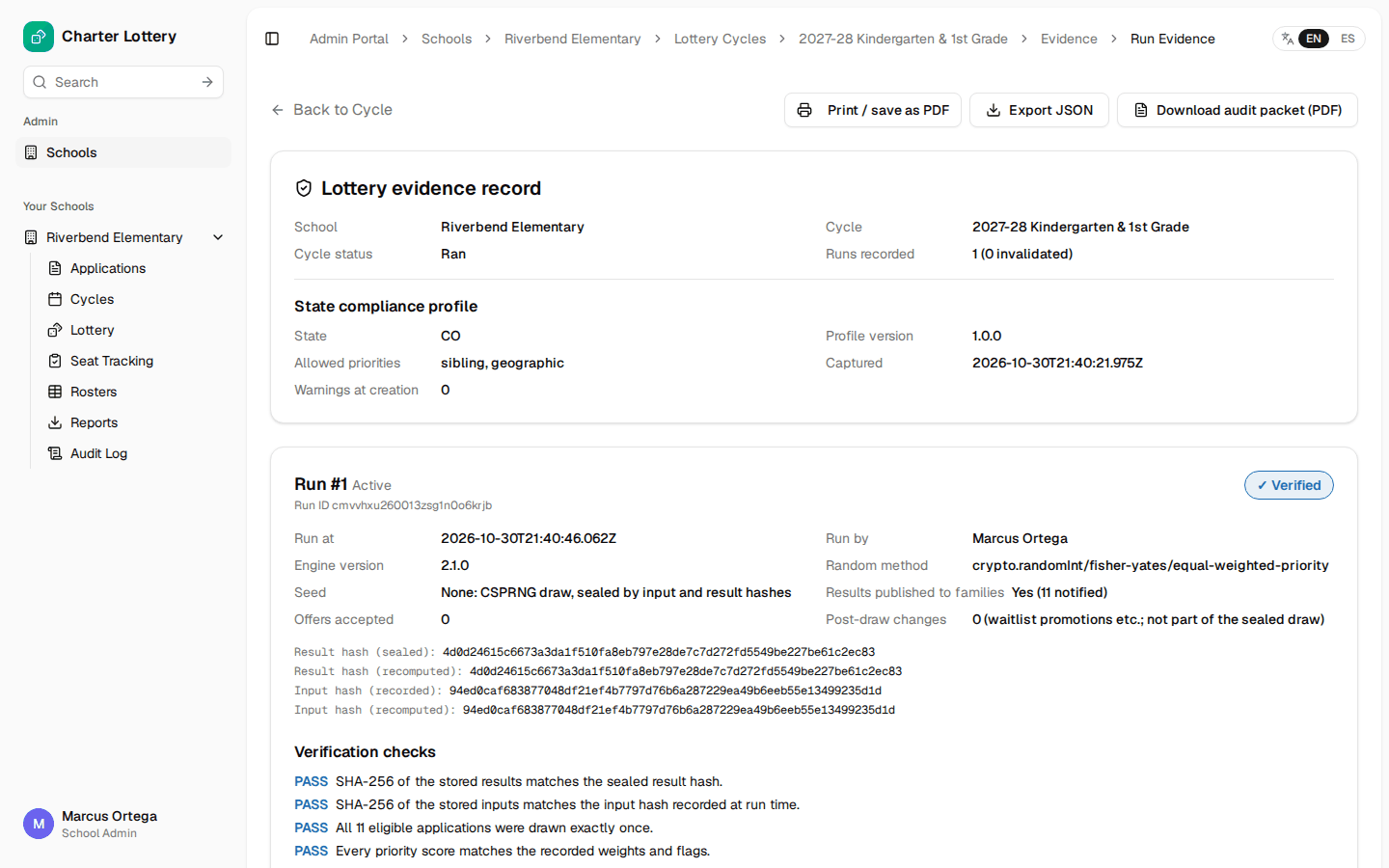
Run evidence holds the record of the draw, its verification checks and the audit packet PDF. This is what you show a board or authorizer.
Step 29. What a family sees
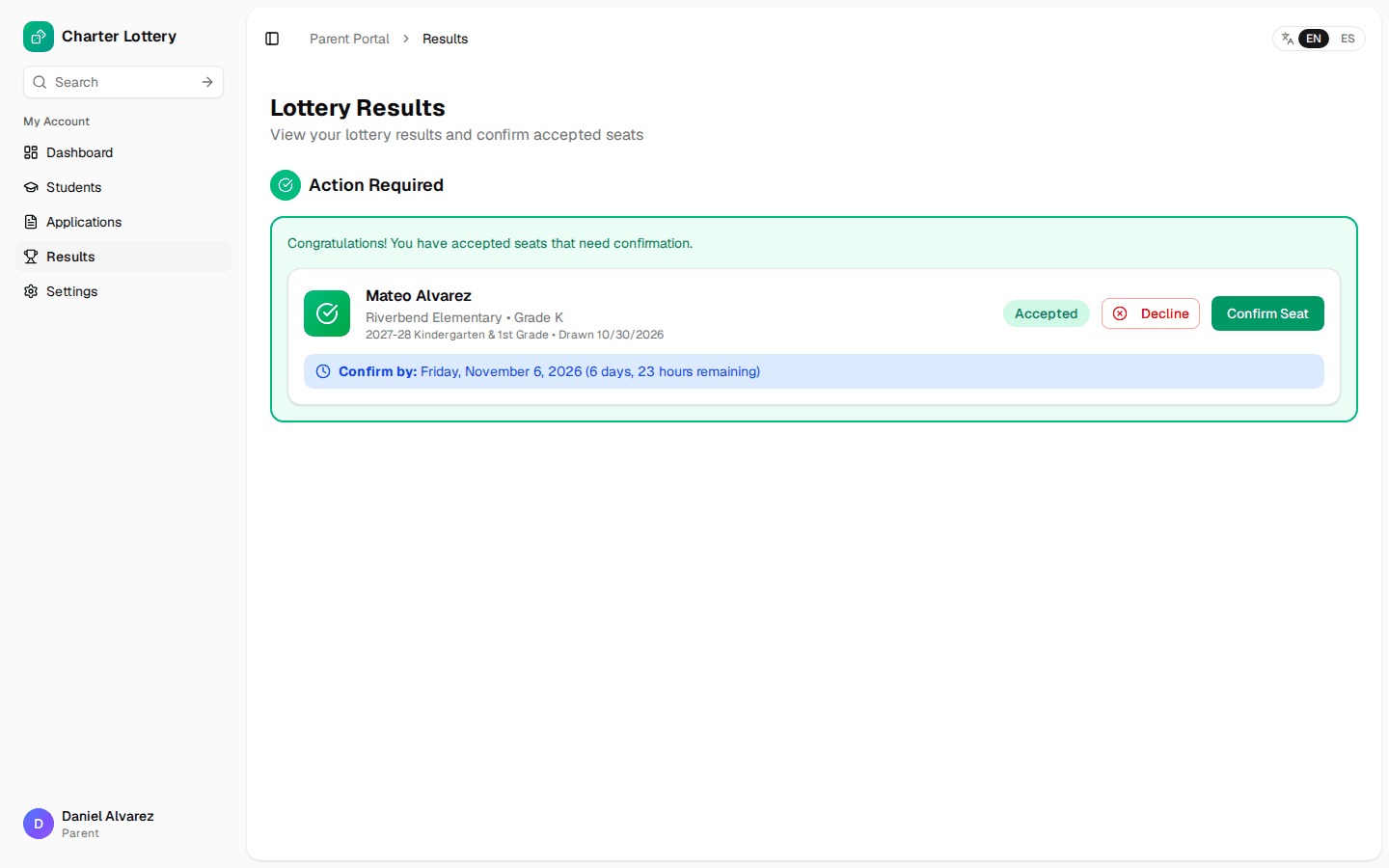
A family with an offer sees Confirm Seat and Decline, with the deadline.
Part 8 · Manage seats and the waitlist
Step 30. Track responses
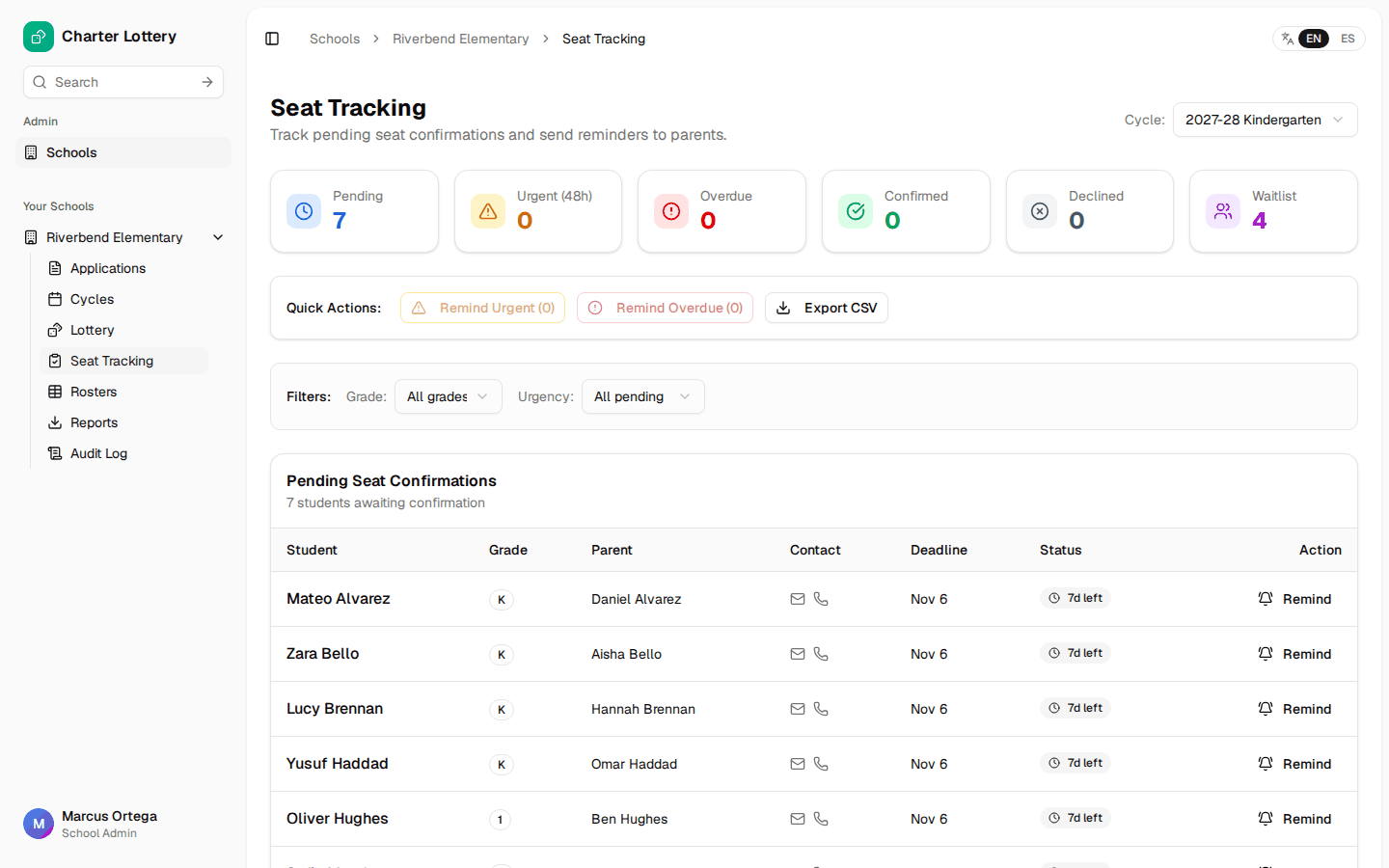
Seat Tracking shows who has not answered and who is close to their deadline. Select Remind for one family, or use the quick actions. Charter Lottery also sends automatic reminders.
Step 31. Use the seat controls
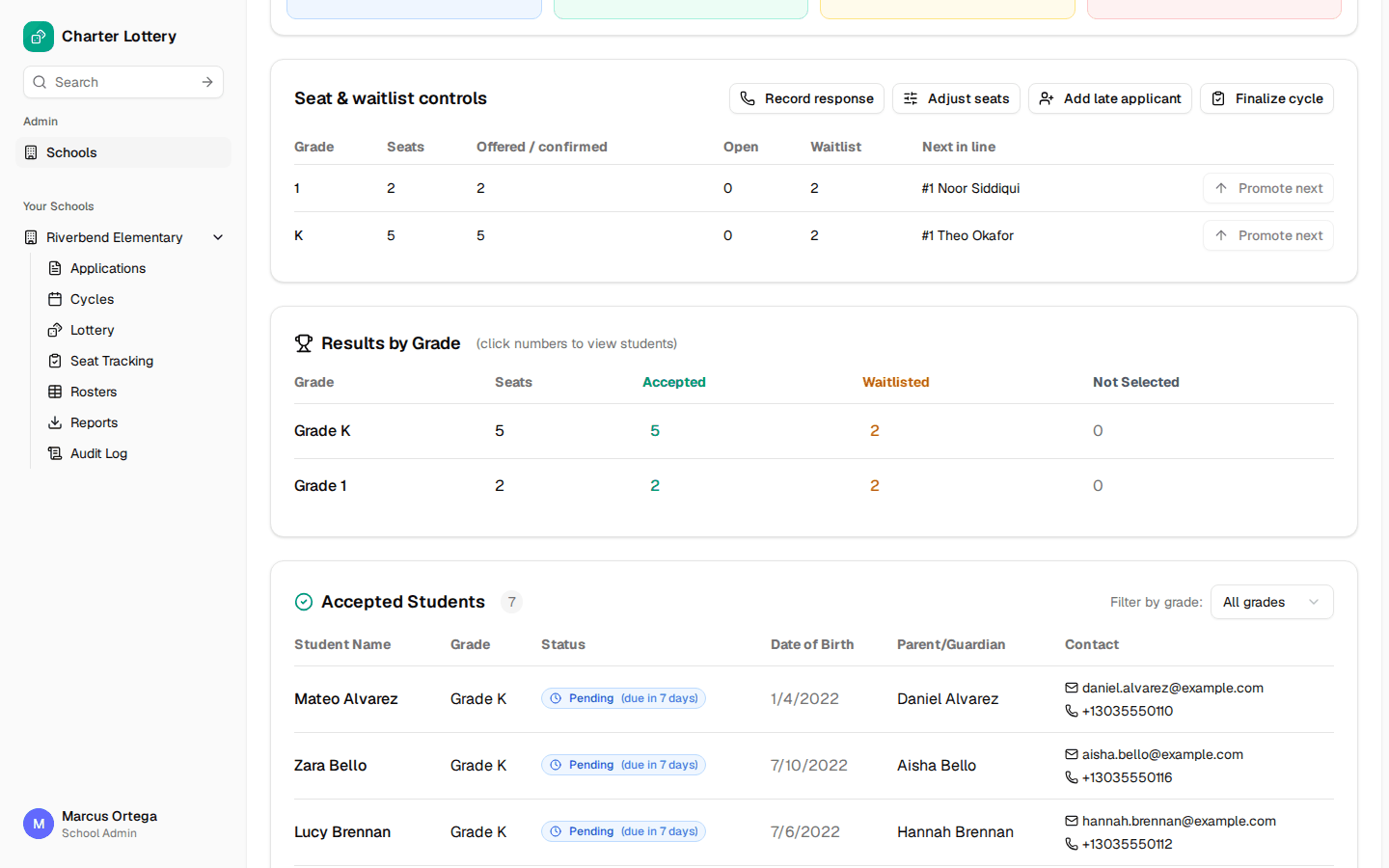
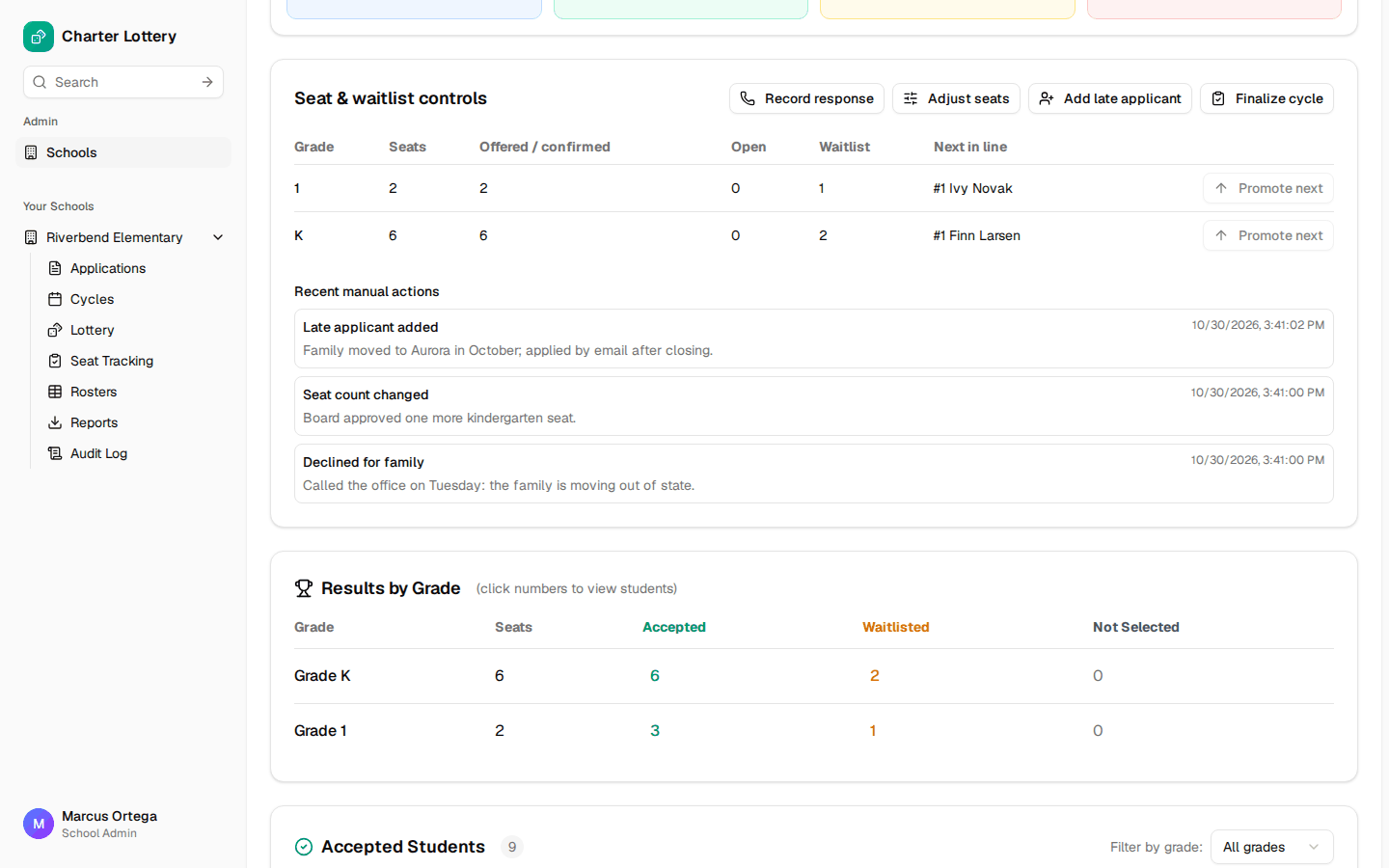
The results page has Seat & waitlist controls. Promote next is available only when a grade has an open seat and someone waiting. Declines, expired offers and added seats fill from the waitlist automatically.
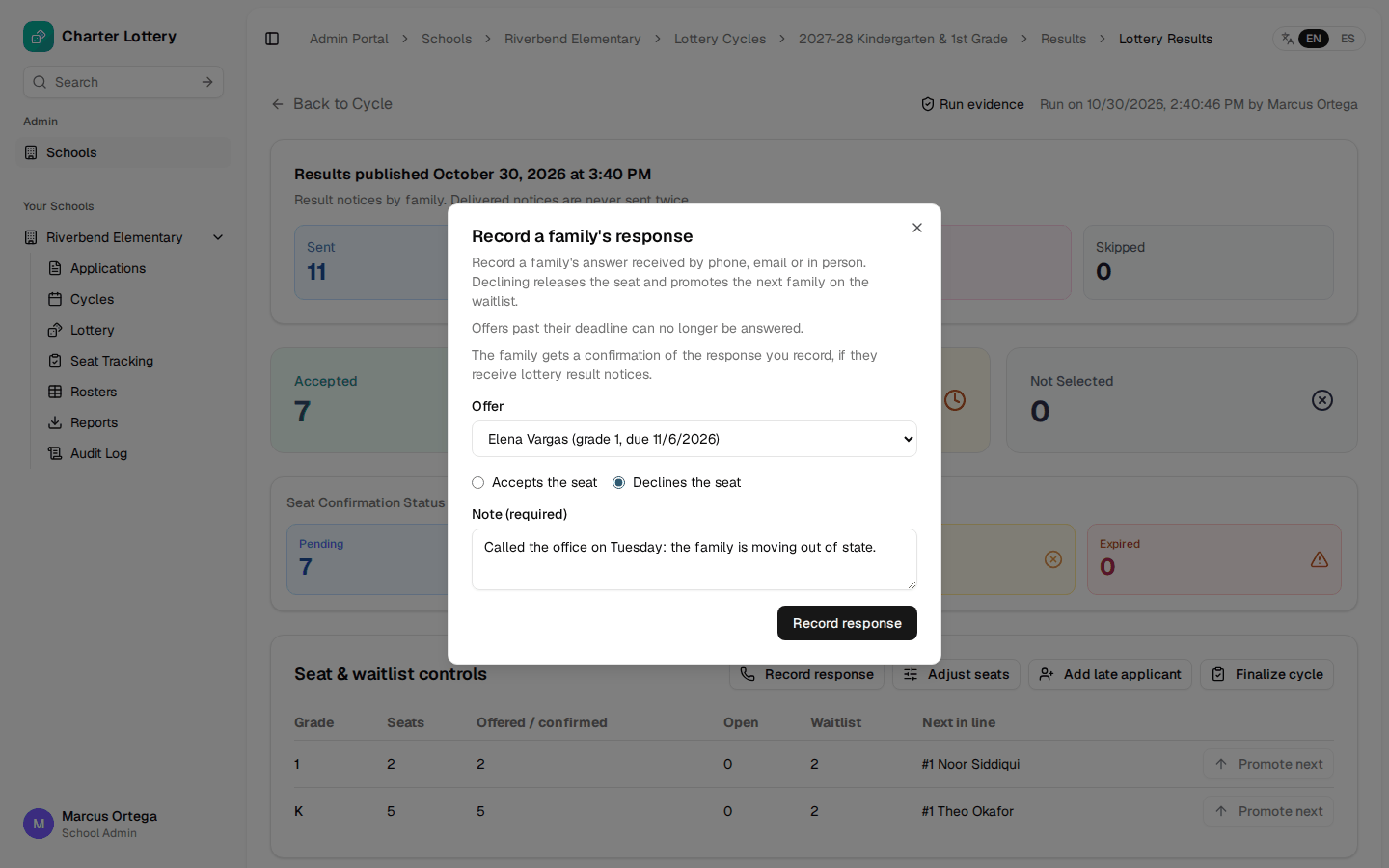
Step 32. Record a phone or in-person answer
Select Record response, choose the family, and enter a note. A decline releases the seat and offers it to the next family.
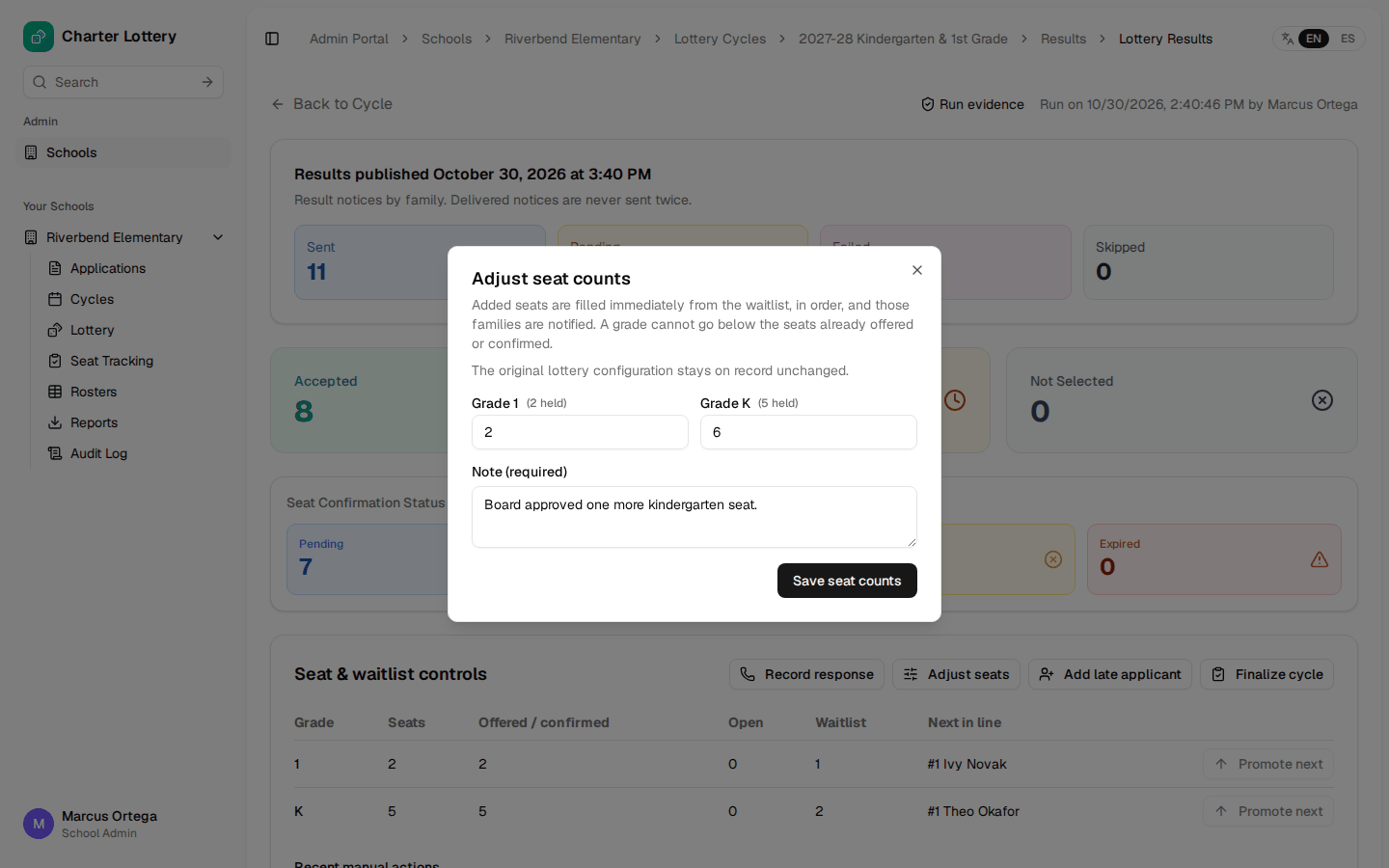
Step 33. Add seats
Select Adjust seats. New seats are offered straight away to waitlisted families, in order, and they are notified. The original lottery configuration stays on record.
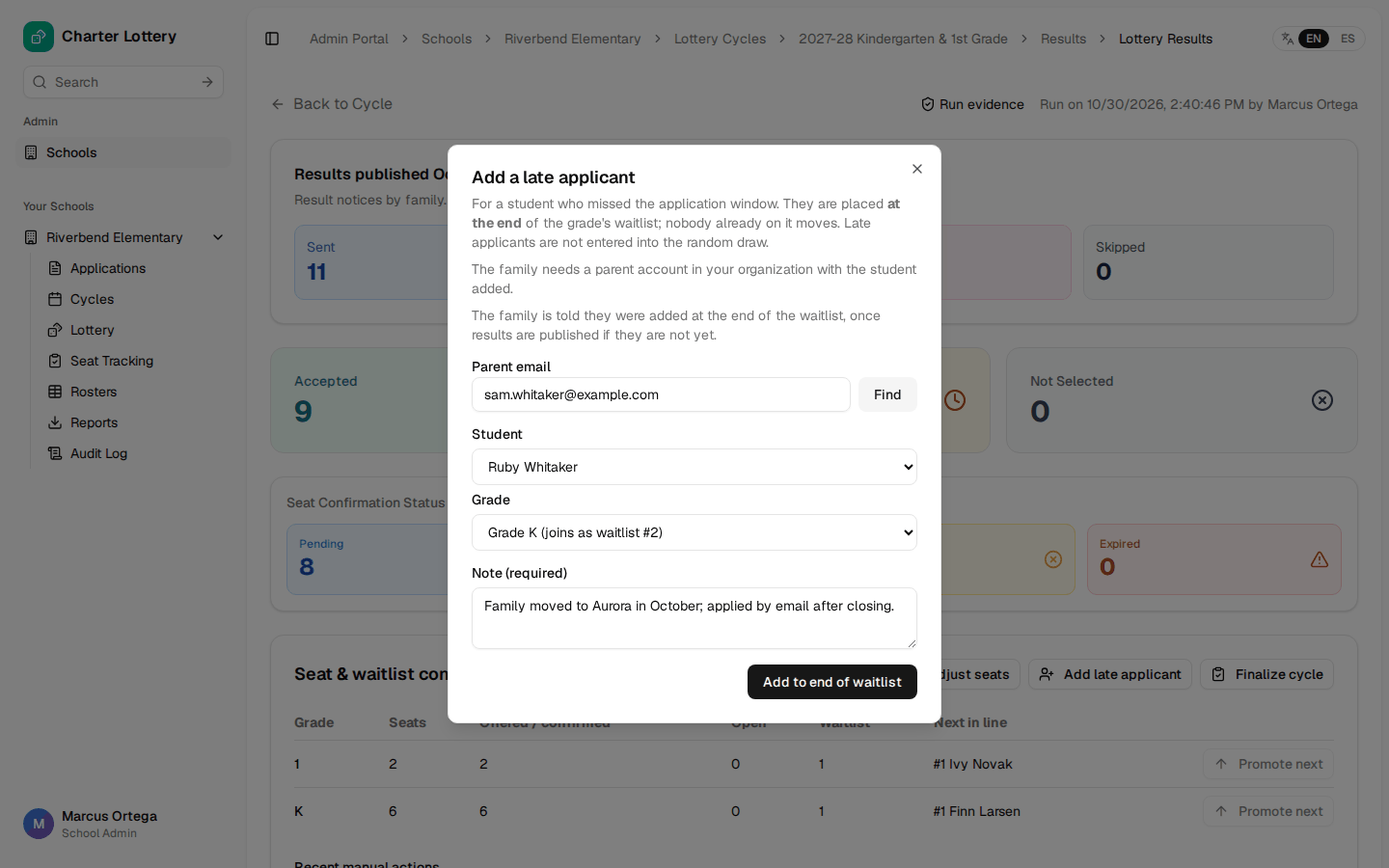
Step 34. Add a late applicant
Select Add late applicant and find the family by parent email. They need an account with the student added. Late applicants join the end of the waitlist and nobody already on it moves.
Part 9 · Close the season
Step 35. Export reports
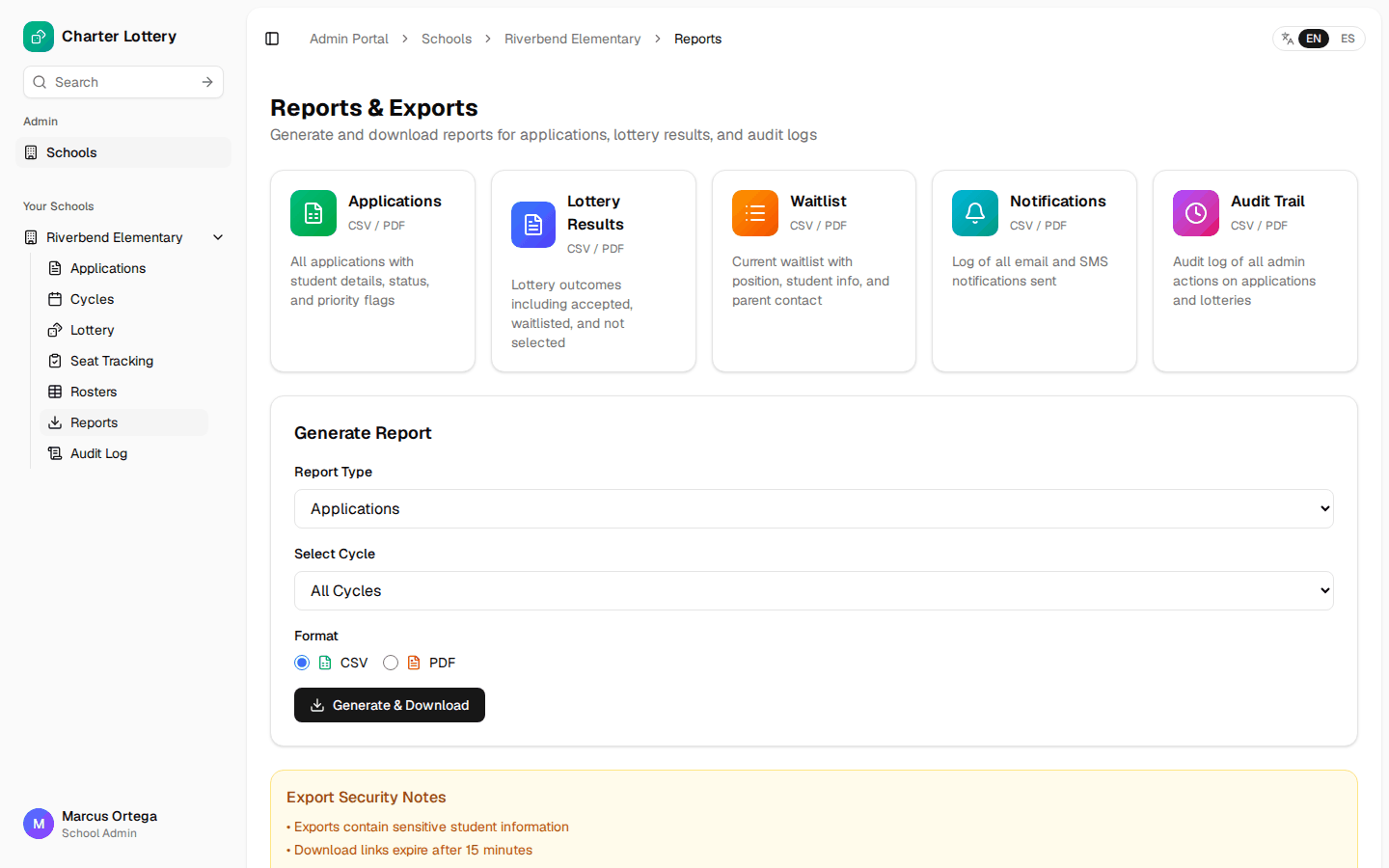
Reports produces applications, results, waitlist, notifications and audit trail files. Exports contain student information, and download links expire after 15 minutes.
Step 36. Check the audit log
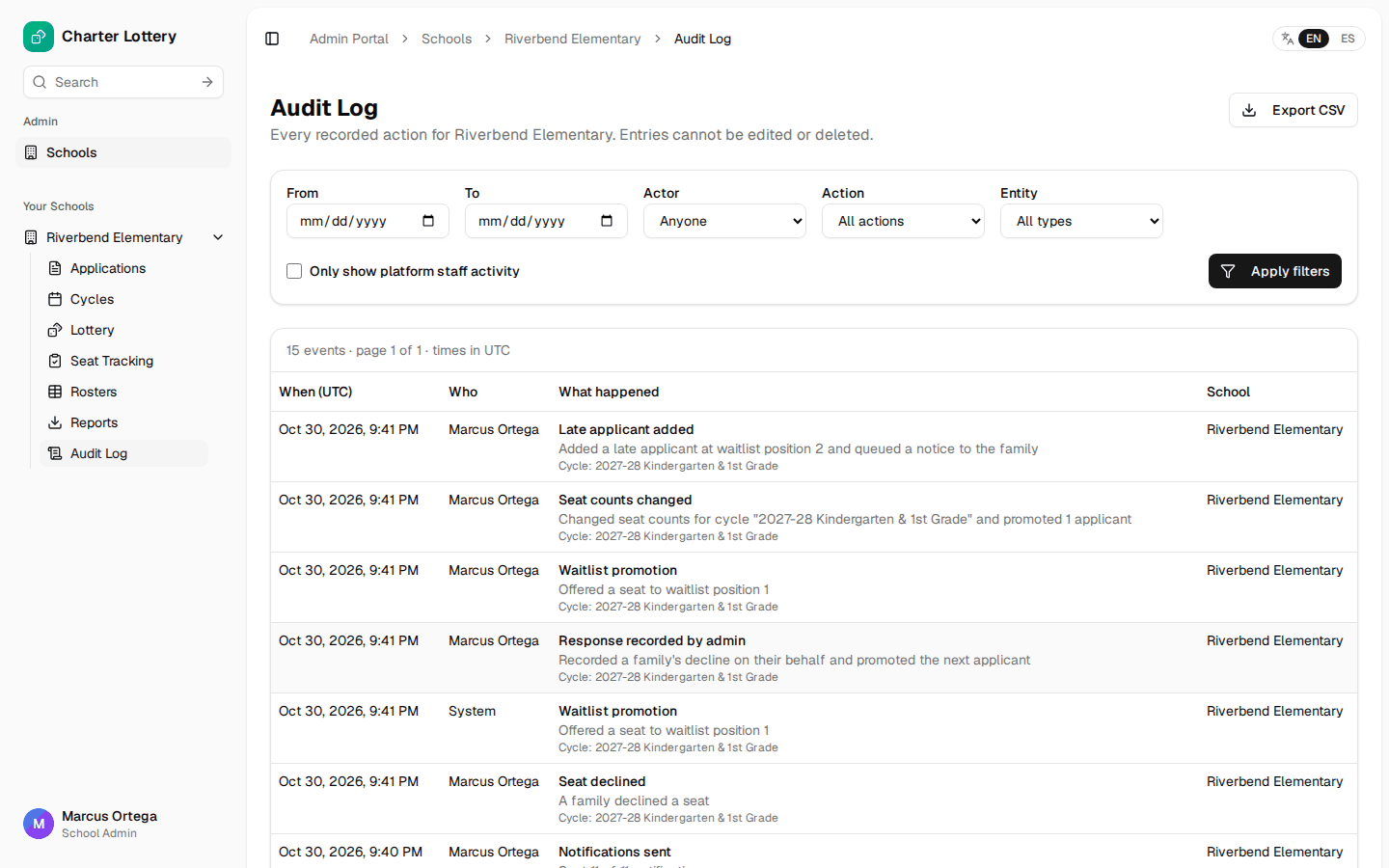
Every recorded action is here, and entries cannot be edited or deleted.
Step 37. Finalize the cycle
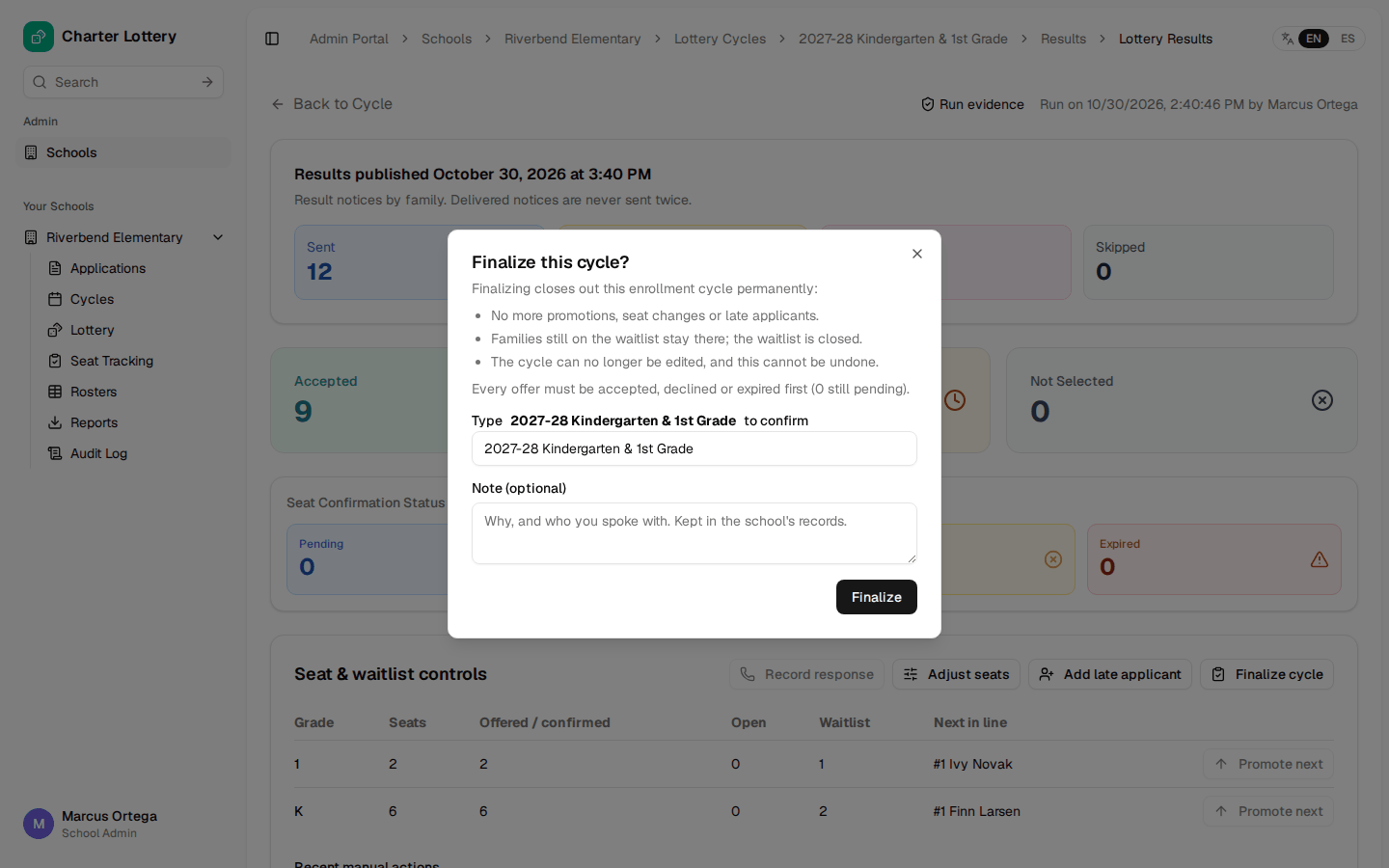
When every offer has been answered or has expired, select Finalize cycle and type the cycle's label to confirm. This cannot be undone. Seats and the waitlist lock, and families still on the waitlist stay there.
Who to ask
| You need to | Ask |
|---|---|
| Add or remove a school from your account | Organization admin |
| Resend an expired invitation | Organization admin |
| Change email or SMS notices, the logo or colors | Organization admin |
| Change the waitlist promotion deadline | Organization admin |
| Create or change the parent portal | Organization admin |
| Invalidate a draw and run it again | Organization admin |
| Lost both your phone and your recovery codes | Charter Lottery support, after an identity check |
Season checklist
- Two-step sign-in is set up and recovery codes are saved
- Required documents and the waitlist setting are right
- Seats, dates and priorities match your board-approved policy
- Every application is verified, ineligible or held for a reason
- Results were reviewed before publishing, and no notices failed
- The audit packet is saved
- Every offer is answered or expired before you finalize
Support
Help: support@charterlottery.com. Charter Lottery does not publish support hours or a response time.